How to Identify the Dell Trusted Device Version
Summary: Learn how to identify the version of Dell Trusted Device by following these step-by-step instructions.
Acest articol se aplică pentru
Acest articol nu se aplică pentru
Acest articol nu este legat de un produs specific.
Acest articol nu acoperă toate versiunile de produs existente.
Instructions
Knowing the version of Dell Trusted Device allows an administrator to:
- Validate system requirements
- Identify known issues
- Understand process changes
Affected Products:
- Dell Trusted Device
Affected Versions:
- v1.0 and Later
Affected Platforms:
- Latitude
- OptiPlex
- Precision
- XPS
Affected Operating Systems:
- Windows
Versioning can be determined either through the product user interface (UI) or by command-line interface (CLI). Click the appropriate method for more information.
UI
- Right-click the Windows Start menu and then click Run.
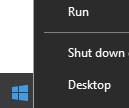
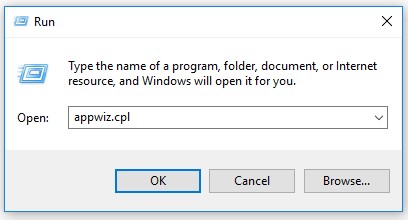
- In the Run UI, type
appwiz.cpland then press OK.
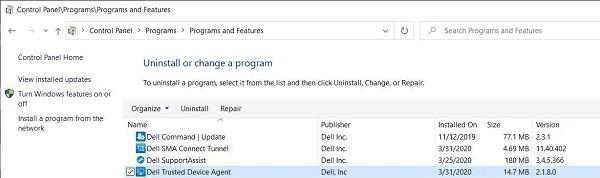
- In Programs and Features, record the Version of Dell Trusted Device. In the example, 2.1.8 is the product version.
CLI
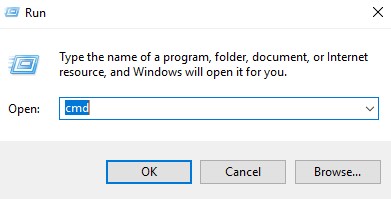
- Right-click the Windows Start menu and then click Run.
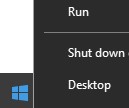
- In the Run UI, type
cmdand then press OK.
- Type
wmic path win32_product where (Caption like "%Trusted Device%") get versionand then press Enter.

- Record the Version. In the example, 2.1.8.0 is the product version.
 Note: The version of your client may differ from the above screenshot.
To contact support, reference Dell Data Security International Support Phone Numbers.
Go to TechDirect to generate a technical support request online.
For additional insights and resources, join the Dell Security Community Forum.
Produse afectate
Dell Trusted DeviceProprietăți articol
Article Number: 000131036
Article Type: How To
Ultima modificare: 19 Apr 2026
Version: 15
Găsiți răspunsuri la întrebările dvs. de la alți utilizatori Dell
Servicii de asistență
Verificați dacă dispozitivul dvs. este acoperit de serviciile de asistență.