How to Determine the Amount of Random Access Memory (RAM) Installed in your Chromebook
Summary: This article provides the steps for looking up the amount of RAM in a Chromebook.
Acest articol se aplică pentru
Acest articol nu se aplică pentru
Acest articol nu este legat de un produs specific.
Acest articol nu acoperă toate versiunile de produs existente.
Instructions
Memory Installed
Chromebook Users may not be aware of the process to show the amount of RAM installed in a Chromebook.
Show RAM Installed
To find out the amount of memory that is installed in a Chromebook complete the steps below:
- Open a browser and type the following on the address line: chrome://system/
- Scroll down the list until you find: Memory_spd_info
- Click expand and you can see the multiple lines. Look for Size_MB.
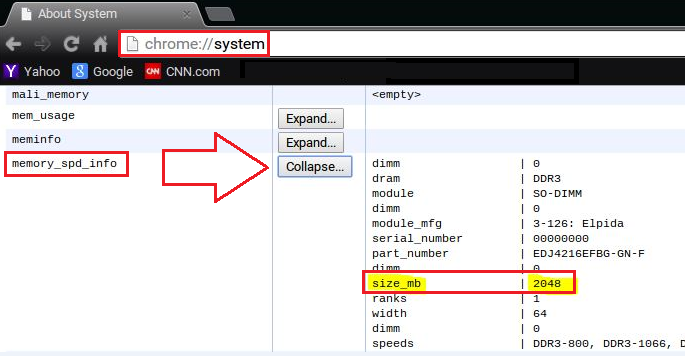
- This is the amount of memory that is installed in the Chromebook.
Produse afectate
Chromebook, Chromebook 11, Chromebook 3120 (End of Life), Chromebook 11 3180, Chromebook 11 3189, Chromebook 7310Proprietăți articol
Article Number: 000146742
Article Type: How To
Ultima modificare: 22 Aug 2025
Version: 5
Găsiți răspunsuri la întrebările dvs. de la alți utilizatori Dell
Servicii de asistență
Verificați dacă dispozitivul dvs. este acoperit de serviciile de asistență.