Data Domain:適用於 Windows 的 BoostFS - Windows 開機指令檔,可讓 BoostFS 在重新開機和使用者登出後持續掛接
Summary: BoostFS 是作業系統會在系統重新開機或使用者登出時停止的常規程序,而 Windows 掛接的 BoostFS 在沒有該程序的情況下無法繼續運作。 若要在系統啟動期間重新掛接 BoostFS 掛接,請在系統啟動指令檔中新增 boostfs 掛接命令。
Acest articol se aplică pentru
Acest articol nu se aplică pentru
Acest articol nu este legat de un produs specific.
Acest articol nu acoperă toate versiunile de produs existente.
Instructions
將共用啟動新增至 Windows 工作排程器 ,以便在系統啟動時自動執行。
1.使用管理員權限開啟 Windows 工作排程器並建立新工作。
在「常規」選項卡中 - 為任務提供友好名稱和說明,選擇使用者和組以提供使用者訪問許可權。
選取 「以最高權限執行核取方塊 」,並選取 「無論使用者是否登入都執行」 選項按鈕,然後按一下確定。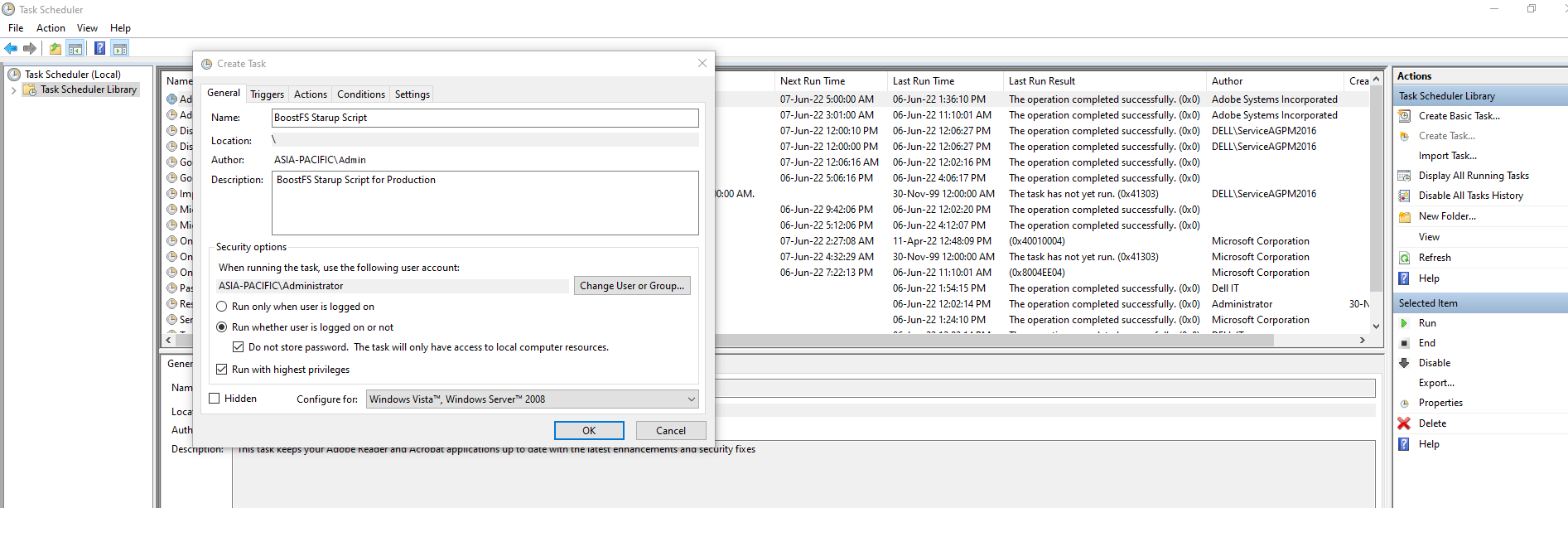
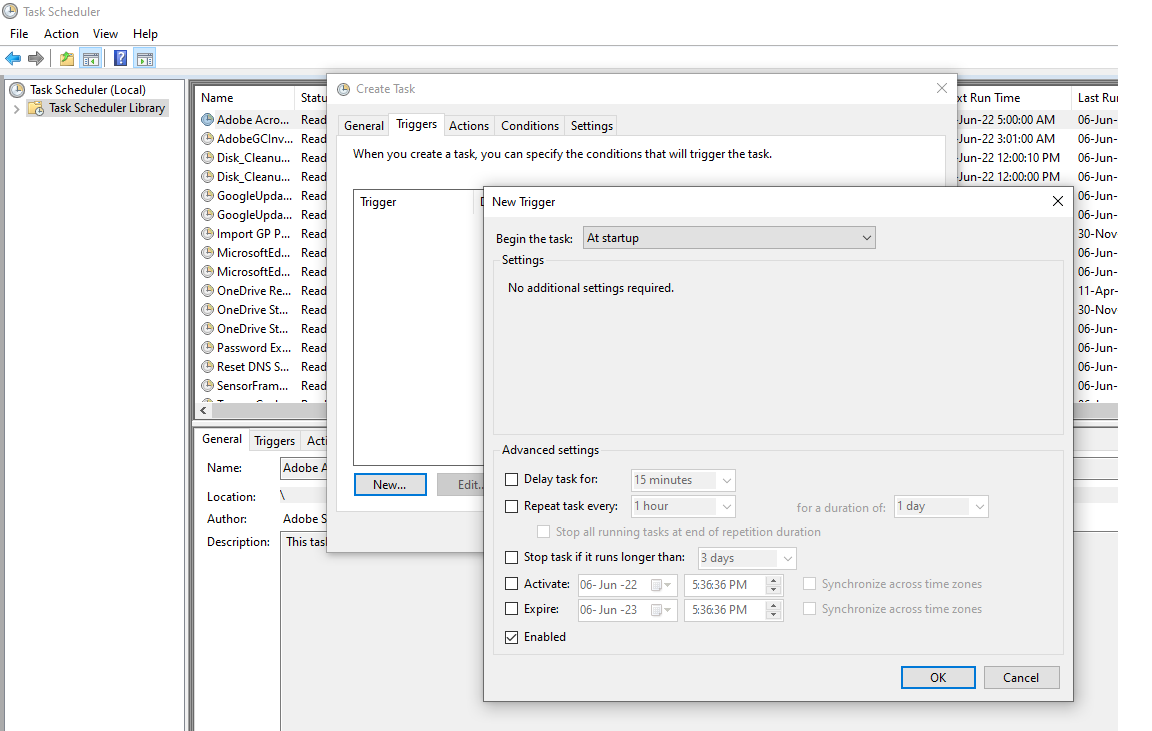
2.在 「觸發器 」標籤中,按一下 「新增 」,將 「開始工作」 設定為「啟動時」, 確定已選取「已啟用」核取方塊 ,然後按一下確定。
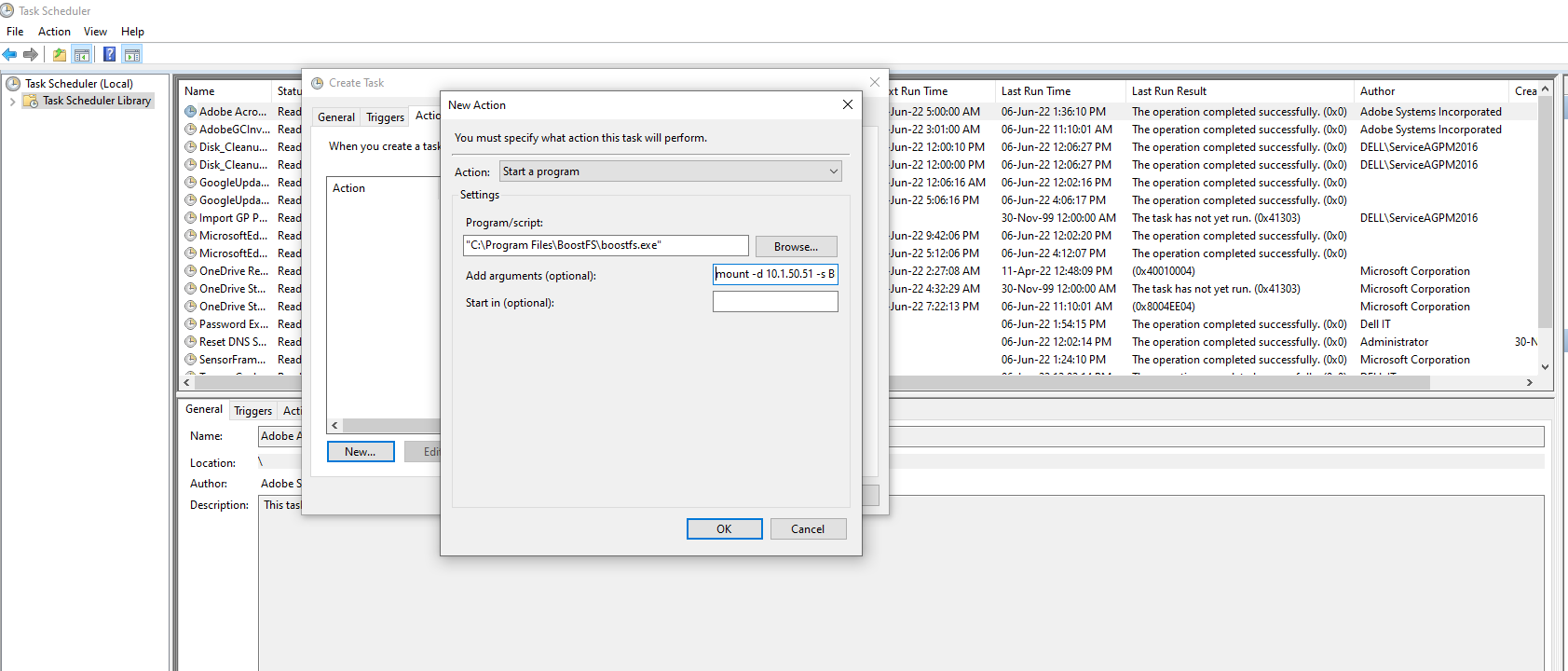
3.在 “操作 ”選項卡中,按兩下 “新建 ”,然後將“操作”類型更改為 “啟動程式”。
在 「設定」下,「 程式/指令檔」:瀏覽boostfs.exe二進位檔案位置,預設位置 -"C:\Program Files\BoostFS\boostfs.exe."
在 「添加參數 (可選)」下:選擇用於掛載的掛載命令 boostfs ,然後按兩下 確定」。
mount -d <data-domain-system> -s <storage-unit> -l <lockbox path> <Drive Letter> -o allow-others=true
範例:
mount -d 10.1.50.51 -s BRAM_DDBOOST_CVLT -l C:\BoostFS\Lockbox\boostfs.lockbox Q: -o allow-others=true
4. a { text-decoration: none; color: #464feb; } tr th, tr td { border: 1px solid #e6e6e6; } tr th { background-color: #f5f5f5; } 註銷或重新啟動以進行測試;在啟動時, Windows 工作排程器 會自動呼叫指令檔,建立 boostfs 坐騎。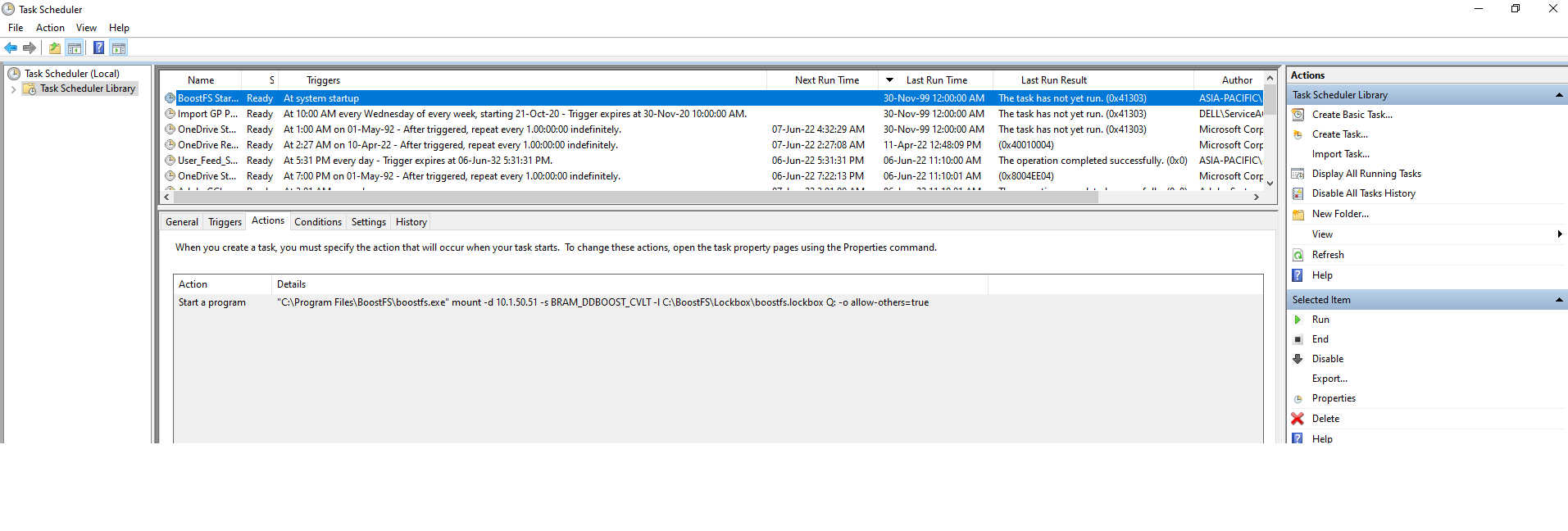
Additional Information
- 如需其他詳細資料,請參閱適用於 Windows 的 Dell Data Domain BoostFS 8.6 組態指南
- 如需其他資訊和詳細資料,請參閱Microsoft說明文件,Microsoft支援(外部連結)。
Produse afectate
Data Domain, Data Domain Boost – File SystemProduse
DD OSProprietăți articol
Article Number: 000200366
Article Type: How To
Ultima modificare: 27 Jan 2026
Version: 3
Găsiți răspunsuri la întrebările dvs. de la alți utilizatori Dell
Servicii de asistență
Verificați dacă dispozitivul dvs. este acoperit de serviciile de asistență.