How to Enable XMP Memory Speed on Alienware Laptops
Summary: Enabling Extreme Memory Profiles (XMP) memory on Alienware m16 R1 and Alienware m18 R1 using BIOS or Alienware Command Center (AWCC).
Acest articol se aplică pentru
Acest articol nu se aplică pentru
Acest articol nu este legat de un produs specific.
Acest articol nu acoperă toate versiunile de produs existente.
Instructions
There are two methods to enable XPM memory speed On Alienware m16 R1 and Alienware m18 R1.
Method 1: Enable in BIOS
- Press the F2 key as the computer boots, to enter the BIOS.
- Select Advanced > Performance Options (Figure 1).
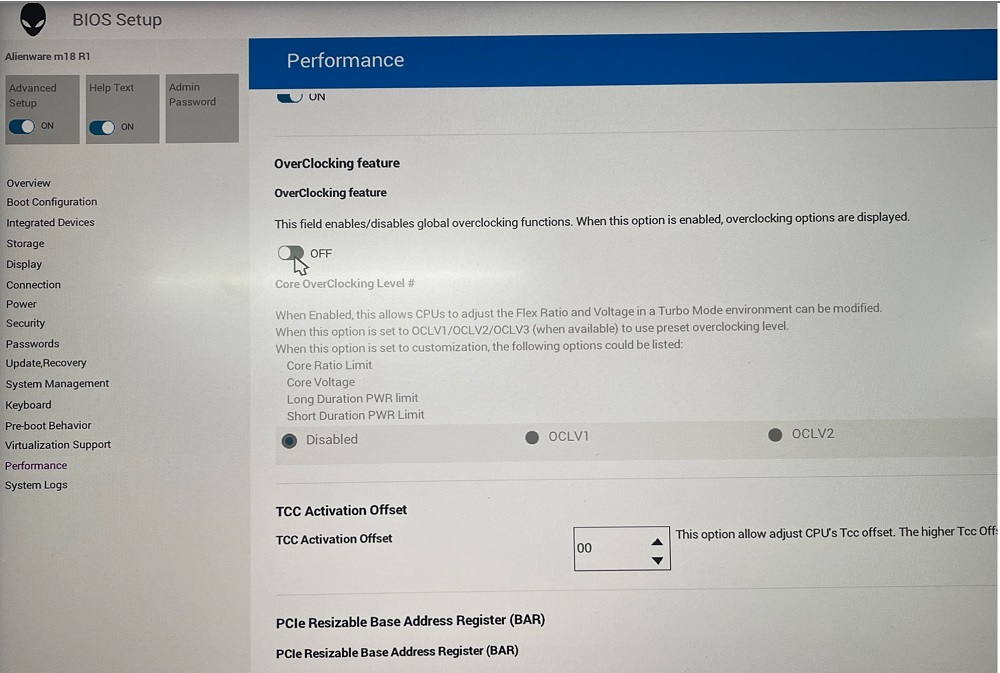
Figure 1: Performance Options - Overclocking Feature Disable change to Enable. Click OK when the warning message is displayed (Figure 2).
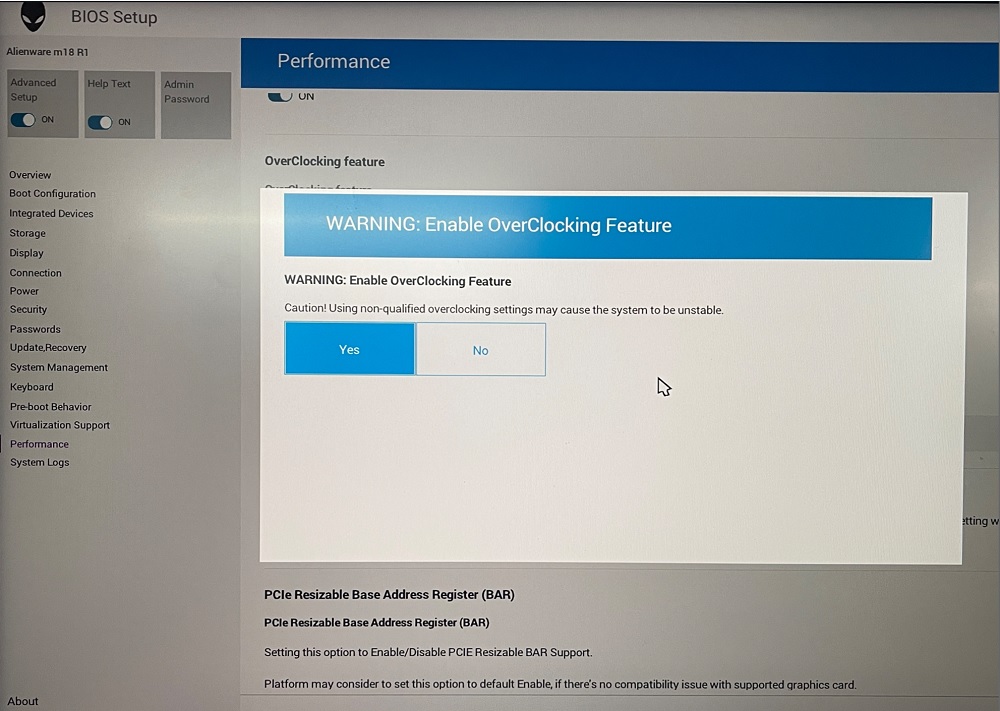
Figure 2: Warning Enable OverClocking Feature - Change XMP memory from Disable to XMP1 (Figure 3).
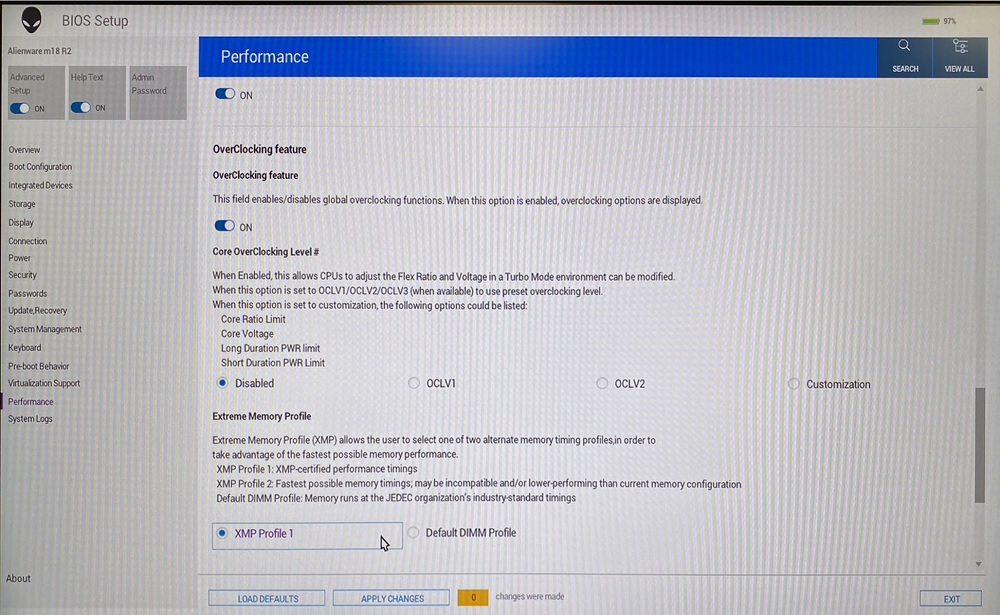
Figure 3: XMP1
Method 2: Enable in AWCC:
AWCC default set as RAM1, you could choose other XMP memory or turn off:
- Open AWCC choose Performance> Custom > Advanced View (Figure 4).
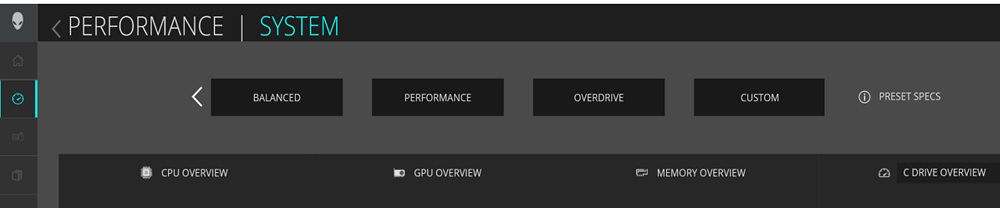
Figure 4: Performance Custom Advanced View - Switch to RAM2 or off per your request (Figure 5).
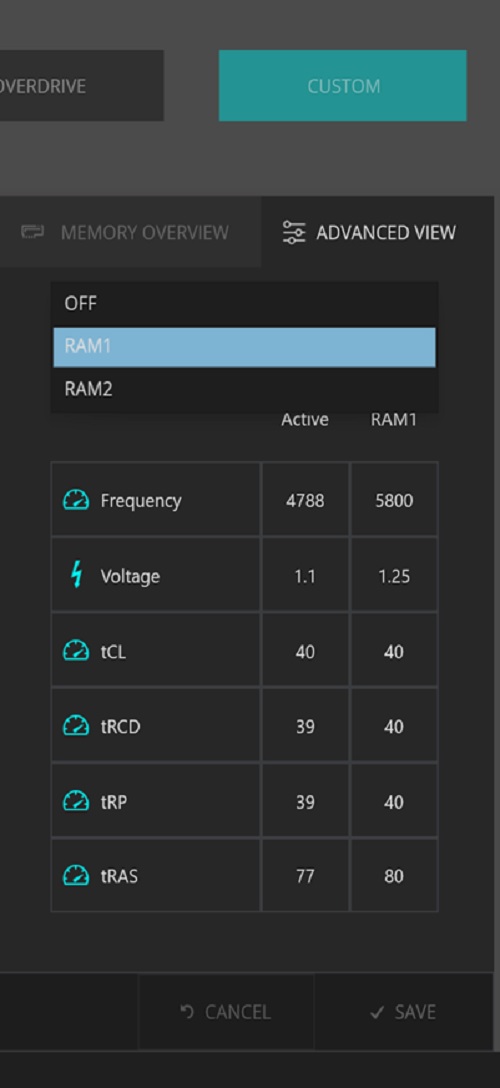
Figure 5: RAM2 or off
Note: After enabling the XMP memory for the first time, the bootup time will be longer, about 3 minutes and 30 seconds.
Affected Platforms:
- Alienware m16 R1
- Alienware m18 R1
Note: When purchasing your computer Dell offers an XMP memory configuration of 32 GB with 5800 MT/s speed. To use this speed, ensure that you enable XMP by going to the system settings or BIOS.
Your computer will not support upgrading to an XMP memory later after point of sale. Also, if the memory is upgraded from 32 GB to 64 GB, your computer will not support the XMP feature.
Your computer will not support upgrading to an XMP memory later after point of sale. Also, if the memory is upgraded from 32 GB to 64 GB, your computer will not support the XMP feature.
Produse afectate
Alienware m16 R1, Alienware m18 R1Proprietăți articol
Article Number: 000218606
Article Type: How To
Ultima modificare: 22 Apr 2025
Version: 3
Găsiți răspunsuri la întrebările dvs. de la alți utilizatori Dell
Servicii de asistență
Verificați dacă dispozitivul dvs. este acoperit de serviciile de asistență.