如何使用 Dell 管理门户部署 Dell Command Update
Summary: 了解如何使用戴尔管理门户 (DMP) 将 Dell Command Update 发布到 Microsoft Intune。
Acest articol se aplică pentru
Acest articol nu se aplică pentru
Acest articol nu este legat de un produs specific.
Acest articol nu acoperă toate versiunile de produs existente.
Instructions
IT 管理员可以使用戴尔管理门户将 Dell Command Update 发布到 Microsoft Intune。
受影响的软件:
- Dell Command Update
- 戴尔管理门户
- Microsoft Intune
- 在网页浏览器中,转至 Dell Management Portal。
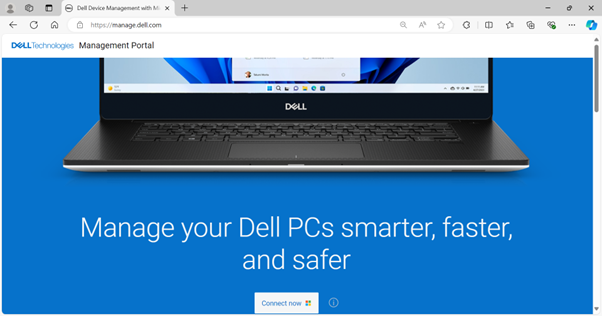
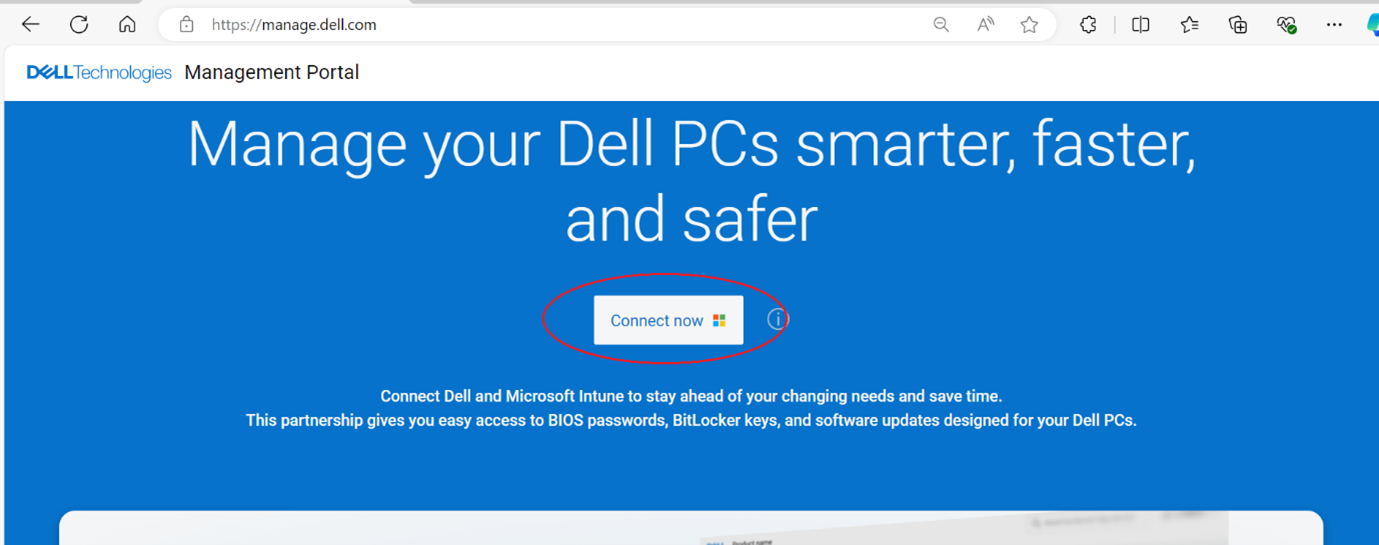
- 单击 Connect Now 按钮。
- 使用您的 Microsoft 365 帐户登录。
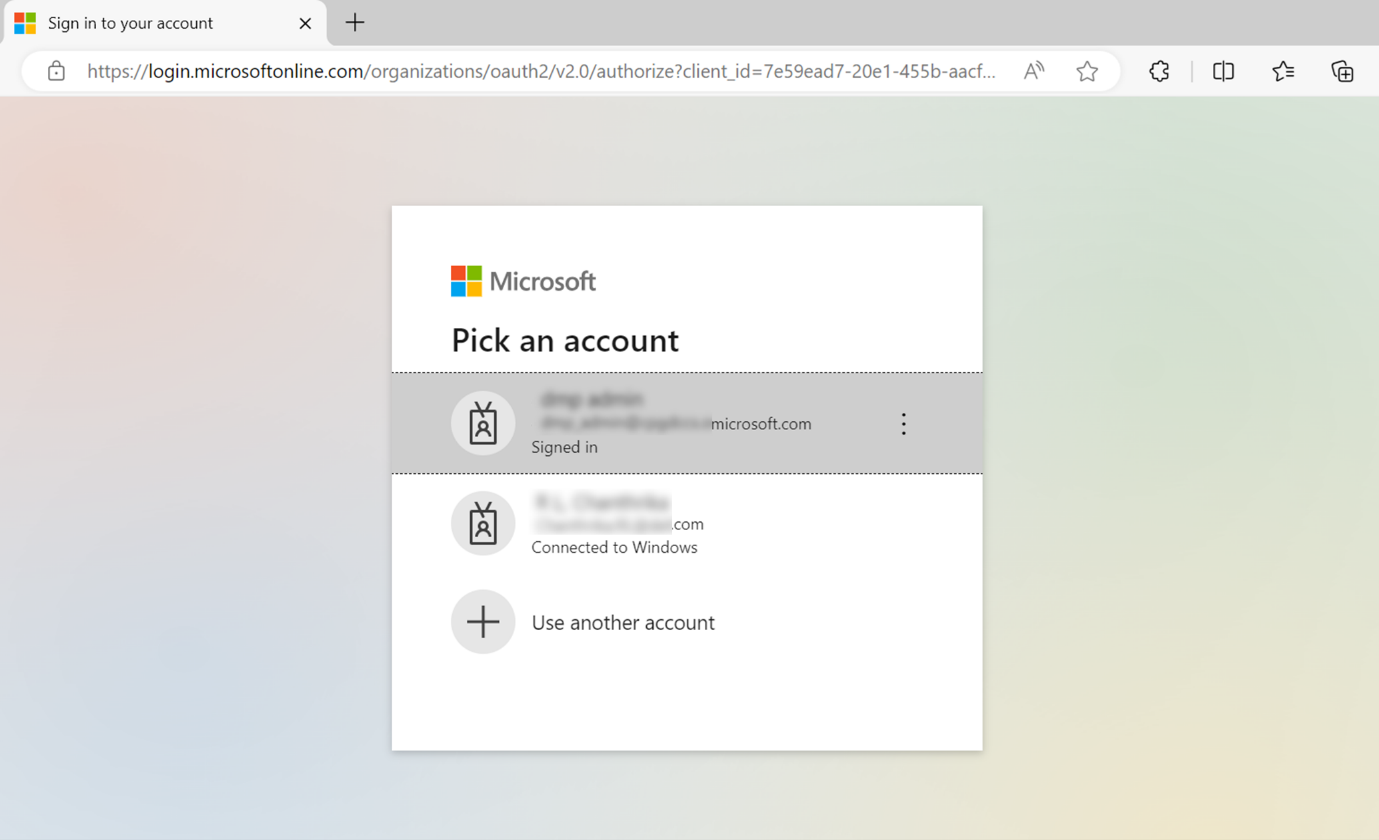
提醒:- 激活戴尔管理门户需要具有 Intune 许可的有效 Microsoft 365 订阅。有关 Microsoft Intune 的订阅和许可的详细信息,请参阅 Microsoft Intune 许可
。
- 如果这是您首次使用戴尔管理门户,系统会提示您接受贵组织的权限。有关激活戴尔管理门户的权限和流程的详细信息,请参阅 如何将戴尔管理门户连接到 Microsoft Intune。
- 激活戴尔管理门户需要具有 Intune 许可的有效 Microsoft 365 订阅。有关 Microsoft Intune 的订阅和许可的详细信息,请参阅 Microsoft Intune 许可
- 登录时会显示 Dashboard 页面。单击 应用程序 选项卡。
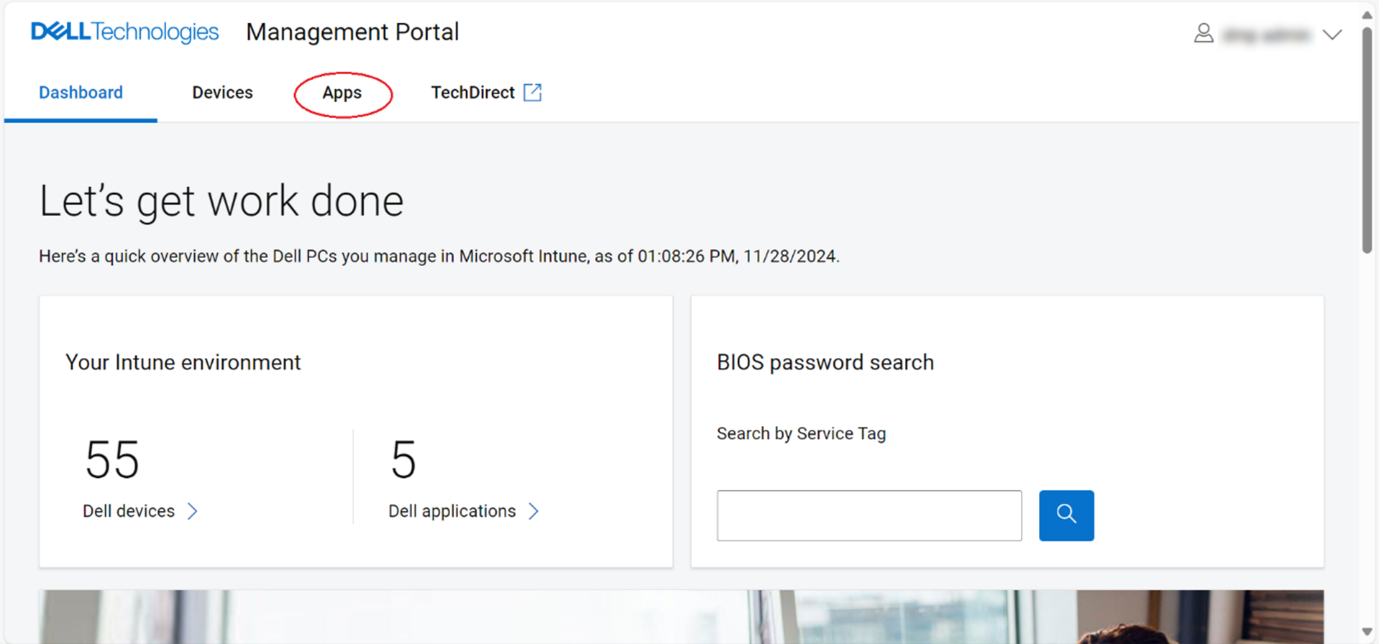
- 从 应用程序 页面中,单击 Dell Command | 从可用应用程序列表中更新。
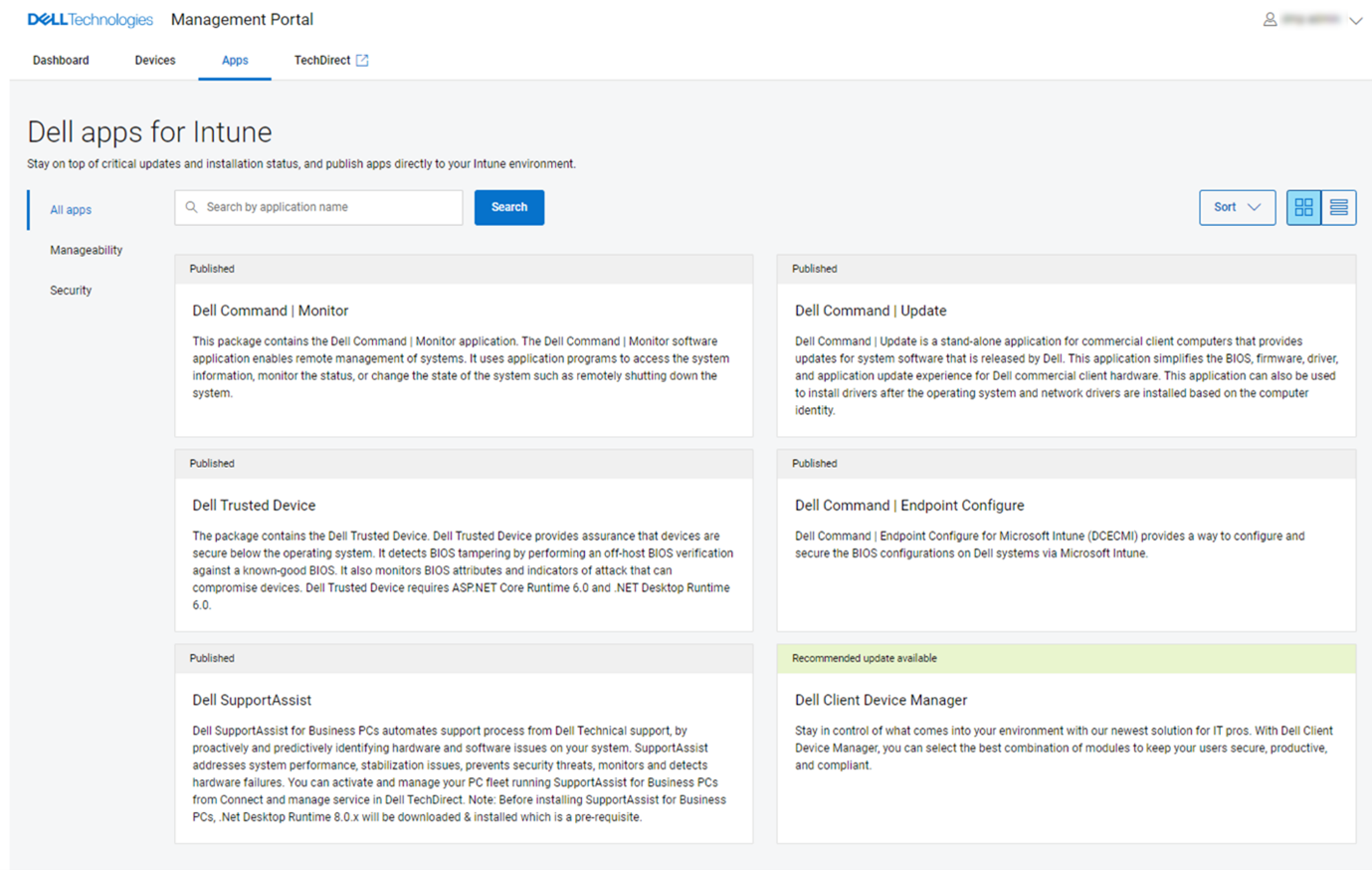
- 单击 立即发布。
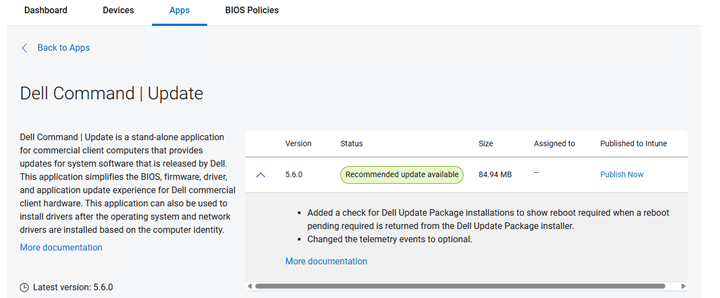
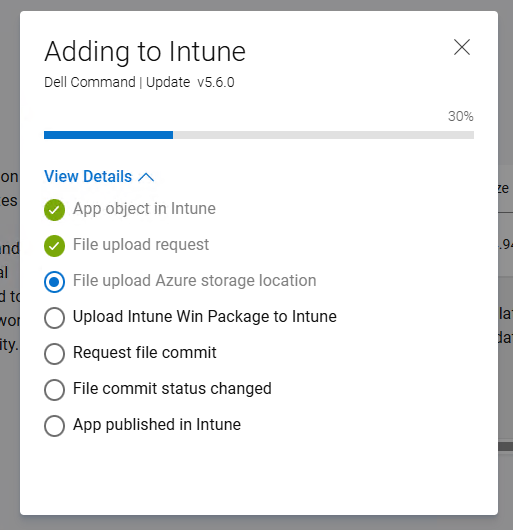
- Dell Command Update 应用程序发布流程将启动。(可选)通过单击 查看详细信息来检查进度。
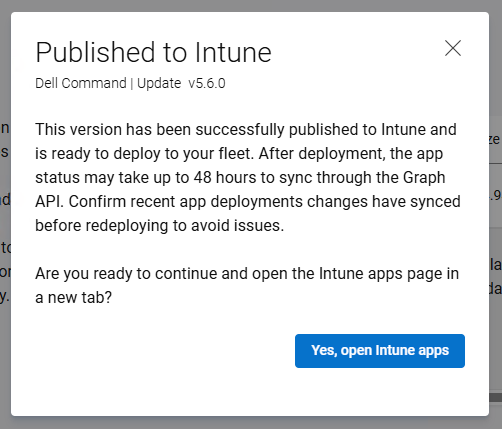
- Dell Command Update 应用程序成功发布到 Microsoft Intune 后,将显示摘要。单击 “是,打开 Intune 应用”转到“Intune”页并查看已发布的应用程序。
- 此时将显示 Intune 中已发布的 Dell Command Update 应用程序的详细信息。
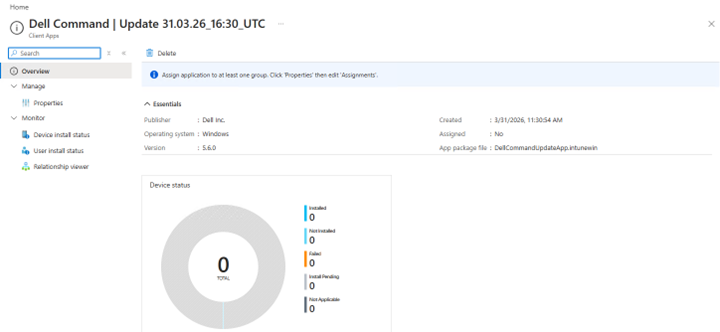
- 单击 “属性 ”以查看更多信息。
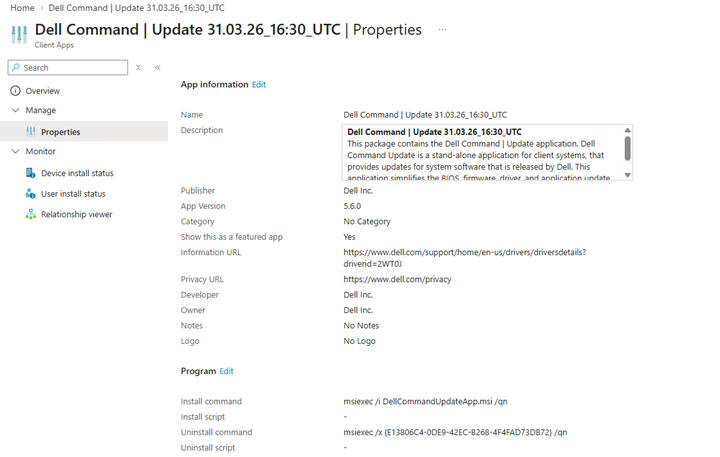
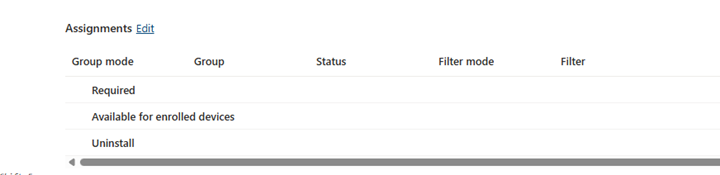
- 单击“属性”页面底部“分配”部分中的“编辑”选项以编辑设备或用户分配。
- 单击 添加组 选项以选择要向其分配 Dell Command Update 应用程序的设备或用户组。可用的设备或用户组由 “必需 ”或 “可用 ”选项以及 IT 管理员要求确定。
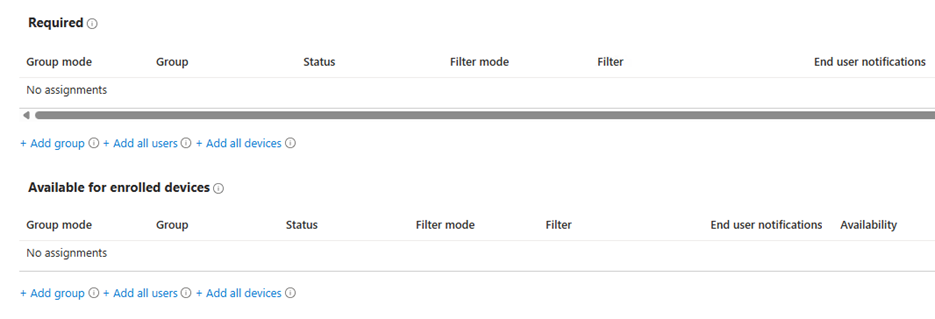
提醒:有关分配应用的详细信息,请参阅 使用 Microsoft Intune
Produse afectate
Dell Command | UpdateProprietăți articol
Article Number: 000447089
Article Type: How To
Ultima modificare: 24 May 2026
Version: 2
Găsiți răspunsuri la întrebările dvs. de la alți utilizatori Dell
Servicii de asistență
Verificați dacă dispozitivul dvs. este acoperit de serviciile de asistență.