ECS: How to mount NFS share on Windows client
Summary: How to mount NFS share on Windows client.
Acest articol se aplică pentru
Acest articol nu se aplică pentru
Acest articol nu este legat de un produs specific.
Acest articol nu acoperă toate versiunile de produs existente.
Instructions
Steps below are showing how to mount an NFS share on Windows client.
1.) Install the NFS Client (Services for NFS) what can be enabled from Windows Control Panel: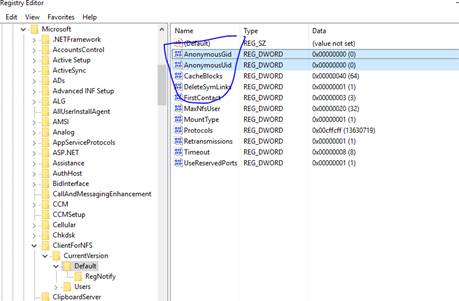
# mount -o "nolock,sec=sys" x.x.x.x:/<Namespace name you used>/<Bucket name you used> <Windows path>:
Example:
1.) Install the NFS Client (Services for NFS) what can be enabled from Windows Control Panel:
- Open Control Panel and search for "Turn Windows features on or off"
- Check the option "Services for NFS," then click OK.
2.) On the ECS side, configure the NFS share. See the ECS Administration Guide for what can be downloaded from https://support.emc.com/products/37254_ECS-Appliance-/Documentation/.
3.) Enable Write Permissions for the Anonymous User:
With the default options, a user has read permissions when mounting an ECS NFS share using the anonymous user. We can give the anonymous user write permissions by changing the UID and GID that it uses to mount the share.
To change the UID and GID we must make a simple change to the Windows registry by performing the following steps:
- Open regedit by typing it in the search box end pressing Enter.
- Browse to HKEY_LOCAL_MACHINE\SOFTWARE\Microsoft\ClientForNFS\CurrentVersion\Default.
- Create a new New DWORD (32-bit) Value inside the Default folder named AnonymousUid and assign the UID 0 (or another UID/GID if configured in ECS).
- Create a new New DWORD (32-bit) Value inside the Default folder named AnonymousGid and assign the GID 0 (or another UID/GID if configured in ECS).
- Restart the NFS client from Windows CMD line (nfsadmin client restart) or reboot the machine to apply the changes.
4.) Mount the NFS share on your windows CMD line:
# mount -o "nolock,sec=sys" x.x.x.x:/<Namespace name you used>/<Bucket name you used> <Windows path>:
Example:
C:\Users\bob>mount -o "nolock,sec=sys" x.x.x.x:/test-nfs-ns/test-nfs-bucket y:
Note: x.x.x.x = Public IP of ECS node or load balancer.

5.) Please be noted that each time when you Windows restarts, you need to re-mount the NFS share by default.
There are different workarounds available but this is not ECS related by nature.
One example below:
https://social.technet.microsoft.com/Forums/windowsserver/en-US/44445dc3-0185-407f-b8ad-711f22cd4ec6/windows-nfs-client-reconnect-to-nfs-target-on-reboot?forum=winserverfiles
Additional Information
Related NFS KB:
- ECS: How to create a basic NFS export and mount it on a client
- ECS: dataheadsvc log streaming error: NFSv3 procedure LINK not supported in request ReadLinkRequest
- ECS: NFS mounts failing with No such file or directory or ERROR_OBJECT_NOT_FOUND
- ECS: NFS Remote I/O errors; Change of bucket owner for FS enabled bucket may lead to applications/users unable to access NFS files
- ECS: NFS write throws I/O error after a certain amount of data.
- ECS: Using NFS file share from ECS with a VMware NFS datastore
- ECS: Best practices for mounting ECS NFS exports
- ECS: How to mount NFS share on Windows client
- ECS: NFS fails to mount after changing file export settings in the UI
- ECS: Is Oracle WebCenter Content (WCC) compatible with ECS?
Produse afectate
ECS ApplianceProduse
ECS Appliance, Elastic Cloud StorageProprietăți articol
Article Number: 000019642
Article Type: How To
Ultima modificare: 17 apr. 2026
Version: 7
Găsiți răspunsuri la întrebările dvs. de la alți utilizatori Dell
Servicii de asistență
Verificați dacă dispozitivul dvs. este acoperit de serviciile de asistență.