Dell Unity: How to add SMTP server settings for Unity array
Summary: Dell Unity: How to add SMTP server settings for Unity array.
Acest articol se aplică pentru
Acest articol nu se aplică pentru
Acest articol nu este legat de un produs specific.
Acest articol nu acoperă toate versiunile de produs existente.
Instructions
- From the "Update system setting" on the upper right corner, choose "Alerts" tab, then email and SMTP option.
- Add the required list of mails that would like to receive system alerts.
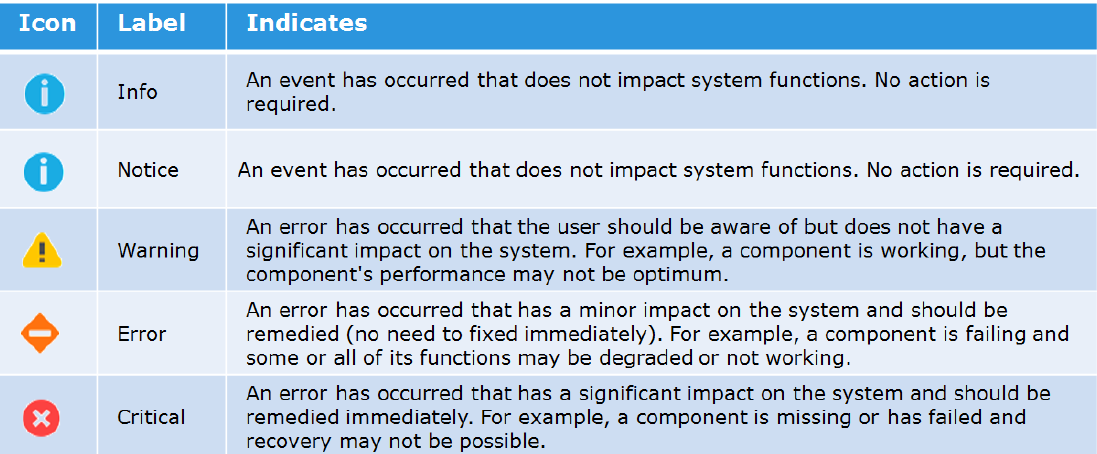
- Add the severity level of the alerts to send.
Here is the figure of the different severity levels:
- Then type the IP address or hostname of the Simple Mail Transport Protocol (SMTP) server required to send emails.
Changing the default port for SMTP (25) is not supported with Unity OE version older than Nighthawk (4.5.0).
From Nighthawk onward, unity starts to support customize of SMTP port:06:34:56 service@Peggy spa:~/user> uemcli /net/smtp -hStorage system address: 127.0.0.1Storage system port: 443HTTPS connection
Manage SMTP server settings. Use SMTP to have system alerts emailed to specified addresses.
Actions:[Show]/net/smtp [ -id <value> ] show [ -output { nvp | csv | table [ -wrap ] } ] [ { -brief | -detail | -filter <value> } ][Set]/net/smtp -id <value> set -addr <value> [ -port <value> ] [ -encryptLevel { none | startTLS | ssl } ] [ -authType { none | plain | login | cram_md5 | digest_md5 } ] [ -user <value> { -passwd <value> | -passwdSecure } ] [ -bypassProxy { yes | no } ]
Produse afectate
Dell EMC Unity FamilyProduse
Dell EMC Unity FamilyProprietăți articol
Article Number: 000022531
Article Type: How To
Ultima modificare: 22 oct. 2025
Version: 4
Găsiți răspunsuri la întrebările dvs. de la alți utilizatori Dell
Servicii de asistență
Verificați dacă dispozitivul dvs. este acoperit de serviciile de asistență.