How to Access the UEFI and BIOS Firmware Setup Screens with Microsoft Windows 10 and 11
Summary: The following article provides information about accessing the Unified Extensible Firmware Interface (UEFI) or BIOS with Microsoft Windows 10 or 11 on a Dell computer.
Acest articol se aplică pentru
Acest articol nu se aplică pentru
Acest articol nu este legat de un produs specific.
Acest articol nu acoperă toate versiunile de produs existente.
Instructions
The Windows 11, and Windows 10 operating systems can boot into the UEFI BIOS firmware setup on supported Dell computers. Use the integrated advanced startup options.
NOTE: Some Dell computers may not support this feature because the UEFI and Serial ATA (SATA) settings cannot be changed in the BIOS.
- Turn on the computer.
- At the Dell logo, tap the F2 key several times.
The images in this article are displayed in English for illustration purposes only.
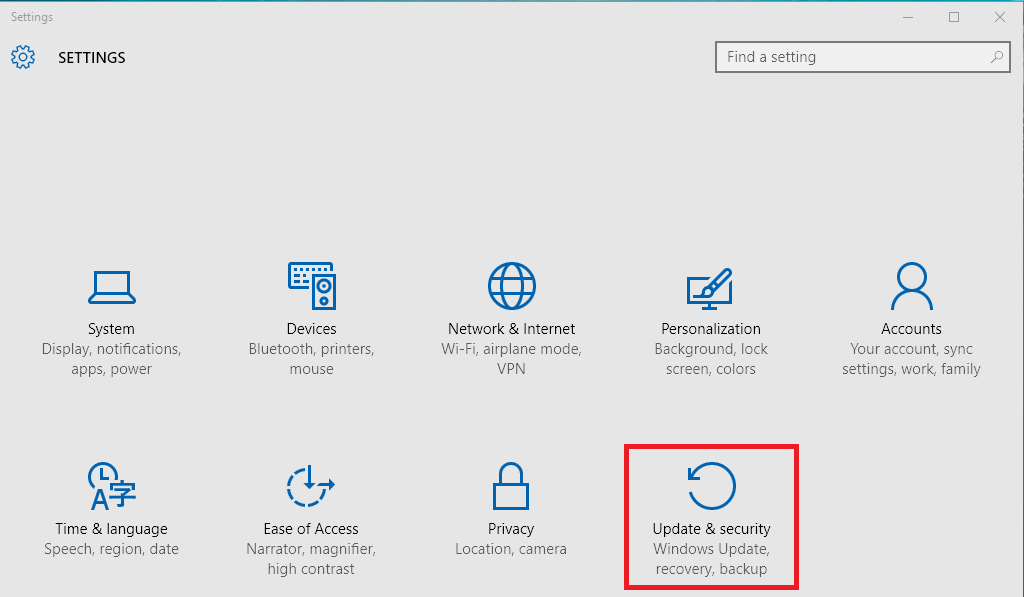
- Click Start and then select Settings.
- Click Update & Security.
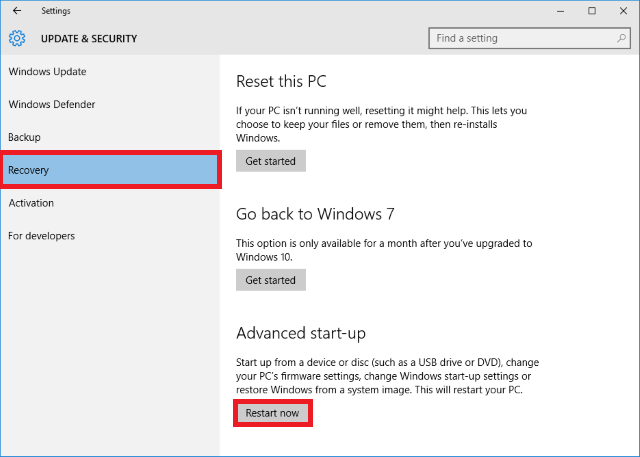
- On the left side, click Recovery.
- Under Advanced start-up, click Restart Now.
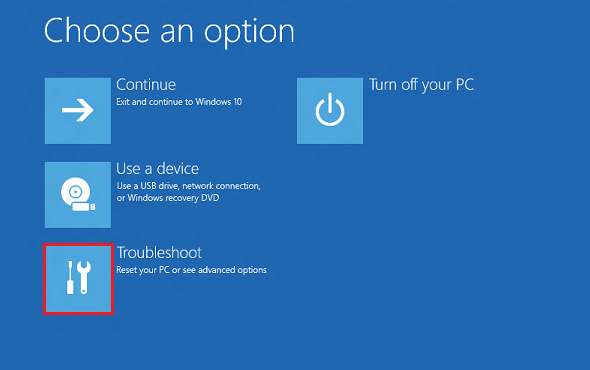
- Click Troubleshoot.
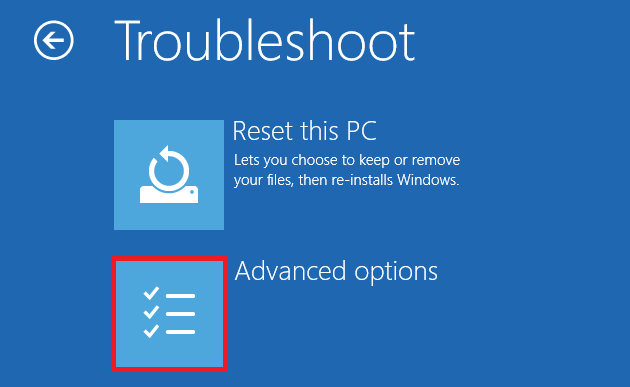
- Click Advanced options.
- Select UEFI Firmware Settings.
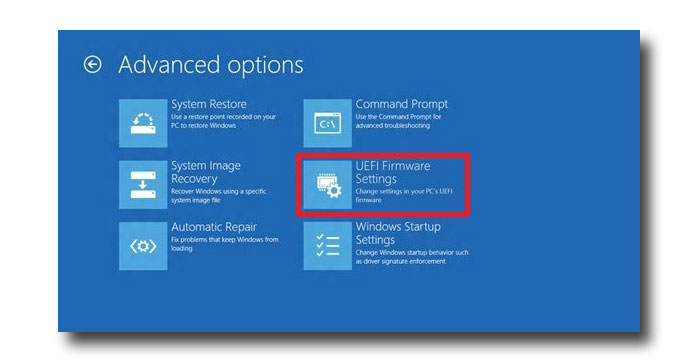
- Click Restart to restart the computer and enter UEFI. (BIOS)
Note: You cannot go further than the Windows sign in screen if your operating system has become corrupted. However, there is still an opportunity to enter the Advanced Options from the sign-in screen.
-
Boot to the sign-in screen.
-
Click the Power button on the sign-in screen.
-
Press and hold down the Shift key and click Restart.
-
Select UEFI Firmware Settings.
Produse afectate
Alienware, Dell All-in-One, Dell Pro Max Micro, Dell Pro Max Slim, Dell Pro Max Tower, Dell Pro Micro, Dell Pro Slim, Dell Pro Tower, Dell Slim, Dell Tower, Inspiron, Legacy Desktop Models, OptiPlex, Vostro, XPS, G Series, Projectors & Accessories
, G Series, Alienware, Dell Plus, Dell Pro, Dell Pro Max, Dell Pro Plus, Dell Pro Premium, Inspiron, Latitude, Dell Pro Rugged, Vostro, XPS, Legacy Laptop Models, Fixed Workstations, Mobile Workstations, Dell Pro Max Micro XE FCM2250
...
Proprietăți articol
Article Number: 000126121
Article Type: How To
Ultima modificare: 19 apr. 2026
Version: 19
Găsiți răspunsuri la întrebările dvs. de la alți utilizatori Dell
Servicii de asistență
Verificați dacă dispozitivul dvs. este acoperit de serviciile de asistență.