Failure to Provision Device Using vPro-AMT Configure Client in Task Sequence
Summary: Resolving the failure of Tigerlake - H Chipset platforms to get provisioned while performing the vPro-AMT Configure Client task sequences. That refers the ACU configuration package 12.2.0.150 or 12.2.0.139. ...
Symptoms
The failure of Tigerlake-H Chipset platforms to get provisioned while performing the vPro-AMT Configure Client task sequences. The error message states: Failed to configure this Intel(R) AMT device. Failed to generate the PKCS10 request using the Intel(R) AMT device. Error while generating PKCS10 certificate request. AMT Status code - The requested configuration is unsupported.
Cause
The provisioning failure on Tigerlake-H Chipset platforms is due to using the SCS and ACU configuration package versions less than 12.2.0.152. Older versions are not compatible with the required configuration.
Resolution
Upgrade the Intel SCS package to 12.2.0.152 to provision such computers and as per Intel, SCS 12.2.0.152 will not upgrade an existing installation of 12.2.0.150 and 12.2.0.139. The following procedure has to be followed to achieve Remote Provisioning.
- Upgrade the Dell Command | Integration Suite for System Center to 5.5.
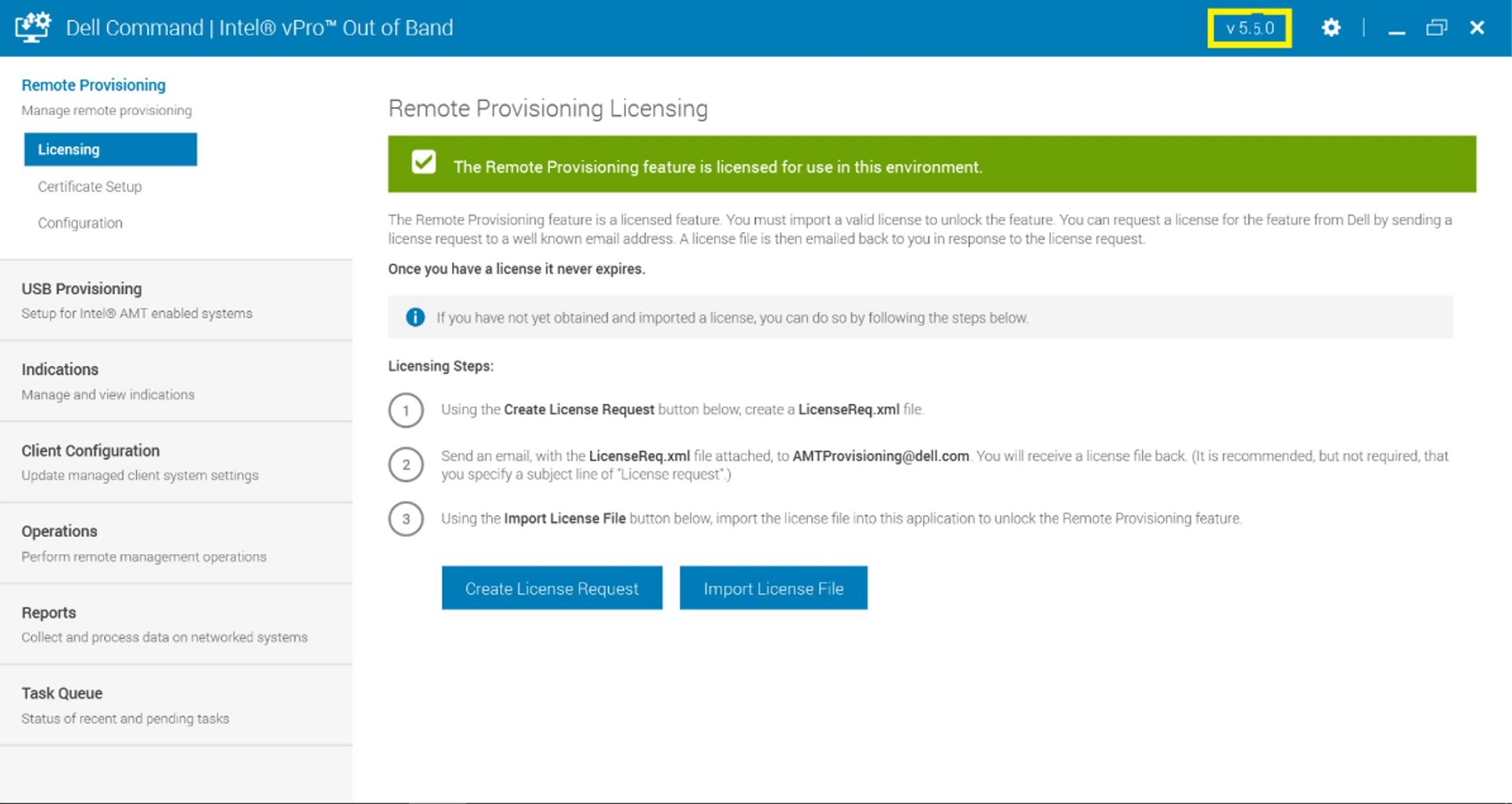
- Delete the vPro-AMT ACUConfig Package (ACU Config version 12.2.0.150 or 12.2.0.139) from Configuration Manager, System Center Config Mgr (SCCM).
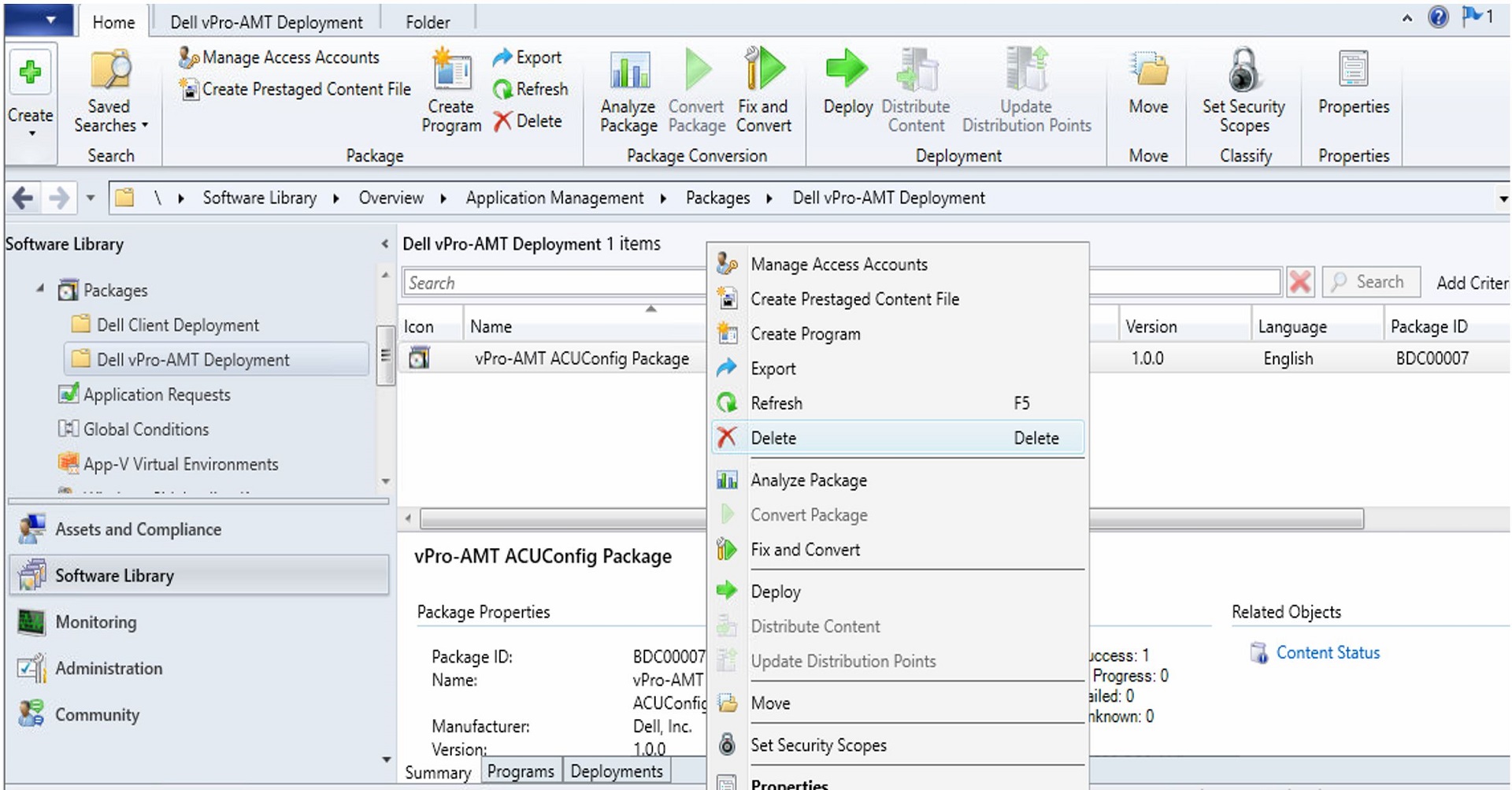
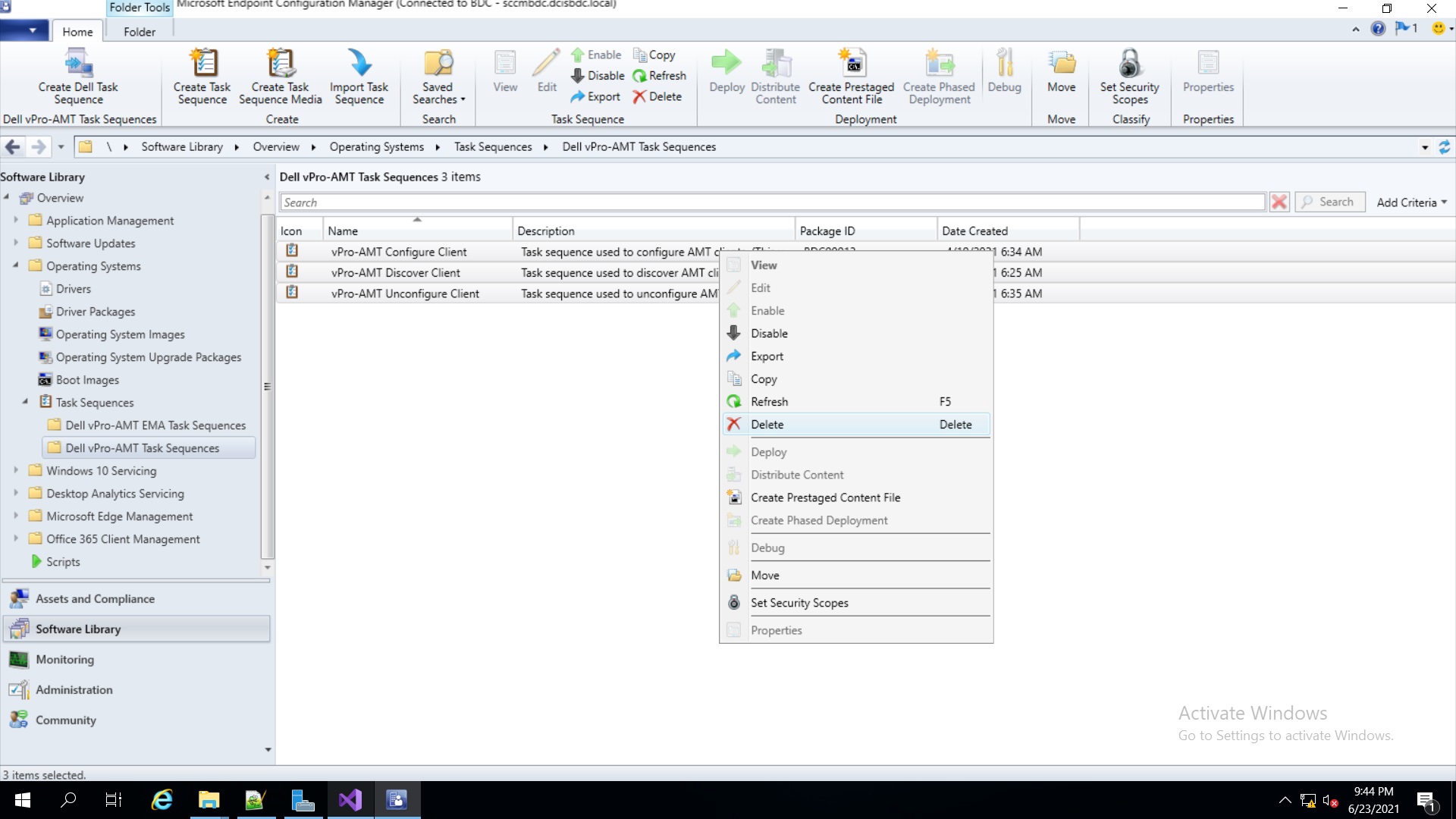
- Delete all the vPro-AMT Task Sequences.
- Launch the Registry Editor from the run command
Windows + r.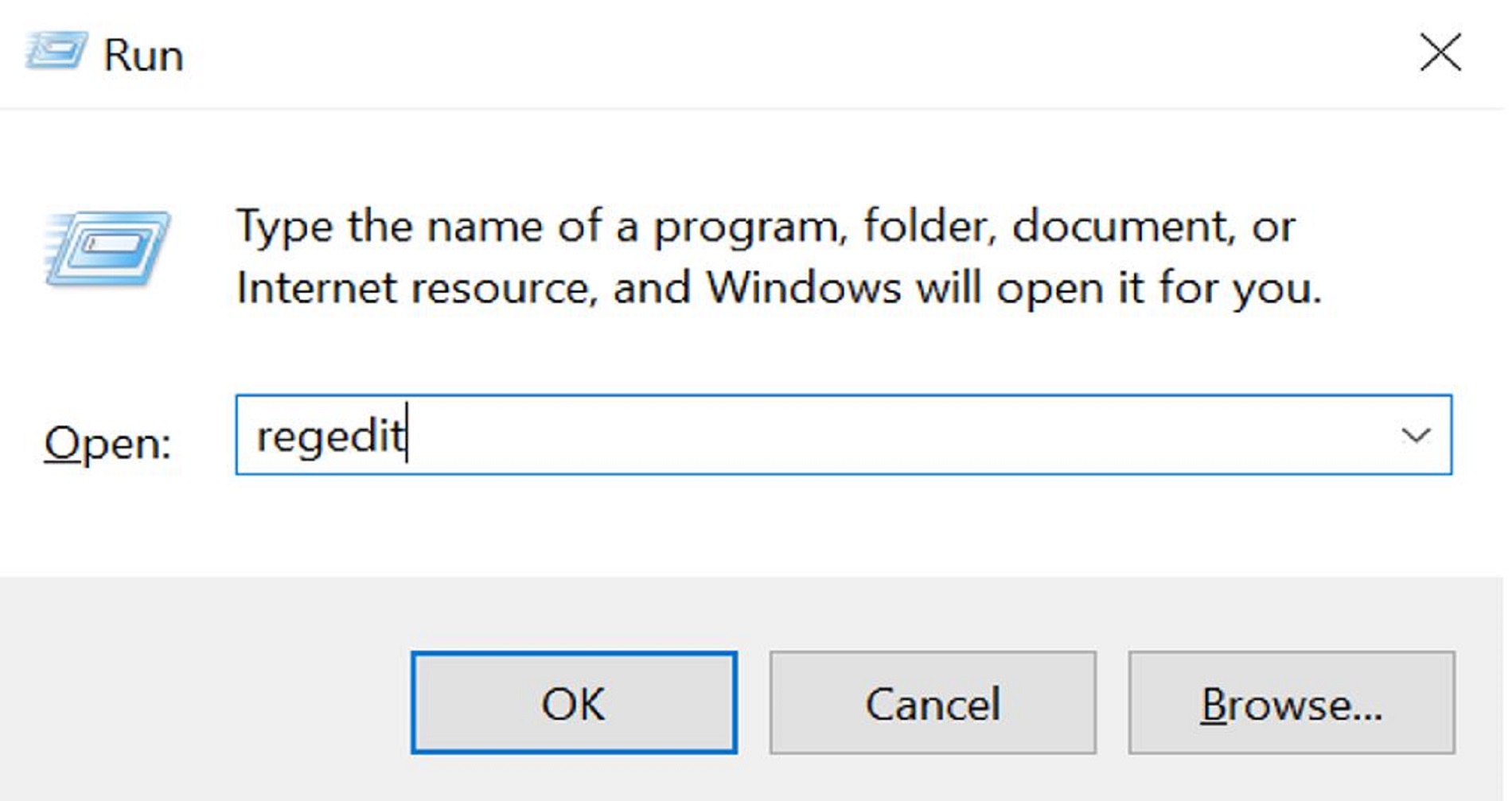
- Update the below Registry Value isClientDiscoverySetUp to 0.

- Launch the Dell Command | Intel vPro out of band application in admin mode by right clicking Run as Administrator which would create the vPro-AMT ACUConfig Package (ACU Config Version 12.2.0.152) and vPro-AMT Discovery Client task sequence on configuration manager (SCCM).
- Launch the Local User and Groups from the Run command.
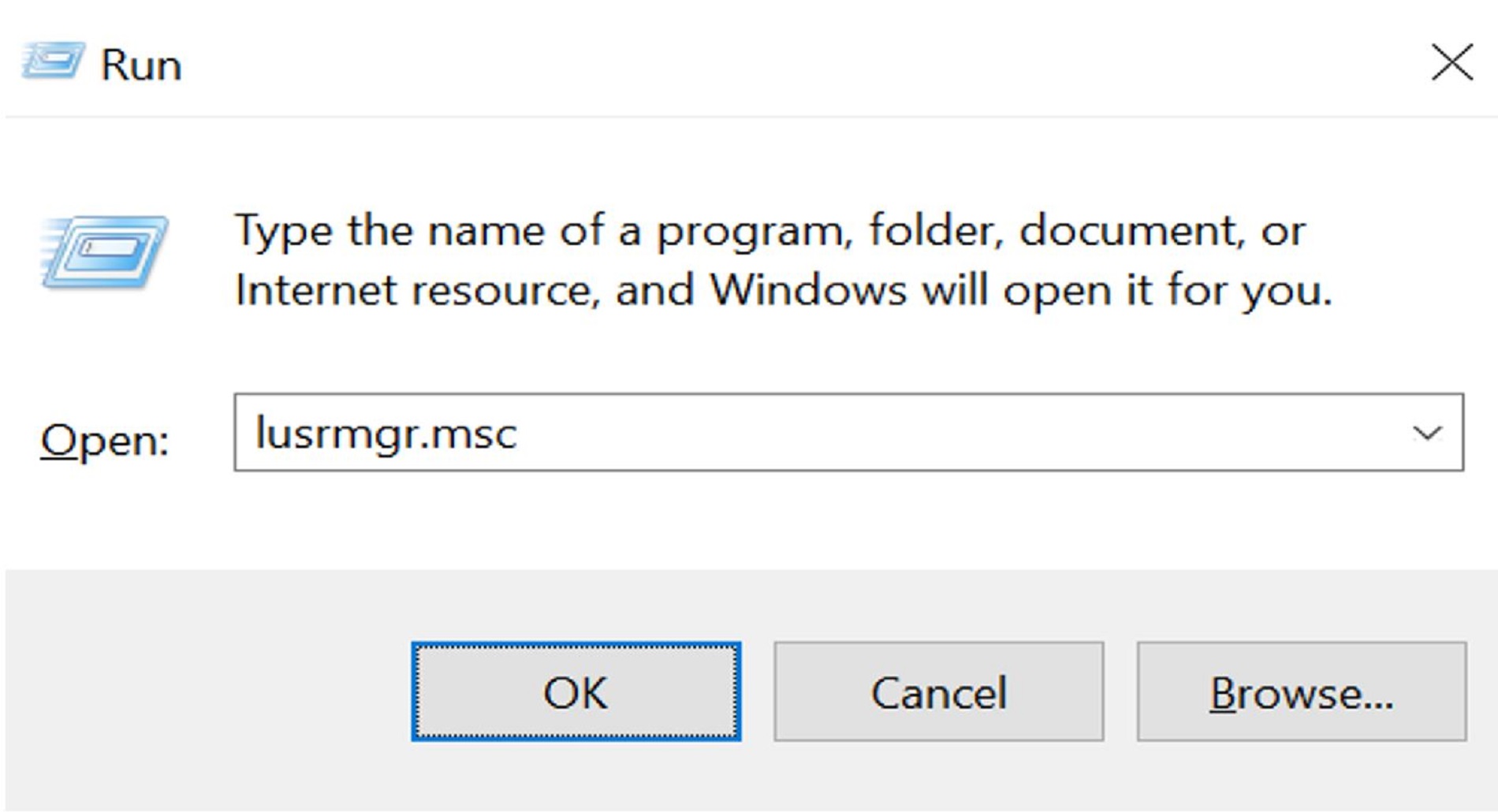
- Select Groups and on the right side double-click Administrator group and remove RProAMTAdmins buy clicking Select, Remove, Apply, and OK.
- Launch the Active Directory Users and Computers on the domain controller by clicking Start, Server Manager, Tools, and Active Directory Users and Computers.
- Delete the folder RProAMtComputers. Select users and on the right side delete RproAdmin and RProAMTAdmins.
- Launch the Certificate Authority from the domain controller by clicking Start and then Certificate Authority, expand the certificates and select Certificate Templates. On the right side, find the certificate with the name RProConfigMgrAMTWebServerCertificate and delete it.
- Uninstall the previously installed SCS Package 12.2.0.150 or 12.2.0.139 from Program and Features.
- Update the below Registry Values and this will enable you to reperform the Remote Provisioning.
- Edit the RProApplyStatus value to 0.
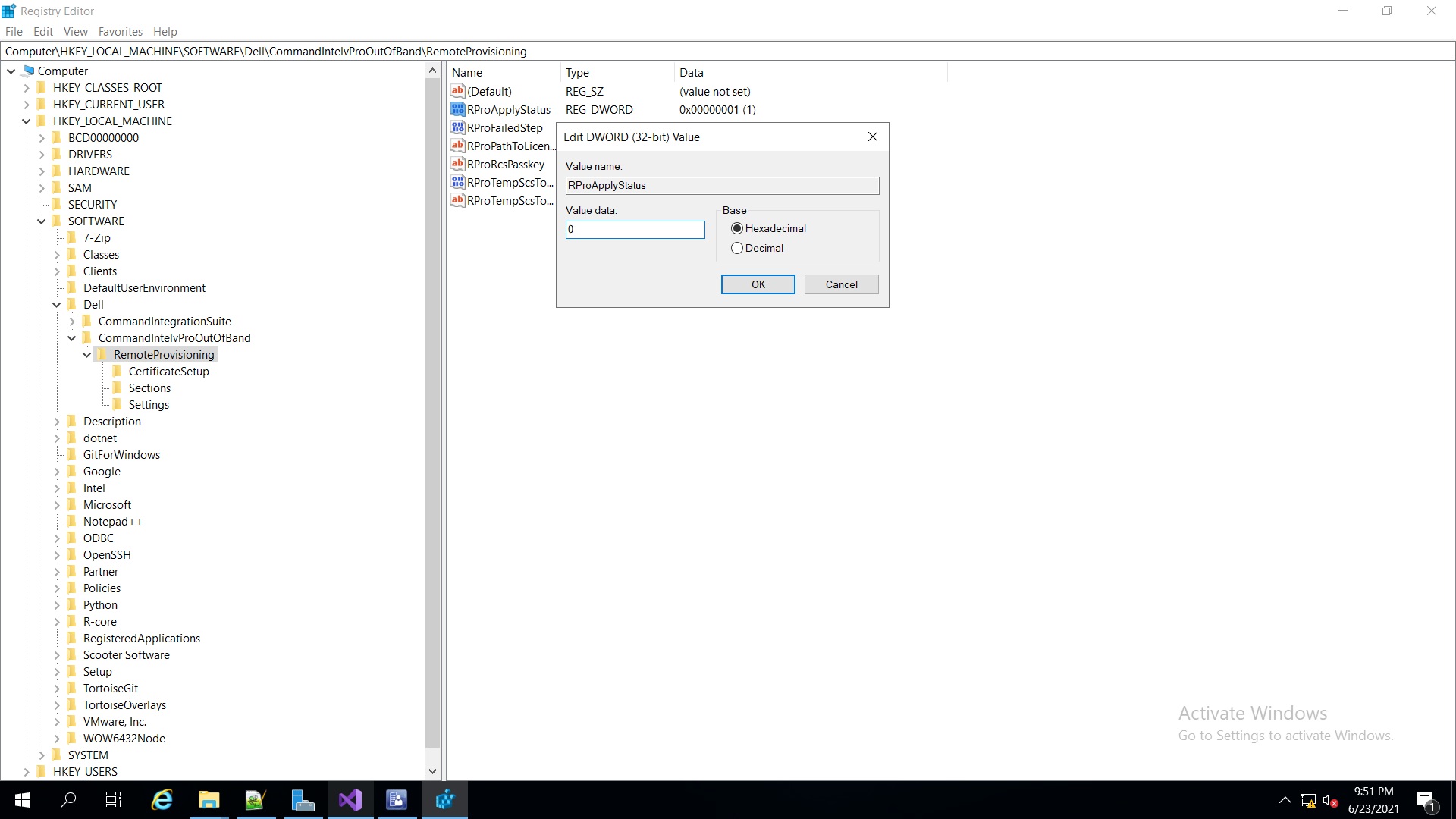
- Edit the below selected values to 0.
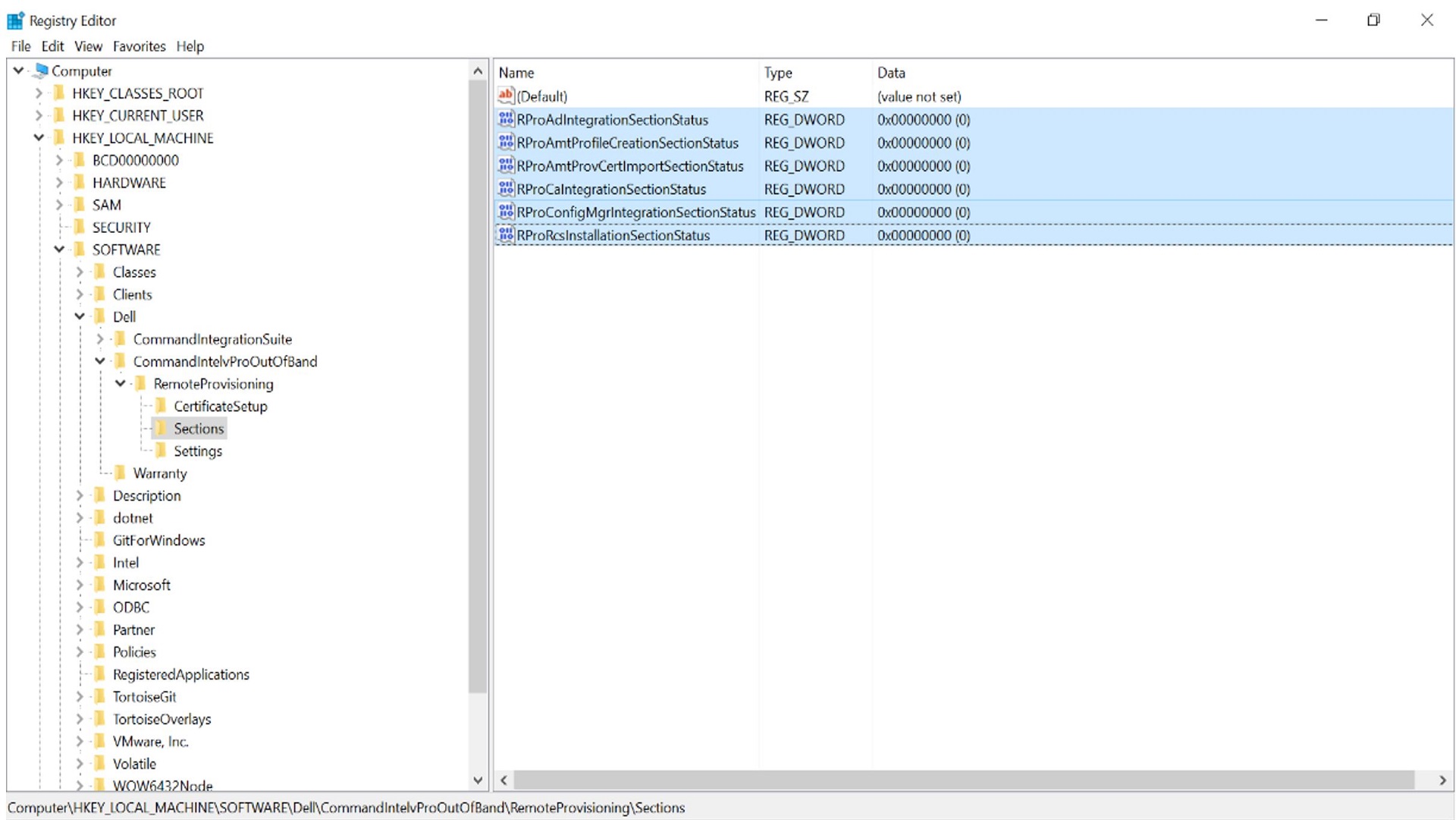
- Edit the RProApplyStatus value to 0.
- Close and relaunch the Dell Command | Intel vPro out of band application in admin mode and reperform the Remote Provisioning by browsing the SCS Package 12.2.0.152.
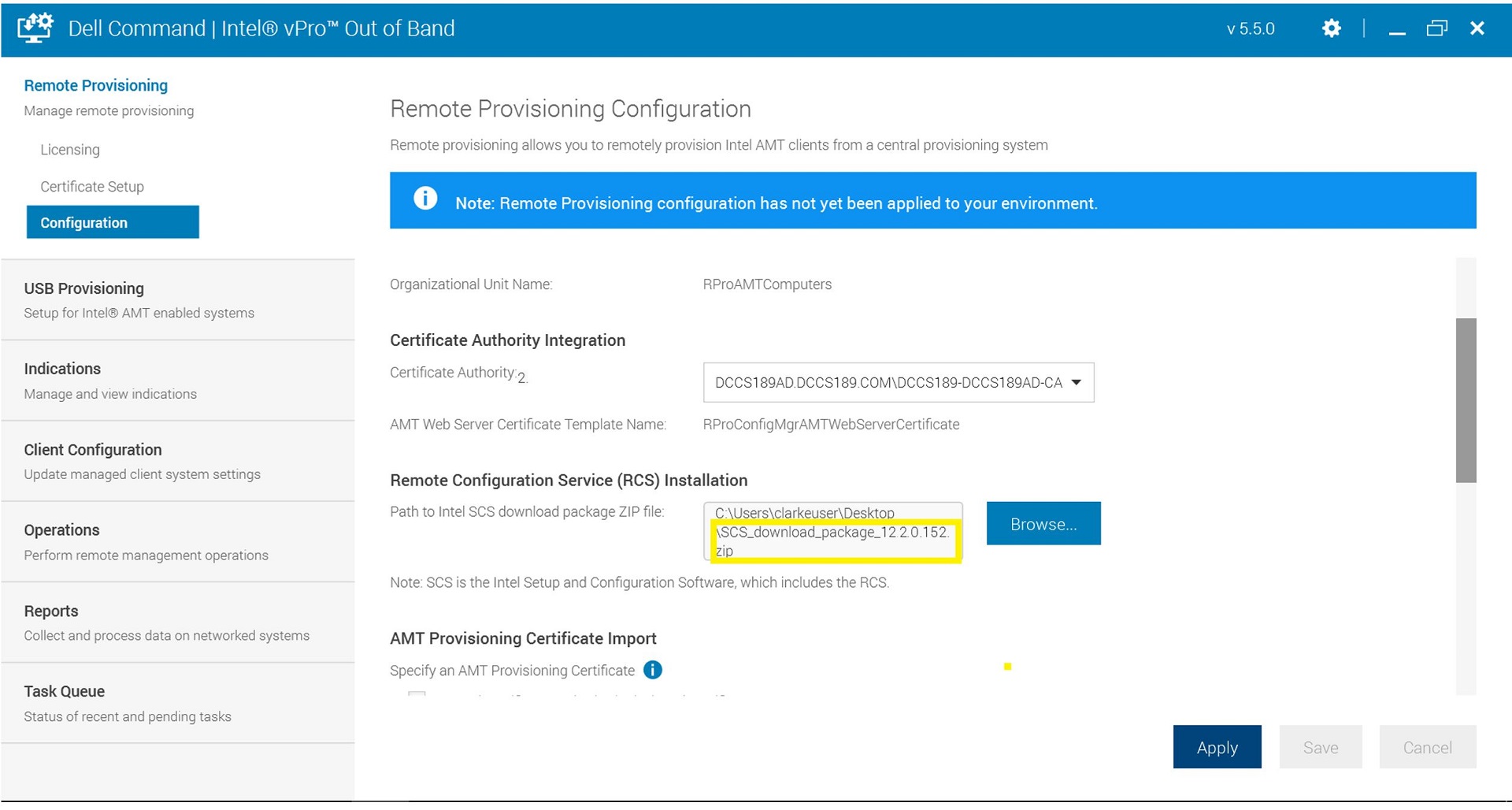
- Once Remote Provisioning is successful, deploy the Discover and Configure task sequence to the client and the client provisioning should be successful.