Precision 7560: Keyboard Function Guide
Summary: This guide lists the keyboard shortcuts available and the functions they perform on the Dell Precision 7560.
Acest articol se aplică pentru
Acest articol nu se aplică pentru
Acest articol nu este legat de un produs specific.
Acest articol nu acoperă toate versiunile de produs existente.
Instructions
Keyboard Shortcut Key Functions
The following table is a list of combination short-cut key functions available on the Precision 7560.
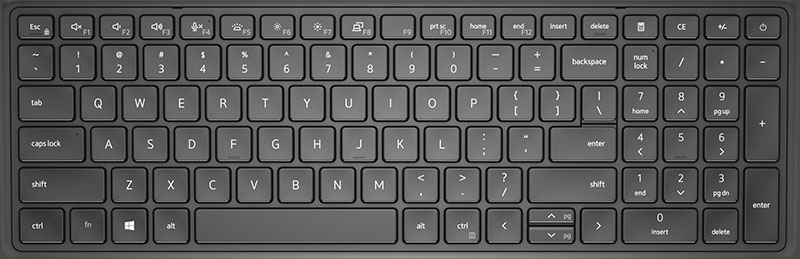
Figure 1: Precision 7560 Keyboard
| Key Combination | Action | Behavior |
|---|---|---|
| Fn + Esc | Switch Fn-key lock | Allows the user to switch between locked and unlocked Fn keys. |
| F1 | Mute Audio | Temporarily mutes/unmutes the audio. The audio level before muting is returned after unmuting. |
| F2 | Decrease Volume | Decreases the audio volume until minimum/off is reached. |
| F3 | Increase Volume | Increases the audio volume until maximum is reached. |
| F4 | Microphone Mute | Silences the on-board microphone so it cannot record audio. There is an LED on the F4 function key that notifies the user of the state of this feature:
|
| F5 | Keyboard Illumination/Backlight | Determines the Keyboard Illumination/Backlight brightness level. The hot key cycles through the following brightness states when pressed: Disabled, Dim, Bright. For more detail, see the Keyboard Illumination/Backlight section of your manual. |
| F6 | Brightness Decrease | Decreases the stepping of LCD brightness for each press until minimum is reached. For more detail, see the Keyboard Illumination/Backlight section of your manual. |
| F7 | Brightness Increase | Increases the stepping of LCD brightness for each press until maximum is reached. For more detail, see the Keyboard Illumination/Backlight section of your manual. |
| F8 | Switch to External Display (LCD and Projector display) | Determines video output to LCD and external Video devices when attached and displays present. |
| F9 | Operating system and application specific behavior | |
| F10 | Print screen | It is used as Print Screen key. |
| F11 | Home | It is used as Home key. |
| F12 | End | It is used as End key. |
NOTE: The secondary behavior of F1-F12 keys are specific to Operating System and Application. For secondary behavior, Use Fn + Function key.
You can also define the primary behavior of the function keys (F1–F12) by changing Function Key Behavior in BIOS setup program.
You can also define the primary behavior of the function keys (F1–F12) by changing Function Key Behavior in BIOS setup program.
The Fn key is also used with selected keys on the keyboard to invoke other secondary functions.
| Key Combination | Action |
|---|---|
| Fn + PrtScr | Turn off/on wireless |
| Fn + B | Pause/Break |
| Fn + Insert | It puts the computer in sleep mode. |
| Fn + S | Toggle scroll lock |
| Fn + H | Toggle between power and battery-status light/hard-drive activity light |
| Fn + R | System request |
| Fn + Ctrl | Open application menu |
| Fn + PgUp | Page up |
| Fn + PgDn | Page down |
| Fn + Home | Home |
| Fn + End | End |
Additional Information
 Visit our Keyboard knowledge base for additional resources and information.
 For additional articles and information visit our Touchpad support page.
 Additional articles and information can also be found on our Mouse support page.
Produse afectate
Precision 7560Proprietăți articol
Article Number: 000189154
Article Type: How To
Ultima modificare: 15 aug. 2025
Version: 7
Găsiți răspunsuri la întrebările dvs. de la alți utilizatori Dell
Servicii de asistență
Verificați dacă dispozitivul dvs. este acoperit de serviciile de asistență.