Data Domain: Managing Host Certificates for HTTP and HTTPS
Summary: Host certificates allow browsers and applications to verify the identity of a Data Domain system when establishing secure management sessions. HTTPS is enabled by default. The system can use either a self-signed certificate or an imported certificate from a trusted Certificate Authority (CA). This article explains how to check, generate, request, import, and delete certificates for HTTP/HTTPS on Data Domain systems. ...
Acest articol se aplică pentru
Acest articol nu se aplică pentru
Acest articol nu este legat de un produs specific.
Acest articol nu acoperă toate versiunile de produs existente.
Instructions
Certificates may expire or become invalid. If no certificate is imported, the system uses a self-signed certificate, which browsers or integrated applications may not trust.
1. Check Existing Certificates.
On the Data Domain (DD-CLI), run the following command to view installed certificates:
adminaccess certificate show
If certificates are expired or nearing expiration:
- If self-signed, regenerate using DD-CLI
- If imported, follow the CSR and import steps below.
-
2. Generate Self-Signed Certificates.
To regenerate the HTTPS certificate:
adminaccess certificate generate self-signed-cert
To regenerate HTTPS and trusted CA certificates:
adminaccess certificate generate self-signed-cert regenerate-ca
3. Generate a Certificate Signing Request (CSR)
Use DD System Manager:
- Set a passphrase, if not done already:
system passphrase set
- Go to Administration > Access > Administrator Access.
- Select HTTPS > Configure > Certificate tab > Add.
- Click Generate the CSR for this Data Domain system.
- Complete the CSR form and download the file from:
/ddvar/certificates/CertificateSigningRequest.csr
CLI Alternative Example:
adminaccess certificate cert-signing-request generate key-strength 2048bit country "CN" state "Shanghai" city "Shanghai" org-name "Dell EMC" org-unit "Dell EMC" common-name "ddve1.example.com" subject-alt-name "DNS:ddve1.example.com, DNS:ddve1"
4. Import Signed Certificate
Use DD System Manager:- Select Administration > Access > Administrator Access
- In the Services area, select HTTPS and click Configure
- Select the Certificate tab
- Click Add. An Upload dialog appears:
- For
.p12file:- Select Upload certificate as
.p12file, enter password, browse, and upload. - Example for
.p12selection:
- Select Upload certificate as
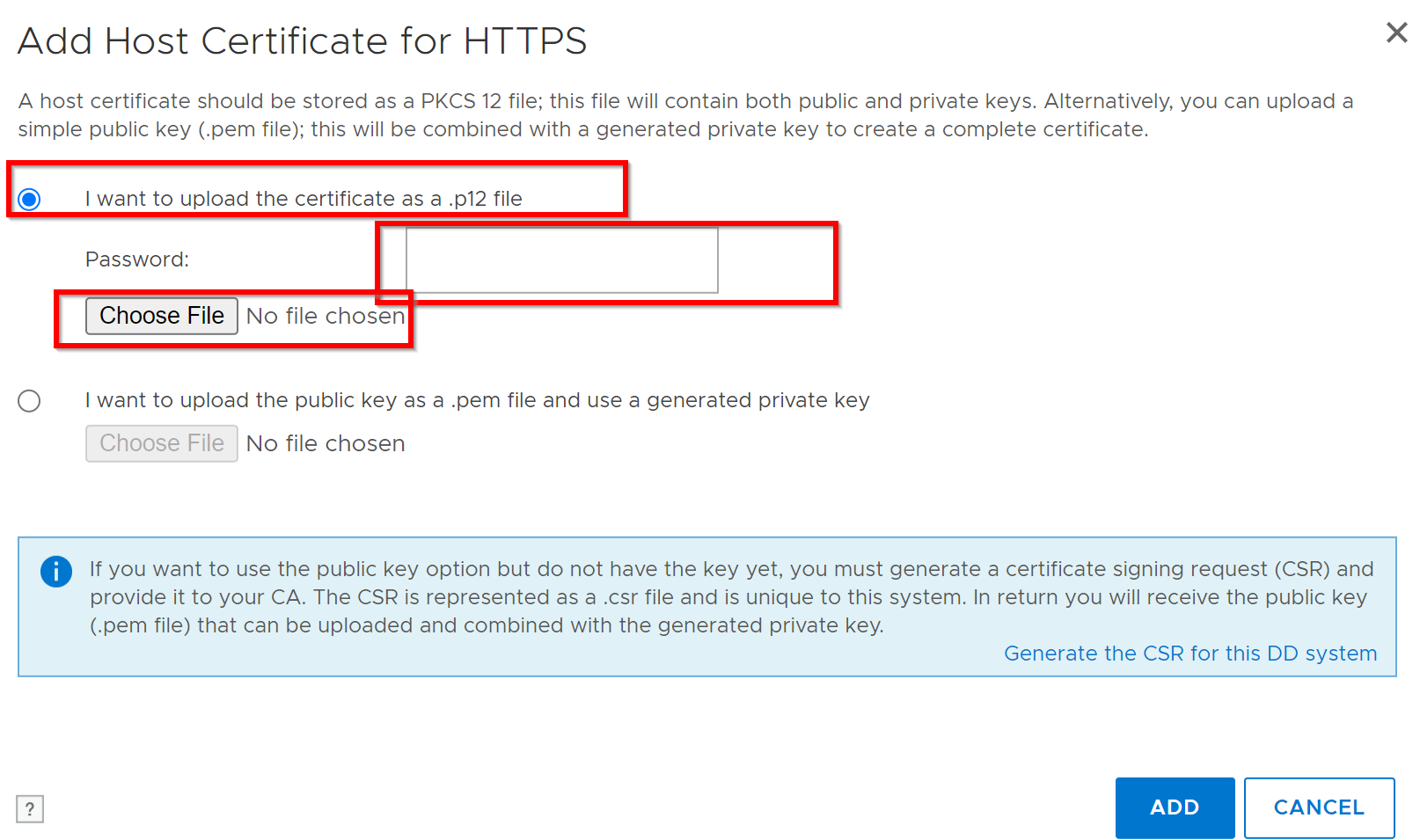
- For
.pemfile:- Select Upload public key as
.pemfile and use generated private key, browse, and upload.
- Select Upload public key as
5. Delete Existing Certificate.
Before adding a new certificate, delete the current certificate:
- Go to Administration > Access > Administrator Access > HTTPS > Configure > Certificate tab.
- Select certificate and click Delete.
6. CSR Validation
Validate CSR using Windows Command Prompt:
certutil -dump <CSR file path>
Additional Information
- Private and public keys must be 2048 bits.
- DDOS only supports an active CSR and a signed certificate for HTTPS at a time.
Reference: Deployment KB: Data Domain: How to use externally signed certificates
Produse afectate
Data DomainProprietăți articol
Article Number: 000205198
Article Type: How To
Ultima modificare: 08 iun. 2026
Version: 8
Găsiți răspunsuri la întrebările dvs. de la alți utilizatori Dell
Servicii de asistență
Verificați dacă dispozitivul dvs. este acoperit de serviciile de asistență.