Alienware Pro Wireless Gaming Mouse Cannot Save Alienware Command Center Settings
Summary: Learn what to do if the Alienware Pro Wireless Gaming Mouse is unable to save presets or adjust settings in Alienware Command Center.
Symptoms
When the Alienware Pro Wireless Gaming Mouse is used on a non-Alienware computer, two different issues can be encountered. These issues occur when Alienware Command Center (AWCC) version 6.1.11 is installed. Issues include:
- Unable to save presets in Alienware Command Center after connecting the Alienware Pro Wireless Gaming Mouse
- Unable to adjust polling rate, dots per linear inch (DPI) level, battery saver mode, and lift-off-distance (LOD) in Alienware Command Center after connecting the Alienware Pro Wireless Gaming Mouse
Affected Products
- Alienware Command Center
- Alienware Pro Wireless Gaming Mouse
Cause
The Alienware Command Center installer did not load the FX database on a computer where RGB Lighting control is not required (non-Alienware computers).
Resolution
Updating to Alienware Command Center version 6.1.13 or later on the computer resolves the issue. To download and install the Alienware Command Center update, reference Support for Alienware Pro Wireless Gaming Mouse Drivers & Downloads.
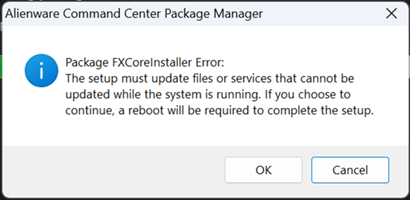
If Alienware Command Center version 6.1.11 is already installed on the computer, a message appears during installation. This message says, "Alienware Command Center Package Manager: Package FXCoreInstaller Error: The setup must update files or services that cannot be updated while the system is running. If you choose to continue, a reboot will be required to complete the setup." If this is seen, click OK to complete the installation, then restart the computer.
If Alienware Command Center version 6.1.11 is not already installed on the computer, restart the computer after installation is completed.
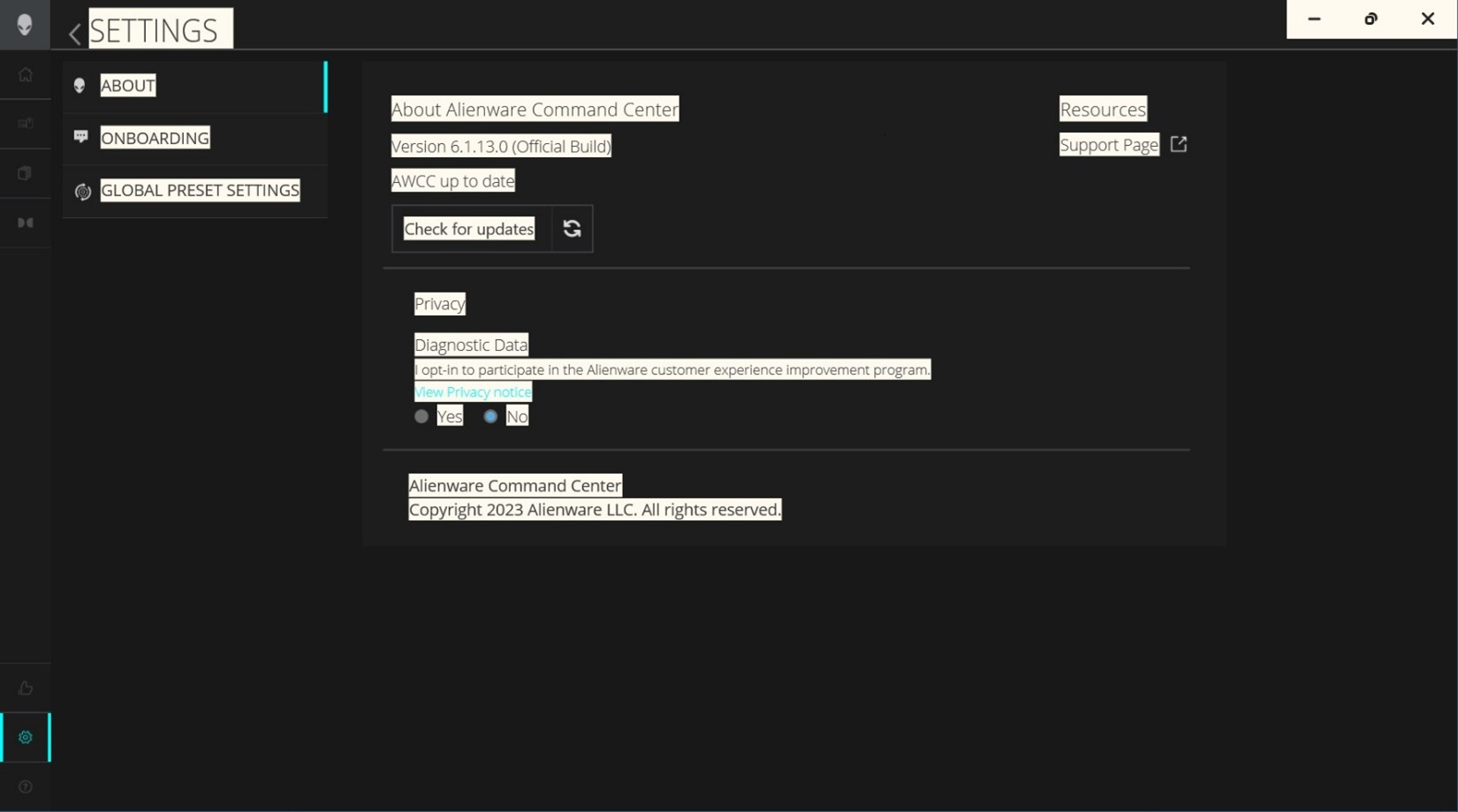
Once Alienware Command Center 6.1.13 or later is installed, confirm the Alienware Command Center version by clicking the Settings icon in the bottom-left corner.