PowerFlex 3.6 Clearing Disk Errors in PowerFlex Presentation Server
Сводка: These are the steps for Clearing Disk Errors in the PowerFlex Presentation Server.
Данная статья применяется к
Данная статья не применяется к
Эта статья не привязана к какому-либо конкретному продукту.
В этой статье указаны не все версии продуктов.
Инструкции
Clearing Disk Errors in PowerFlex Presentation Server -
1. Log in to the Presentation server and click the 'Alerts' tab on the left side of the user interface. This shows you the drives that are showing errors. Next, click on the drive that has an error. If multiple drives are listed, then you will have to go back and repeat this step to clear the next drive error.

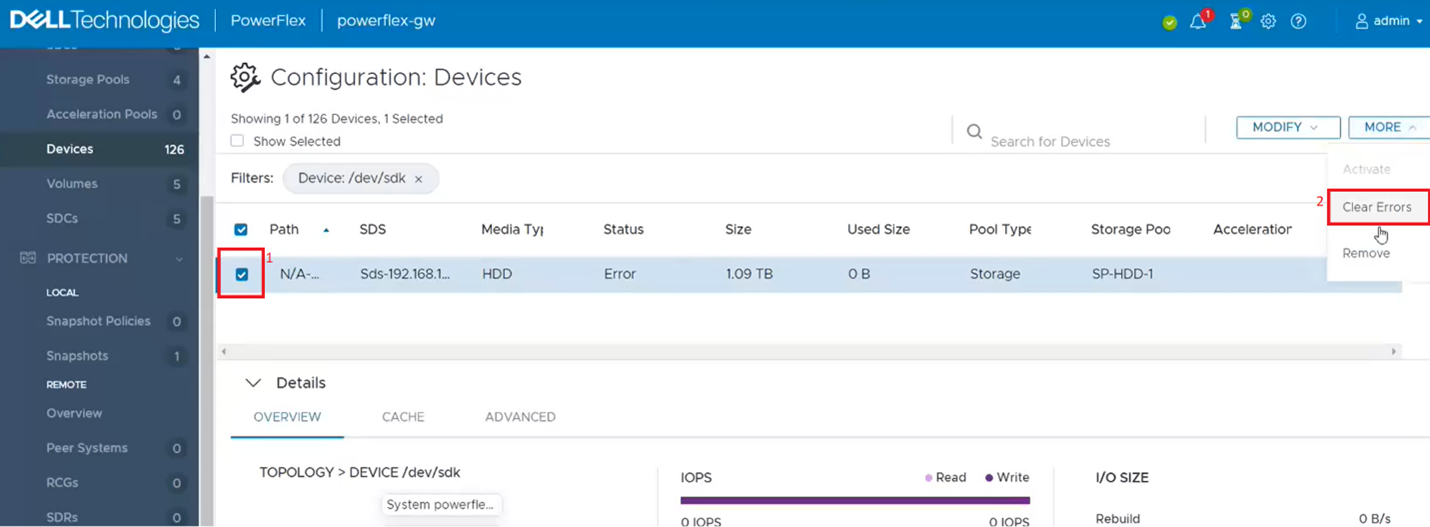
2. This filters out the single dive from the devices list. Click on the singled drive check box (1) and then from the 'More' menu, click on clear errors (2).
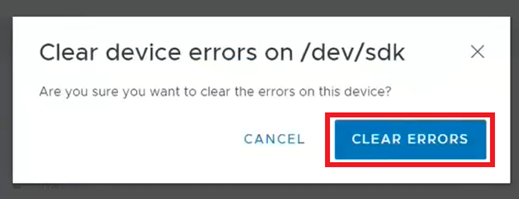
3. On the pop-up box click on clear errors.
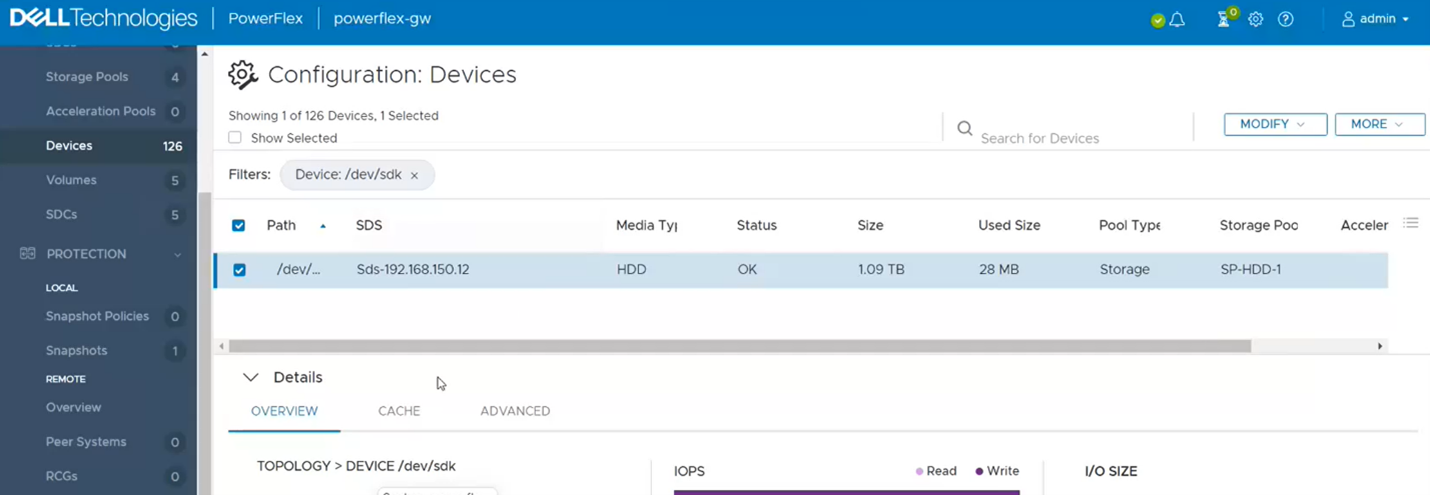
4. It should now show as OK.
5. If you go back to the Alerts sections, it should be now clear. If not, repeat the above steps for any other drives that show as errored.

6. One last step to take is to go back to PowerFlex Manager and run an inventory on the gateway to verify whether it shows healthy.

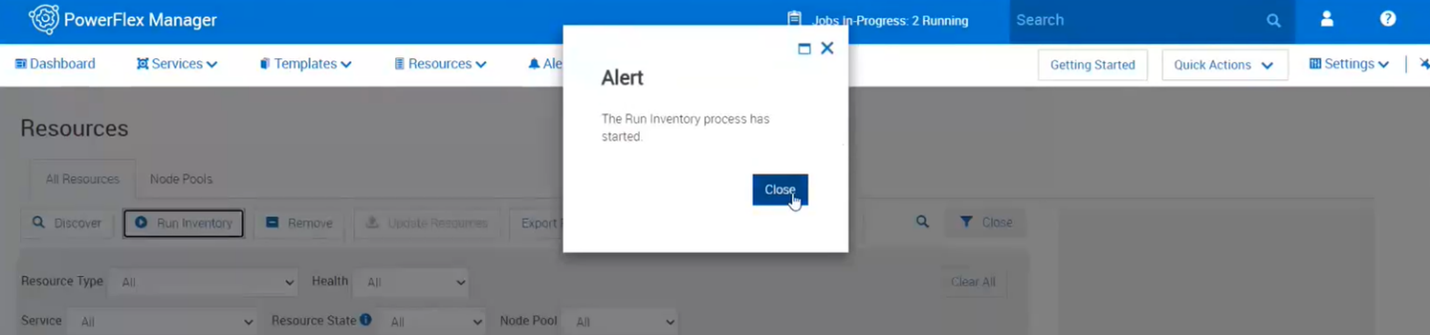
7. Near the top, click on run inventory.

8. Close the box and click on the job. Wait for it to complete.
9. Monitor the Resources in PowerFlex Manager and the alerts in the Presentation Server to see if the error comes returns.
Дополнительная информация
For PowerFlex 4.X see KB https://www.dell.com/support/kbdoc/000256801
Затронутые продукты
PowerFlex rack HWСвойства статьи
Номер статьи: 000213016
Тип статьи: How To
Последнее изменение: 05 Dec 2024
Версия: 4
Получите ответы на свои вопросы от других пользователей Dell
Услуги технической поддержки
Проверьте, распространяются ли на ваше устройство услуги технической поддержки.