Data Domain: WinSCP Host Displays the Message "Host is Not Communicating for More than 15 Seconds. Still Waiting"
Сводка: This article explains about WinSCP connection failures due to host waiting for a response from the server.
Данная статья применяется к
Данная статья не применяется к
Эта статья не привязана к какому-либо конкретному продукту.
В этой статье указаны не все версии продуктов.
Инструкции
NOTE: WinSCP only works with FTP or SFTP, the SCP protocol does not work. See related Dell article 202391, Data Domain: WinSCP Does Not Work with Data Domain or DDMC.
Introduction:
When connecting from WinSCP to Data Domain to collect and upload logs, Data Domain may take a long time responding due to Network or Connection issues. This is normal.When accessing the Data Domain with WinSCP, a timeout warning appears that says:
Host is not communicating for more than 15 seconds. Still waiting… Warning: Aborting this operation closes connection!Here, the server response time in WinSCP is set to 15 seconds and a connection to the server may not be established in that period.

Figure 1: Screenshot of warning message that connection is aborting.
Resolution:
The server response time must be changed or increased so that WinSCP can wait for a longer period of time to connect to the system.
- Open the log-in dialog box and enter the required details to connect as depicted below:

Figure 2: Open the log-in dialog box and enter the required details.
NOTE:
- Select the appropriate protocol from the File protocol drop-down menu before connecting. WinSCP only works with FTP or SFTP.
- DD does not support FTP and SFTP to be enabled simultaneously.
- Use DD IP address in place of Hostname as well.
- Click the Advanced Option on the log-in dialog box as shown below.

Figure 3: Click the Advanced Option on the log-in dialog box.
- In the Connection screen, set the Server Response Timeout to greater than 15 seconds. In the example below, the time is set to 120 seconds. Ensure that the Optimize Connection Buffer Size box is checked.
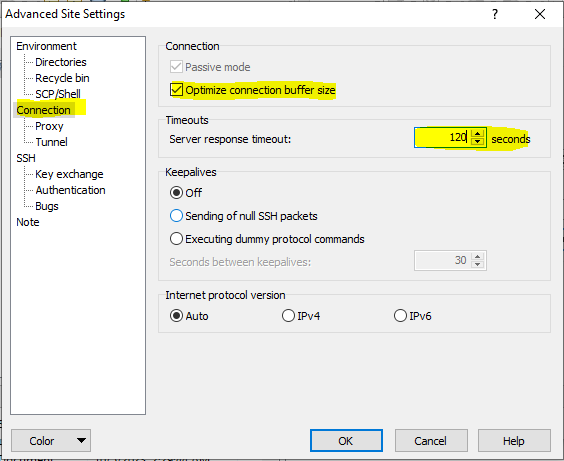
Figure 4: Set the Server Response Timeout to greater than 15 seconds (120 seconds in this example).
- Click OK and go to log in.

Figure 5: Save the changes and go to log in.
Затронутые продукты
Data DomainСвойства статьи
Номер статьи: 000218901
Тип статьи: How To
Последнее изменение: 10 Nov 2023
Версия: 2
Получите ответы на свои вопросы от других пользователей Dell
Услуги технической поддержки
Проверьте, распространяются ли на ваше устройство услуги технической поддержки.