How to Add CrowdStrike Falcon Console Administrators
Zhrnutie: Learn about how to create an administrator account or add more administrators for CrowdStrike Falcon Console by following these instructions.
Tento článok sa vzťahuje na
Tento článok sa nevzťahuje na
Tento článok nie je viazaný na žiadny konkrétny produkt.
V tomto článku nie sú uvedené všetky verzie produktov.
Pokyny
Falcon Administrators can access all functionality in the CrowdStrike Falcon Console except certain Real Time Response (RTR) functionality. This article discusses how to add additional administrators to the CrowdStrike Falcon Console.
Affected Operating Systems:
- Windows
- Mac
- Linux
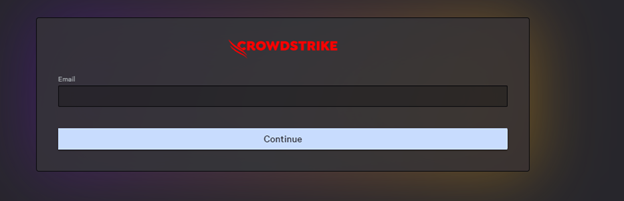
- In a Google Chrome or Microsoft Edge browser, go to your Falcon console login URL.
- Falcon US-1: https://falcon.crowdstrike.com/login/
- Falcon US-2: https://falcon.us-2.crowdstrike.com/login/
- Falcon EU-1: https://falcon.eu-1.crowdstrike.com/login/
- Falcon US-GOV-1: https://falcon.laggar.gcw.crowdstrike.com/login/
- Falcon US-1: https://falcon.crowdstrike.com/login/
- Log In to the Falcon Console.
- In the left menu pane, click Host Setup and Management and then select User management.
 Note: The layout in the example may differ slightly from your environment.
 - In the upper right corner, click Create user.

- In the Create User menu:
- Populate Email.
- Populate First Name.
- Populate Last Name.
- Search for at least one administration role.
- Click Save.
 Note: For more information about administration role functions, select the information icon (
 ) next to the selected role.

To contact support, reference Dell Data Security International Support Phone Numbers.
Go to TechDirect to generate a technical support request online.
For additional insights and resources, join the Dell Security Community Forum.
Dotknuté produkty
CrowdStrikeVlastnosti článku
Číslo článku: 000130804
Typ článku: How To
Dátum poslednej úpravy: 02 júl 2024
Verzia: 15
Nájdite odpovede na svoje otázky od ostatných používateľov spoločnosti Dell
Služby podpory
Skontrolujte, či sa na vaše zariadenie vzťahujú služby podpory.