Loading the IRST Driver To Install An Operating System On NVMe Storage Drives
Zhrnutie: This article describes how to load the Intel Rapid Storage Technology (IRST) driver (version 17.5 or newer). IRST is required to install the Operating System on a Non-Volatile Memory express (NVMe) storage drive. ...
Pokyny
Steps to load the Intel Rapid Storage Technology driver to install the operating system on NVMe memory.
-
Go to the Dell Drivers & Downloads web page and identify your computer:
-
The IRST driver is most often located under the Storage or Serial ATA categories. Download the x64 version of the IRST driver (version 17.5 or newer) to a computer.
-
Double-click the .exe file that you have saved to a computer.
-
Do Not select Install, choose Extract instead.
-
Direct the extract tool to extract the driver files to an empty bootable USB Key.
-
-
Connect the Operating System Reinstallation Image (OSRI) bootable USB Key to the computer and initiate the operating system deployment by booting from the USB Key.
-
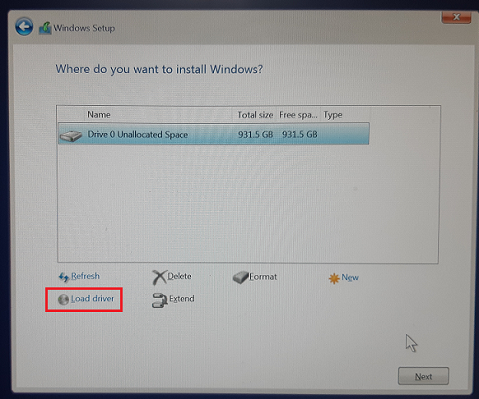
On the Windows Setup page where the storage drives are listed, select Load Driver.
-
Insert the second USB drive (The drive with the IRST driver files) into another USB port, if another USB port is available. (If another USB port is not available, remove the OSRI USB drive and insert the second USB drive into the same USB port.)
-
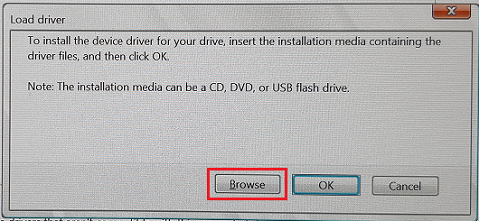
In the Load Driver window, click Browse.
-
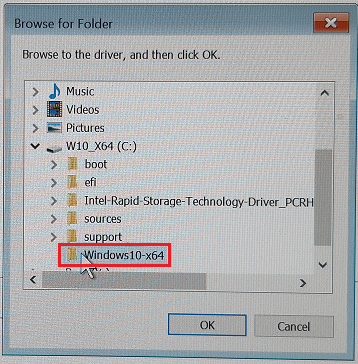
In the Browse for Folder window, browse the USB drive and select the folder where the IRST driver files are available. Then click OK.
-
In the Windows Setup window, the available driver files are listed out (iaStorAC.inf). Click Next to install the listed driver.

-
Once the driver is installed, NVMe storage appears in the drive list, and you can continue the operating system deployment.
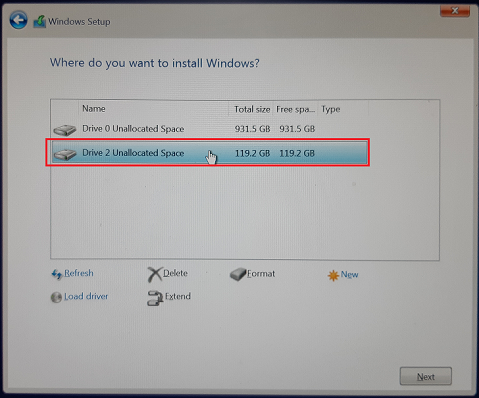
In the above screenshot, you can find the Drive 2 detection which is not there in the first screenshot.
Further instructions are available to complete this installation. Select the correct operating system from those listed on the following Dell Portal Page:
Ďalšie informácie
See these Dell Knowledge Base articles for related information:
- What is Intel Rapid Storage Technology Software
- How to setup or reconfigure your computer for use with Intel Rapid Start Technology with Smart Response Enabled
- Intel 11th, 12th, and 13th Generation Processors, No Drives Can Be Found During Windows 10 and Windows 11 Installation
- Some Images May Not Have the Required Driver When Installing Windows 10 on Intel 12th Generation Computers Using ISO Images