How to Implement PXE Booting from USB-C and Thunderbolt Ethernet Adapters
Zhrnutie: Information about facilitating the Pre-Boot Execution (PXE) boot process when using a USB-C or Thunderbolt Ethernet adapter.
Tento článok sa vzťahuje na
Tento článok sa nevzťahuje na
Tento článok nie je viazaný na žiadny konkrétny produkt.
V tomto článku nie sú uvedené všetky verzie produktov.
Pokyny
PXE Booting
When PXE booting, several options may be required to be enabled in the BIOS (Figure 1).
Note: The following screenshots (Figure 1 and 2) are examples of the required options. The BIOS options for your computer may be different.
- Set the Fastboot option to Thorough to enable UEFI PXE boot.
- Windows 10 and 11: Legacy Option ROMs should be off. Secure Boot may be enabled if wanted.

Figure 1: Dell BIOS Advanced Boot Options
- If you are using a USB-C adapter, enable Thunderbolt Boot support in the BIOS: (check all boxes) (Figure 2.)

Figure 2: Enabling Thunderbolt Boot Support
- The server must support UEFI PXE Boot (Windows Server 2012 is required usually).
- Exit the BIOS, select UEFI PXE Boot IPv4.
WDS configuration for UEFI must contain x86 and x64 boot images (Figure 3).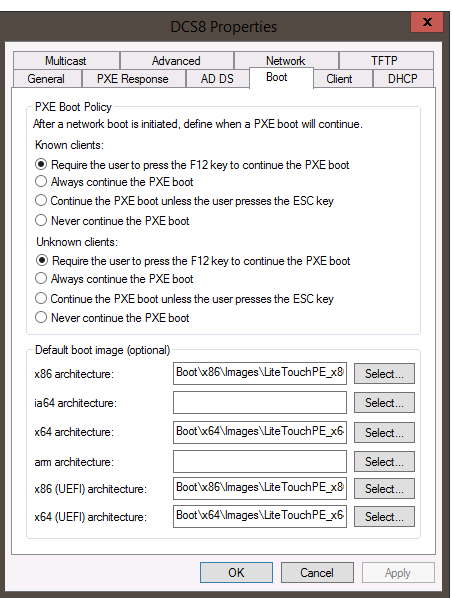
Figure 3: Windows Deployment Services PXE Boot Policy
Note: You need the Realtek USB FE Family Controller driver (version 10.9.504.2016 has been verified to work, newer versions can be used, but have not been verified) in your Windows 10 PE image for MAC pass-thru to work properly.
Dotknuté produkty
Alienware, Inspiron, Legacy Desktop Models, OptiPlex, Vostro, XPS, G Series, G Series, Alienware, Inspiron, Latitude, Vostro, XPS, Legacy Laptop Models, Fixed Workstations, Mobile WorkstationsVlastnosti článku
Číslo článku: 000150882
Typ článku: How To
Dátum poslednej úpravy: 22 júl 2025
Verzia: 10
Nájdite odpovede na svoje otázky od ostatných používateľov spoločnosti Dell
Služby podpory
Skontrolujte, či sa na vaše zariadenie vzťahujú služby podpory.