How to Run the Dell D1918H, D2421H, D2421DS, and D2721H Monitor Self-Test
Zhrnutie: The following article provides information about running the self-test on Dell D1918H, D2421H, D2421DS, and D2721H monitors.
Tento článok sa vzťahuje na
Tento článok sa nevzťahuje na
Tento článok nie je viazaný na žiadny konkrétny produkt.
V tomto článku nie sú uvedené všetky verzie produktov.
Pokyny
Monitor Self-Test
The self-test (integrated diagnostic tool) helps you determine if any screen abnormality you experience is an inherent problem with: (For example: Your monitor, video cable, video card, driver, or computer.)
Steps for running the self-test:
- Disconnect all video cables from the monitor and turn off your monitor.
- Turn on the monitor.
- When the Dell logo disappears and the screen shows "No signal," press buttons 2 + 3 + 5 on the monitor simultaneously.
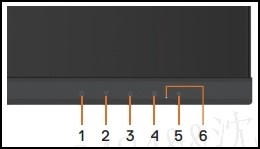
The monitor enters the self-test screen. - Carefully inspect the screen for abnormalities as the display turns to red, green, blue, black, and white automatically.
- Press button 5 to exit the self-test screen.
If you do not detect any screen abnormalities while using the self-test tool, the monitor is functioning properly. Check your video cable, video card, drivers, and computer.
Dotknuté produkty
Dell D1918H, Dell D2421H, Dell D2721HVlastnosti článku
Číslo článku: 000188980
Typ článku: How To
Dátum poslednej úpravy: 13 nov 2025
Verzia: 12
Nájdite odpovede na svoje otázky od ostatných používateľov spoločnosti Dell
Služby podpory
Skontrolujte, či sa na vaše zariadenie vzťahujú služby podpory.