NetWorker: How To Identify Binary Version Details
Summary: This KB gives a general overview of how to identify NetWorker binary or executable version details for both Linux and Windows NetWorker hosts. This information can be useful in confirming if the correct version is in use or when comparing default vs. debug files. ...
Ця стаття стосується
Ця стаття не стосується
Ця стаття не стосується якогось конкретного продукту.
У цій статті зазначено не всі версії продукту.
Instructions
This KB gives a general overview of how to identify NetWorker binary or executable version details for both Linux and Windows NetWorker hosts. This information can be useful in confirming if the correct version is in use or when comparing default vs. debug files.
Linux:
- On Linux based NetWorker hosts, confirm the install path:
find / -name binary_name
Or:
which PROCESS_NAME
- Use the strings command against the binary file:
strings /path/to/binary | grep -i "@(#)"
Example:
nve:~ # strings /usr/sbin/nsrexecd | grep -i "@(#)"
@(#) Product:      NetWorker
@(#) Release:      19.12.0.0.Build.21
@(#) Build number: 21
@(#) Build date:   Sat Dec 21 17:59:07 2024
@(#) Build arch.:  linux86w
@(#) Build info:   DBG=0,OPT=-O2 -fno-strict-aliasing
NOTE: For full details remove the
| grep -i "@(#)" from the command.
Windows:
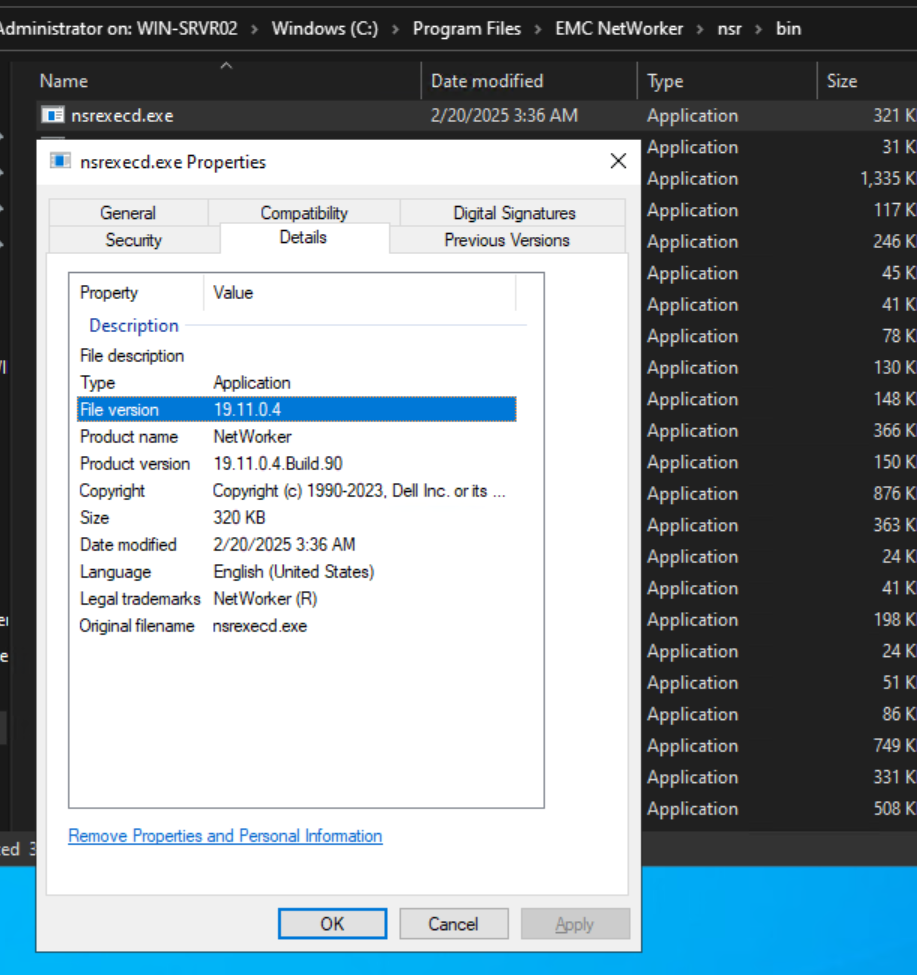
- Open Windows File Explorer and go to the NetWorker install path.
- Go to the NetWorker bin directory, e.g:
..\Program Files\EMC NetWorker\nsr\bin - Open the file properties of the executable in question, and select the Details tab:
Additional Information
Продукти, яких це стосується
NetWorkerПродукти
NetWorkerВластивості статті
Article Number: 000158059
Article Type: How To
Востаннє змінено: 09 черв. 2025
Version: 6
Отримайте відповіді на свої запитання від інших користувачів Dell
Служба підтримки
Перевірте, чи послуги служби підтримки поширюються на ваш пристрій.