「Dell EMC Unity:Dell EMC Unity OEコードをアップグレードする方法(ユーザーによる修正可能)(英語)」
摘要: Unity OEコードをアップグレードする方法について説明します。
本文适用于
本文不适用于
本文并非针对某种特定的产品。
本文并非包含所有产品版本。
说明
Unity OEコードをアップグレードする方法
方法1:Unisphere GUIを使用する場合
1.「管理者または同等のユーザー」としてUnisphereにログインし、[Settings]メニューに移動します。
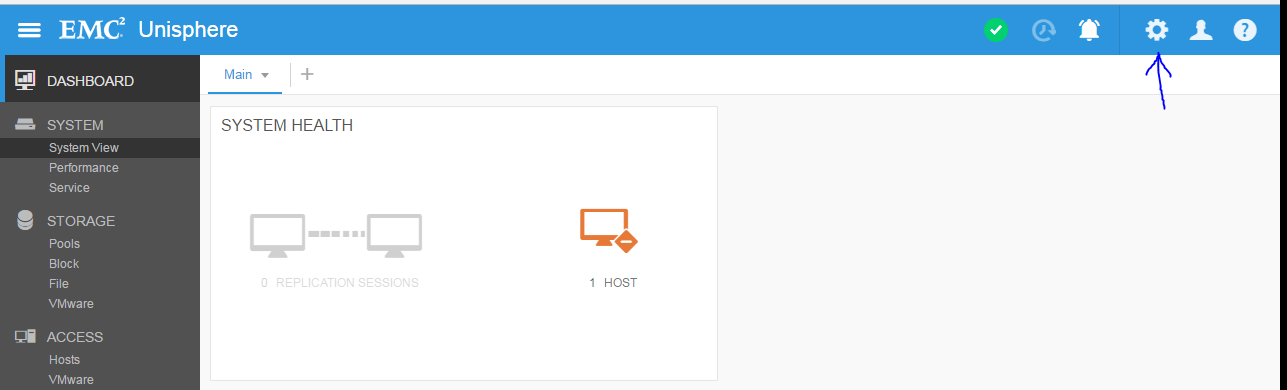
2.[ソフトウェアおよびライセンス > ソフトウェア アップグレード]に移動します。
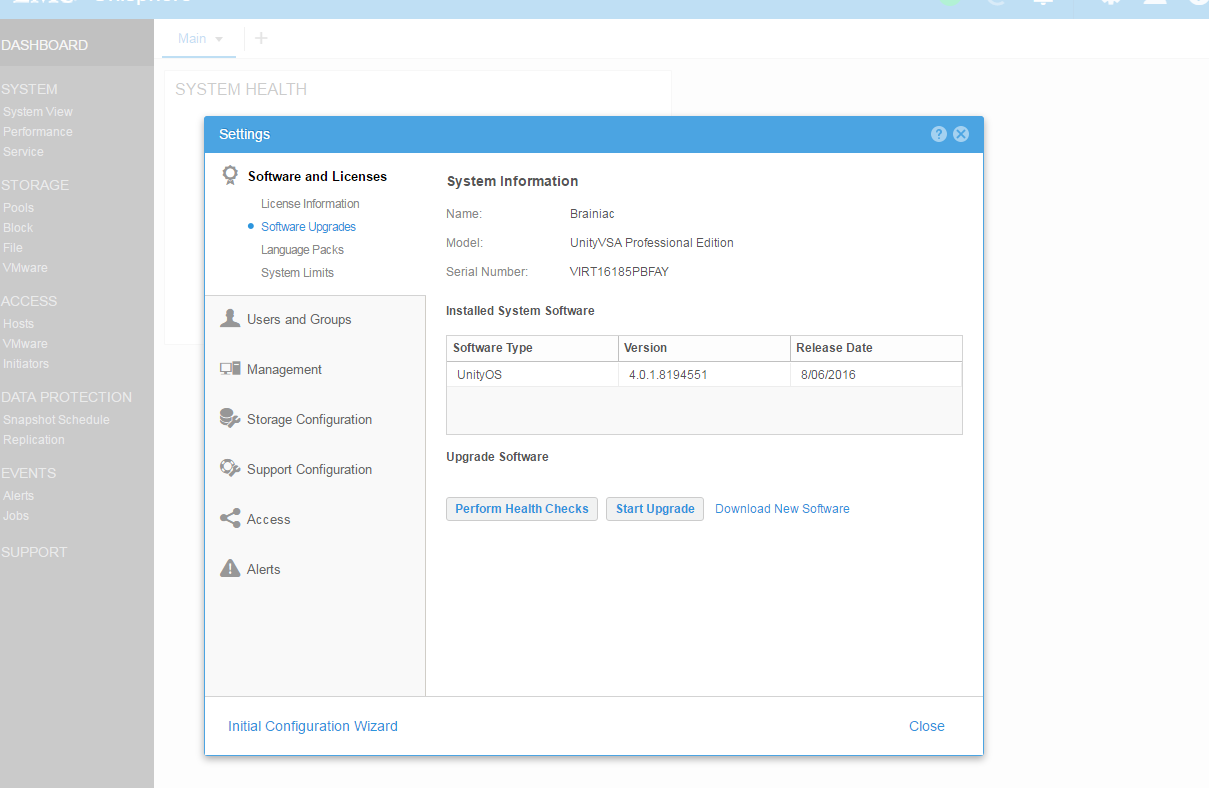
メモ:
ここには、現在使用しているUnity OEバージョンと、次の3つのオプションが表示されます。
- [Perform Health Checks]
- [Start Upgrade]
- [Download New Software]
3.アップグレードを開始する準備ができたら、次の手順を実行します。
- https://www.dell.com/support/home/en-us/product-support/product/unity-family/driversから新しいソフトウェア ファイルをダウンロードします。
- [Perform Health Checks]をクリックします([Start Upgrade]のウィザードでも実行されるため任意)。
- [Start Upgrade]をクリックして、アップグレード ウィザードを起動します。
4.アップグレード前に[Perform Health Checks]オプションを選択します。

メモ:
警告がある場合は、アップグレードを実行する前に対処してください。
5.https://www.dell.com/support/home/サイトからダウンロードしたUnity OEアップグレード ファイルをアップロードします。
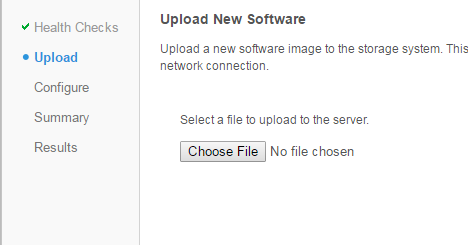
Unity OEファイルをアップロードした後、次のように表示されます。
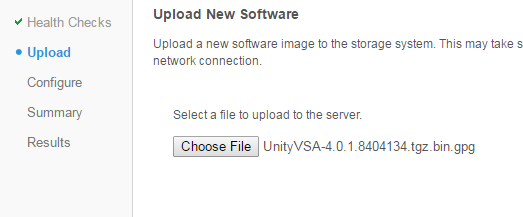
メモ:
[Next]ボタンを押すと、システムはアップグレード用のファイルを準備します。これには約5~10分かかる場合があります。
メモ:この手順の後にアップグレードがキャンセルされた場合は、プライマリーSPの/var/tmp/upgradeからイメージが削除されていることを確認します。ルートFSの使用率を高いままにしておくと、SPパニックを生じることがあります。
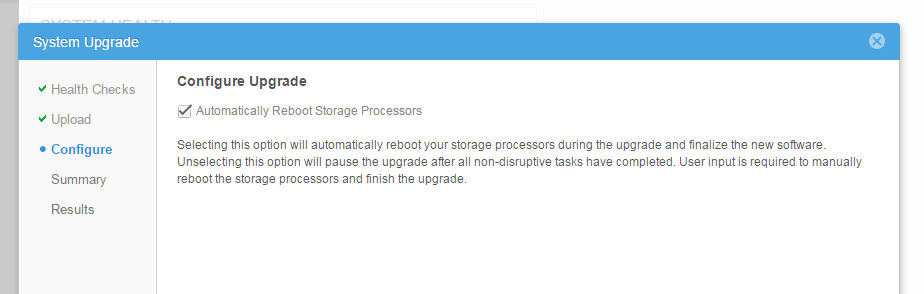
6.次の手順では、SPを再起動するタイミングを決定します。選択したままにすると、SPはアップグレード中に一度に1つずつ再起動します。選択を解除すると、後で([Resume Upgrade]を使用して)SPを自分で再起動できます。デフォルトでは、Unityが必要に応じてSPを再起動できるように自動で選択されています。
7.[Summary]ページを確認し、以前のバージョンと新しいバージョンが表示されていることを確認します。

メモ:
アップグレードを実行するタイミングに関する推奨事項をお読みください。
8.[Finish]ボタンをクリックして、Unity OEのアップグレードを開始します。
アップグレード中にエラーが発生した場合は、メッセージと救済措置を参照して「再試行」してください。問題が発生した場合は、サービス プロバイダーにお問い合わせください。
アップグレード中に、SPの再起動、領域不足などの理由で、環境にエラーやアラートが表示される場合があります。
9.Unity OEのアップグレードが完了したら、Unisphereを再ロードします。これで、新しいコードが[System View]の[Summary]タブに表示されます。
Method 2 : Using Command Line (uemcli)
1) Download the image first (We can use any clients that supports uemcli like windows, linux or even unity console itself. If Unity console is used, the image need to be copied to peer SP) Below is an example for a complete upgrade by uemcli.


a) SSH Login to the array using service account [Example: SPA is managing SP and SPB is peer SP ]
b) Get the upgrade image file using winSCP or sftp to /cores/service(Example: Unity-4.1.2.9257522.tgz.bin.gpg )
For OE 4.5+:
/cores/service/user/
c) Copy the image to peer SP : scp /cores/service/Unity-4.1.2.9257522.tgz.bin.gpg peer:/cores/service
For OE 4.5+:
scp /cores/service/user/Unity-4.1.2.9257522.tgz.bin.gpg peer:/cores/service/user
d) Delete the image from local SP (SPA in this example) : rm /cores/service/Unity-4.1.2.9257522.tgz.bin.gpg
For OE 4.5+:
rm /cores/service/user/Unity-4.1.2.9257522.tgz.bin.gpg
e) ssh to peer SP : ssh peer


2) Upload the image :
C:\> uemcli -d <unity_management_ip> -u admin -securePassword -upload -f c:\data\Unity-4.2.0.9392909.tgz.bin.gpg upgrade
Password:
Uploaded 2.01 GB of 2.01 GB [ 100%] -PROCESSING-
Operation Completed successfully

If the file was uploaded to Unity via SCP/SFTP:
uemcli -d <unity_management_ip> -u admin -securePassword -upload -f /cores/service/user/Unity-4.1.2.9257522.tgz.bin.gpg upgrade

Note: If the upgrade is cancelled after this step, make sure the image is deleted from /var/tmp/upgrade on the primary SP. Leaving the root FS in high usage could lead to SP panic.


3) Verify the image candidate ID
C:\> uemcli -d 10.0.0.1 -u admin -securePassword /sys/soft/ver show
Password:
1:    ID           = INST_1
      Type         = installed
      Version      = 4.1.1.9138882
      Release date = 2017-02-09 14:30:02

2:    ID           = CAND_1
      Type         = candidate
      Version      = 4.2.0.9392909
      Release date = 2017-06-28 11:28:31


4) Create (start) the upgrade (optional to specify pause before reboot, if not given full upgrade will start immediately):
C:\> uemcli -d 10.0.0.1 -u admin -securePassword /sys/soft/upgrade create -candId CAND_1 -pauseBeforeReboot

5) Monitor the upgrade :
C:\> uemcli -d 10.0.0.1 -u admin -securePassword /sys/soft/upgrade show -detail

6) Resume the upgrade if pause before reboot is given or any health checks failed (like Replication session not paused earlier) :
C:\> uemcli -d 10.0.0.1 -u admin -securePassword /sys/soft/upgrade resume

7) Verify after it completes

04:48:27 service@(none) spb:~> uemcli /sys/soft/ver show -detail

1:    ID              = INST_1
      Type            = installed
      Version         = 4.2.0.9392909
      Release date    = 2017-06-28 11:28:37
      Image type      =
      Reboot required =
      Pause allowed   =
      Image filename  =

04:48:36 service@(none) spb:~> uemcli /sys/soft/upgrade show -detail

1:    Status              = completed
      Creation time       = 2017-08-03 03:30:10
      Elapsed time        = 55m 36s
      Estimated time left =
      Progress            =
      Percent complete    = 100%
其他信息
Dell EMCでは、本番稼働が少ない期間にUnity OEコードのアップグレードを実行することをお勧めします。アップグレード中にDU/DLを使用しないでください。アップグレード中に処理速度が低下し、CPUの利用率が高くなる可能性があります。
コア/サービスをアップグレードする前に、少なくとも5 GBの空き容量が必要です。通常、その領域を解放するには、古いデータ コレクションを削除することが最善の方法です。
4.5または4.5.1にアップグレードする場合は、次のKBを参照してください。
「Dell EMC Unity:4.5.0または4.5.1へのアップグレード後にレプリケーション データ ストアが更新されない(ユーザーによる修正可能)(英語)」https://support.emc.com/kb/531543
この記事は、DELL EMCコミュニティー ネットワーク(DECN)でHVCとしてプロモートされました(https://community.emc.com/docs/DOC-56665)。
受影响的产品
Dell EMC Unity Family产品
Dell EMC Unity Family文章属性
文章编号: 000022755
文章类型: How To
上次修改时间: 01 12月 2025
版本: 9
从其他戴尔用户那里查找问题的答案
支持服务
检查您的设备是否在支持服务涵盖的范围内。