Dell EMC Unity: Dell EMC Unity OE 코드를 업그레이드하는 방법(사용자 수정 가능)
摘要: Unity OE 코드를 업그레이드하는 방법
本文适用于
本文不适用于
本文并非针对某种特定的产品。
本文并非包含所有产品版本。
说明
Unity OE 코드를 업그레이드하는 방법
방법 1: Unisphere GUI 사용
1. "admin 또는 동급 사용자"
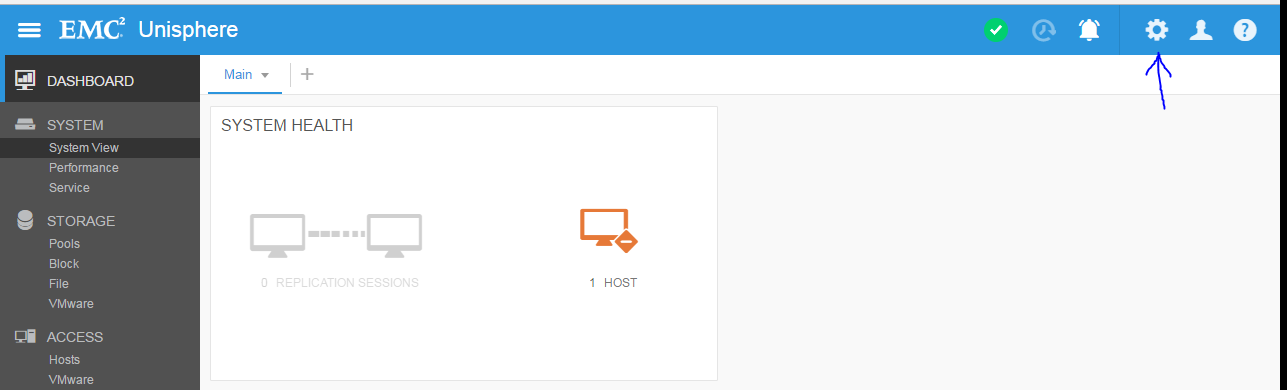
로 로그인한 Unisphere에서 "설정" 메뉴로 이동합니다. 2. "소프트웨어 및 라이센스소프트웨어 > 업그레이드"
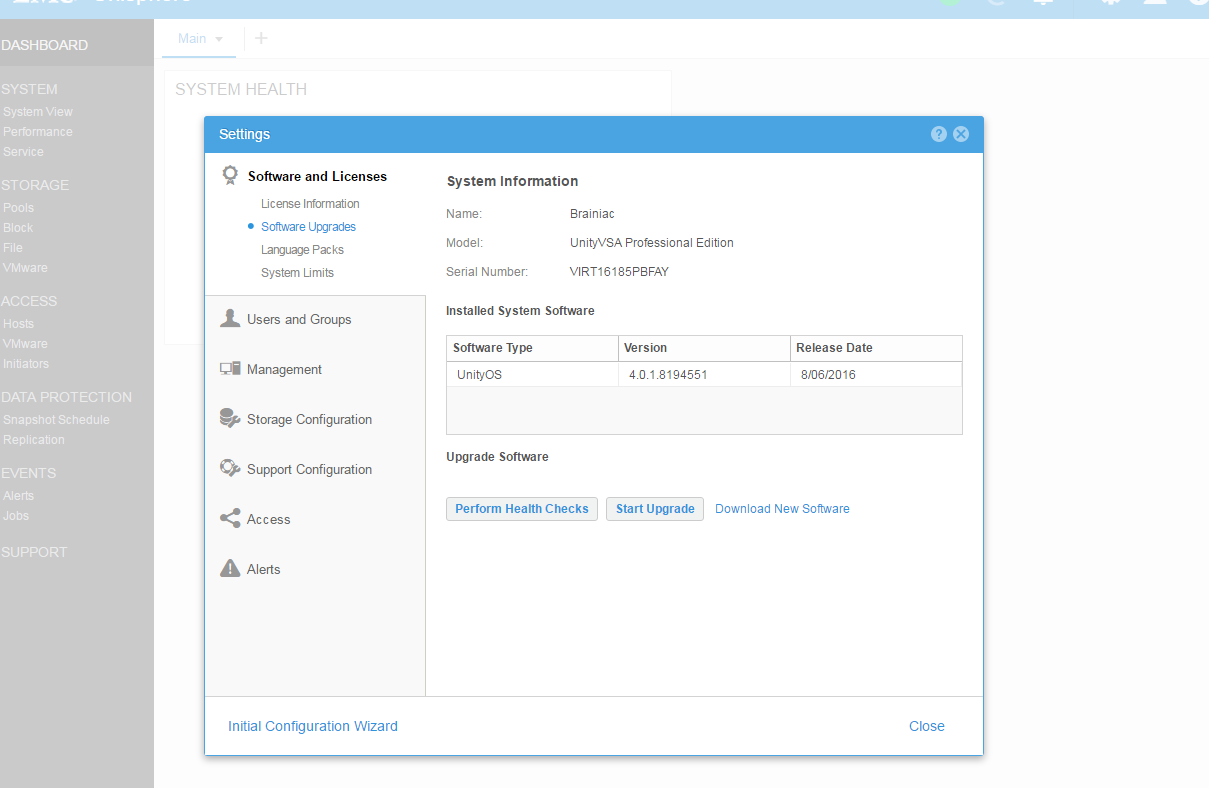
로 이동합니다참고:
여기에 현재 사용 중인 Unity OE 버전과 3가지 옵션이 표시됩니다.
- 상태 점검 수행
- 업그레이드 시작
- 새 소프트웨어 다운로드
3. 업그레이드를 시작할 준비가 되면
- https://www.dell.com/support/home/en-us/product-support/product/unity-family/drivers 에서 새 소프트웨어 파일을 다운로드 합니다.
- 상태 점검 수행(선택 사항, 마법사의 "Start Upgrade"에서도 수행됨)
- "Start Upgrade"를 클릭해 업그레이드 마법사를 시작합니다.
4. 업그레이드
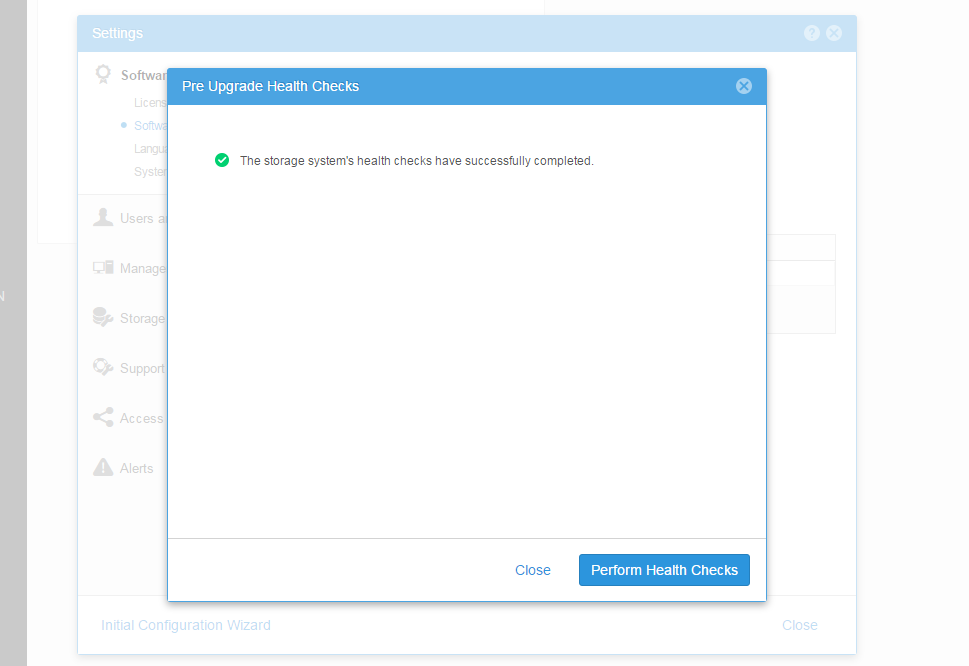
하기 전에 "상태 점검 수행" 옵션참고:
경고가 있는 경우 업그레이드를 수행하기 전에 경고를 먼저 해결하십시오.
5. https://www.dell.com/support/home/ 사이트에서 다운로드한 Unity OE 업그레이드 파일을 업로드합니다.
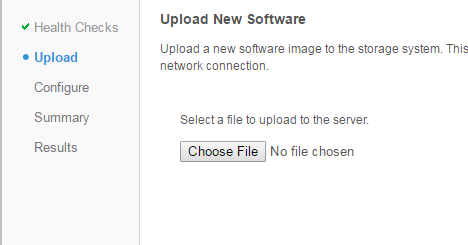
Unity OE 파일이 업로드된 후의 모양:

참고:
"다음" 버튼을 누르면 시스템이 업그레이드를 위해 파일을 준비합니다. 약 5-10분 정도 걸릴 수 있습니다.
참고: 이 단계 이후에 업그레이드가 취소되면 주 SP의 /var/tmp/upgrade에서 이미지가 삭제되었는지 확인하십시오. 루트 FS를 높은 사용량으로 두면 SP 패닉이 발생할 수 있습니다.
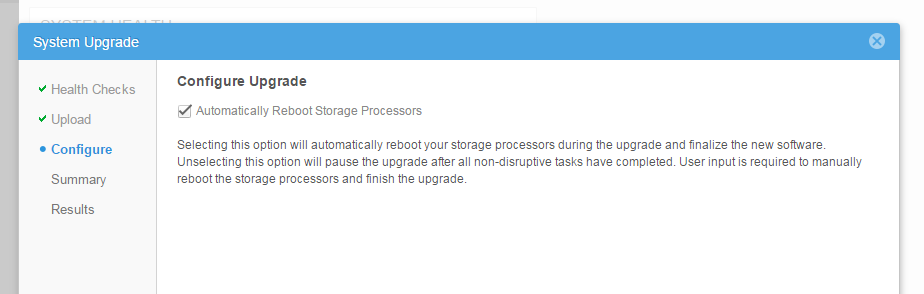
6. 다음 단계는 SP를 재부팅할 시기를 결정하는 것입니다. 이 옵션을 그대로 두면 업그레이드를 수행하는 동안 SP가 한 번에 하나씩 재부팅됩니다. 선택하지 않으면 나중에 SP를 직접 재부팅할 수 있습니다("업그레이드 재개"를 통해). 기본값은 Unity가 필요에 따라 SP를 재부팅할 수 있도록 자동으로 선택되는 것입니다.
7. 요약 페이지를 검토하고 새 버전의
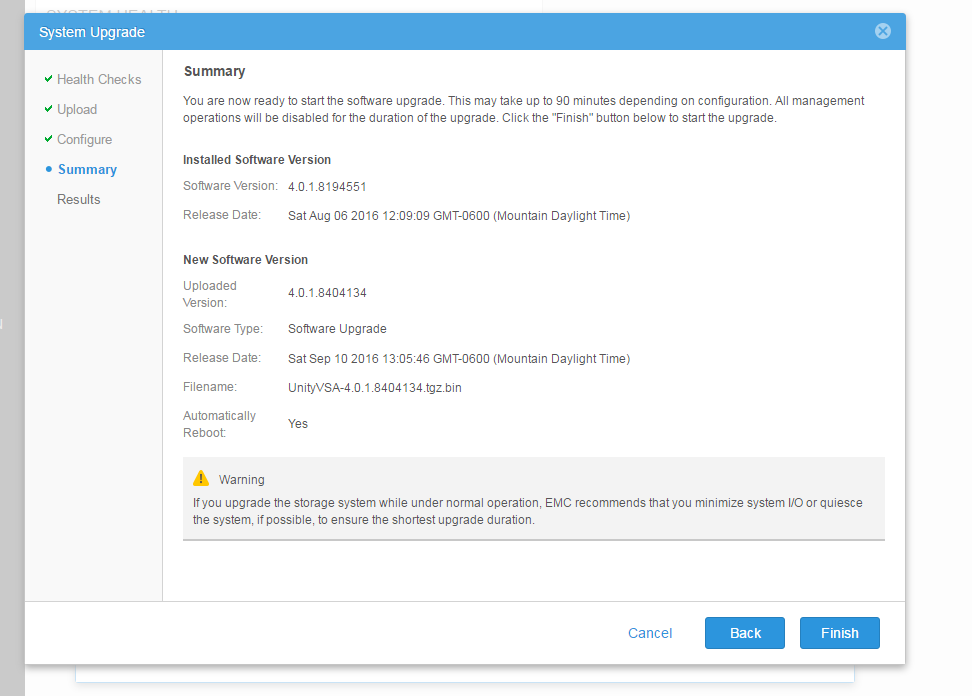
이전 버전이 표시되는지확인합니다. 참고:
업그레이드 시기에 대한 권장 사항을 읽어 보십시오.
8. "Finish" 버튼을 클릭하여 Unity OE 업그레이드를 시작합니다.
업그레이드 중에 오류가 발생하면 메시지와 해결 방법을 참조하여 "다시 시도하십시오". 문제가 있는 경우 서비스 공급업체에 문의하십시오.
업그레이드하는 동안 SP 재부팅, 공간 부족 등의 이유로 환경에 오류 또는 알림이 표시될 수 있습니다.
9. Unity OE 업그레이드가 완료되면 Unisphere를 다시 로드하십시오. 이제 새 코드가 "System View"의 "Summary Tab"에 표시됩니다.
Method 2 : Using Command Line (uemcli)
1) Download the image first (We can use any clients that supports uemcli like windows, linux or even unity console itself. If Unity console is used, the image need to be copied to peer SP) Below is an example for a complete upgrade by uemcli.


a) SSH Login to the array using service account [Example: SPA is managing SP and SPB is peer SP ]
b) Get the upgrade image file using winSCP or sftp to /cores/service(Example: Unity-4.1.2.9257522.tgz.bin.gpg )
For OE 4.5+:
/cores/service/user/
c) Copy the image to peer SP : scp /cores/service/Unity-4.1.2.9257522.tgz.bin.gpg peer:/cores/service
For OE 4.5+:
scp /cores/service/user/Unity-4.1.2.9257522.tgz.bin.gpg peer:/cores/service/user
d) Delete the image from local SP (SPA in this example) : rm /cores/service/Unity-4.1.2.9257522.tgz.bin.gpg
For OE 4.5+:
rm /cores/service/user/Unity-4.1.2.9257522.tgz.bin.gpg
e) ssh to peer SP : ssh peer


2) Upload the image :
C:\> uemcli -d <unity_management_ip> -u admin -securePassword -upload -f c:\data\Unity-4.2.0.9392909.tgz.bin.gpg upgrade
Password:
Uploaded 2.01 GB of 2.01 GB [ 100%] -PROCESSING-
Operation Completed successfully

If the file was uploaded to Unity via SCP/SFTP:
uemcli -d <unity_management_ip> -u admin -securePassword -upload -f /cores/service/user/Unity-4.1.2.9257522.tgz.bin.gpg upgrade

Note: If the upgrade is cancelled after this step, make sure the image is deleted from /var/tmp/upgrade on the primary SP. Leaving the root FS in high usage could lead to SP panic.


3) Verify the image candidate ID
C:\> uemcli -d 10.0.0.1 -u admin -securePassword /sys/soft/ver show
Password:
1:    ID           = INST_1
      Type         = installed
      Version      = 4.1.1.9138882
      Release date = 2017-02-09 14:30:02

2:    ID           = CAND_1
      Type         = candidate
      Version      = 4.2.0.9392909
      Release date = 2017-06-28 11:28:31


4) Create (start) the upgrade (optional to specify pause before reboot, if not given full upgrade will start immediately):
C:\> uemcli -d 10.0.0.1 -u admin -securePassword /sys/soft/upgrade create -candId CAND_1 -pauseBeforeReboot

5) Monitor the upgrade :
C:\> uemcli -d 10.0.0.1 -u admin -securePassword /sys/soft/upgrade show -detail

6) Resume the upgrade if pause before reboot is given or any health checks failed (like Replication session not paused earlier) :
C:\> uemcli -d 10.0.0.1 -u admin -securePassword /sys/soft/upgrade resume

7) Verify after it completes

04:48:27 service@(none) spb:~> uemcli /sys/soft/ver show -detail

1:    ID              = INST_1
      Type            = installed
      Version         = 4.2.0.9392909
      Release date    = 2017-06-28 11:28:37
      Image type      =
      Reboot required =
      Pause allowed   =
      Image filename  =

04:48:36 service@(none) spb:~> uemcli /sys/soft/upgrade show -detail

1:    Status              = completed
      Creation time       = 2017-08-03 03:30:10
      Elapsed time        = 55m 36s
      Estimated time left =
      Progress            =
      Percent complete    = 100%
其他信息
DELL EMC는 낮은 운영 기간에 Unity OE 코드 업그레이드를 수행하는 것을 권장합니다. 업그레이드 중에는 DU/DL이 없어야 하지만 업그레이드 중에 속도가 느려지고 CPU 사용률이 높아질 수 있습니다.
업그레이드 전에 코어/서비스에는 최소 5GB의 여유 공간이 있어야 합니다. 일반적으로 이전 데이터 수집을 삭제하는 것이 해당 공간을 확보하는 가장 좋은 방법입니다.
4.5 또는 4.5.1로 업그레이드하는 경우 KB
Dell EMC Unity: 4.5.0 또는 4.5.1 업그레이드 후 복제 데이터 저장소가 업데이트되지 않음(사용자 수정 가능) https://support.emc.com/kb/531543
이 문서의 제목은 DELL DECN(EMC Community Network): https://community.emc.com/docs/DOC-56665 의 HVC로 승격되었습니다 .
受影响的产品
Dell EMC Unity Family产品
Dell EMC Unity Family文章属性
文章编号: 000022755
文章类型: How To
上次修改时间: 01 12月 2025
版本: 9
从其他戴尔用户那里查找问题的答案
支持服务
检查您的设备是否在支持服务涵盖的范围内。