Data Domain:DDPCONNCHK 如何对 DD Boost 连接和性能进行故障处理
摘要: 通过使用与备份应用程序中完全相同的值来提供 DD Boost 连接检查工具 (ddpconnchk) 的详细使用情况。
本文适用于
本文不适用于
本文并非针对某种特定的产品。
本文并非包含所有产品版本。
症状
而 ddpconnchk 该工具可用于对以下问题进行故障处理:
- 媒体服务器无法使用 DD Boost 协议连接到特定 DDR。(这也适用于 DD Boost RMAN 插件程序无法连接到 DDR)
- 媒体服务器无法使用 DD Boost 协议备份到 DDR
- DD Boost 托管文件复制 (MFR) 失败
- DD Boost 备份或还原性能缓慢
- DD Boost MFR 性能缓慢
DDPCONNCHK实用程序可用于模拟受影响的备份主机的完整备份/写入 I/O、还原/读取 I/O 以及到期/删除受影响的备份主机的 I/O,方法是通过使用与备份应用程序配置完全相同的值来排除备份应用程序本身,但包括所有其他位置的所有其他组件。- 此外,
DDPCONNCHK实用程序可以配置适当的选项,以模拟从受影响的备份主机在相关源 (SRC) DD 和目标 (DST) DD 之间的托管文件复制或 MFR over DD Boost。 - 在克隆或 MFR 故障处理期间,始终建议对两个 Data Domain 执行完整的独立备份/写入 I/O、还原/读取 I/O 和到期/删除 I/O 模拟,以及完整的 MFR 模拟。
原因
DD 故障处理 Boost 备份主机和 Data Domain 之间的连接或性能。它不包括相关的备份应用程序,但包括所有位置的所有其他组件。
DD 故障处理 从备份主机以及源 (SRC) Data Domain 与目标 (DST) Data Domain 之间提升 MFR 或克隆的连接性或性能。
DD 故障处理 从备份主机以及源 (SRC) Data Domain 与目标 (DST) Data Domain 之间提升 MFR 或克隆的连接性或性能。
解决方案
从何处获取 ddpconnchk 工具:
https://central.dell.com/solutions/Networker-Tools压缩软件包中包含跨多个操作系统平台的实用程序的多个版本。
信息说明:
ddpconnchk工具必须在媒体服务器上运行,媒体服务器是使用 DD Boost 将数据写入 Data Domain 的主机。首先找出有问题的媒体服务器的操作系统/位。根据媒体服务器的操作系统/位,下载对应的ddpconnchk文件,并将其放在媒体服务器上。ddpconnchk是一个可执行文件,不能作为电子邮件附件发送。
制作方法 ddpconnchk 准备好在媒体服务器上运行:
- 使用
Winscp或SCP将文件从下载位置复制到媒体服务器。 - 无需安装,
ddpconnchk是一个独立的可执行文件。 Gunzip或Winzip或类似产品可用于提取包装。- 需要可执行权限才能运行
ddpconnchk,例如:
chmod +x
Ddpconnchk可以从用户有权访问的任何目录进行复制和运行。例如,您可以使用路径/tmp、C:\Dell或C:\ddtools。
如何运行 ddpconnchk管理此进程:
基本语法:
#<ddpconnchkfilename> -s <DD Hostname Exactly in Backup App config> -l <Logical DDBOOST SU Exactly in Backup App config> -u <Owner of SU> -p <Password of Owner of SU> -p <ddboost_user_password> -v
基本示例:
- 对于 Windows:
C:\ddtools>ddpconnchk -s datadomain1.abc.com -l LSU1 -u ostuser -p xxxxxx -v
- 对于 Linux:
#./ddpconnchk_linux_64 -s datadomain2.com l LSU1 -u dduser -p xxxxxx -v
示例 1:DD Boost 连接的常规检查
#./ddpconnchk_linux_64 -s dd-dm2.abc.com -l LSU1 -u ostuser -p xxxxxx -v
输出示例:
Loading plugin shared library
Could not load ddpi_is_dfc_target_hostname: /lib64/libDDBoost.so: undefined symbol: ddpi_is_dfc_target_hostname

Plugin shared library load FAILED
USING BUILTIN DDP PLUGIN INSTEAD

DDP CLIENT LIBRARY VERSION 2:6:0:2-366182

SERVER: dd-dm2.abc.com
----------------------------------
*** BASIC CONNECTIVITY TEST, dd-dm2.abc.com
1) Translate server name dd-md2-01.abc.com to IP address
Server dd-dm2.abc.com -> IP address 10.xx.xx.xx

2) pmap_getport() for prog MOUNT (100005), vers 3, proto TCP
Portmap (MOUNT) reports TCP port 2052

3) Establish TCP connection to MOUNT service

4) pmap_getport() for prog NFS (100003), vers 3, proto TCP
Portmap(NFS) reports TCP port 2049

5) Establish TCP connection to NFS service

6) Establish DDP connection, for permission check
DDBOOST properties:
DDBOOST enabled = 1
opt_dup_enable = 1

Basic DDP Connectivity Test PASSED

*** CONNECT SERVER TEST, dd-dm2.abc.com

1) Establish DDP connection
DDP Connect Server Test PASSED
*** LIST SUs TEST, dd-md2-01.abc.com
connect_server_with_user_pwd()...
connect_server_with_user_pwd() DONE

open_su_list()...
open_su_list() DONE

Read SU list...
0> dd-dm2-lsu1
  Bytes available 99025806163968
  Bytes used 1085185994221356
1> dd-dm2-lsu2
  Bytes available 99025806163968
  Bytes used 1085185994221356
2> dd-dm2-lsu3
  Bytes available 99025806163968
  Bytes used 1085185994221356
3> ...
4 SUs total
Read SU list DONE

disconnect_server()...
disconnect_server() DONE

List SUs Test PASSED

No further tests possible.
Specify -l<su_name> to enable
more tests

SUCCESS: All tests completed
信息说明:
- 开头的共享库消息并不重要。
Ddpconnchk工具有自己的集成库可供使用。 - 而
-v参数用于详细日志记录,它提供分步结果ddpconnchk检查。 - 如果您不想将密码输入命令行,请运行
ddpconnchk没有。系统将提示您键入密码。 - 测试成功表明,主机名解析为正确的 IP,端口已打开,DD Boost 用户和密码正确无误,媒体服务器可以看到 Data Domain 上的存储单元。这可确认 Data Domain 配置以及媒体服务器与 Data Domain 之间的连接良好。
- 如果
ddpconnchk无法连接,该错误应让您了解无法连接的原因。
示例 2:使用 ddpconnchk 测试 DD Boost 性能。
- 它通过写入测试映像来测试 DD Boost 性能。测试映像在测试后自动移除。下面是使用一个流的性能测试。
C:\ddtools>ddpconnck -s <DD Hostname Exactly in Backup App config> -l <Logical DDBOOST SU Exactly in Backup App config> -u <Owner of SU> -p <Password of Owner of SU> -T writeimage -i 1g -n <Stream Count to Match with Backup App> -vvv

Informational Notes:
Use 1, 4, 8 etc for Stream Count to see if there is improvement in speed. There may be a saturation point for number of streams. Higher the stream count dos not always provide better throughput.
Skip -p option if password contains conflicting special characters (such as # ? ; : , etc), and type the password when prompted.
输出示例:
.....
*** EXTENDED TEST: WRITE IMAGE, dd-dm2-lsu1/sfadvdfdas00163/1073741824
Cumulative Write Throughput: 85.33 MB/s
Cumulative Read Throughput: 25.60 MB/s
- 要执行
ddpconnchk使用 10 个流 (-n 10) 进行性能检查:
C:\ddtools>ddpconnchk -s <ddr_name> -u <ddboost_user> -p <ddb_user_password> -l <lsu_name> -T writeimage -i 1g -n 10
信息说明:
-i1g 确定写入 DDR 的大小:1g = 1 GB 文件,这是最大大小。-n10确定创建多少个文件。- 这些文件是临时文件,在测试操作完成后将被删除。
示例3:使用 ddpconnchk 要检查 DD Boost 复制 (MFR) 的连接,请执行以下操作:
user@Affected_Backup_Host# ddpconnck -s <SRC DD Hostname Exactly in Backup App config> -l <SRC SU Exactly in Backup App config> -u <Owner of SRC SU> -p <Password of Owner of SRC SU> -T writeimage -i 1g -n <Stream Count to Match with Backup App> -vvv    (Use 1, 4, 8 etc for Stream Count to see if there is improvement in speed)
user@Affected_Backup_Host# ddpconnck -s <DST DD Hostname Exactly in Backup App> -l <DST SU Exactly in Backup App> -u <Owner of DST SU> -p <Password of Owner of DST SU> -T writeimage -i 1g -n <Stream Count to Match with Backup App>     (Use 1, 4, 8 etc for Stream Count)

user@Affected_Backup_Host# ddpconnck -s <SRC DD Hostname Exactly in AVA config> -l <SRC SU Exactly in AVA config> -u <Owner of SRC SU> -p <Password of Owner of SRC SU> -S <DST DD Hostname Exactly in AVA config> -L <DST SU Exactly in AVA config> -U <Owner of DST SU> -P <Password of Owner of DST SU> -T optdup -i 1g -n <Stream Count to Match with AVA>     (Use 1, 4, 8 etc for Stream Count to see if there is improvement in speed)
信息说明:
"-S, -U, -P"(大写)表示第二个 DDR。- 这类似于运行
ddpconnchk两次,一次到 DDR1,一次到 DDR2,全部小写,如下所示。但最好运行上面的完整命令。
#./ddpconnchk -s dd-dm-src.abc.com -l lsu1 -u user1 -p xxxxxx -v
#./ddpconnchk -s dd-dm-dst.abc.com -l lsu2 -u user1 -p xxxxxx -v
示例 4:在该服务器上运行 ddpconnchk 检查 MFR/optdup 吞吐量。
#ddpconnchk -s dd-dm-src.abc.com -l src_lsu1 -u user1 -p xxxxxx -S dd-dm-dst.abc.com -L dst_lsu1 -U user1 -P xxxxxx -T optdup -i 1g -n 5 -v
*** EXTENDED TEST: OPT DUP
Src: dd-dm-src /src_lsu1
Dst: dd-dm-dst/dst_lsu1
ImgSize: 262144 bytes
NumThrd: 1
Cumulative Filecopy Throughput: 0.12 MB/s
Total read time: 0 seconds
示例 5:列出客户端看到的光纤通道 (DFC) 设备的动态跟踪。
# ddpconnchk -D scan_all
输出示例:
/dev/sg135:
 Server Name: xxx-xxxxx
 Server ID:   xxxxxxxx

 /dev/sg134:
 Server Name: xxxx-xxxxx
 Server ID:   xxxxxxxx

 2 Generic SCSI devices
 2 DFC LUN devices
 DFC evaluation completed
其他信息
如果 ddpconnchk 失败,请检查特定错误消息以进行进一步的故障处理:
pmap_getport()故障与网络环境有关,例如防火墙问题。connect_server_user_pwd()失败的原因是用户名或密码不正确,或者 DD Boost 访问列表不正确。- 您可以通过检查自动支持 (ASUP) 注册表来确认 DD Boost 用户
protocol.ost.user. - 您可以通过以 DD Boost 用户身份使用 PuTTY 会话登录到 Data Domain 来确认用户名和密码,以测试其密码。
- 使用
#ddboost access show以及#ddboost ifgroup show config all,以检查 DD Boost 访问权限。
如果您收到以下错误:
The code execution cannot proceed because MSVCR120.dll was not found. Reinstalling the program may fix this problem.
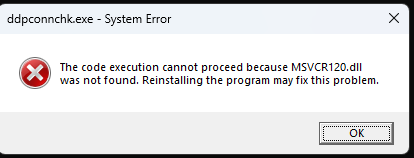
解决方法是安装 Microsoft Visual C++ 2013 Redistributable https://aka.ms/highdpimfc2013x64enu。(外部链接)
此信息的来源MSVCR120.dll缺失,并且尚未修复 - Microsoft问答。(外部链接)
受影响的产品
Data Domain产品
Data Domain文章属性
文章编号: 000037899
文章类型: Solution
上次修改时间: 25 6月 2026
版本: 18
从其他戴尔用户那里查找问题的答案
支持服务
检查您的设备是否在支持服务涵盖的范围内。