Open Networking switch - How to identify the Service Tag on Open Network Install Environment (ONIE)
摘要: This article introduces how to check your Open Networking Switch Service Tag from the Open Network Install Environment (ONIE) by using command.
本文适用于
本文不适用于
本文并非针对某种特定的产品。
本文并非包含所有产品版本。
说明
Article Summary
This article provides how to identify the Switch Service Tag on Open Network Install Environment (ONIE).
Products to be applied:
- Dell Networking S3048-ON
- Dell Networking S4048-ON
- Dell Networking S4048T-ON
- Dell Networking S6000-ON
- Dell Networking S6010-ON
- Dell Networking S6100-ON
- Dell Networking Z9100-ON
How to Identify Service tag
-
Connect to the switch with a serial console via the serial console port.
-
Turn OFF then turn ON the switch power to restart.
-
After the restart completed, press ESC key within 5 seconds once the message "Press ESC to stop autoboot..." displayed on the terminal software.
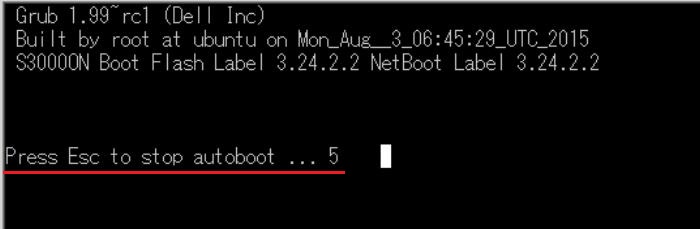
-
Select ONIE from the Grub menu and press Enter key.
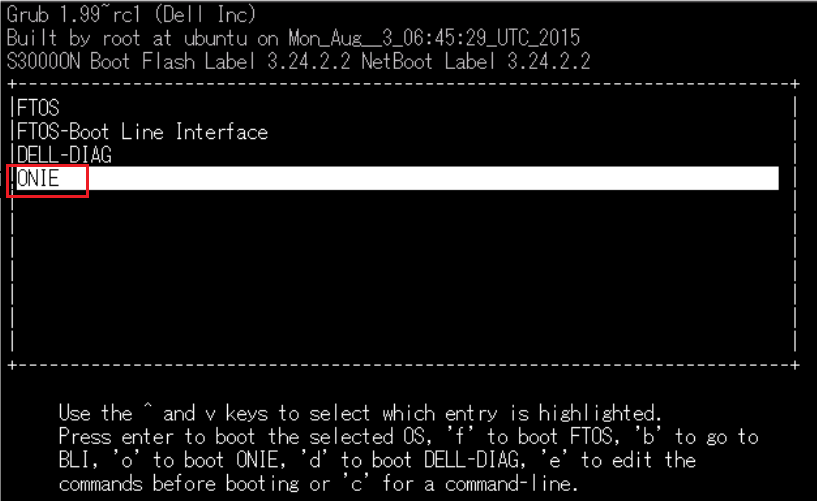
-
Select Rescue from the ONIE menu and press Enter key.
If the NOS is installed, ensure the Rescue is selected since OS does not boot if ""Install OS" is selected.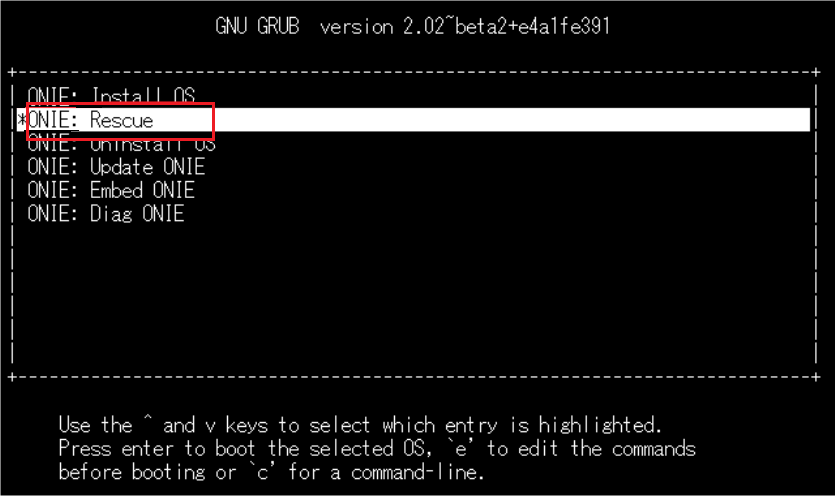
-
Run the command:
onie-syseepromon the ONIE prompt.
The Service Tag is displayed in the "Service Tag" line.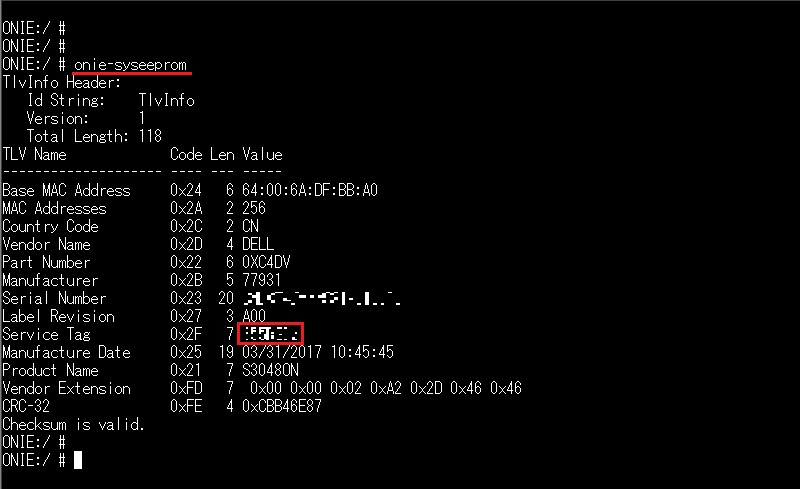
受影响的产品
Networking, PowerSwitch S3048-ON, PowerSwitch S4048-ON, PowerSwitch S6000 ON, PowerSwitch S4048T-ON, PowerSwitch S6010-ON, PowerSwitch S6100-ON, PowerSwitch Z9100-ON文章属性
文章编号: 000122325
文章类型: How To
上次修改时间: 29 7月 2025
版本: 5
从其他戴尔用户那里查找问题的答案
支持服务
检查您的设备是否在支持服务涵盖的范围内。