如何备份和恢复 Dell Security Management Server Virtual
摘要: 可以使用这些说明备份和恢复 Dell Security Management Server Virtual 和 Dell Data Protection Virtual Edition。
本文适用于
本文不适用于
本文并非针对某种特定的产品。
本文并非包含所有产品版本。
症状
本指南介绍如何备份和还原 Dell Security Management Server Virtual(以前称为 Dell Data Protection | Virtual Edition)。
受影响的产品:
- Dell Security Management Server Virtual
- Dell Data Protection | Virtual Edition
受影响的操作系统:
- Linux
原因
不适用
解决方案
Dell Security Management Server Virtual 的备份和还原功能因版本而异。单击 v9.11.0 和更高版本 或 v8.2.0 至 9.10.1 了解更多信息。有关版本信息,请参阅如何确定 Dell Data Security/Dell Data Protection Server 版本。
提醒:如果正在使用 Dell Endpoint Security Suite Enterprise(以前称为 Dell Data Protection | Endpoint Security Suite Enterprise),则必须单独备份和还原 Advanced Threat Prevention 证书。有关更多信息,请参阅 如何备份和还原 Dell Data Security Server 的高级威胁防护证书 。
v9.11.0 及更高版本
有关更多信息,请单击创建备份、卸载备份、加载备份或还原备份。
- 登录到 Dell Security Management Server Virtual 管理控制台。

提醒:
- Dell Security Management Server Virtual 的默认凭据为:
- 用户名:
delluser - 密码:
delluser
- 用户名:
- 管理员可以更改产品的虚拟设备菜单中的默认密码。
- 从主菜单中,选择 Advanced Configuration,然后按 Enter 键。
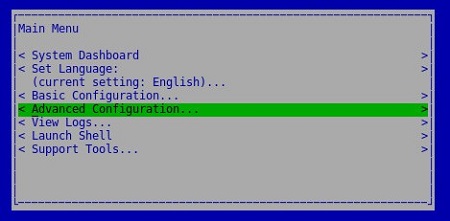
- 选择 Backup and Restore,然后按 Enter 键。
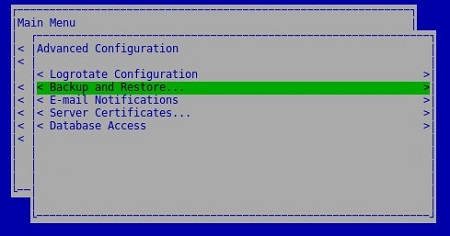
- 选择 Backup Now,然后按 Enter 键。
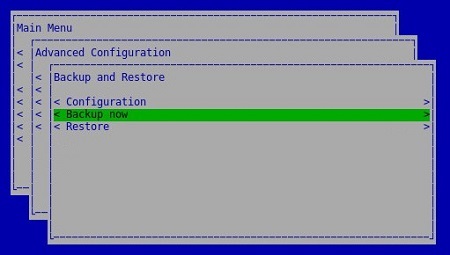
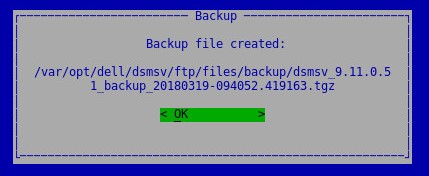
- 在出现 OK 时按 Enter 键,确认
dsmsv_[VERSION]_backup_[TIMESTAMP].tgz的备份完成。
提醒:
[VERSION]= Dell Security Management Server Virtual 的版本[TIMESTAMP]= 执行备份的时间
要成功卸载备份,Dell Security Management Server Virtual 需要:
- 已完成的备份
- 第三方 FTP(文件传输协议)客户端
- FTP 客户端的示例包括(但不限于):
- Filezilla
- WinSCP
- CuteFTP
- FTP 客户端的示例包括(但不限于):
- 存储设备(除 Dell Security Management Server Virtual 之外)
提醒:
- 戴尔既不认可也不支持任何列出的第三方产品。列出的客户端是客户可以使用的潜在产品的示例。有关设置、配置和管理的信息,请与产品的制造商联系。
- 您的 FTP 客户端 UI 可能与以下屏幕截图示例不同。
- 启动 FTP 客户端。
- 在 FTP 客户端中,使用 FTP 用户登录 Dell Security Management Server Virtual。
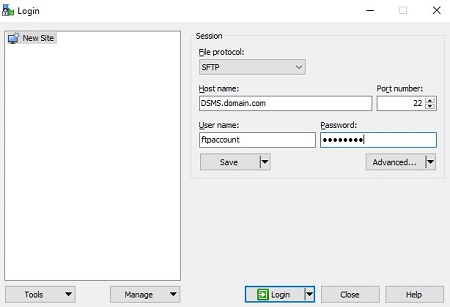
提醒:必须在 Dell Security Management Server Virtual 中创建 FTP 用户。有关详细信息,请参阅如何在 Dell Security Management Server Virtual/Dell Data Protection Virtual Edition 中创建 FTP 用户。
- 转至
/backup/。
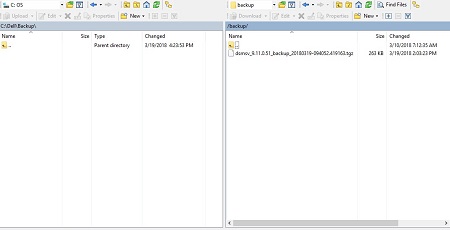
- 选择相应文件,然后将相应
dsmsv_[VERSION]_backup_[TIMESTAMP].tgz文件传输到辅助存储设备。
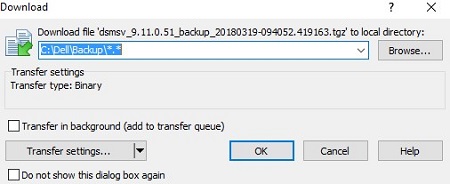
提醒:
[VERSION]= Dell Security Management Server Virtual 的版本[TIMESTAMP]= 执行备份的时间
- 关闭 FTP 客户端。
要成功加载备份,Dell Security Management Server Virtual 需要:
- 已卸载的 Dell Security Management Server Virtual 备份
- 第三方 FTP(文件传输协议)客户端
- FTP 客户端的示例包括(但不限于):
- Filezilla
- WinSCP
- CuteFTP
- FTP 客户端的示例包括(但不限于):
- 存储设备(除 Dell Security Management Server Virtual 之外)
提醒:
- 戴尔既不认可也不支持任何列出的第三方产品。列出的客户端是客户可以使用的潜在产品的示例。有关设置、配置和管理的信息,请与产品的制造商联系。
- 您的 FTP 客户端 UI 可能与以下屏幕截图示例不同。
- 启动 FTP 客户端。
- 在 FTP 客户端中,使用 FTP 用户登录 Dell Security Management Server Virtual。
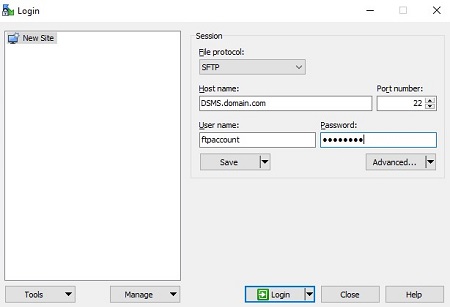
提醒:必须在 Dell Security Management Server Virtual 中创建 FTP 用户。有关详细信息,请参阅如何在 Dell Security Management Server Virtual/Dell Data Protection Virtual Edition 中创建 FTP 用户。
- 转至
/backup/。
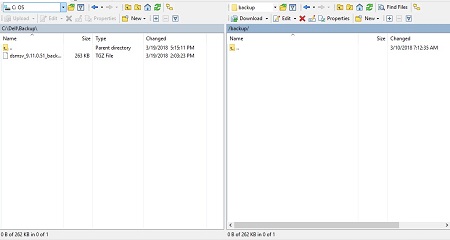
- 将
dsmsv_[VERSION]_backup_[TIMESTAMP].tgz从存储设备移动到/backup/。
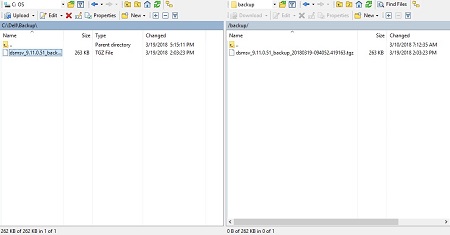
提醒:
[VERSION]= Dell Security Management Server Virtual 的版本[TIMESTAMP]= 执行备份的时间
- 关闭 FTP 客户端。
- 登录到 Dell Enterprise Server Virtual 管理控制台。

提醒:
- Dell Security Management Server Virtual 的默认凭据为:
- 用户名:
delluser - 密码:
delluser
- 用户名:
- 管理员可以更改产品的虚拟设备菜单中的默认密码。
- 从主菜单中,选择 Advanced Configuration,然后按 Enter 键。
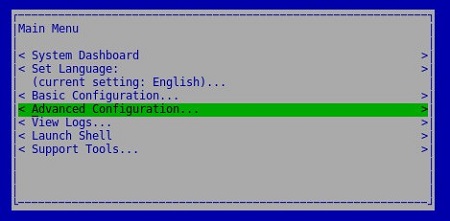
- 选择 Backup and Restore,然后按 Enter 键。
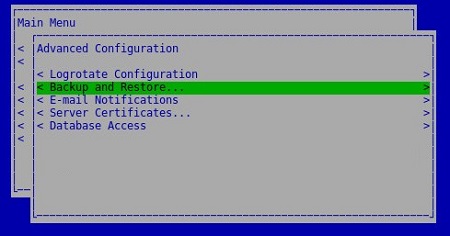
- 选择 Restore,然后按 Enter 键。
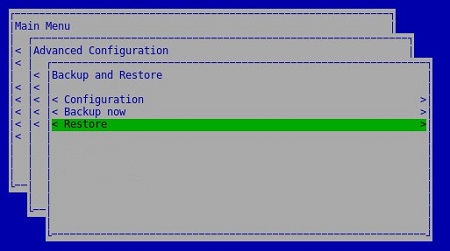
- 选择 Yes 以确认用于创建备份的实例已关闭,然后按 Enter 键。

- 选择相应的
dsmsv_[VERSION]_backup_[TIMESTAMP].tgz,然后按 Enter 键。
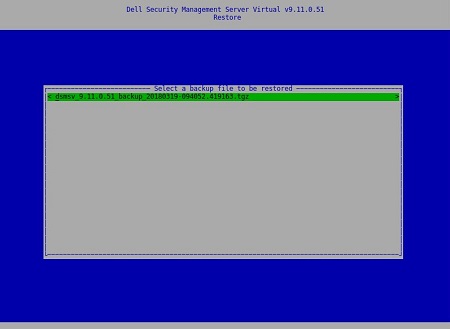
提醒:
[VERSION]= Dell Security Management Server Virtual 的版本[TIMESTAMP]= 执行备份的时间
- 选择 Yes 以确认将关闭服务且必须更改数据库密码,然后按 Enter 键。
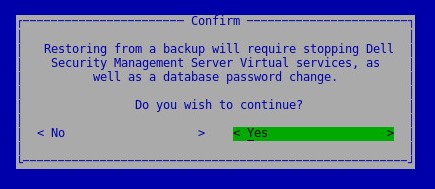
- 在出现 OK 时按 Enter 键。
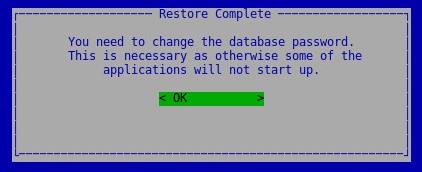
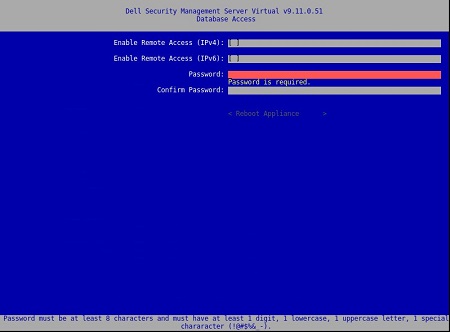
- 在“Database Access”菜单中:
- (可选)选 中 Enable Remote Access (IPv4) 或 Enable Remote Access (IPv6) from external sources (例如,pgAdmin)。
- 输入然后确认新数据库密码。
- 选择 Reboot Appliance,然后按 Enter 键。
提醒:有关详细信息,请参阅 使用 pgAdmin 虚拟访问 Postgres 数据库的 Dell Security Management Server 。
v8.2.0 至 v9.10.1
有关更多信息,请单击创建备份、卸载备份、加载备份或还原备份。
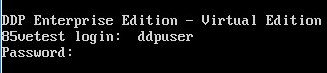
- 登录到 Dell Enterprise Server Virtual 管理控制台。
提醒:
- Dell Security Management Server Virtual 的默认凭据为:
- 用户名:
ddpuser - 密码:
ddpuser
- 用户名:
- 管理员可以更改产品的虚拟设备菜单中的默认密码。
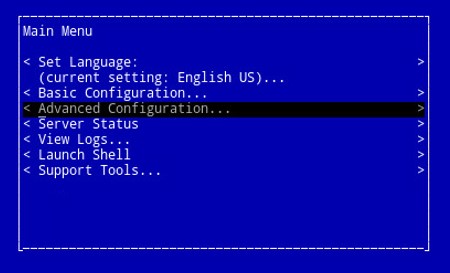
- 从主菜单中,选择 Advanced Configuration,然后按 Enter 键。
- 选择 Backup and Restore,然后按 Enter 键。
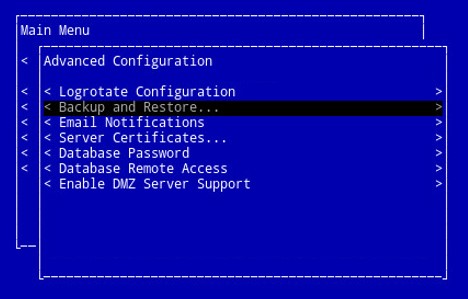
- 选择 Backup now,然后按 Enter 键。
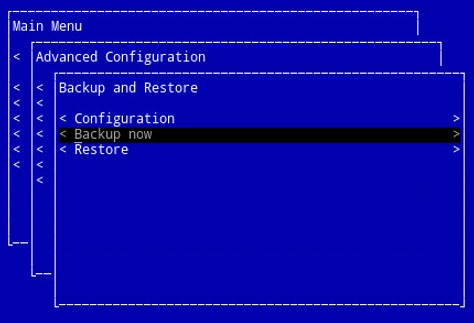
- 备份将运行。转至步骤 6。
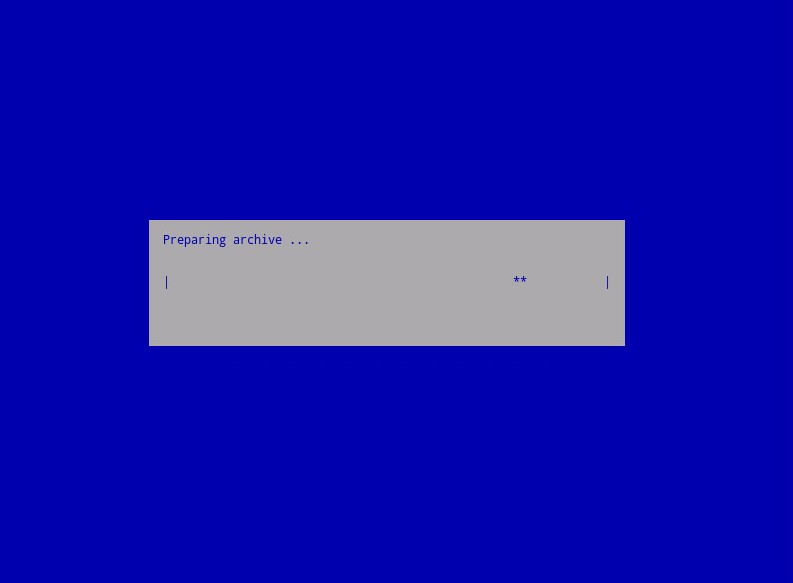
- 在出现 OK 时按 Enter 键,确认
ddp_[VERSION]_fullback_[TIMESTAMP].tar.gz的备份完成。
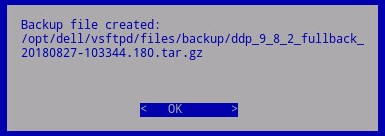
提醒:
[VERSION]= Dell Data Protection | Virtual Edition 的版本[TIMESTAMP]= 执行备份的时间
要成功卸载备份,Dell Security Management Server Virtual 需要:
- 已完成的备份
- 第三方 FTP(文件传输协议)客户端
- FTP 客户端的示例包括(但不限于):
- Filezilla
- WinSCP
- CuteFTP
- FTP 客户端的示例包括(但不限于):
- 存储设备(除 Dell Security Management Server Virtual 之外)
提醒:
- 戴尔既不认可也不支持任何列出的第三方产品。列出的客户端是客户可以使用的潜在产品的示例。有关设置、配置和管理的信息,请与产品的制造商联系。
- 您的 FTP 客户端 UI 可能与以下屏幕截图示例不同。
- 启动 FTP 客户端。
- 在 FTP 客户端中,使用 FTP 用户登录 Dell Security Management Server Virtual。
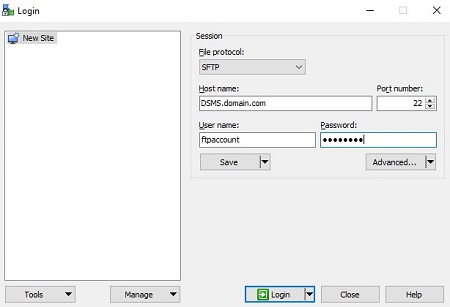
提醒:必须在 Dell Security Management Server 中创建 FTP 用户。有关详细信息,请参阅如何在 Dell Security Management Server Virtual/Dell Data Protection Virtual Edition 中创建 FTP 用户。
- 转至
/backup/。
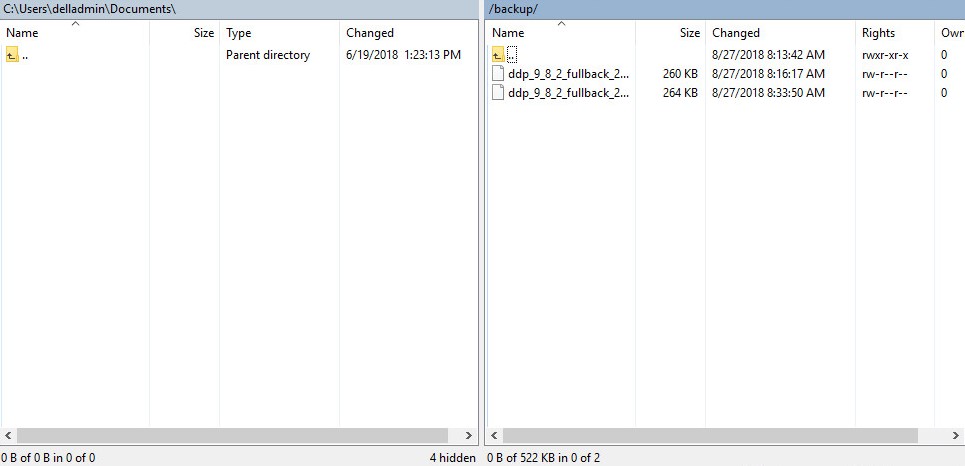
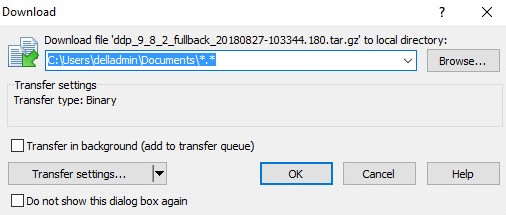
- 选择相应文件,然后将相应
ddp_[VERSION]_fullback_[TIMESTAMP].tar.gz文件传输到辅助存储设备。
提醒:
[VERSION]= Dell Data Protection | Virtual Edition 的版本[TIMESTAMP]= 执行备份的时间
- 关闭 FTP 客户端。
要成功加载备份,Dell Security Management Server Virtual 需要:
- 已卸载的 Dell Security Management Server Virtual 备份
- 第三方 FTP(文件传输协议)客户端
- FTP 客户端的示例包括(但不限于):
- Filezilla
- WinSCP
- CuteFTP
- FTP 客户端的示例包括(但不限于):
- 存储设备(除 Dell Security Management Server Virtual 之外)
提醒:
- 戴尔既不认可也不支持任何列出的第三方产品。列出的客户端是客户可以使用的潜在产品的示例。有关设置、配置和管理的信息,请与产品的制造商联系。
- 您的 FTP 客户端 UI 可能与以下屏幕截图示例不同。
- 启动 FTP 客户端。
- 在 FTP 客户端中,使用 FTP 用户登录 Dell Security Management Server Virtual。
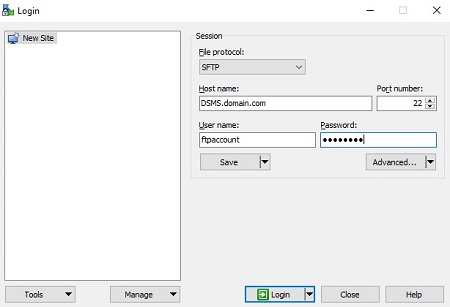
提醒:必须在 Dell Security Management Server 中创建 FTP 用户。有关详细信息,请参阅如何在 Dell Security Management Server Virtual/Dell Data Protection Virtual Edition 中创建 FTP 用户。
- 转至
/backup/。
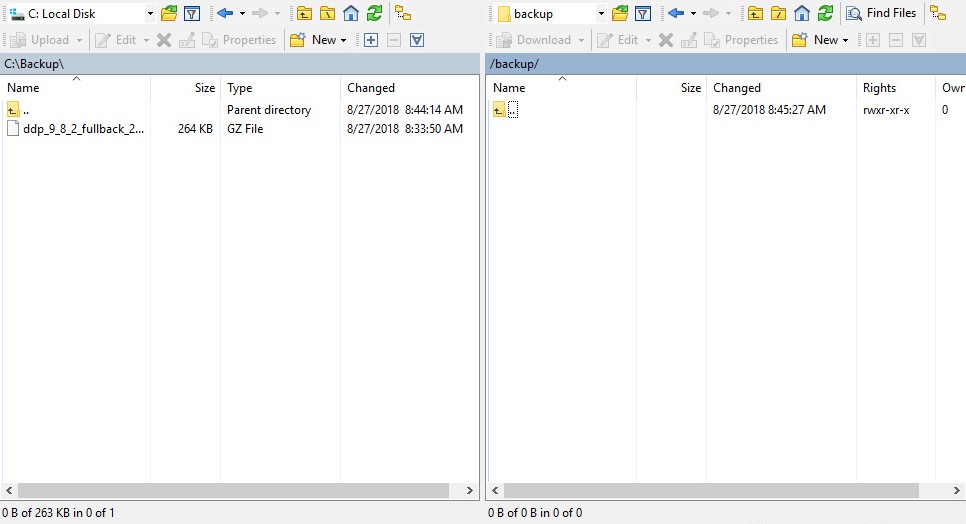
- 将
ddp_[VERSION]_fullback_[TIMESTAMP].tar.gz从存储设备移动到/backup/。
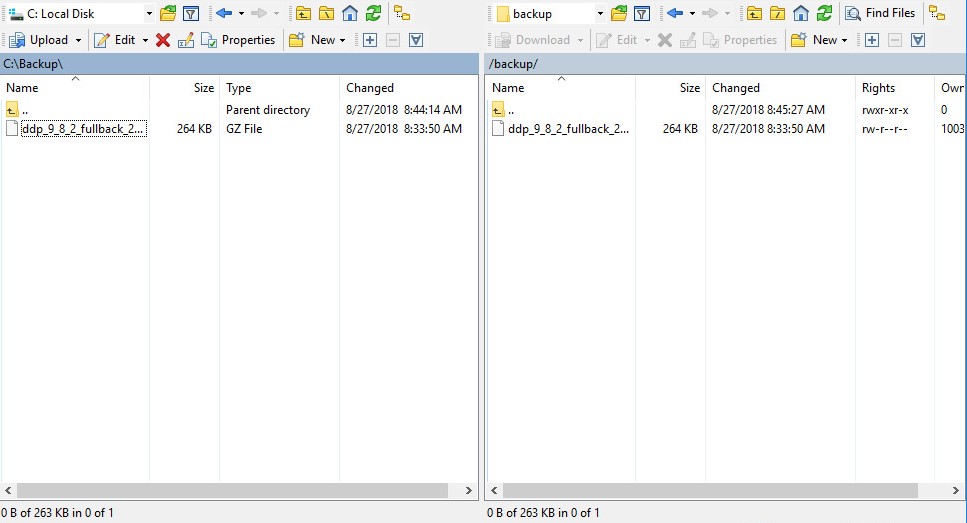
提醒:
[VERSION]= Dell Data Protection | Virtual Edition 的版本[TIMESTAMP]= 执行备份的时间
- 关闭 FTP 客户端。
- 登录到 Dell Enterprise Server Virtual 管理控制台。
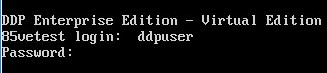
提醒:
- Dell Security Management Server Virtual 的默认凭据为:
- 用户名:
ddpuser - 密码:
ddpuser
- 用户名:
- 管理员可以更改产品的虚拟设备菜单中的默认密码。
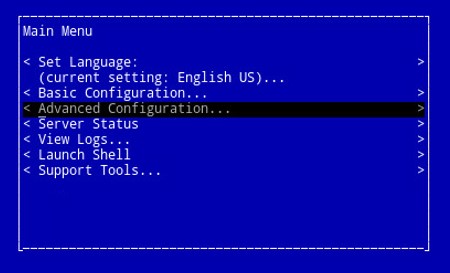
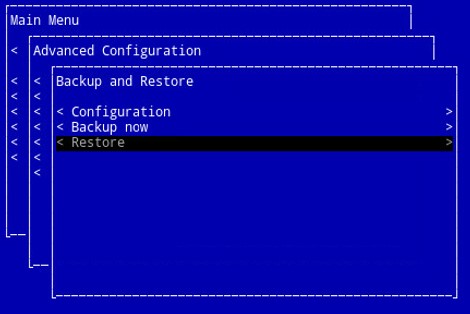
- 从主菜单中,选择 Advanced Configuration,然后按 Enter 键。
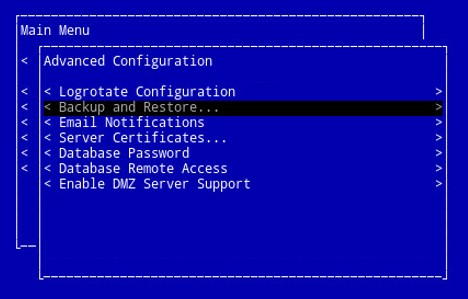
- 选择 Backup and Restore,然后按 Enter 键。
- 选择 Restore,然后按 Enter 键。
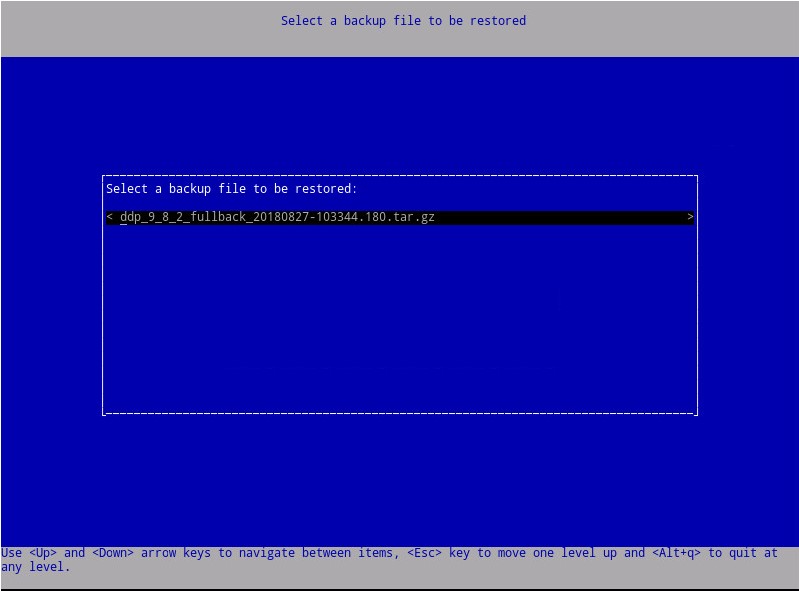
- 选择相应的
ddp_[VERSION]_fullback_[TIMESTAMP].tar.gz,然后按 Enter 键。
提醒:
[VERSION]= Dell Data Protection | Virtual Edition 的版本[TIMESTAMP]= 执行备份的时间
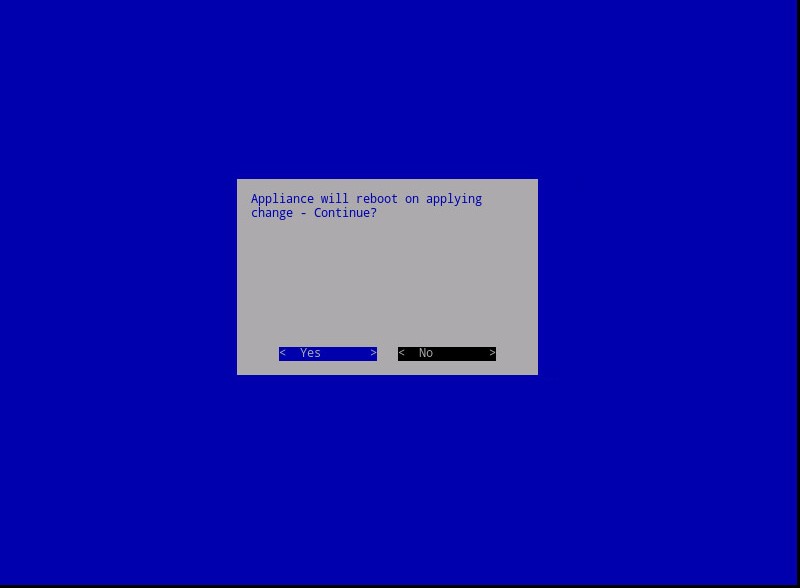
- 选择 Yes 以在还原完成时重新启动虚拟设备,然后按 Enter 键。
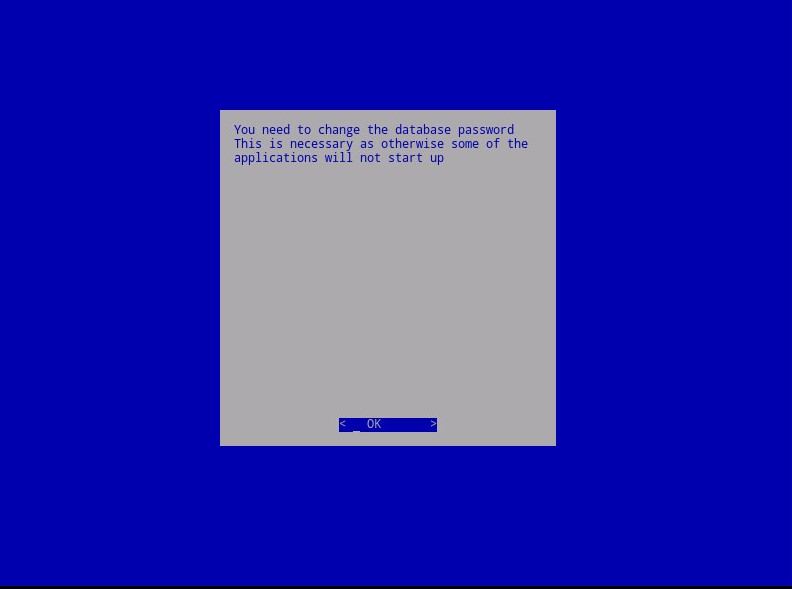
- 在出现 OK 时按 Enter 键。
- 备份还原。转至步骤 9。
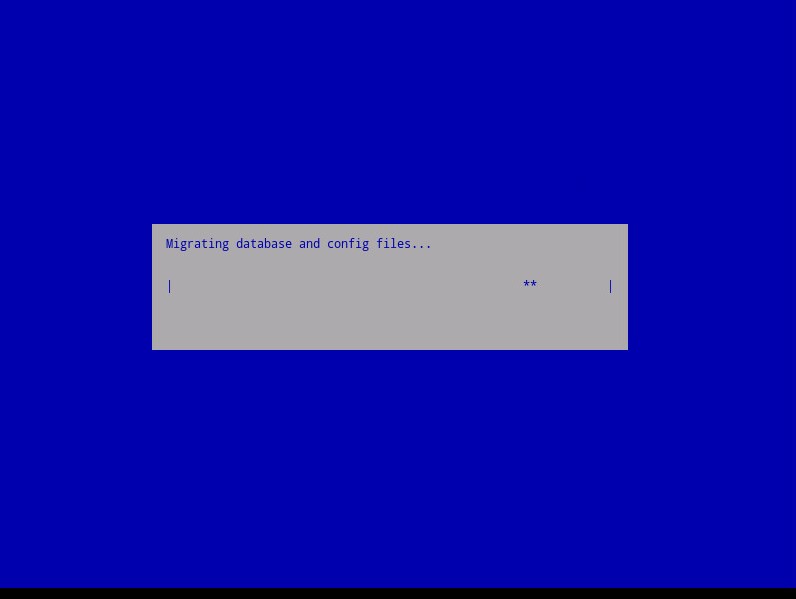
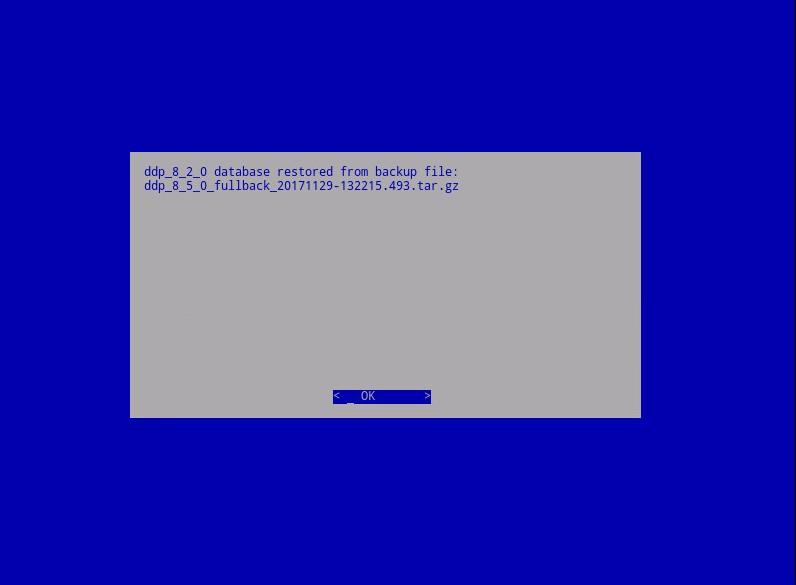
- 还原时,在出现 OK 时按 Enter 键。
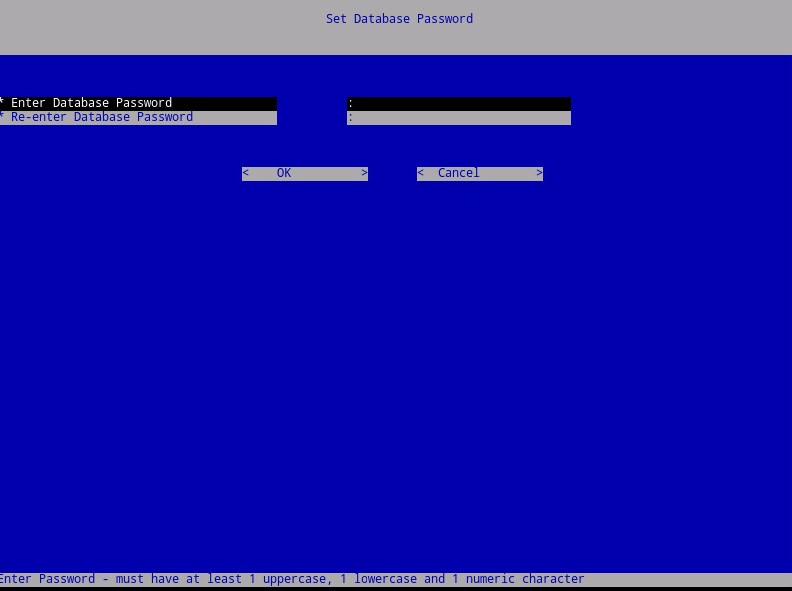
- 输入并重新输入新数据库密码。完成后,在出现 OK 时按 Enter 键,以重新启动虚拟设备。
要联系支持部门,请参阅 Dell Data Security 国际支持电话号码。
转至 TechDirect,在线生成技术支持请求。
要获得更多见解和资源,请加入戴尔安全社区论坛。
其他信息
视频
受影响的产品
Dell Encryption文章属性
文章编号: 000124658
文章类型: Solution
上次修改时间: 26 10月 2023
版本: 14
从其他戴尔用户那里查找问题的答案
支持服务
检查您的设备是否在支持服务涵盖的范围内。