How to Use Dell Trade in Credit on Dell.com (US Only)
摘要: This article provides instructions on how to place an order on Dell.com using the Dell Trade In credit process.
本文适用于
本文不适用于
本文并非针对某种特定的产品。
本文并非包含所有产品版本。
说明
Dell Trade in Credit
Note: This offer is currently only available in the United States (US).
You will receive Dell Trade In credit after successfully completing a trade-in of an old device. Placing an order on Dell.com is easy using the Trade In credit process. Follow the below instructions to purchase Dell products on Dell.com.
Note: Product Purchase options: Only Client products and devices can be purchased using Trade In credit. It cannot be used for Servers, Storage, or Networking products.
- Choose a Product on Dell.com: Go to Dell.com and select the type of product to purchase.
Once you select the Product Type, choose: For Home or For Business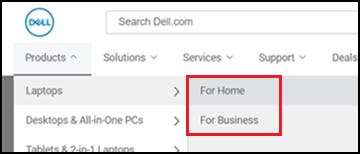
- Add the Item to your Shopping Cart:
Once you have customized your order, click the "Add to Cart" button.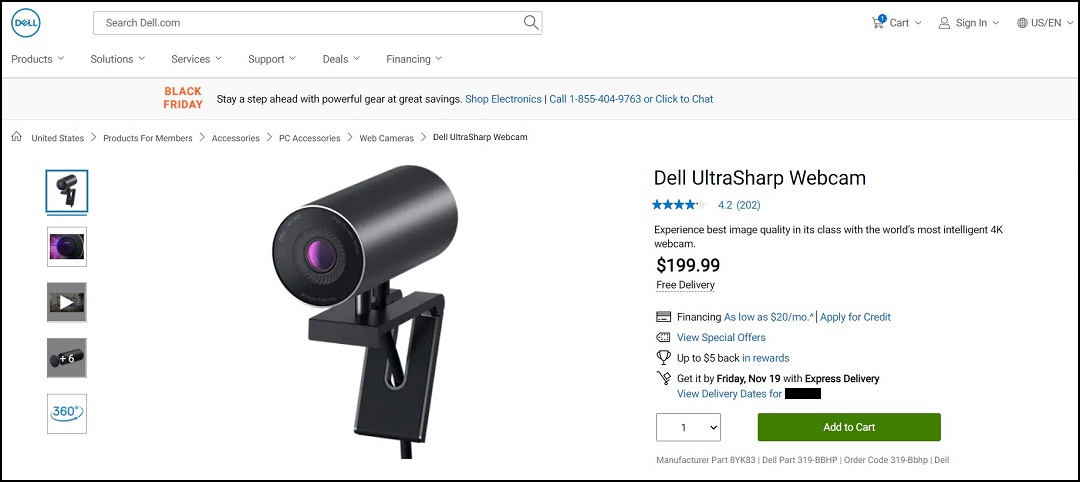
- Checkout Process:
Take a moment to review all the items you have placed in your cart before you click the "Checkout" button. If you already have an account with Dell, it is recommended that you use "Sign into My Account" and checkout in one easy step.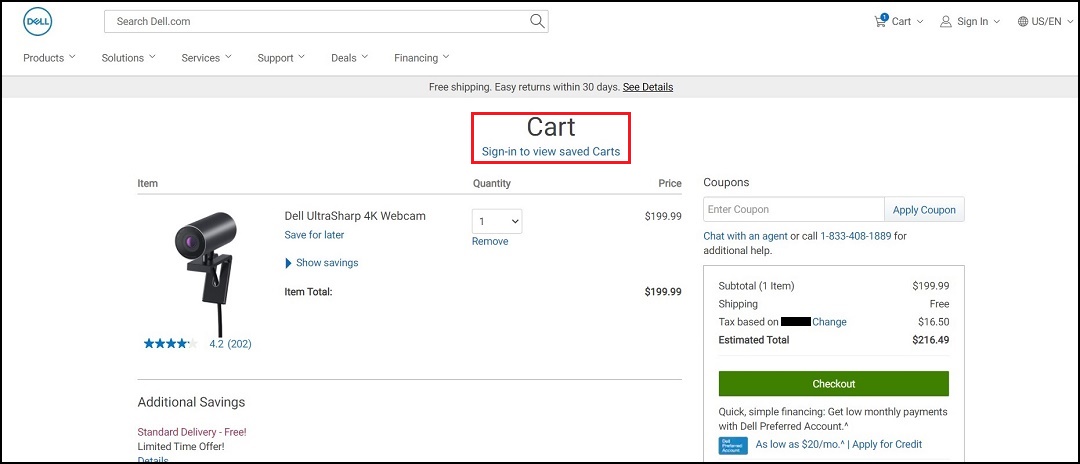
- Select a Checkout Method:
If you are new to Dell, you can either choose "Login" using a Dell Account & Checkout or choose Guest Checkout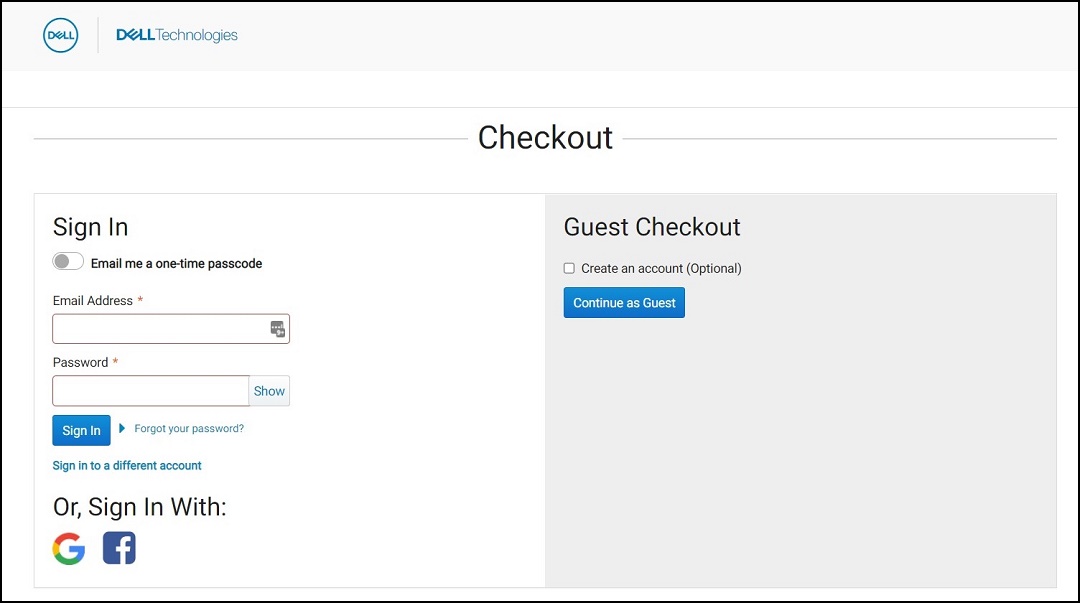
- Enter Shipping Information: Tell us where you would like your order to be delivered. Provide an address where someone is available on the day of delivery because your package may require a signature. Once the address for "Shipping and Billing" details are updated, click the "Next: Payment" button.
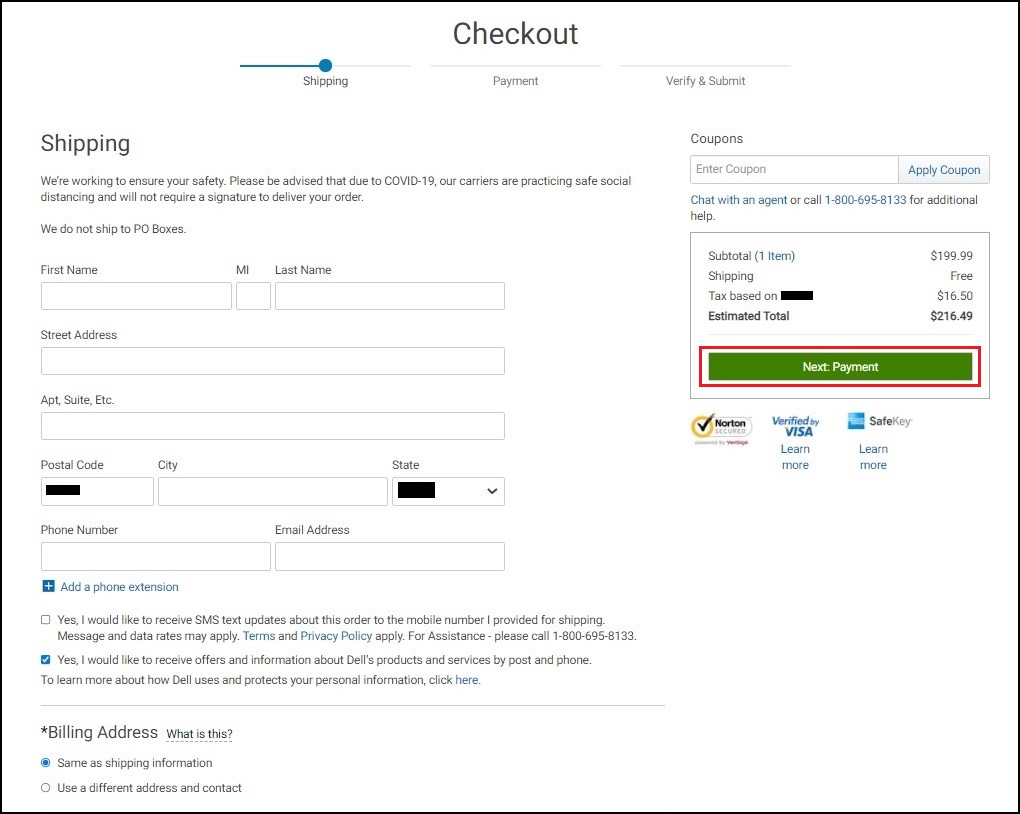
- Select a Payment Method:
Choose "Credit/Debit Card" to pay for your Dell Product. If your Trade In credit is higher than the cart total, click "Next Review" and go to Step 8.Note: If your Trade In credit is lower than your cart total, click add another payment method under split your payment section.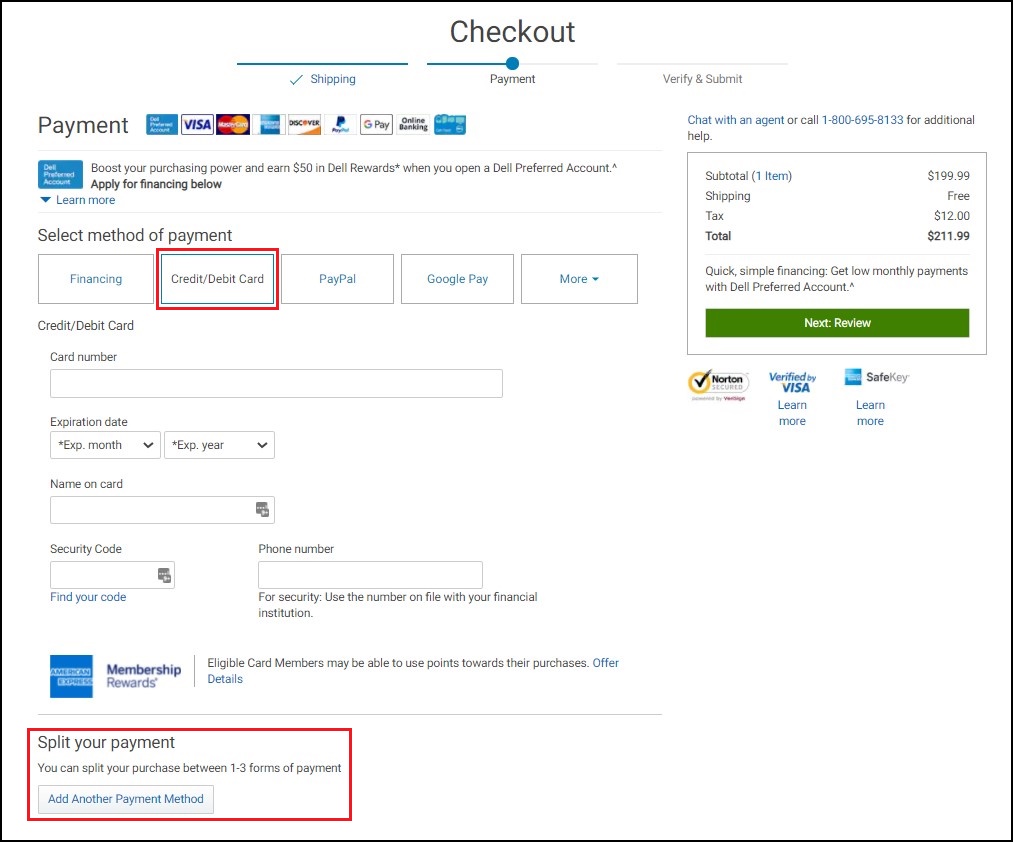
Split Payment Method:
If your Trade In credit is lower than your cart total click "Add Another Payment Method." A payment verification box appears.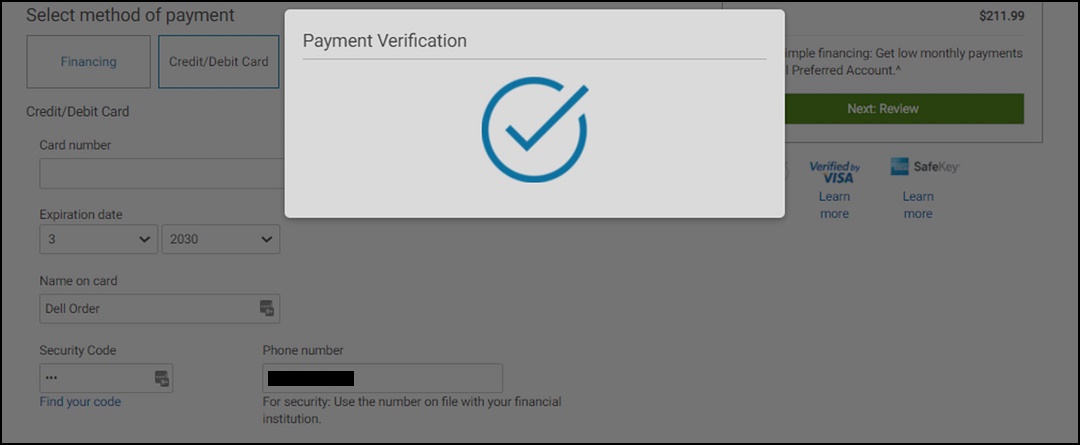
- Add Values for Both Cards:
Split the values on both payment methods, ensuring that both payment amounts equal the cart-total amount. Click "Next: Review."
- Review and Submit an Order:
Check the accuracy of all the information that you provided and ensure that you have included everything you need as no changes can be made after you "Submit" your order. When you are ready, click the "Submit Order" button to complete your order.Note: If you would like to opt in for SMS text updates, you can opt in on this screen.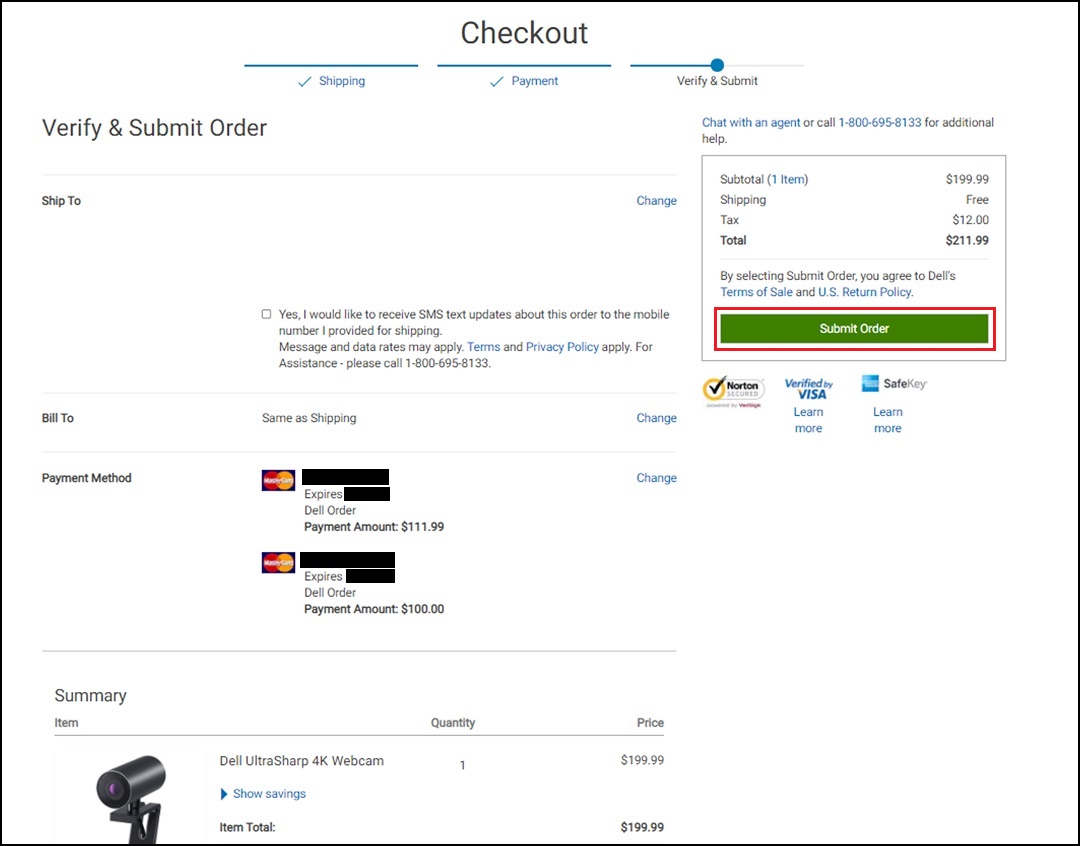
- Order Confirmation and Delivery:
When Dell receives payment authorization, Dell sends you an order confirmation email. The payment is charged once the order is Shipped/Invoiced. If there is any issue with processing your payment, Dell sends you a notification with further instructions, check your email regularly (including "Junk" and "Spam" mail folders).
Additional information about the Dell Trade In program can be found on in the following Dell Knowledge Base articles:
文章属性
文章编号: 000194278
文章类型: How To
上次修改时间: 03 10月 2025
版本: 6
从其他戴尔用户那里查找问题的答案
支持服务
检查您的设备是否在支持服务涵盖的范围内。