Data Domain: How to add / register a Data Domain to Secure Connect Gateway
摘要: Summary: This document details the steps to register/add a Data Domain System to Secure Connect Gateway while using connectemc.
本文适用于
本文不适用于
本文并非针对某种特定的产品。
本文并非包含所有产品版本。
说明
Data Domain Systems that are running DDOS code 8.3.x and later:
- These systems use ESE (SupportAssist) functionality instead of connectemc and should follow the instructions on how to configure Support Assist.
How to configure, update and reset SupportAssist/ESE in the PPDD system
Data Domain Systems that are running DDOS 7.13.1.30 and earlier run connectemc:
Note: Recently Dell retired the authentication process on the backend, it has been switched to the Access Key and PIN-based authentication.
If the DD is still on DDOS code that uses SRS, the username is the "Access key" and the password is the "PIN" in the registration steps.
Generate Access Key and PIN for Dell Products
High Availability Systems (HA)
Note: Data Domain HA systems can not be configured for SRS with connectemc with an Access Key and PIN. System must be upgraded to DDOS 8.3.1.0, 7.13.1.40 or later to use ESE SupportAssist configuration.
SupportAssist configuration in HA systems Configuring SupportAssist in HA Standby (passive) node is not supported. HA standby (passive) node should be promoted to Active node by doing failover.
Standalone Data Domain Systems:
CLI:
Note: If necessary to register the Data Domain to more than one SCG, the cli commands will be needed to add the additional gateways after the first.
- ssh into the Data Domain System as sysadmin
- Check current configuration.
- # support notification method show
- # support connectemc config show
- Register DD to SCG
- # support connectemc device register <DD IP> esrs-gateway <the SCG GW hostname>
- The username is the "Access key" and the password is the "PIN" Generate Access Key and PIN for Dell Products
- Example output:
- # support connectemc device register <DD IP> esrs-gateway <the SCG GW hostname>
# support connectemc device register 10.10.10.10 esrs-gateway myesrsgw01
Enter Service Link username: <Access Key>
Enter Service Link password: <PIN>
Device registered to SCG.
- After register succeeds check configuration again and set notification method to connectemc.
-
# support connectemc config show
Example output:
 # support connectemc config show
    ConnectEMC Configuration:
        ESRS gateway IP/hostname:    myesrsgw01
        Registered device IP(s):     10.10.10.10
# support notification method set connectemc
 # support notification method show
-
- Test connection
-
 # support connectemc test
Example output:
# support connectemc test
    Sending test message through ConnectEMC...
    Test message successfully sent through ConnectEMC.
-
GUI:
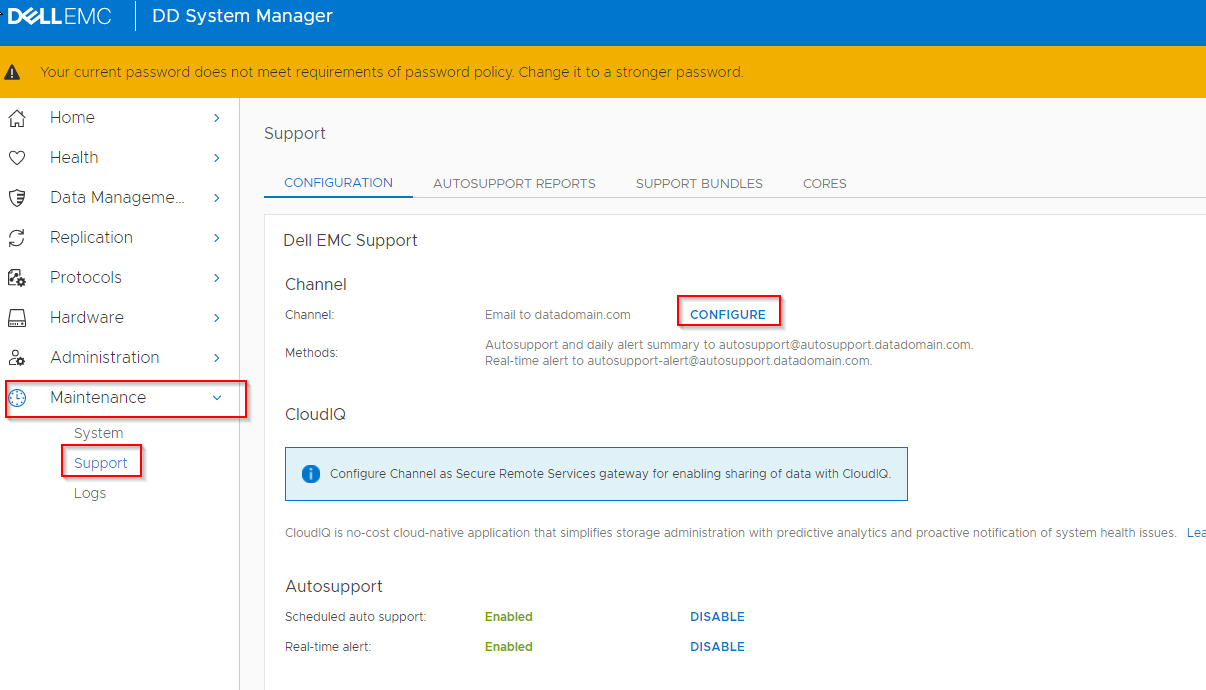
- Maintenance > Support > Configure Channel
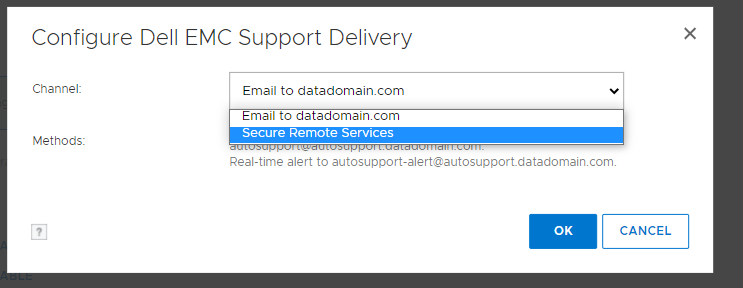
- Select “Secure Remote Services”
- Input ESRS hostname and select a DD IP
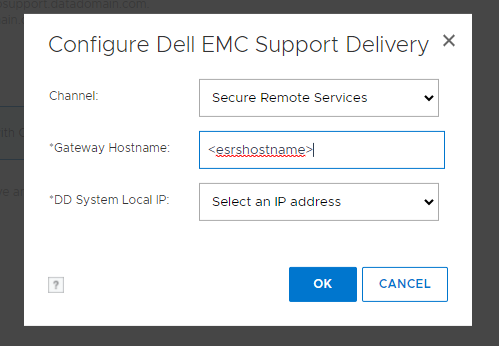
- The username is the "Access key" and the password is the "PIN" Generate Access Key and PIN for Dell Products
- Register complete
If you run into any errors throughout this process, please capture the error and open a Service Request with Support.
受影响的产品
Data Domain文章属性
文章编号: 000197719
文章类型: How To
上次修改时间: 14 7月 2026
版本: 9
从其他戴尔用户那里查找问题的答案
支持服务
检查您的设备是否在支持服务涵盖的范围内。