How to Reset Google Authenticator for Multi Factor Authentication in Dell Security Management Server
摘要: When Multi Factor Authentication with Google Authenticator is enabled, it may be necessary to reset a user’s Google Authenticator.
本文适用于
本文不适用于
本文并非针对某种特定的产品。
本文并非包含所有产品版本。
说明
Affected Products:
- Dell Security Management Server
- Dell Security Management Server Virtual
Affected Versions:
- v11.4.0 and Later
If Multi Factor Authentication is enabled using Google Authenticator, there are times when a user must have their authenticator reset such as if they lose their phone. The following steps describe this process.
- Log in to the administration console with an account that has the account administrator role.
Note: For more information about administrator roles, reference the Administrator Roles section of the Security Management Server admin help document in the Manuals and Documents.
- Click Users under Populations.
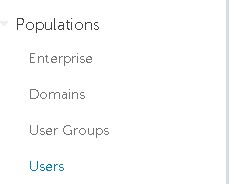
- Click the specific User that needs google authenticator reset.
Note: Reset is user specific because each user has their own Google Authenticator token.
- Click the Admin tab.

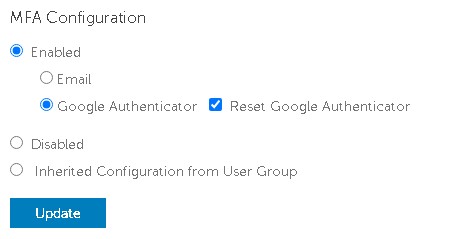
- Check Reset Google Authenticator.
- Click Update.
To contact support, reference Dell Data Security International Support Phone Numbers.
Go to TechDirect to generate a technical support request online.
For additional insights and resources, join the Dell Security Community Forum.
受影响的产品
Dell Encryption文章属性
文章编号: 000199488
文章类型: How To
上次修改时间: 01 7月 2024
版本: 5
从其他戴尔用户那里查找问题的答案
支持服务
检查您的设备是否在支持服务涵盖的范围内。