SCG: Recover root password on Policy Manager for Secure Connect Gateway
摘要: How to recover a lost root password.
本文适用于
本文不适用于
本文并非针对某种特定的产品。
本文并非包含所有产品版本。
症状
In the event of having the need of recovering the Root password.
原因
Undocumented, unknown, or lost root password.
解决方案
All work in this article must be performed from within the VM Console. Before planning this change, arrange with the customer for VM Console access if you have not done so already.
- From within the VMware or Hyper-V interface, reboot the virtual appliance.
- When the splash screen appears, click the mouse in the console window and press E. This brings up the grub editor. Grub is a scripting interface for the bootloader.
- Use arrow keys to navigate to line containing the word '
resume', and go to the end of the line. - At the end of the line, insert the following:
init=/bin/bash(this change disappears after reboot) - Press F10 to reboot gateway, the system should boot to the command line prompt for root in single user mode.
- Enter the following command:
mount -o remount,rw / - Enter command:
mv /etc/default/passwd /etc/default/passwd.disabled- If this gives an error, you will need to skip this step.
- Change the password by entering the following command,
passwd - Enter and confirm the new password.
- Use the VMware or Hyper-V interface to reboot the virtual appliance.
- Test the new password with login using the VM console or with the ssh client.
Screenshots:
Step 2, click your mouse in the console and press 'E' when you see this during boot: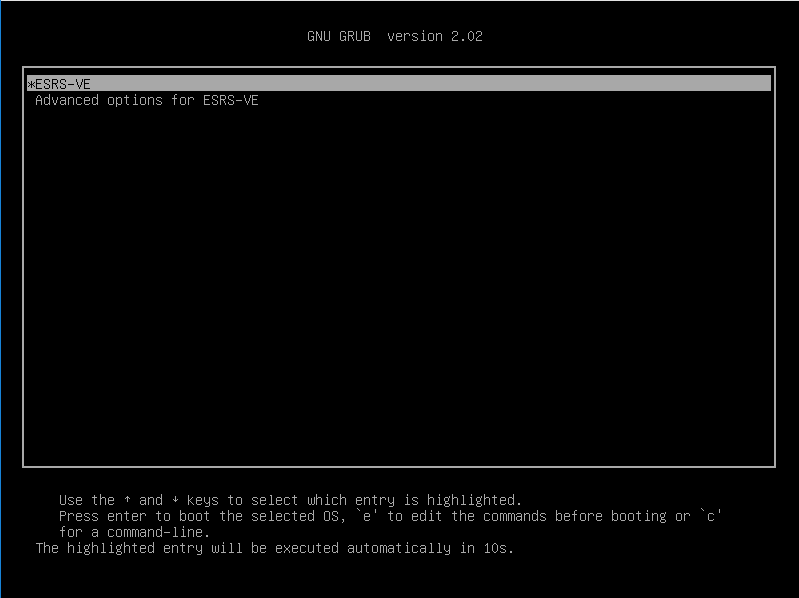
Step 3, the grub editor. Use the arrow keys to move the cursor to the line that has the word "resume" in it.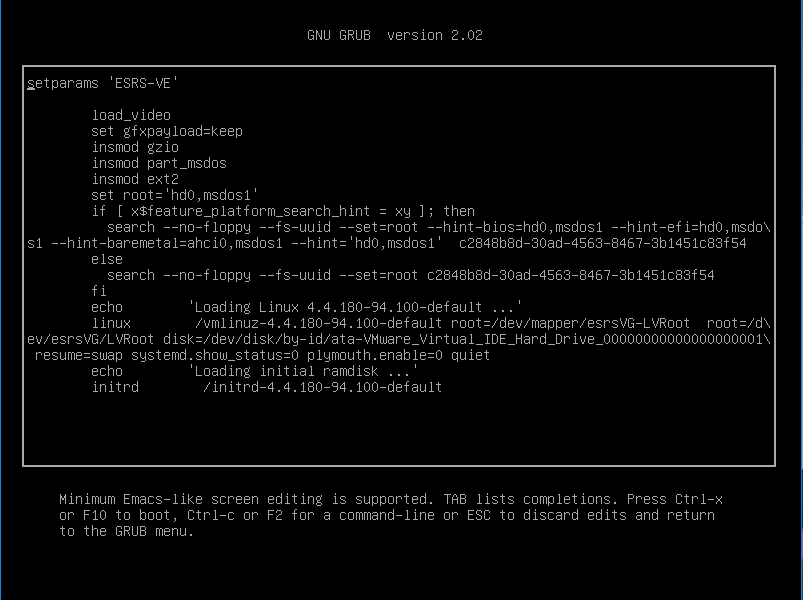
Step 4, this is what the grub script should look like when you have completed your edits: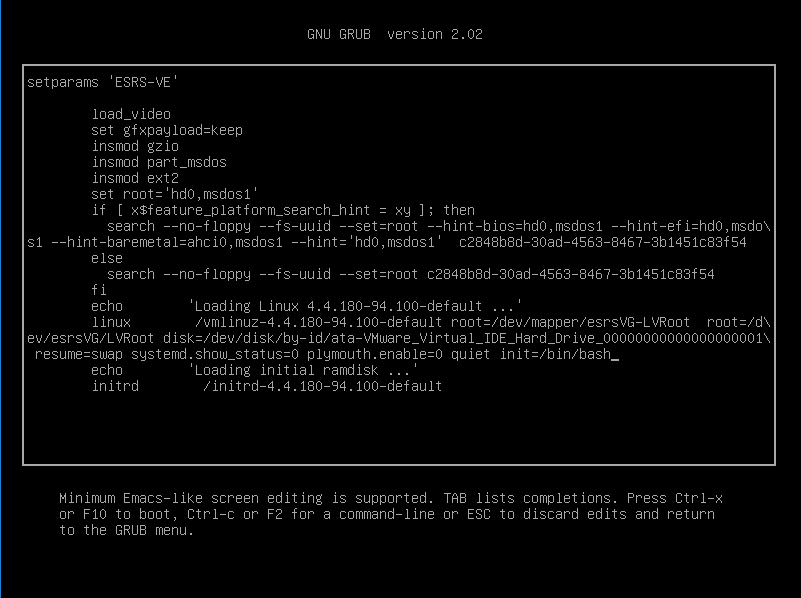
Note where the cursor is after the text, "init=/bin/bash." When the edits are done, press F10 to reboot.
After the virtual appliance reboots, you should see a command prompt.
Here, you remount the disk as read/write, and then reset the password: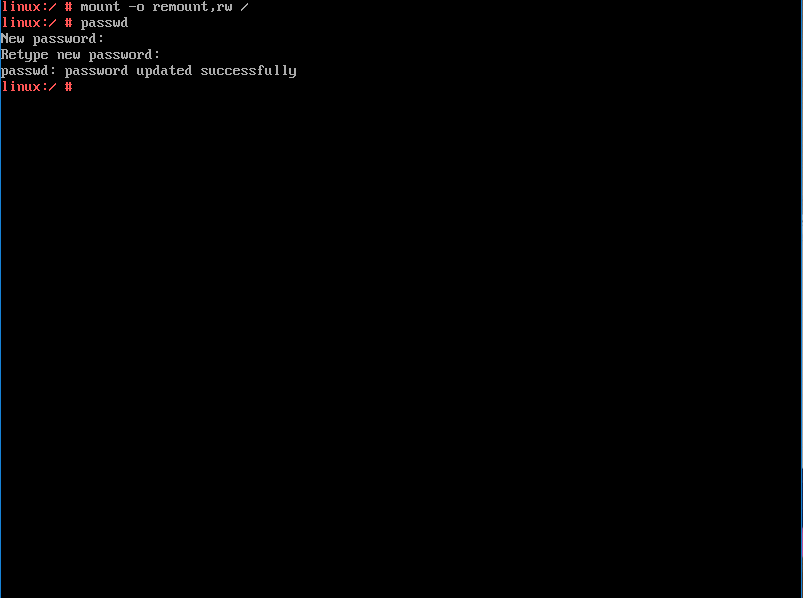
Now use the VMware Infrastructure or Hyper-V interface to reboot the virtual appliance again.
Once the reboot is complete, log in as root using console or ssh at the prompt to verify the new password.
受影响的产品
Secure Connect Gateway - Virtual Edition产品
Secure Connect Gateway文章属性
文章编号: 000204445
文章类型: Solution
上次修改时间: 04 12月 2025
版本: 4
从其他戴尔用户那里查找问题的答案
支持服务
检查您的设备是否在支持服务涵盖的范围内。