PowerFlex 3.6 Clearing Disk Errors in PowerFlex Presentation Server
摘要: These are the steps for Clearing Disk Errors in the PowerFlex Presentation Server.
本文适用于
本文不适用于
本文并非针对某种特定的产品。
本文并非包含所有产品版本。
说明
Clearing Disk Errors in PowerFlex Presentation Server -
1. Log in to the Presentation server and click the 'Alerts' tab on the left side of the user interface. This shows you the drives that are showing errors. Next, click on the drive that has an error. If multiple drives are listed, then you will have to go back and repeat this step to clear the next drive error.

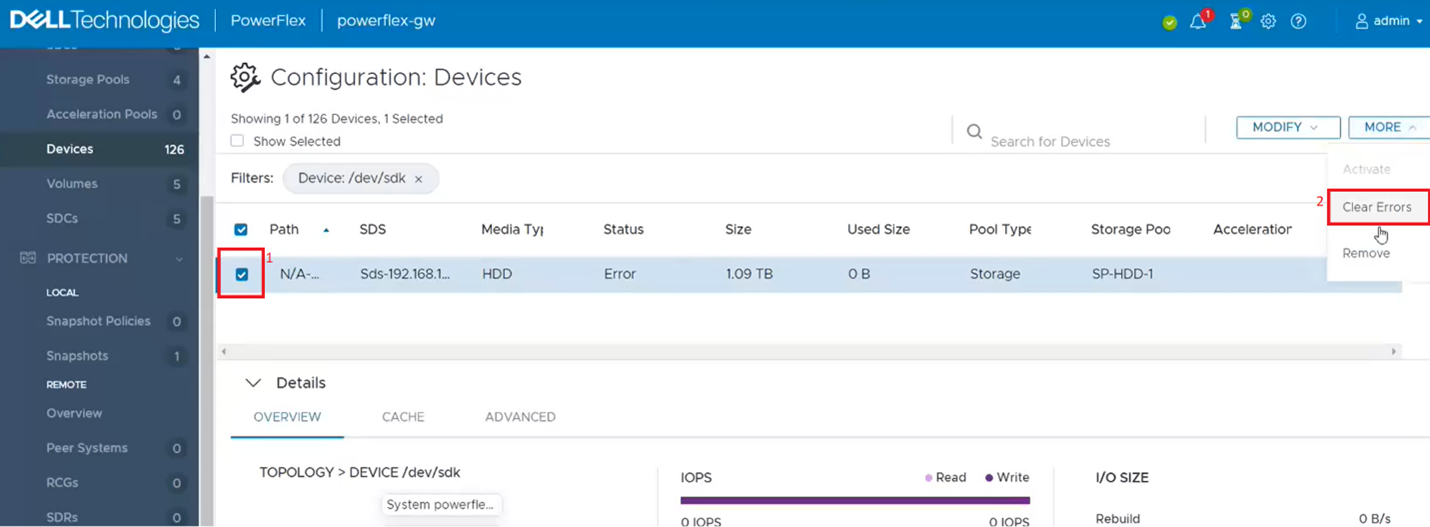
2. This filters out the single dive from the devices list. Click on the singled drive check box (1) and then from the 'More' menu, click on clear errors (2).
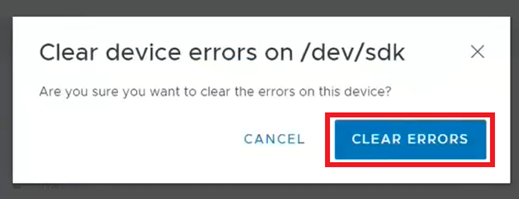
3. On the pop-up box click on clear errors.
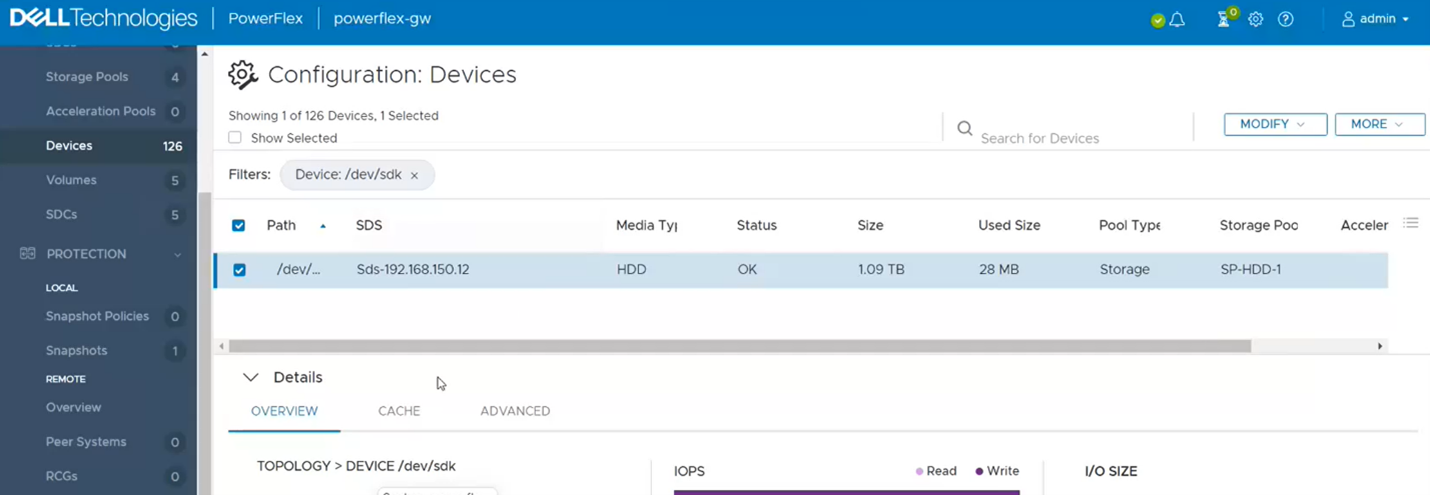
4. It should now show as OK.
5. If you go back to the Alerts sections, it should be now clear. If not, repeat the above steps for any other drives that show as errored.

6. One last step to take is to go back to PowerFlex Manager and run an inventory on the gateway to verify whether it shows healthy.

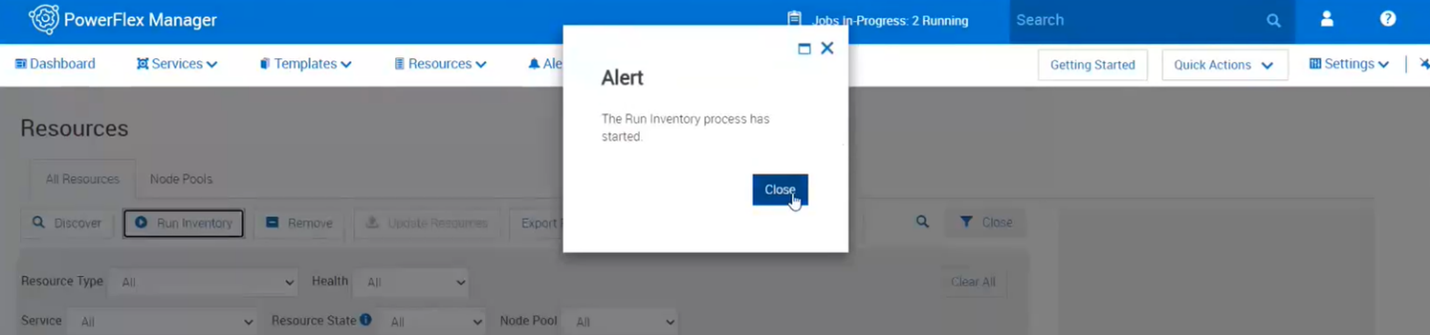
7. Near the top, click on run inventory.

8. Close the box and click on the job. Wait for it to complete.
9. Monitor the Resources in PowerFlex Manager and the alerts in the Presentation Server to see if the error comes returns.
其他信息
For PowerFlex 4.X see KB https://www.dell.com/support/kbdoc/000256801
受影响的产品
PowerFlex rack HW文章属性
文章编号: 000213016
文章类型: How To
上次修改时间: 05 12月 2024
版本: 4
从其他戴尔用户那里查找问题的答案
支持服务
检查您的设备是否在支持服务涵盖的范围内。