Asset sizes Not showing up in the UI for SQL database backups
摘要: After SQL Backups run Successfully, and then viewing the SQL Assets, some of the databases are not reporting the Size. The sizes are empty.
本文适用于
本文不适用于
本文并非针对某种特定的产品。
本文并非包含所有产品版本。
症状
Screenshot below shows that database sizes are circled in Orange, but no sizes are shown for several of the databases with the Green Arrow.

原因
You must ensure that database OS account or NT AUTHORITY or SYSTEM account that is being used on each SQL host has the required sysadmin privilege. By default, the Microsoft application agent uses the SYSTEM account for asset discovery and this requires granting the SYSTEM account the Microsoft SQL Server sysadmin role.
解决方案
Setting the sysadmin privilege for database OS account:
Complete the following steps to ensure that the database OS account on each host has the sysadmin privilege.- Log in to each Microsoft SQL Server instance > open SQL Server Management Studio (SSMS) > select View > Object Explorer.
- Go to Object Explorer > expand Security > expand Logins.
- Right-click the Database OS Account Name, and then select Properties.
- In the Login Properties window, select Server Roles.
- Select sysadmin under Server Roles.
- Click OK. The Login properties window closes.
- On the PowerProtect Data Manager UI, select Infrastructure > Asset Sources > select SQL tab.
- Select the required Hostname in the list, and then click Edit Credentials.
- On the Set Credential page, specify the Database OS credentials, and select the option Use the credentials for both asset discovery and backup.
NOTE: On the Set Credential page, the option Use the credentials for both asset discovery and backup does not appear when the database OS credentials setting is None or the application agent release is before 19.11.
- Click Save.
Setting the sysadmin privilege for NT AUTHORITY\SYSTEM account
Complete the following steps to ensure that the NT AUTHORITY\SYSTEM account on each host has the sysadmin privilege.
- Log in to each Microsoft SQL Server instance > open SQL Server Management Studio (SSMS) > select View > Object Explorer.
- Go to Object Explorer > expand Security > expand Logins.
- Right-click NT AUTHORITY\SYSTEM, and then select Properties.
- In the Login Properties window, select Server Roles.
- Select sysadmin under Server Roles.
- Click OK. The Login properties window closes.
其他信息
If this does not comply with security requirements as an alternative, you can select the option 'Use the credentials for both asset discovery and backup' which uses a domain or local user account instead for the Asset Discovery.
This option can be selected on the 'Set Credential' page in the PowerProtect Data Manager UI.
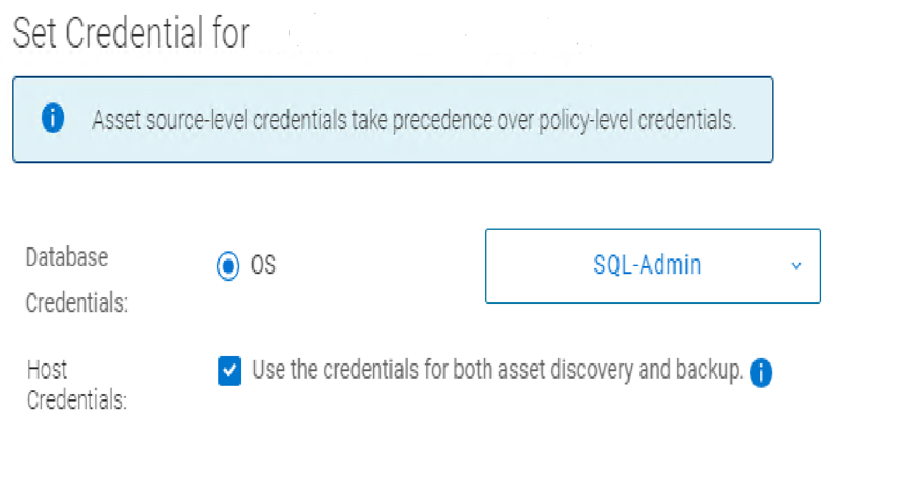
This option can be selected on the 'Set Credential' page in the PowerProtect Data Manager UI.
More details are seen in Chapter 3: Managing Storage, Assets, and Protection, of the PowerProtect Data Manager 19.13 SQL User Guide.
受影响的产品
PowerProtect Data Manager Appliance, PowerProtect Data Manager Software, PowerProtect DM5500文章属性
文章编号: 000215752
文章类型: Solution
上次修改时间: 28 7月 2023
版本: 2
从其他戴尔用户那里查找问题的答案
支持服务
检查您的设备是否在支持服务涵盖的范围内。