Dell Unity: How to Activate and Regenerate a Unity License
摘要: This KB instructs how to activate a Unity license within Software License Central and to regenerate a Unity license to a new software version. For example, from .lic to xml
本文适用于
本文不适用于
本文并非针对某种特定的产品。
本文并非包含所有产品版本。
说明
The Unity License Activation Code (LAC) is available to activate within Software Licensing Central (SLC); https://software-central.dell.com
A support profile is required to access SLC.
If a support profile does not already exist, a new profile can be created within Dell support; https://www.dell.com/support/home.
To access the Unity LAC, the deeplink option can be used directly from the Customer Facing Object (CFO) or License Authorization Code (LAC) letter. Alternatively, enter the Sales order number or LAC number directly into SLC.
1. CFO/LAC letter
The CFO/LAC letter has information such as your LAC number, Sales order number, PO number, and products purchased. A deeplink is also available which leads directly into the 'activate' page within SLC.
Sample CFO letter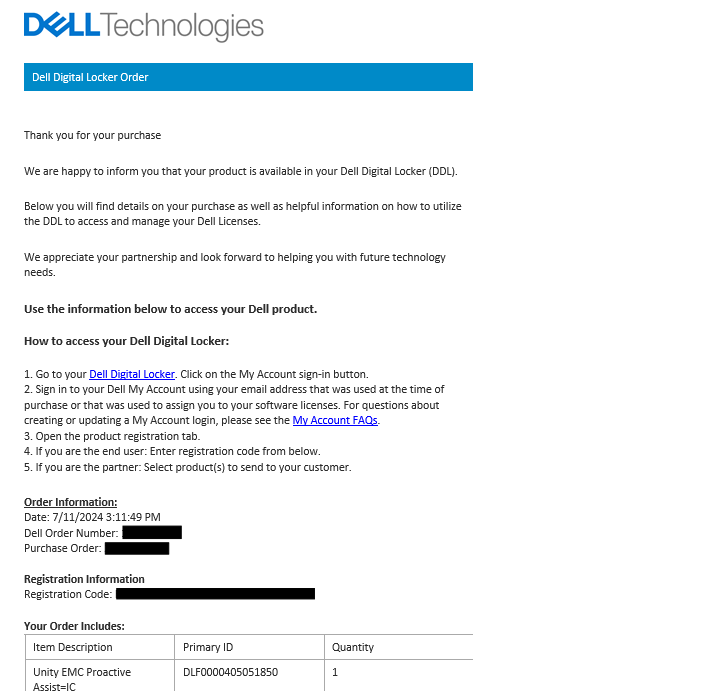
Sample LAC letter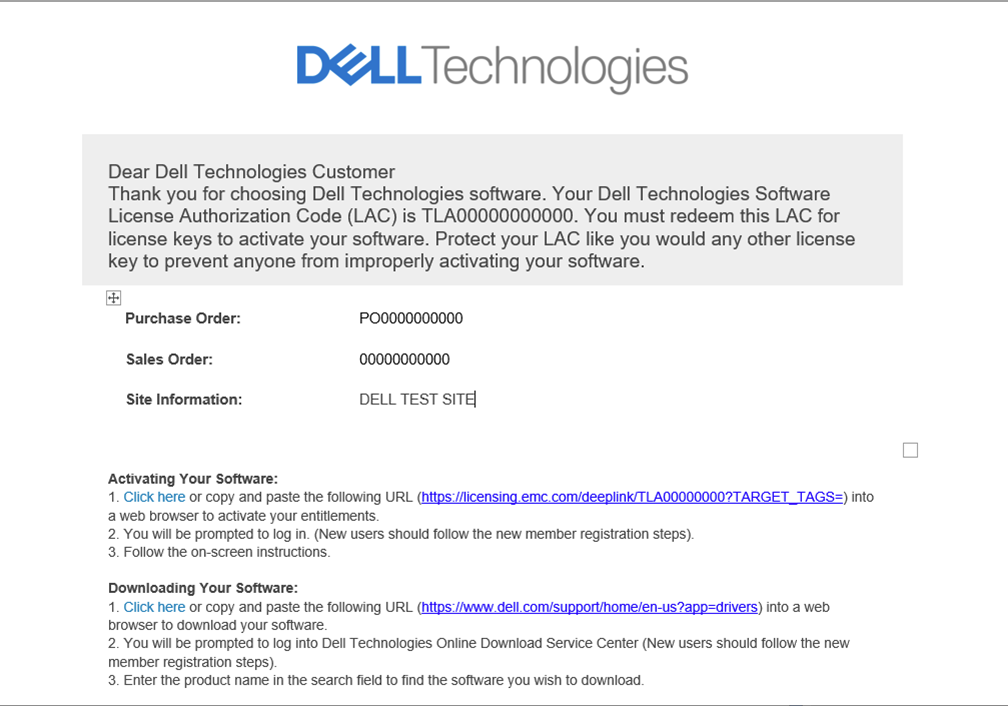
2. Activate directly in Software Licensing Central.
Access Software Licensing Central (SLC) directly; https://software-central.dell.com. Click the Activation tab and enter your LAC number or Transformational License Agreement order number.
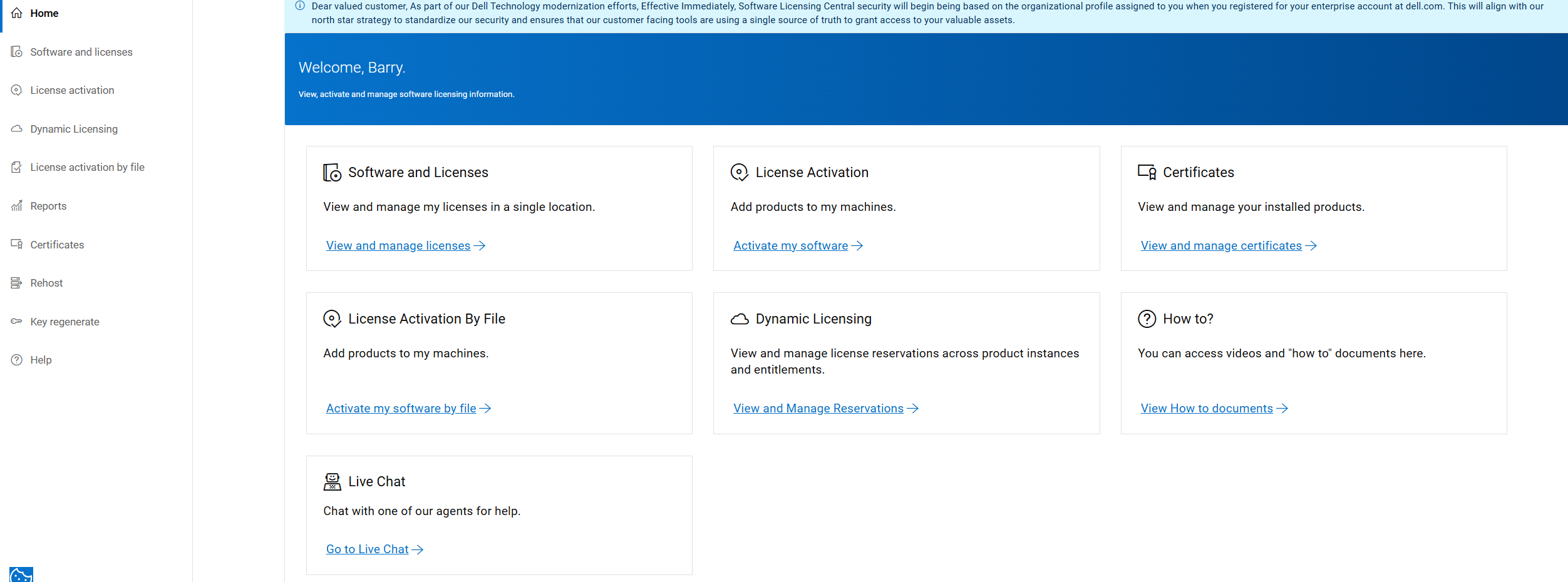
Go to the License activation page, enter your LAC number or order number into the search box, and click the search button. The system will search the lac for the entitlements.
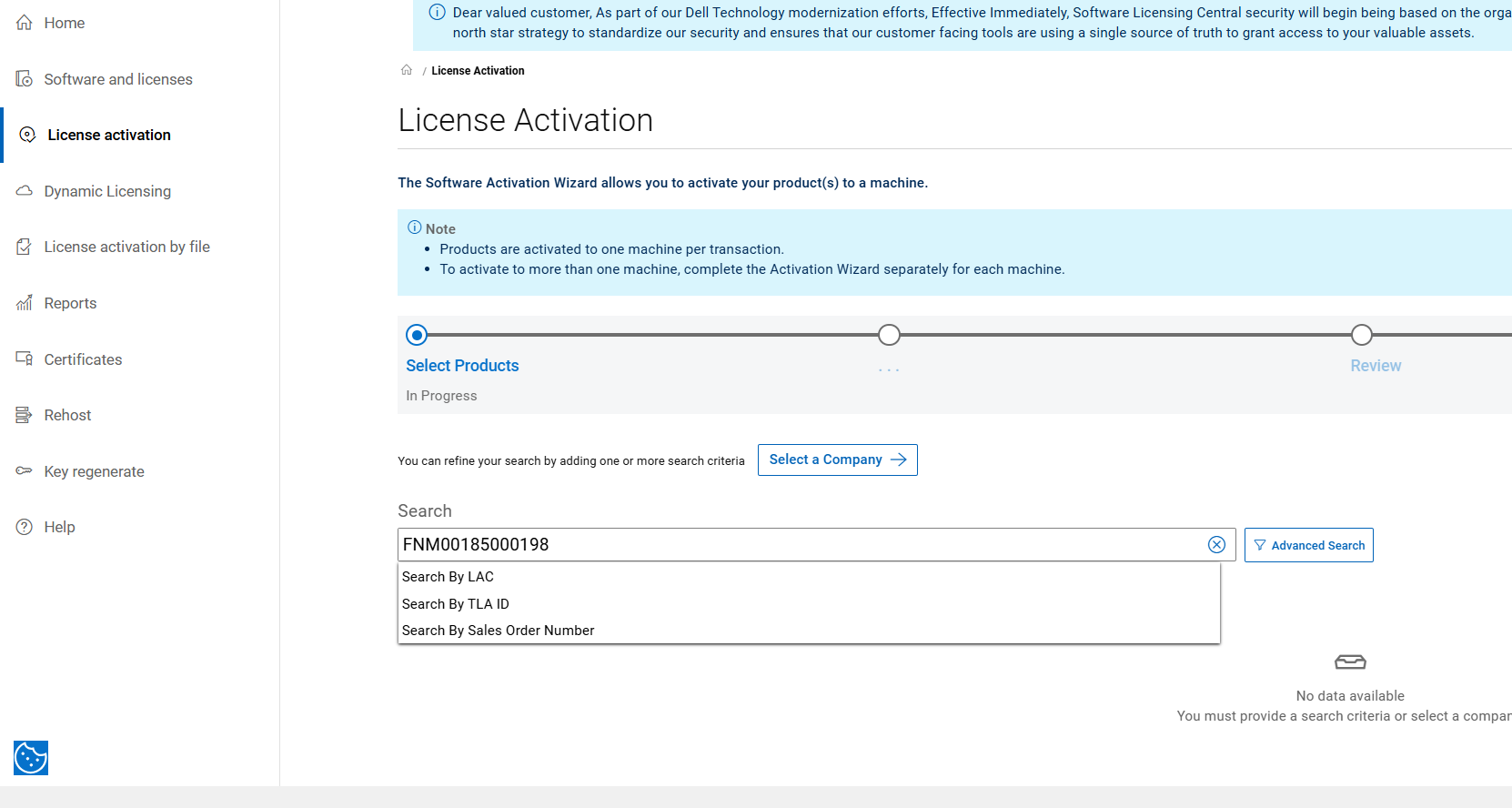
Follow the Steps to complete your activation.
STEP 1: SELECT AVAILABLE PRODUCTS TO ACTIVATE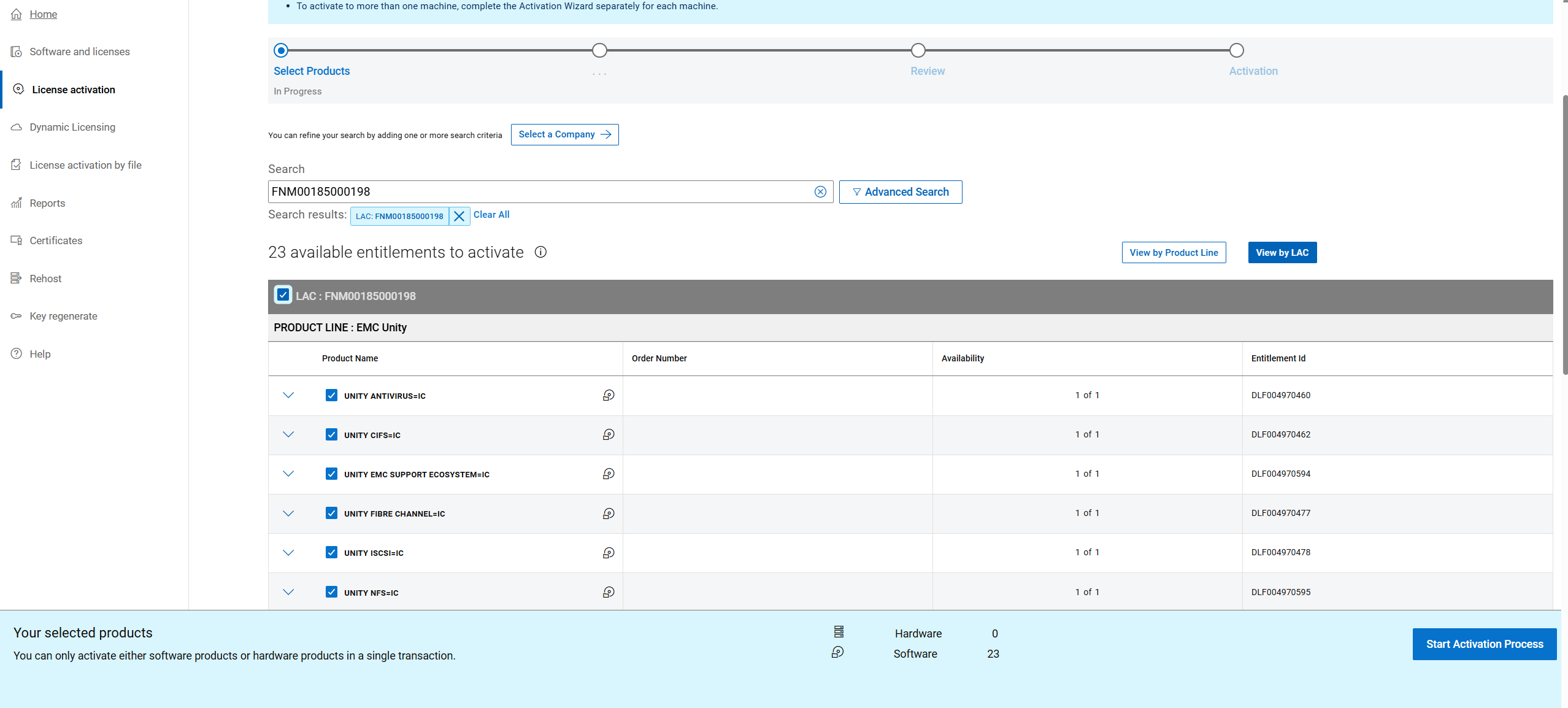
At the bottom of the page, click the "START ACTIVIATION PROCESS BUTTON."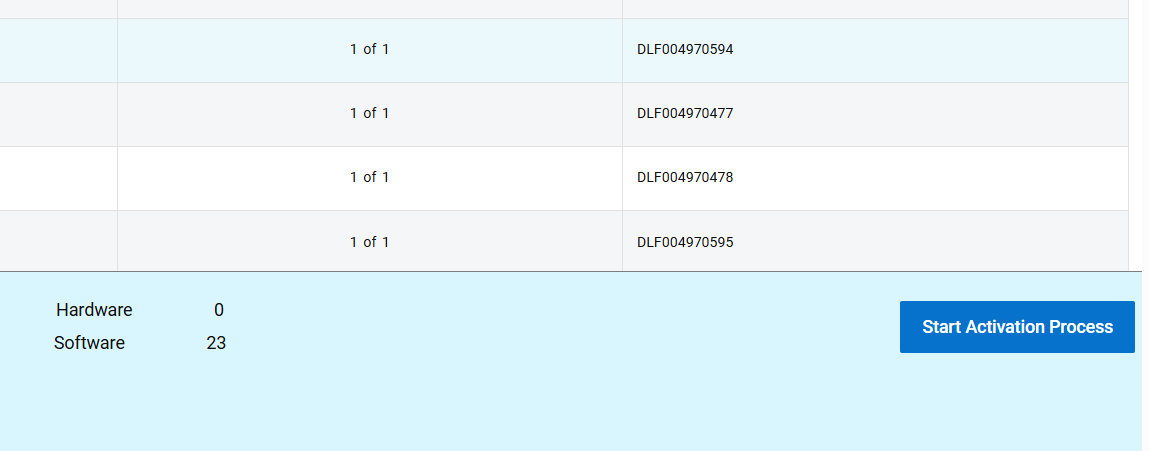
STEP 2: CONFIRM COMPANY and SITE
Click "NEXT:SELECT A MACHINE."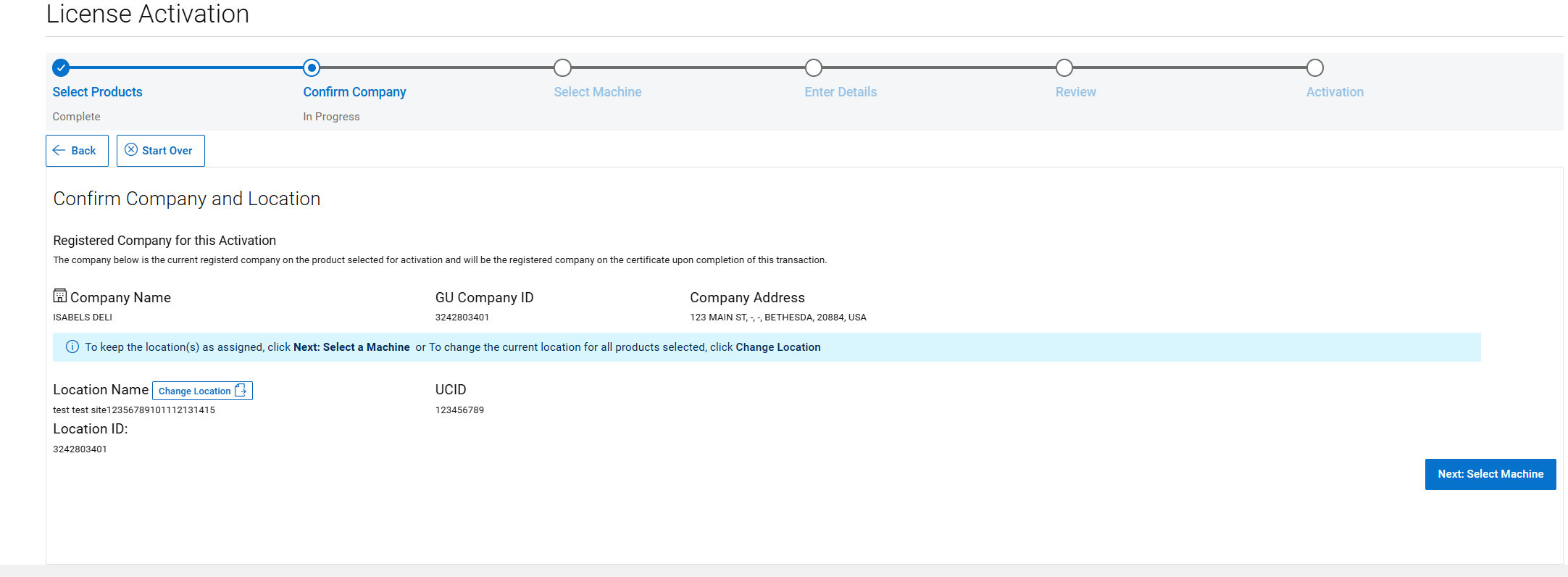
STEP 3: SELECT A MACHINE
Copy and paste the Array serial number in to Add a New Machine and then click "SAVE MACHINE & CONTINUE TO NEXT STEP"

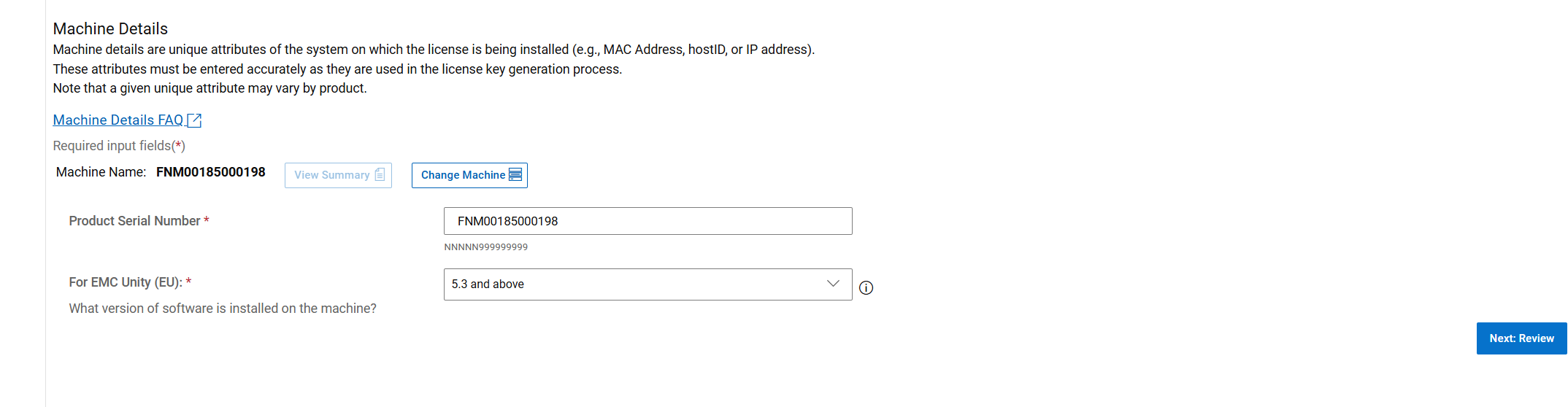
STEP 4: ENTER PRODUCT QUANTITIES and MACHINE DETAILS
Scroll to the bottom of the page where the Array serial number is added into the Product serial number box as the locking Id.
Select the correct Software Version that the Unity is running. The two options are 5.2 and below and 5.3 and above, after entering all details correctly click the "NEXT:REVIEW" Button.
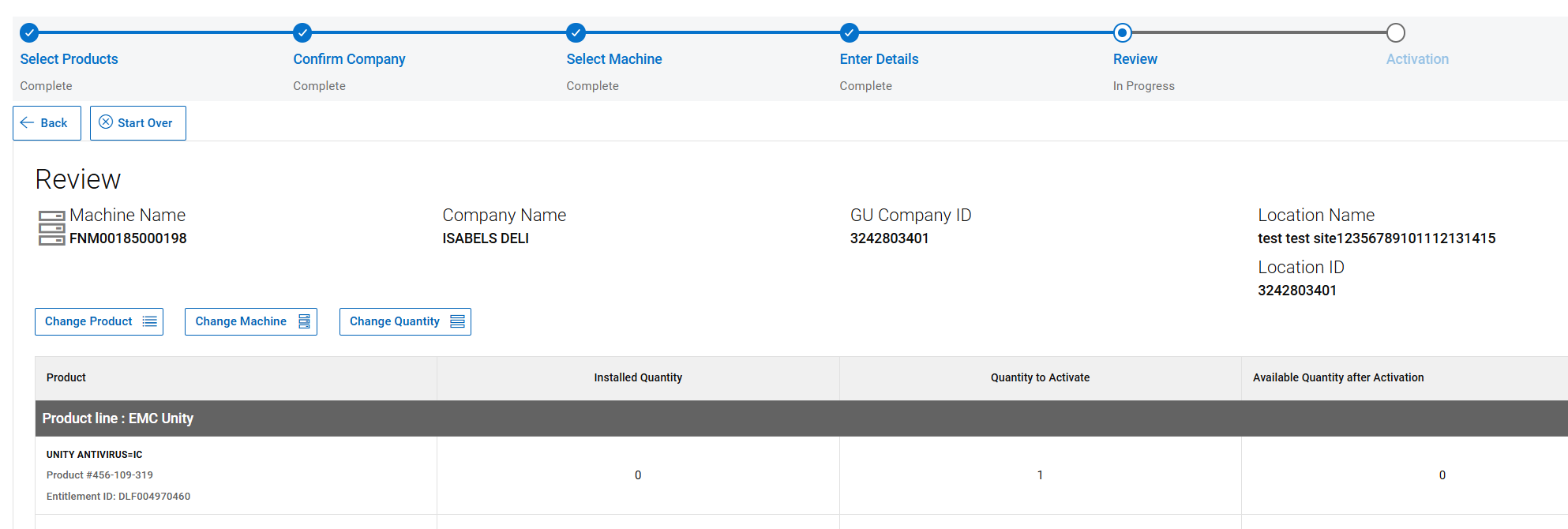
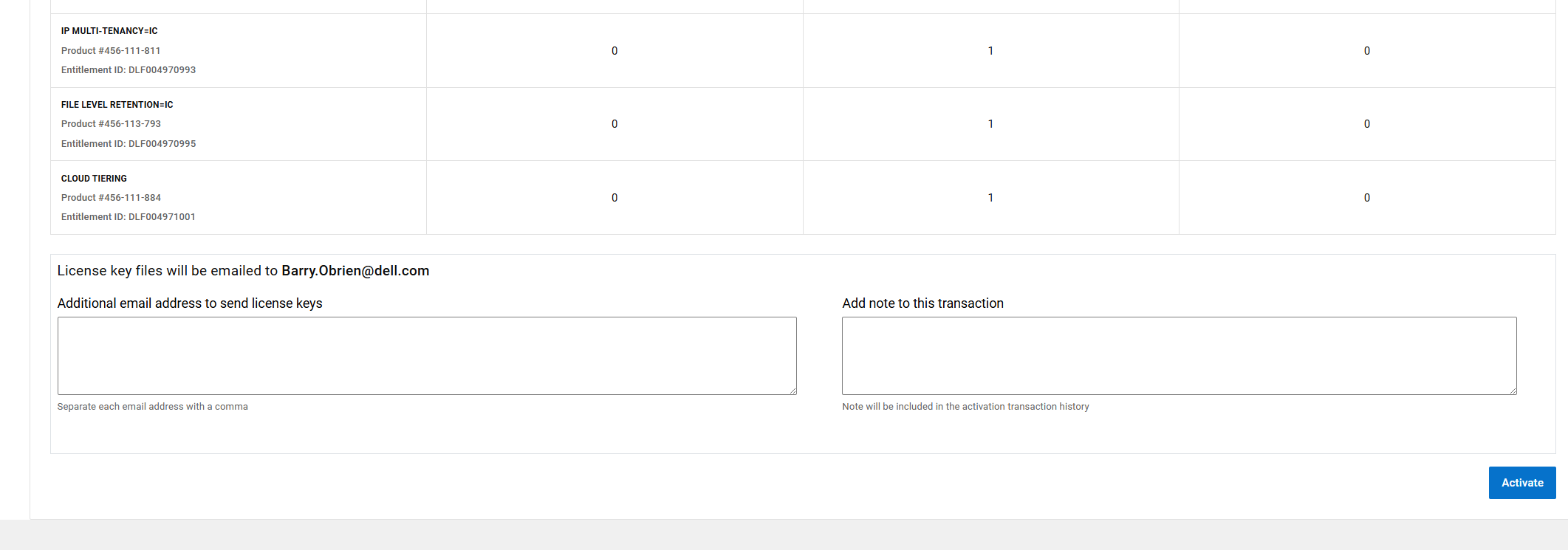
STEP 5: REVIEW YOUR SELECTIONS
Review your entitlement selection and navigate at the Bottom of the page and click activate.
STEP 6: ACTIVATION COMPLETE
This is the final Step of the activation process. This page confirms that the license was activated.
The license file is automatically sent to the person that is logged in to the Software license central.
On this page, the license file can be manually download by clicking the Downlaod License Button.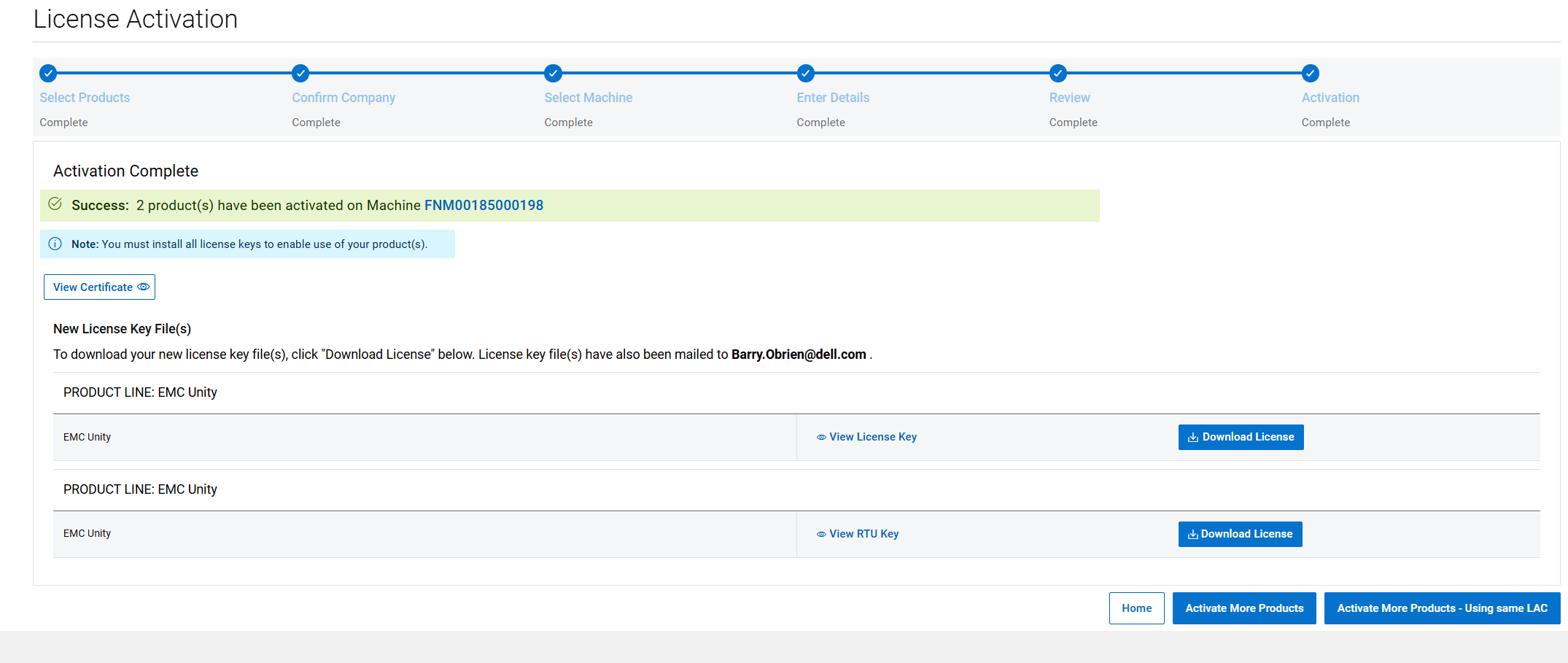
Regeneration of a Unity License to a new Software Version
The license regeneration process allows one to obtain a new license file for the correct software version.
This is helpful if upgrading the current license file or if the wrong version was selected during activation.
Follow the steps below to regenerate your Unity license.
1. Click the Key Regenerate option.
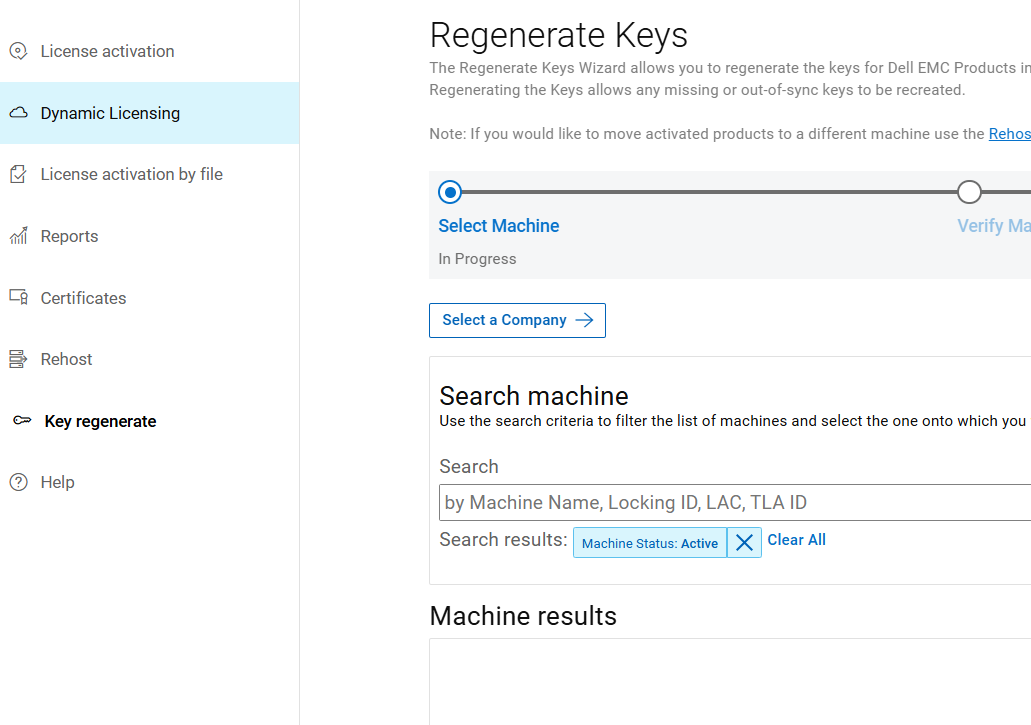
2. Enter the Machine Name or the Locking Id of the Unity Array and click the search button.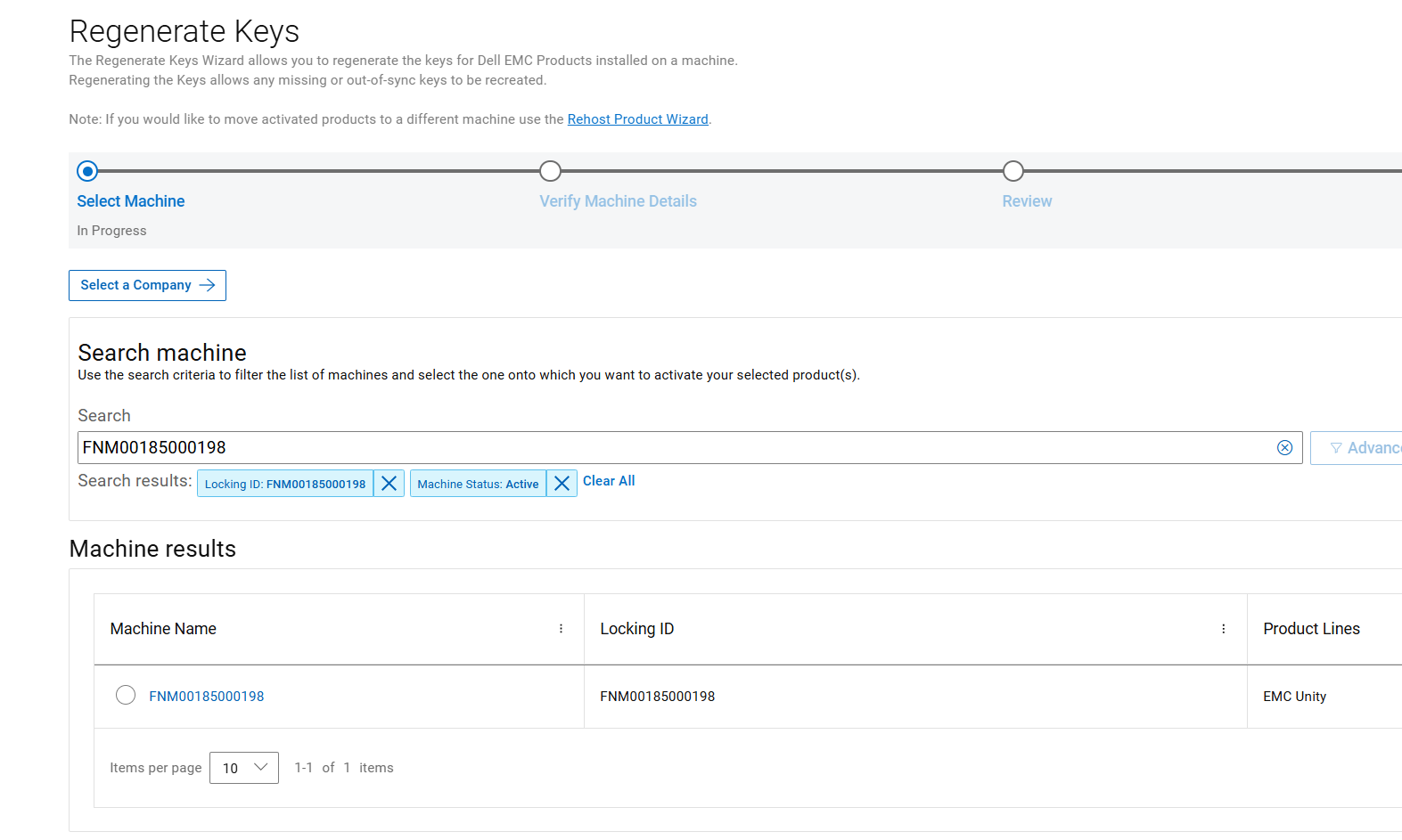
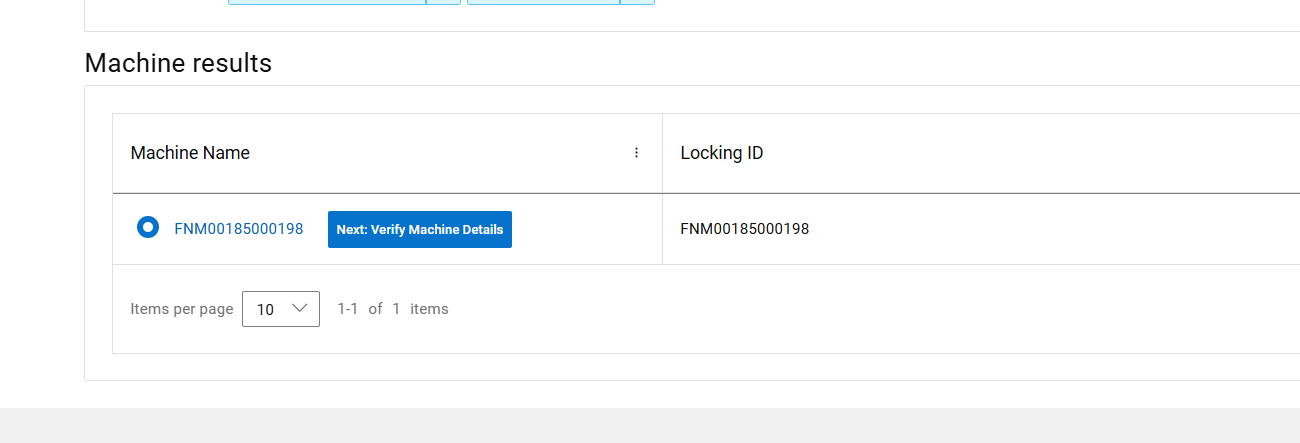
STEP 1: SELECT A MACHINE TO REGENERATE
Click Next Verify Machine Details.
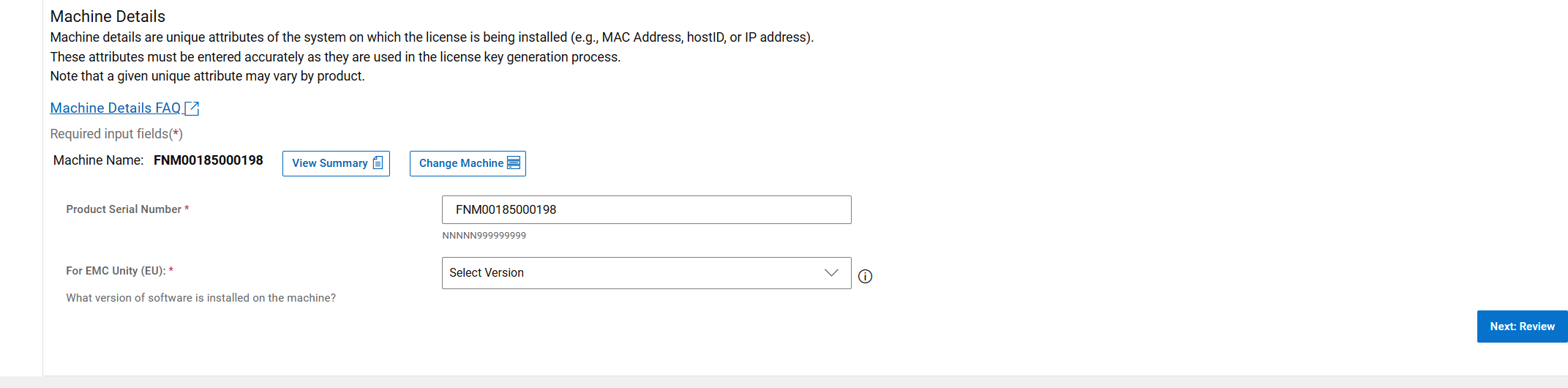
STEP 2: VERIFY MACHINE DETAILS
Choose the Software Version of the Unity license to generate a license for the Version 5.2 and Below or 5.3 and Above. At the bottom of the page and, click Next Review after the Version of Software has been chosen.
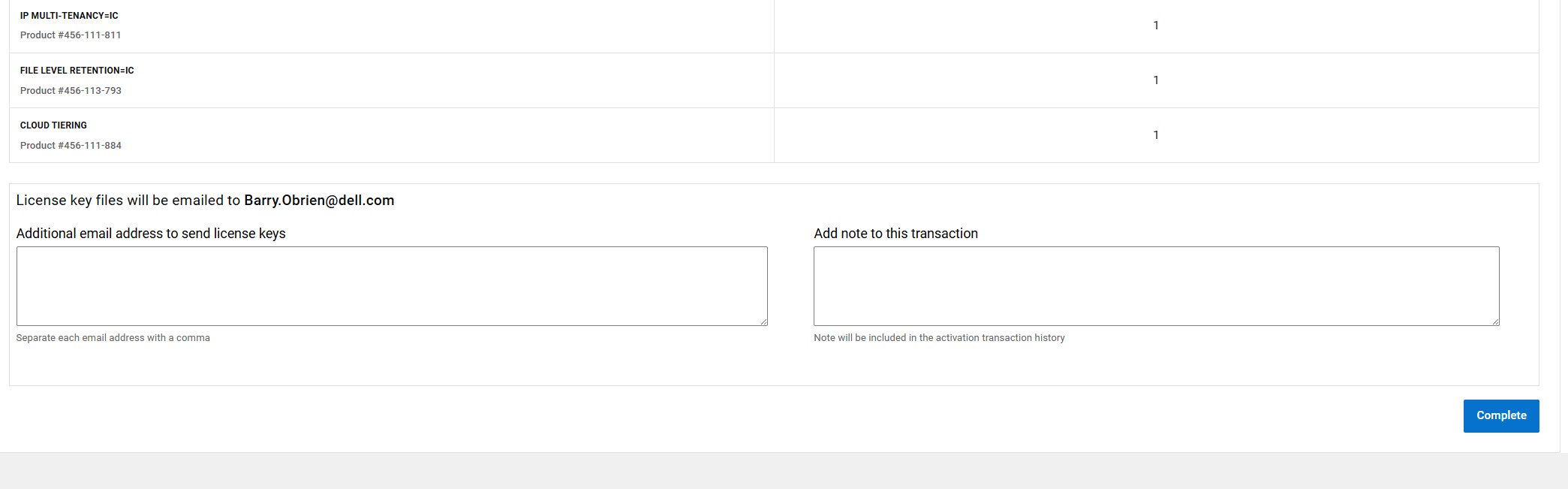
STEP 3: REVIEW YOUR SELECTIONS
Review your selection and then at the Bottom of the page and click Complete.
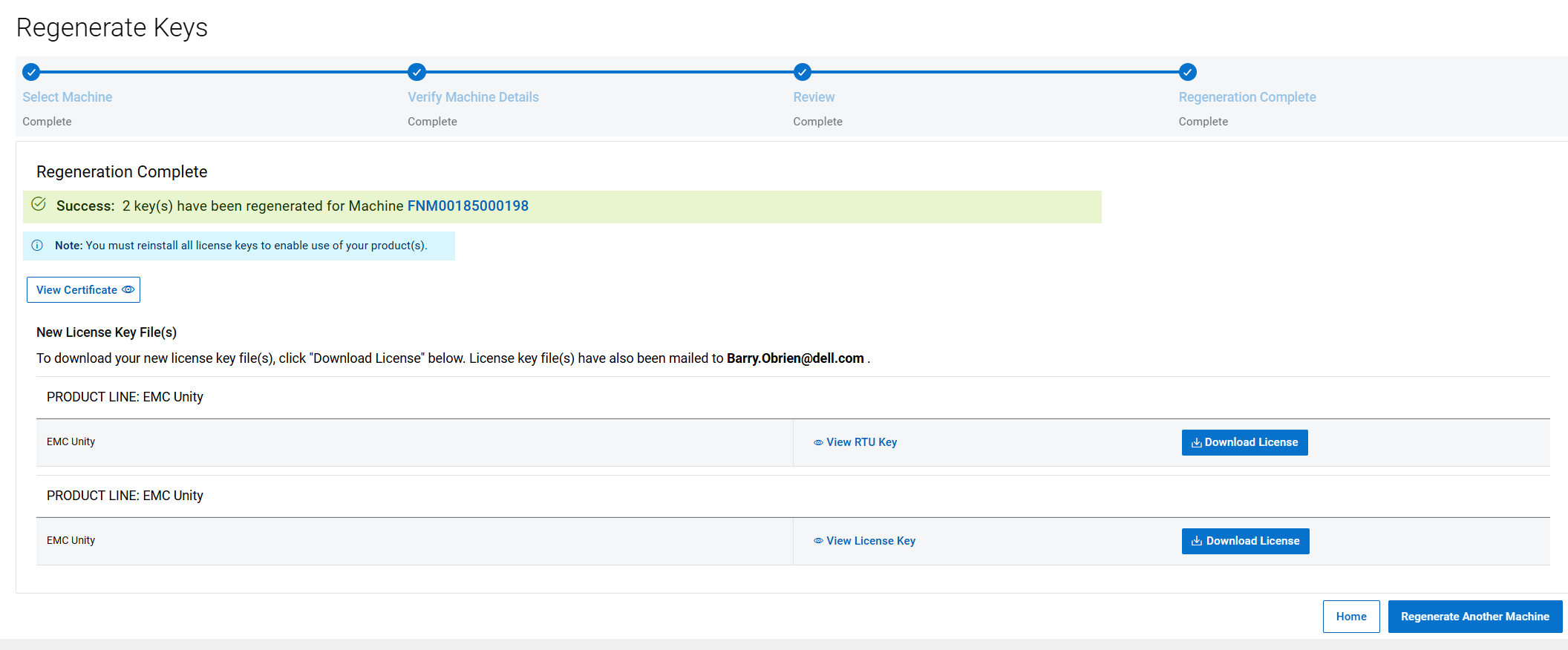
STEP 4: REGENERATION COMPLETE
This is the final Step of the regeneration process. This page confirms that the license was regenerated. The license file is automatically sent to the person that is logged in to the Software license central. On this page, the license file can be manually download by clicking the Download License Button.
受影响的产品
Dell EMC Unity文章属性
文章编号: 000225584
文章类型: How To
上次修改时间: 08 5月 2025
版本: 4
从其他戴尔用户那里查找问题的答案
支持服务
检查您的设备是否在支持服务涵盖的范围内。