DSA-2025-053に記載されている修復済みControlVault3バージョンのインストールを確認する方法
摘要: この記事では、DSA-2025-053に記載されている修復済みのControlVault3バージョンのインストールを確認する方法について説明します。
本文适用于
本文不适用于
本文并非针对某种特定的产品。
本文并非包含所有产品版本。
说明
目次
デバイス マネージャーを使用したControlVault3バージョンの確認
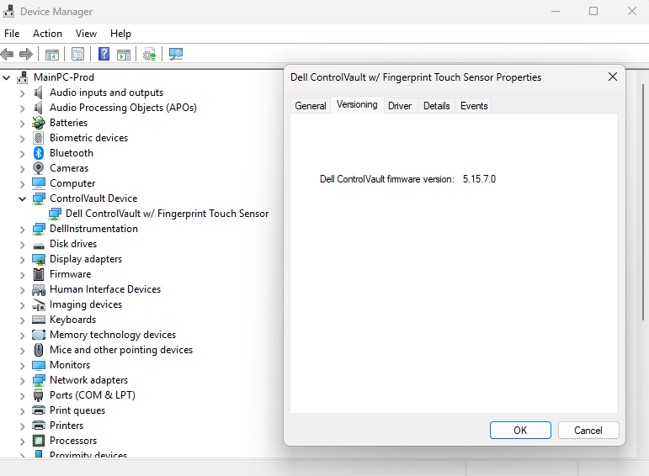
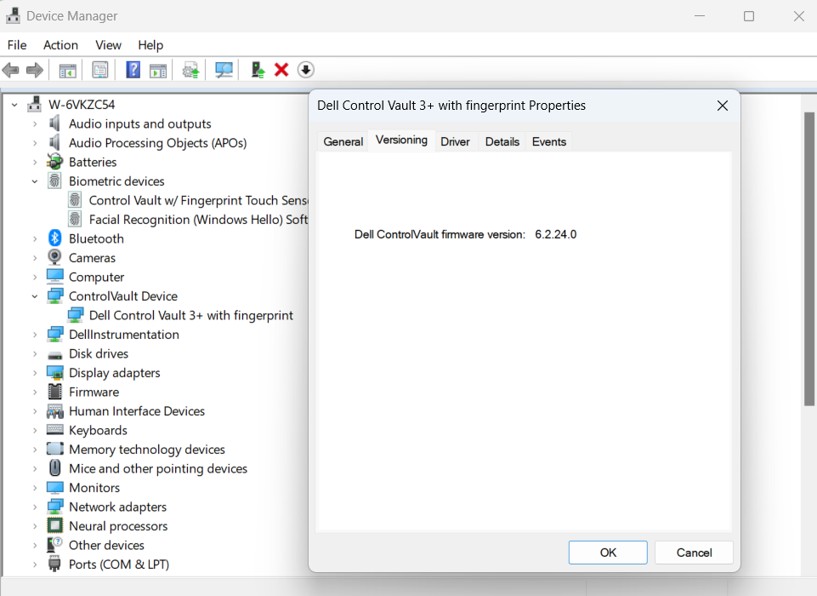
お使いのControlVaultドライバー パッケージのバージョンを検索する最善の方法は、デバイス マネージャーでControlVaultのバージョンを検索することです。
- 「
devmgmt.msc検索バーまたは実行バーでEnterキーを押します - ControlVaultデバイスを見つけて展開し、[Dell ControlVault]を右クリックして[プロパティ]を選択し、[バージョン管理]タブに移動します
注:デバイスでは、指紋タッチ センサーのない ControlVault がリストされている場合があります
- ファームウェアのバージョンが 、ControlVault3の場合は5.15.7.0 、 ControlVault3+の場合は6.2.24.0であることを確認します
PowerShellスクリプトを使用したControlVault3のバージョン確認
これらの手順は、以下のPowerShellスクリプトを使用して、テスト対象のコンピューター上で直接実行することを目的としています。
- この記事の最後にあるスクリプトを使用して、次の名前のファイルを作成します。
Verify_ControlVault_dsa-2025-053_Standalone_V1.ps1- このスクリプトでは、次のことを行います。
- Dell ControlVault用ドライバーがコンピューターにインストールされているかどうかを確認し、結果を
$ControlVaultDriver - Control Vaultドライバーが見つかった場合は、
CVFirmwareUpgradeLog.txtファームウェア(FW)リビジョンを、CV3およびCV3+のDSAからの必要なFWリビジョンと比較します。必要なファームウェアが満たされている場合は、コンソールに出力します
- Dell ControlVault用ドライバーがコンピューターにインストールされているかどうかを確認し、結果を
- このスクリプトでは、次のことを行います。
- PowerShellを開きます
- Windowsキー+Rを押し、次のように入力します。
PowerShellをクリックし、 Enter キーを押します
または、 - スタート メニューでPowerShellを検索して選択します
- Windowsキー+Rを押し、次のように入力します。
- コンピューターのポリシーによっては、PowerShellでスクリプトがブロックされる場合があります。このスクリプトをコピーしてPowerShellに貼り付け、 Enterキーを押して、この制限を一時的に変更する必要があります。
Set-ExecutionPolicy -Scope Process -ExecutionPolicy Bypass
- cd を使用して、スクリプトが保存されているディレクトリに変更します。たとえば、次のようになります。
cd “C:\Users\UserName\Documents\Scripts"
- 以下をコピーしてPowerShellに貼り付け、Enterキーを押してスクリプトを実行します。
.\Verify_ControlVault_dsa-2025-053_Standalone_V1.ps1
- 次のいずれかの結果が返されます。
- ControlVaultファームウェアをアップデートする必要があります。
- 最新のControlVault ファームウェアには 、DSA-2025-053の緩和策が含まれています
- お使いのコンピューターにはControlVaultがインストールされていません
- コンピュータを再起動する必要があります
- スクリプトがファームウェア バージョンを解釈できない場合のエラー
<#PSScriptInfo
.VERSION V1.0 - 8/14/2025
#>

<#
.DESCRIPTION
	This script is intended to verify a Dell system against the vulnerabilities disclosed here https://www.dell.com/support/kbdoc/000276106/dsa-2025-053
	and is not intended to be supported/updated
	It is not intended to be used for keeping ControlVault firmware or drivers up-to-date
	Checks if Dell Control Vault Driver is installed on System and returns result to $ControlVaultDriver
	If Control Vault Driver is found, pull the last line from CVFirmwareUpgradeLog.txt and compare the FW revision to the
	required FW revision from DSA for CV3 and CV3+.  If required firmware meet, output to console

.USEAGE
	This script, Verify_ControlVault_dsa-2025-053_Standalone_V1.ps1 is intended to be run directly on the system intended for testing.
	Verify_ControlVault_dsa-2025-053_inTune_XX.ps1 still in development intended to be run for multiple device compliance reporting through Intune

	RETURNS: ControlVault firmware should be updated.
	RETURNS: Verification Success: ControlVault firmware includes mitigations for DSA-2025-053
	RETURNS: Verification Success: Your computer does not have ControlVault
	RETRUNS: ControlVault maybe updated but needs to complete firmware update validation, Please reboot computer
	RETRUNS: There appears to be an issue parsing the CVFirmwareUpgradeLog.txt; this is likely caused by the last entry of this log not containing the expected data
#>

# Static variables with firmware versions with remediation for ControlVault3 and ControlVault3+
$cv3_required_FWver = [Version]"5.15.7.0"
$cv3plus_required_FWver = [Version]"6.2.24.0"

# Static variables for messaging
$DSA_URL = "https://www.dell.com/support/kbdoc/000276106/dsa-2025-053"
$checkmark = [char]0x2705
$xmark = [char]0x2612
$CVoutofdate = "$xmark ControlVault firmware should be updated. Please refer to $DSA_URL"
$CVcompliant = "$checkmark Verification Success: ControlVault firmware includes mitigations for DSA-2025-053"
$CVnotfound = "Verification Success: Your computer does not have ControlVault"
$CVerror = "There appears to be an issue parsing the CVFirmwareUpgradeLog.txt; this is likely caused by the last entry of this log not containing the expected data"
$CVreboot = "ControlVault maybe updated but needs to complete firmware update validation, Please reboot computer"

# Checks if Dell Control Vault Driver is installed on System and returns result to $ControlVaultDriver
$controlVaultDriver = Get-WmiObject Win32_PnPSignedDriver | Where-Object { $_.DeviceName -like "*Control Vault*" }
$resultstatus = 3

# Find the last entry of the firmwareupgrade log and determine if the firmware version is greater than the firmware version required
if ($ControlVaultDriver){
	$matchingLines = Get-Content "c:\Windows\System32\CVFirmwareUpgradeLog.txt" | Where-Object { $_ -match "Will not update ControlVault firmware from" -or $_ -match "Updating ControlVault firmware from" }
	$lastLine = $matchingLines | Select-Object -Last 1

	if ($lastLine -match "Updating ControlVault firmware from") {
		$resultstatus = 5
		Write-Host "$CVreboot"
	}
	else{
		if ($lastLine -match "Will not update ControlVault firmware from\s+(\d+\.\d+\.\d+\.\d+)") {
			$versionStr = $matches[1]
			$version = [Version]$versionStr

			if (($version.Major -eq 5 -and $version -ge $cv3_required_FWver) -or
				($version.Major -eq 6 -and $version -ge $cv3plus_required_FWver)) {
				$resultstatus = 4
				Write-Host "$CVcompliant"
			}
			else{
				$resultstatus = 2
				Write-Host "$CVoutofdate"
			}
		}
		else{
			$resultstatus = 3
			Write-Host "$CVerror"
		}
	}
}
else{
	$resultstatus = 1
	Write-Host "$CVnotfound"
}


# Create result object
$result = [PSCustomObject]@{
    ComputerName = $env:COMPUTERNAME
    Timestamp = Get-Date -Format "yyyy-MM-dd HH:mm:ss"
    ControlVaultInstalled = $null -ne $controlVaultDriver
	Resultstatus = $resultstatus
    DriverDetails = if ($controlVaultDriver) {

		$controlVaultDriver | Select-Object DeviceName
    } else {
        $null
    }
}

# Return as JSON
$result | ConvertTo-Json -Depth 3
其他信息
inTuneを介して複数のデバイス コンプライアンスを実行する別のスクリプトが開発中です。この記事は、利用可能になり次第、それらの詳細で更新されます。
詳細については、 DSA-2025-053 を参照してください。
受影响的产品
Dell Pro Max 14 MC14250, Dell Pro Max 16 MC16250, Dell Pro 13 Plus PB13250, Dell Pro 14 Plus PB14250, Dell Pro 16 Plus PB16250, Dell Pro Rugged 13 RA13250, Dell Pro Rugged 14 RB14250, Latitude 7030 Rugged Extreme Tablet, Latitude 7200 2-in-1
, Latitude 7210 2-in-1, Latitude 7220EX Rugged Extreme Tablet, Latitude 7220 Rugged Extreme Tablet, Latitude 7230 Rugged Extreme Tablet, Latitude 5300 2-in-1, Latitude 5300, Latitude 5310 2-in-1, Latitude 5310, Latitude 5320, Latitude 5330, Latitude 5340, Latitude 5350, Latitude 7300, Latitude 7310, Latitude 7320, Latitude 7320 Detachable, Latitude 7330, Latitude 7330 Rugged Extreme, Latitude 7340, Latitude 7350, Latitude 7350 Detachable, Latitude 9330, Latitude 5400, Latitude 5401, Latitude 5410, Latitude 5411, Latitude 5421, Latitude 5430 Rugged, Latitude 5431, Latitude 5440, Latitude 5450, Latitude 7400 2-in-1, Latitude 7400, Latitude 7410, Latitude 7420, Latitude 7430, Latitude 7440, Latitude 7450, Latitude 9410, Latitude 9420, Latitude 9430, Latitude 9440 2-in-1, Latitude 9450 2-in-1, Latitude 5500, Latitude 5501, Latitude 5510, Latitude 5511, Latitude 5520, Latitude 5521, Latitude 5530, Latitude 5531, Latitude 5540, Latitude 5550, Latitude 7520, Latitude 7530, Latitude 9510, Latitude 9520, Latitude 7640, Latitude 7650, Latitude 5420, Latitude 5430, Precision 3470, Precision 3480, Precision 3490, Precision 5470, Precision 5480, Precision 5490, Precision 3540, Precision 3541, Precision 3550, Precision 3551, Precision 3560, Precision 3561, Precision 3570, Precision 3571, Precision 3580, Precision 3581, Precision 3590, Mobile Precision 3591, Precision 7540, Precision 7550, Precision 7560, Precision 5680, Mobile Precision 5690, Precision 7670, Precision 7680, Precision 7740, Precision 7750, Precision 7760, Precision 7770, Precision 7780
...
文章属性
文章编号: 000353975
文章类型: How To
上次修改时间: 20 10月 2025
版本: 5
从其他戴尔用户那里查找问题的答案
支持服务
检查您的设备是否在支持服务涵盖的范围内。