Troubleshooting Headphone or Microphone Jack Issues on a Latitude and OptiPlex Systems
摘要: This article provides the information about how to resolve headphone or microphone jack issues on a Dell Latitude and OptiPlex computer.
本文章適用於
本文章不適用於
本文無關於任何特定產品。
本文未識別所有產品版本。
說明
Using a headphone/microphone on a OptiPlex
By design, when a headphone or headset is connected to the audio port on the front panel, the rear audio port is disabled. This allows for private audio using headphones, and the rear jack is enabled when the headphones are disconnected.
Using a headphone/microphone on a Latitude laptop
The two most common types of connectors for audio jacks are a two ring (three conductor) connector and a three ring (four conductor) or Tip, Ring, Ring Sleeve (TRRS) connector. The difference between the two can be seen in the image below.
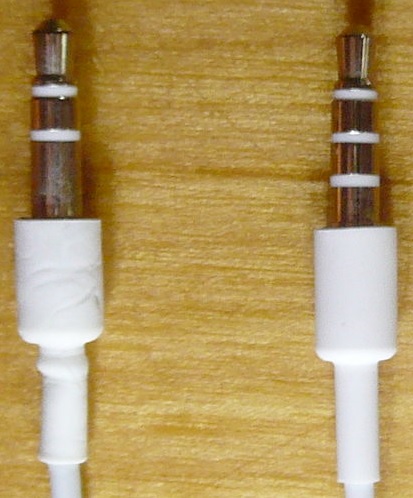
Figure 1: Example of two different types of headphone or microphone connectors
Most Latitude laptops have a microphone/headphone combo jack. Headsets with a three-ring TRRS connector support both audio playback and recording using the microphone on the headset. The E-series docking stations have a separate headphone and microphone port. This setup requires a headset that supports a two-ring connector, one each for headphone and microphone.
In order to use a headset/microphone combo device on the Latitude laptops, you must disable the internal microphone in Windows sound properties.
- Press Windows + Q to open the search panel.
- Type
control paneland press Enter. - In the Control Panel, click Hardware and Sound, and then click Sound.
- Select the Recording tab.
-
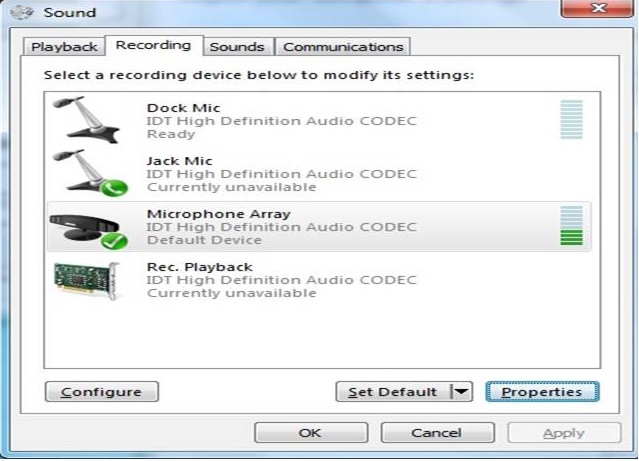
Figure 2: Screenshot of audio properties in Windows - Choose the Microphone Array on the IDT High Definition Audio CODEC device.
- Click Properties to open the Microphone Array Properties window.
- From the General tab, use the dropdown menu and choose Don't use this device (disable).
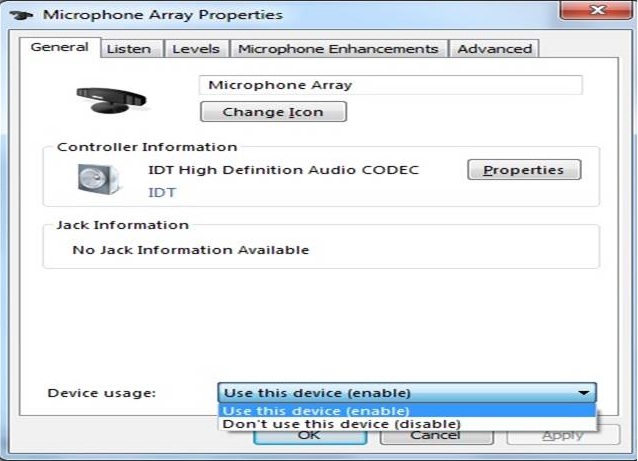
Figure 3: Screenshot of microphone array properties in Windows - Click Apply.
- Click OK to exit the Microphone Array Properties window.
- Click OK to exit the Sound properties window.
If the issue persists, check our these guides:
受影響的產品
OptiPlex, Latitude文章屬性
文章編號: 000137382
文章類型: How To
上次修改時間: 25 6月 2025
版本: 14
向其他 Dell 使用者尋求您問題的答案
支援服務
檢查您的裝置是否在支援服務的涵蓋範圍內。