Avamar:重新開機部署在 Microsoft Hyper-V 上的 Avamar Virtual Edition (AVE) 後,網路介面組態遺失
摘要: 在 Hyper-V 上部署的 AVE 重新開機後,網路介面組態遺失Microsoft
本文章適用於
本文章不適用於
本文無關於任何特定產品。
本文未識別所有產品版本。
症狀
在 AVE 上,預設會建立一個網路介面建立的名稱 eth0。
AVE 重新開機後,eth0 介面不存在:
ifconfig eth0
eth0: error fetching interface information: Device not found
可用網路介面的清單確認缺少 eth0,但存在名為 eth1 的新未配置介面:
ifconfig -a
eth1      Link encap:Ethernet  HWaddr 00:15:5D:C8:BC:B4
          BROADCAST MULTICAST  MTU:1500  Metric:1
          RX packets:0 errors:0 dropped:0 overruns:0 frame:0
          TX packets:0 errors:0 dropped:0 overruns:0 carrier:0
          collisions:0 txqueuelen:1080
          RX bytes:0 (0.0 b)  TX bytes:0 (0.0 b)

lo        Link encap:Local Loopback
          inet addr:127.0.0.1  Mask:255.0.0.0
          inet6 addr: ::1/128 Scope:Host
          UP LOOPBACK RUNNING  MTU:16436  Metric:1
          RX packets:5258453 errors:0 dropped:0 overruns:0 frame:0
          TX packets:5258453 errors:0 dropped:0 overruns:0 carrier:0
          collisions:0 txqueuelen:0
          RX bytes:3043137745 (2902.1 Mb)  TX bytes:3043137745 (2902.1 Mb)
eth0 設定檔存在且未變更:
ls -l /etc/sysconfig/network/ifcfg-eth0
-rw-r--r-- 1 root root 62 Jul 21 2003 /etc/sysconfig/network/ifcfg-eth0
cat /etc/sysconfig/network/ifcfg-eth0
STARTMODE='auto'
BOOTPROTO='static'
IPADDR='10.10.10.10/24'
NETMASK='255.255.255.0'
BROADCAST=''
ETHTOOL_OPTIONS=''
MTU=''
NAME=''
NETWORK=''
REMOTE_IPADDR=''
USERCONTROL='no'
沒有 eth1 組態檔案:
ls -l /etc/sysconfig/network/ifcfg-eth1
ls: cannot access /etc/sysconfig/network/ifcfg-eth1: No such file or directory
裝置訊息顯示 eth0 已重新命名為 eth1:
dmesg | grep -i eth0
[ 1678.268338] udev: renamed network interface eth0 to eth1
可使用 /etc/udev/rules.d/70-persistent-net.rules 檔具有 eth0 條目和 eth1 條目,兩者都具有不同的 MAC 位址:
cat /etc/udev/rules.d/70-persistent-net.rules
# PCI device 0x8086:0x100f (e1000)
SUBSYSTEM=="net", ACTION=="add", DRIVERS=="?*", ATTR{address}=="00:50:56:80:94:f7", ATTR{dev_id}=="0x0", ATTR{type}=="1", KERNEL=="eth*", NAME="eth0"
SUBSYSTEM=="net", ACTION=="add", DRIVERS=="?*", ATTR{address}=="00:15:5D:C8:BC:B4", ATTR{dev_id}=="0x0", ATTR{type}=="1", KERNEL=="eth*", NAME="eth1"
原因
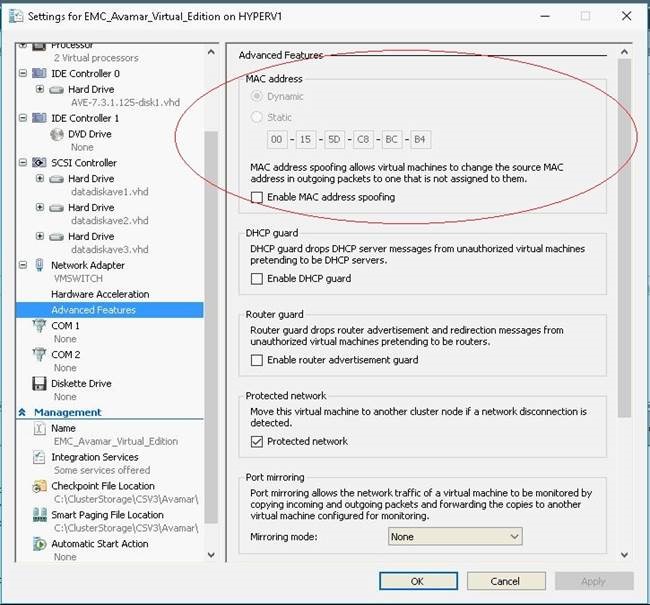
根據預設,Microsoft Hyper-V 使用動態 MAC 位址產生,這會導致將不同的 MAC 位址重新指派給 AVE 虛擬機器:
解析度
1.關閉 AVE。
2.在 Hyper-V Manager 中前往 AVE 的設定。
3.在左窗格中展開「網路配接卡」的設定,然後選取「進階功能」:
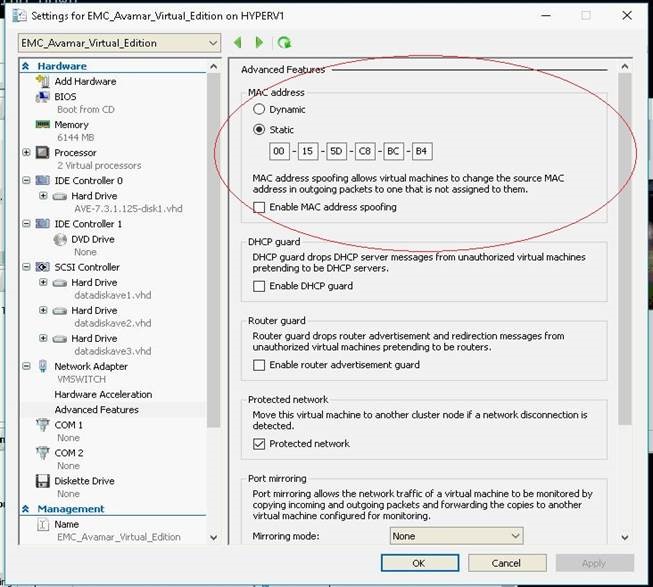
4.在「MAC 位址」方塊中選取「靜態」(如上所示)。位址欄位應已填充 Hyper-V 分配的預設值。
5.按下確定以儲存設定。
6.開啟 AVE 電源。
7.如果有附加至 Avamar 的 Data Domain,請使用以下命令: dpnctl start all 以重新啟動 Avamar 服務。
受影響的產品
Avamar, Avamar Server, Avamar Virtual Edition文章屬性
文章編號: 000053868
文章類型: Solution
上次修改時間: 09 1月 2026
版本: 7
向其他 Dell 使用者尋求您問題的答案
支援服務
檢查您的裝置是否在支援服務的涵蓋範圍內。