如何安裝 Mac 版 Dell Endpoint Security Suite Enterprise
摘要: 瞭解如何使用使用者介面 (UI) 或終端機安裝 Mac 版 Dell Endpoint Security Suite Enterprise。
本文章適用於
本文章不適用於
本文無關於任何特定產品。
本文未識別所有產品版本。
說明
注意:
- 截至 2022 年 5 月,Dell Endpoint Security Suite Enterprise 已達到維護結束的期限。Dell 已不再更新此產品及其文章。如需更多資訊,請參閱 Dell Data Security 的產品生命週期 (支援結束及壽命結束) 政策。如果您對其他文章有任何問題,請聯絡您的銷售團隊或聯絡 endpointsecurity@dell.com。
- 請參考端點安全性,以取得有關目前產品的其他資訊。
本文提供安裝 Mac 版 Dell Endpoint Security Suite Enterprise 的步驟。
受影響的產品:
- Mac 版 Dell Endpoint Security Suite Enterprise
受影響的作業系統:
- Mac
Mac 版 Dell Endpoint Security Suite Enterprise 可透過使用者介面 (UI) 或終端機安裝。如需詳細資訊,請按一下適當的方法。
注意:如需取得安裝程式的相關資訊,請參閱如何下載 Dell Endpoint Security Suite Enterprise。
UI
透過 UI 安裝會根據安裝的版本而有所不同。按一下 v1401 及更新版本 或 v1391 以瞭解特定的安裝步驟。
v1401 及更新版本
- 按兩下 Endpoint Security Suite Enterprise-[VERSION]-Release.dmg 以掛接安裝程式。
 注意:[VERSION] 代表安裝程式版本變數。
 - 按兩下 Endpoint Security Suite Enterprise。

- 在 UI 中,按一下繼續以驗證端點符合所有需求。
 注意:如需產品系統需求的更多資訊,請參閱 Dell Endpoint Security Suite Enterprise 系統需求。
 - 按一下繼續。

- 按一下繼續。

- 同意軟體授權合約的條款。

- 從 Dell Security Management Server 組態 功能表:
- 填入伺服器主機。
- 填入伺服器連接埠。
- 按一下繼續。
 注意:
注意:- 範例
Server.Company.Local與您環境中的伺服器完整網域名稱 (FQDN) 不同。 - 預設連接埠可能與環境中的連接埠不同。
- 按一下安裝。

- 若要確認安裝,請填入本機系統管理員的使用者名稱和密碼。填入後,按一下安裝軟體。

- 成功安裝後,按一下關閉。
 注意:若安裝失敗,請參閱如何收集 Dell Endpoint Security Suite Enterprise 的記錄。
v1391
- 按兩下 Endpoint Security Suite Enterprise-[VERSION]-Release.dmg 以掛接安裝程式。
 注意:[VERSION] 代表安裝程式版本變數。
 - 按兩下 Endpoint Security Suite Enterprise。

- 在 UI 中,按一下繼續以驗證端點符合所有需求。
 注意:如需產品系統需求的更多資訊,請參閱 Dell Endpoint Security Suite Enterprise 系統需求。
 - 按一下繼續。
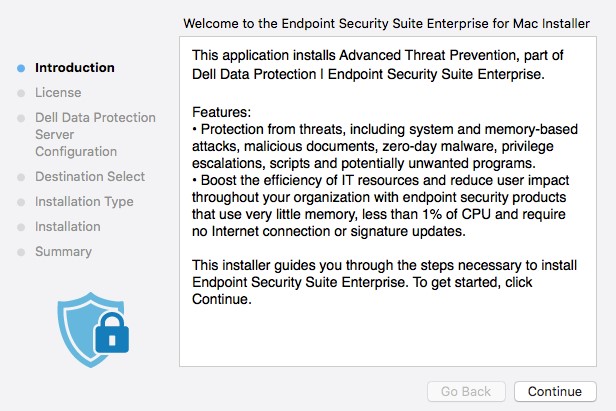
- 按一下繼續。

- 同意軟體授權合約的條款。

- 從 Dell Data Protection Server 組態 功能表:
- 填入伺服器主機。
- 填入伺服器連接埠。
- 按一下繼續。
 注意:
注意:- 範例
Server.Company.Local與您環境中的伺服器完整網域名稱 (FQDN) 不同。 - 預設連接埠可能與環境中的連接埠不同。
- 按一下安裝。

- 若要確認安裝,請填入本機系統管理員的使用者名稱和密碼。填入後,按一下安裝軟體。

- 成功安裝後,按一下關閉。
 注意:若安裝失敗,請參閱如何收集 Dell Endpoint Security Suite Enterprise 的記錄。
終端機
管理員必須 設定 屬性清單 (plist) 選項,然後再使用終端機 部署 Mac 版 Dell Endpoint Security Suite Enterprise。如需詳細資訊,請按一下適當的程序。
設定
- 從 Apple 功能表中,按一下「前往」,然後選取工具程式。

- 在 「工具程式 」功能表中,按兩下 終端機。

- 在終端機中,輸入
hdiutil attach -owners on "/Users/test/Desktop/Endpoint Security Suite Enterprise-[VERSION]-Release.dmg" -shadow然後按下 Enter 鍵。 注意:
注意:[VERSION]表示安裝程式版本變數。- 您環境中的路徑可能與上述範例有所不同。
- 類型
sudo nano "/Volumes/Endpoint Security Suite Enterprise for Mac/Utilities/com.dell.esse.plist"然後按下 Enter 鍵。 注意:Sudo 命令需要本機系統管理員登入資料才能成功執行此作業。
 - 下
DeviceServers金鑰,更換:- 具有 Dell Security Management Server 完整網域名稱 (FQDN) 的字串欄位
- 包含用於伺服器通訊之連接埠的整數欄位
 注意:
注意:- 範例 FQDN
server.company.local會依您的環境而有所不同。 - 連接埠 8888 預設用於註冊。此連接埠可能與您的環境有所不同。
- 按下 CTRL+X 以結束。提示要儲存時,按下 Y 以繼續。

- 按下 Enter 鍵以儲存,不變更檔案名稱。

- 在終端機中,輸入
sudo cp "/Volumes/Endpoint Security Suite Enterprise for Mac/Utilities/com.dell.esse.plist" /Library/Preferences然後按下 Enter 鍵。 注意:
注意:com.dell.esse.plist必須儲存至Library/Preferences在終端機部署 Mac 版 Dell Endpoint Security Suite Enterprise 之前。- 已設定
plist可用於產品的環境部署中。
部署
- 按兩下 Endpoint Security Suite Enterprise-[VERSION]-Release.dmg 以掛接安裝程式。
 注意:[VERSION] 代表安裝程式版本變數。
 - 從 Apple 功能表中,按一下「前往」,然後選取工具程式。

- 在「工具程式」功能表中,按兩下終端機。

- 在終端機中,輸入
sudo installer -pkg "/Volumes/Endpoint Security Suite Enterprise for Mac/Endpoint Security Suite.pkg" -target /然後按下 Enter 鍵。 注意:
注意:- Sudo 命令需要本機系統管理員登入資料才能成功執行此作業。
- 若安裝失敗,請參閱如何收集 Dell Endpoint Security Suite Enterprise 的記錄。
如要聯絡支援部門,請參閱 Dell Data Security 國際支援電話號碼。
請前往 TechDirect,以線上產生技術支援要求。
如需更多深入見解與資源,請加入 Dell 安全性社群論壇。
其他資訊
影片
受影響的產品
Dell Endpoint Security Suite Enterprise文章屬性
文章編號: 000125462
文章類型: How To
上次修改時間: 12 3月 2025
版本: 13
向其他 Dell 使用者尋求您問題的答案
支援服務
檢查您的裝置是否在支援服務的涵蓋範圍內。