How to Collect Logs for Absolute
摘要: Learn step-by-step instructions to collect logs for Absolute running on a Windows operating system by following these instructions.
本文章適用於
本文章不適用於
本文無關於任何特定產品。
本文未識別所有產品版本。
說明
This article describes how to collect logs for Absolute. It is highly recommended to collect logs for Absolute before troubleshooting or contacting Dell Data Security ProSupport. For more information, reference Dell Data Security International Support Phone Numbers.
Affected Products:
- Absolute
Affected Operating Systems:
- Windows
Install Logs and Agent Logs may be manually captured when troubleshooting Absolute. Select the appropriate section below for the steps to gather logs.
Install Logs
- Right-click the Windows start menu and then click Run.

- In the Run UI, type
%temp%and then click OK. Note:
Note:%temp%is the Windows variable forC:\Users\<USERNAME>\AppData\Local\Temp. - Capture the MSI logs named
MSIXXXXX.LOG. Note: The
XXXXXis randomly generated letters and numbers.
Agent Logs
- Right-click the Windows start menu and then click Run.
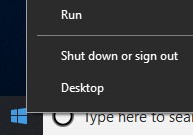
- In the Run UI, type
%programdata%\ctesand then click OK. Note:
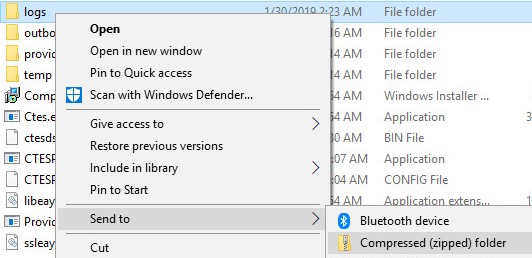
Note:%programdata%is the Windows variable for theprogramdatadirectory. - Right-click the logs folder, select Send to, and then click Compressed (zipped) folder.
To contact support, reference Dell Data Security International Support Phone Numbers.
Go to TechDirect to generate a technical support request online.
For additional insights and resources, join the Dell Security Community Forum.
受影響的產品
Absolute文章屬性
文章編號: 000129351
文章類型: How To
上次修改時間: 16 9月 2025
版本: 9
向其他 Dell 使用者尋求您問題的答案
支援服務
檢查您的裝置是否在支援服務的涵蓋範圍內。