USB-C and Thunderbolt Docking Stations Not Recognized by the Computer
摘要: How to get a USB-C or Thunderbolt docking station to work with a computer using Group Policy.
本文章適用於
本文章不適用於
本文無關於任何特定產品。
本文未識別所有產品版本。
症狀
A USB-C or Thunderbolt docking station does not work with the attached computer.
原因
The issue can be caused by possible Group Policy settings in Windows.
解析度
USB-C and Thunderbolt Docking Stations
An issue where several computers are unable to recognize USB-C or Thunderbolt docks. If you check Device Manager, you see a yellow exclamation mark (bang), and get a message if you try to automatically search for drivers on the device with Device Manager.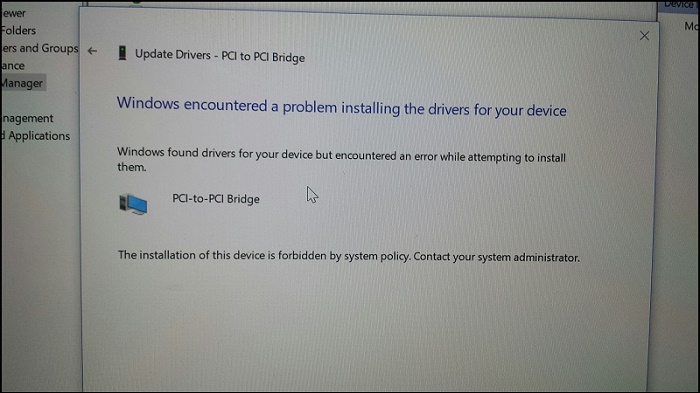
Group Policy Setting
This is caused by a Group Policy (GPO) setting in the Windows image. The security policy is preventing USB-C and Thunderbolt devices and drivers from being installed. This was likely in the custom Windows image due to a previous vulnerability in Thunderbolt 1 & 2 that is no longer present in Thunderbolt 3 devices.
Dell is not able to provide specific Windows imaging assistance but if the Windows administrator is familiar with the GPOs. Review the following information in the link from Microsoft, and they can adjust their custom Windows image accordingly.
Blocking the SBP-2 Driver and Thunderbolt Controllers to Reduce 1394 DMA and Thunderbolt DMA Threats to BitLocker

Thunderbolt Docking Stations Not Initializing at the Login Screen When on a Domain
Peripherals like a keyboard and mouse connected using USB to a Thunderbolt Dock may work in BIOS, do not work at the login screen, but work after login.
Affected Platforms:
- Dell Thunderbolt Dock TB15
- Dell Thunderbolt Dock TB16
- Dell Precision Dual USB-C Thunderbolt Dock - TB18DC
- Dell Thunderbolt Dock - WD19TB
- Dell Thunderbolt Dock - WD19TBS
Kernel Direct Memory Access (DMA) Protection
The new Kernel DMA Protection that is active in Windows does not let Thunderbolt docking stations initialize before booting into the Operating System (OS). This is working as designed.
Companies or individuals using a Domain login to push group policies may see this issue. This is due to group policies not being pushed to the computer before the User logs in.
Group Policy Change
To fix this behavior, the group policy must be changed to allow the docking station to initialize at the login screen.
Additional Information:
An example of the settings in Intune:
The USB and NIC Ports Do Not Work on the Dock Until You Log in to Windows
Do you have BitLocker installed? Are your group policies now set to mitigate DMA attacks (BitLocker Direct Memory Access (DMA) Counter Measures)? If you do, then the USB ports and the NIC connector on the Dock may not work. When you log in to the Windows operating system, the issue goes away.
Note: The Latitude XX00 series of Laptops are those Dell Latitude laptop models that end in 00 such as the 3400, 5400, 7400, so forth.
Solution
Note: Your system is working as designed.
This is the expected behavior of this specific group policy. These laptops are designed to use the Kernel DMA protection.
We do not store any GUIDs or device IDs. These can be easily spoofed. That means you cannot trust them. Every time that you lock the screen, or reboot the system, and a device is connected, you must log in to allow this device to work.
For more information, please see the following documentation from Microsoft:
If you have an issue, and, the Group Policy should not be used. You can replace it by setting the:
其他資訊
For general information on Docking Stations please bookmark our information page https://www.dell.com/support/contents/category/product-support/self-support-knowledgebase/docking-stations
受影響的產品
Dell Dock WD15, Dell Dual Video USB3.0 Docking Station D1000, Dell SuperSpeed USB 3.0 Docking Station, Dell Thunderbolt Dock TB15, Dell Thunderbolt Dock TB16, Dell Precision Dual USB-C Thunderbolt Dock - TB18DC, Dell Universal Dock D6000
, Dell Universal Dock - D6000S, Dell Universal Dock UD22, Dell USB3.0 dock D3100, Dell Dock WD19, Dell Performance Dock - WD19DC, Dell Performance Dock – WD19DCS, Dell Dock – WD19S, Dell Thunderbolt Dock - WD19TB, Dell Thunderbolt Dock – WD19TBS, Latitude 7200 2-in-1, Latitude 3300, Latitude 5300 2-in-1, Latitude 5300, Latitude 7300, Latitude 3400, Latitude 5400, Latitude 7400 2-in-1, Latitude 7400, Latitude 3500, Latitude 5500, Dell Thunderbolt Dock – WD22TB4
...
文章屬性
文章編號: 000146415
文章類型: Solution
上次修改時間: 30 6月 2025
版本: 10
向其他 Dell 使用者尋求您問題的答案
支援服務
檢查您的裝置是否在支援服務的涵蓋範圍內。