Dell Command Powershell Provider Wake-on-LAN Capabilities
摘要: Learn how to configure Wake-on-LAN using Dell Command PowerShell Provider. Explore settings, attribute values, and best practices to wake your Dell computer remotely using LAN or WLAN.
本文章適用於
本文章不適用於
本文無關於任何特定產品。
本文未識別所有產品版本。
說明
Affected Products:
- Dell Command | Powershell Provider
Wake on LAN/WLAN option allows the computer to turn on from the S4 or S5 state when triggered by a special LAN signal or when triggered by a special wireless LAN signal. This feature only works when the computer is connected to AC. Ethernet connections, including home and work networks, wireless data networks and the Internet itself, are based on packets of data that are sent between computers.
Wake-on-LAN is implemented using a specially designed packet that is called a magic packet, which is sent to all computers in a network, among them the computer to be woken up. Powered-down or turned off computers capable of Wake-on-LAN contain network devices able to listen to incoming packets in low-power mode while the computer is turned off. If a magic packet is received that is directed to the device's MAC address, the network adapter signals the computer's power supply or motherboard to initiate computer wake-up, in the same way as pressing the power button would do. In case the computer being awakened is communicating using Wi-Fi, a supplementary standard that is called Wake on Wireless LAN must be employed.
Note: Programs like MagicPacket in the Windows Store (https://apps.microsoft.com/store/detail/magicpacket/9WZDNCRCW1MX?hl=en-us&gl=us  ) are designed to send magic packets. There are also PowerShell commandlets that can send magic packets.
Disclaimer: Dell does not endorse or support these applications or commandlets. They are being provided as an example of how to send a magic packet.
) are designed to send magic packets. There are also PowerShell commandlets that can send magic packets.
Disclaimer: Dell does not endorse or support these applications or commandlets. They are being provided as an example of how to send a magic packet.
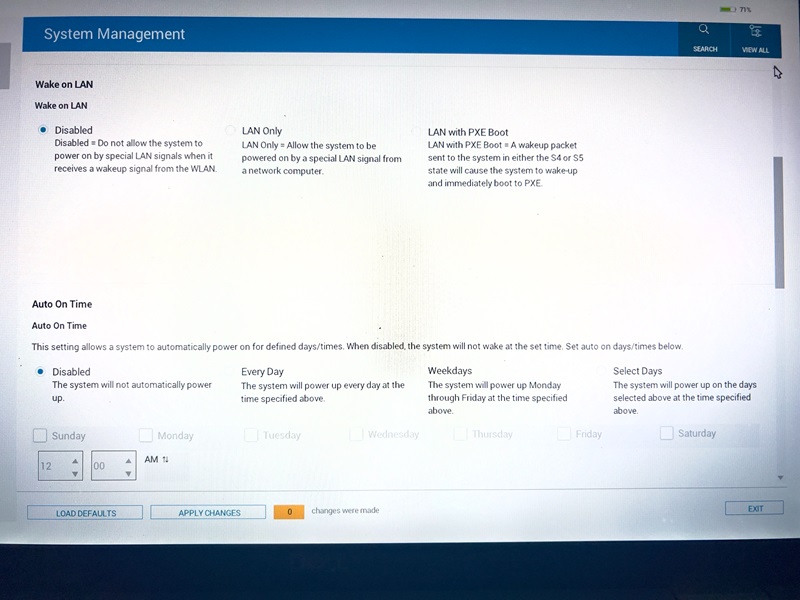
As seen in the screen above BIOS F2 provides three options Disabled, LAN Only, and LAN with PXE Boot. The import of the above attribute values is explained below:
- Disabled - Does not allow the computer to turn on by special LAN signals when it receives a wake-up signal from the LAN or wireless LAN.
- LAN Only - Allow the computer to be turned on by special LAN signals.
- LAN with PXE Boot - Allow the computer to be turned on by special LAN signals and immediately boot to PXE.
Dell Command PowerShell Provider (DCPP) has strived hard to match the F2 screen. DCPP presents this feature to the user in the form of an attribute named WakeOnLAN.
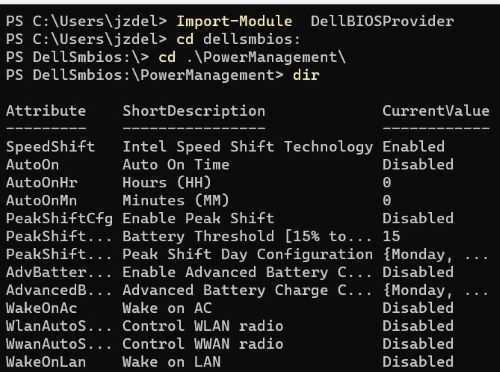
Possible values for this attribute can be obtained with the command as shown below:
Dir WakeOnLAN|Select PossibleValues

As seen in the above screenshot, DCPP provides more attribute values apart from default ones as facilitated by BIOS F2. The attribute values and their import are as described below:
LANOnly- Allow the computer to be turned on by special LAN signals.Disabled- Does not allow the computer to turn on by special LAN signals when it receives a wake-up signal from the LAN or wireless LAN.LanWithPXEBoot- Allow the computer to be turned on by special LAN signals and immediately boot to PXE.
The user can set any of the attribute values as shown in the sample screenshot below:
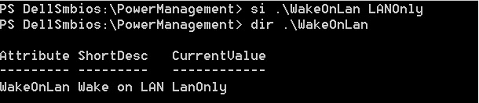
In the above example, the user has set the value of an attribute WakeOnLan to LANOnly as shown when done dir.
Note: If a computer or admin password is set, then this has to be provided with
–Password switch.
受影響的產品
Dell Command | Powershell Provider文章屬性
文章編號: 000175490
文章類型: How To
上次修改時間: 24 4月 2025
版本: 11
向其他 Dell 使用者尋求您問題的答案
支援服務
檢查您的裝置是否在支援服務的涵蓋範圍內。