PowerEdge: How to Install iSM and Start iDRAC UI Launcher
摘要: This article provides information about how to install the Dell iDRAC Service Module (iSM) and start iDRAC UI Launcher on Windows Server.
本文章適用於
本文章不適用於
本文無關於任何特定產品。
本文未識別所有產品版本。
說明
Using iDRAC Service Module, you can launch iDRAC UI from your local system.
Caution: When the iSM is disabled, the iDRAC UI Launcher icon is also disabled.
- Download Dell iDRAC Service Module for Windows.
- Go to Dell Support Drivers & Downloads page, enter your server model or enter service tag.
- Click the Drivers & Downloads tab.
- Select your Operating System.
- Keyword Type - iSM
- Download the presented Dell iDRAC Service Module for Windows.
- Run the file that is downloaded and click to extract.
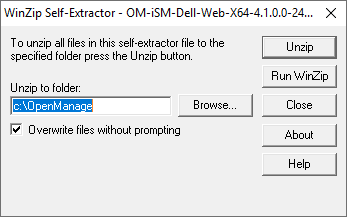
- Go to the extracted directory and click iDRACSvcMod name to install.
- After Read EULA, Click Next to complete the installation.
- On the left end of the taskbar, select the Start Windows icon and select iDRAC UI Launcher.

- Wait a minute to start the prompt (do not close prompt screen) and the default navigator opens with iDRAC access.
NOTE: 1. If the default browser proxy is set to use the system proxy, then you see a failure to launch the iDRAC UI. You must copy the IP address from the address bar and enter it in the exceptions list of proxy settings.
NOTE: 2. If you are unable to launch the iDRAC launcher, check if the Remote NDIS Compatible Device is not disabled from the network connection. The role of the "Remote NDIS Compatible Device" is to facilitate communication between iDRAC and iSM.
其他資訊
Related article: Support for Dell iDRAC Service Module
受影響的產品
iDRAC Service Module, iDRAC Service Module 4.x產品
PowerEdge FC640, PowerEdge M640, PowerEdge M640 (for PE VRTX), PowerEdge MX740C, PowerEdge MX750c, PowerEdge MX760c, PowerEdge MX840C, PowerEdge R240, PowerEdge R250, PowerEdge R260, PowerEdge R340, PowerEdge R350, PowerEdge R360, PowerEdge R440
, PowerEdge R450, PowerEdge R540, PowerEdge R550, PowerEdge R640, PowerEdge R6415, PowerEdge R650, PowerEdge R650xs, PowerEdge R6515, PowerEdge R6525, PowerEdge R660, PowerEdge R660xs, PowerEdge R6615, PowerEdge R6625, PowerEdge R740, PowerEdge R740XD, PowerEdge R740XD2, PowerEdge R7415, PowerEdge R7425, PowerEdge R750, PowerEdge R750XA, PowerEdge R750xs, PowerEdge R7515, PowerEdge R7525, PowerEdge R760, PowerEdge R760XA, PowerEdge R760xd2, PowerEdge R760xs, PowerEdge R7615, PowerEdge R7625, PowerEdge R840, PowerEdge R860, PowerEdge R940, PowerEdge R940xa, PowerEdge R960, PowerEdge T140, PowerEdge T150, PowerEdge T160, PowerEdge T340, PowerEdge T350, PowerEdge T360, PowerEdge T440, PowerEdge T550, PowerEdge T560, PowerEdge T640, PowerEdge XR4510c, PowerEdge XR4520c
...
文章屬性
文章編號: 000194572
文章類型: How To
上次修改時間: 24 1月 2025
版本: 5
向其他 Dell 使用者尋求您問題的答案
支援服務
檢查您的裝置是否在支援服務的涵蓋範圍內。