VMware: How to Disable a VMware Plugin in vCenter Server Appliance
摘要: This article was written to document the process to disable a plug-in in vCenter Server Appliance.
本文章適用於
本文章不適用於
本文無關於任何特定產品。
本文未識別所有產品版本。
說明
VMware has released some advisories (VMSA-2021-0010) that require disabling a plug-in or setting it as incompatible in order to prevent it from being exploited. Setting the plug-in as incompatible is a workaround for customers that do not want to upgrade the vCenter Server Appliance to versions 7.0 U2b, 6.7 U3n, or 6.5 U3p which fix the issue in VMSA-2021-0010.
In VMSA-2021-0010, the affected vSAN Health Check plug-in is enabled by default in all vCenter Server deployments, whether vSAN is being used.
Facts:
vCenter Server Appliance versions 6.5, 6.7, and 7.0
Solution:
- Check that the plug-in for VMware vSAN H5 Client Plugin is deployed or enabled before disabling or setting to "Incompatible."

Figure 1: Check Client Plugins.
- Open a PuTTY session to the vCenter Server Appliance.
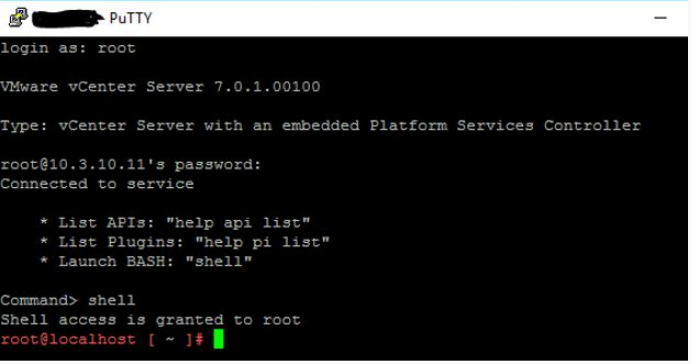
Figure 2: PuTTY Session
- Make a backup of the compatibility-matrix.xml. This file is in the following location:
/etc/vmware/vsphere-ui/compatibility-matrix.xml
To perform a backup of the file, do the following:
cp -v /etc/vmware/vsphere-ui/compatibility-matrix.xml /etc/vmware/vsphere-ui/compatibility-matrix.xml.backup
- Open the file compatibility-matrix.xml with a text editor like VI:
vi /etc/vmware/vsphere-ui/compatibility-matrix.xml
The unedited file looks like the screenshot below:
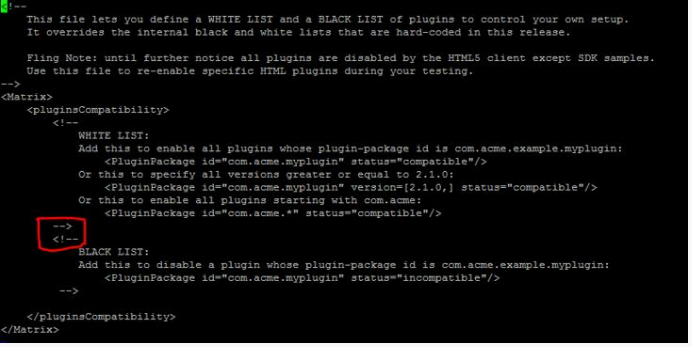
Figure 3: Unedited Compatibility-Matrix File.
- To disable the plug-in and set it as "Incompatible," add the following line as shown in the screenshot below, Save the file, and Exit.
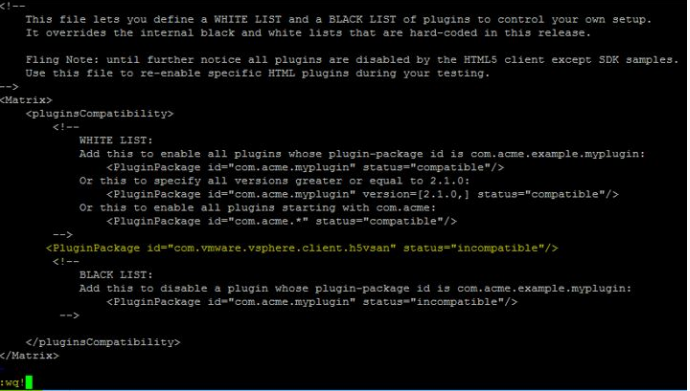
Figure 4: Set File to Incompatible
- Stop and restart the
vsphere-uiservice using the following commands:
# service-control --stop vsphere-ui

Figure 5: Stop vSphere Service.
# service-control --start vsphere-ui

Figure 6: Start vSphere Service
- Log in to the vSphere Client session again as it is no longer authenticated to validate the VMware vSAN H5 Client Plugin is set to incompatible.
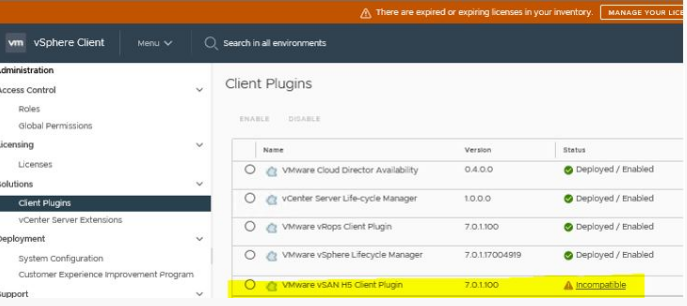
Figure 7: Confirm that the Plugin is Incompatible.
受影響的產品
VxBlock and Vblock Systems, VMware ESXi 7.x產品
C Series, HS Series, Modular Infrastructure, Tower Servers, XR Servers, PowerEdge R240, PowerEdge R250, PowerEdge R260, PowerEdge R340, PowerEdge R350, PowerEdge R360, PowerEdge R440, PowerEdge R450, PowerEdge R540, PowerEdge R550, PowerEdge R640
, PowerEdge R6415, PowerEdge R650, PowerEdge R650xs, PowerEdge R6515, PowerEdge R6525, PowerEdge R660, PowerEdge R660xs, PowerEdge R6615, PowerEdge R6625, PowerEdge R740, PowerEdge R740XD, PowerEdge R740XD2, PowerEdge R7415, PowerEdge R7425, PowerEdge R750, PowerEdge R750XA, PowerEdge R750xs, PowerEdge R7515, PowerEdge R7525, PowerEdge R760, PowerEdge R760XA, PowerEdge R760xd2, PowerEdge R760xs, PowerEdge R7615, PowerEdge R7625, PowerEdge R840, PowerEdge R860, PowerEdge R940, PowerEdge R940xa, PowerEdge R960
...
文章屬性
文章編號: 000207002
文章類型: How To
上次修改時間: 22 5月 2025
版本: 2
向其他 Dell 使用者尋求您問題的答案
支援服務
檢查您的裝置是否在支援服務的涵蓋範圍內。