How to Enable XMP Memory Speed on Alienware Laptops
摘要: Enabling Extreme Memory Profiles (XMP) memory on Alienware m16 R1 and Alienware m18 R1 using BIOS or Alienware Command Center (AWCC).
本文章適用於
本文章不適用於
本文無關於任何特定產品。
本文未識別所有產品版本。
說明
There are two methods to enable XPM memory speed On Alienware m16 R1 and Alienware m18 R1.
Method 1: Enable in BIOS
- Press the F2 key as the computer boots, to enter the BIOS.
- Select Advanced > Performance Options (Figure 1).
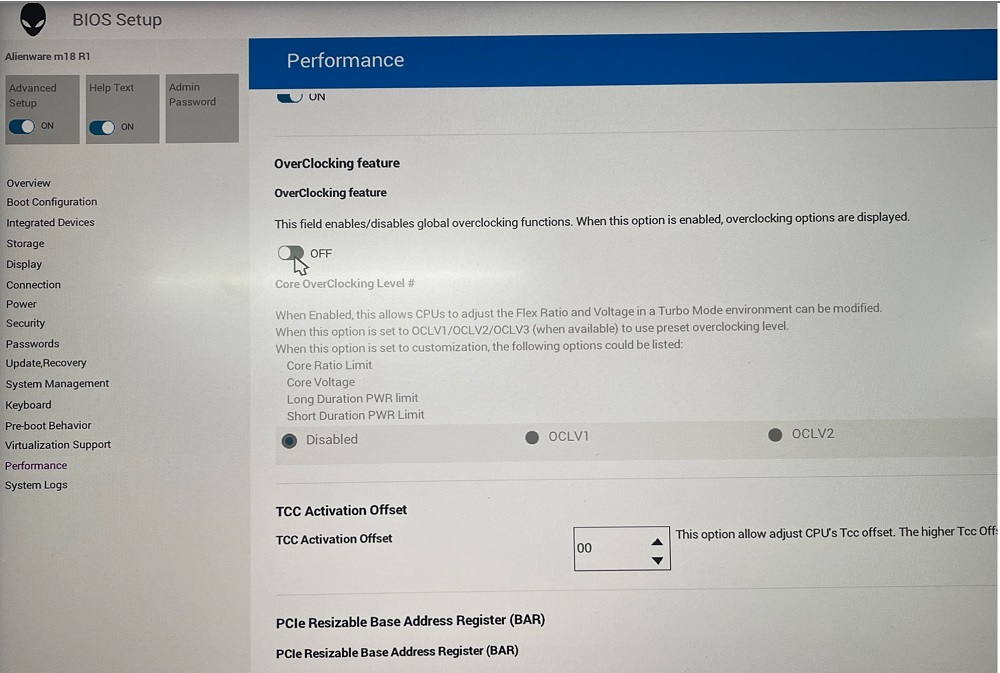
Figure 1: Performance Options - Overclocking Feature Disable change to Enable. Click OK when the warning message is displayed (Figure 2).
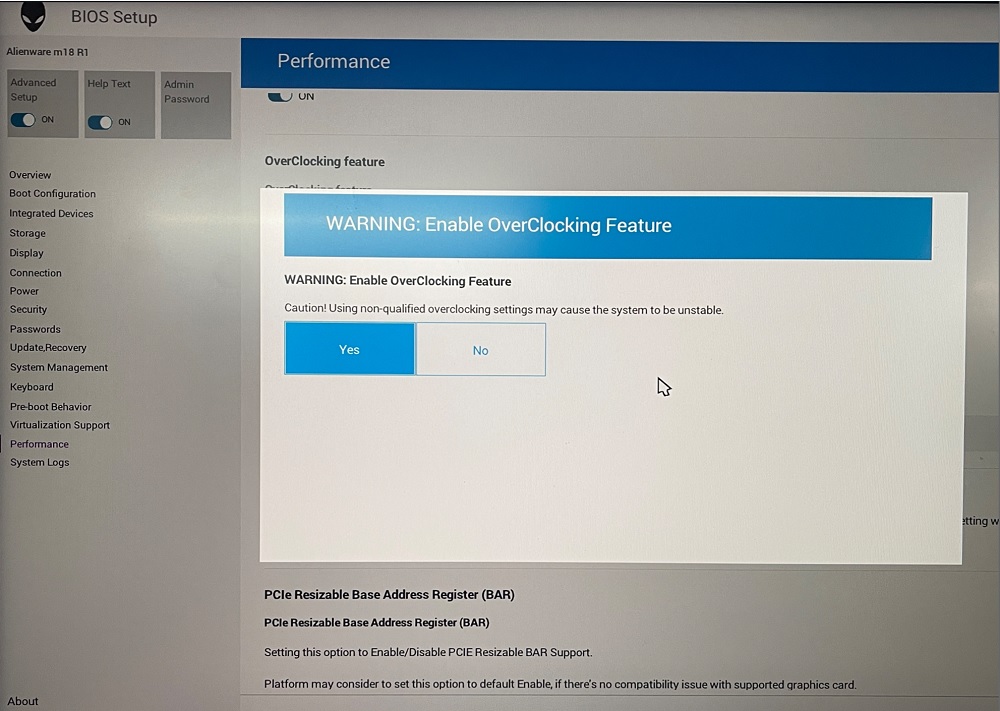
Figure 2: Warning Enable OverClocking Feature - Change XMP memory from Disable to XMP1 (Figure 3).
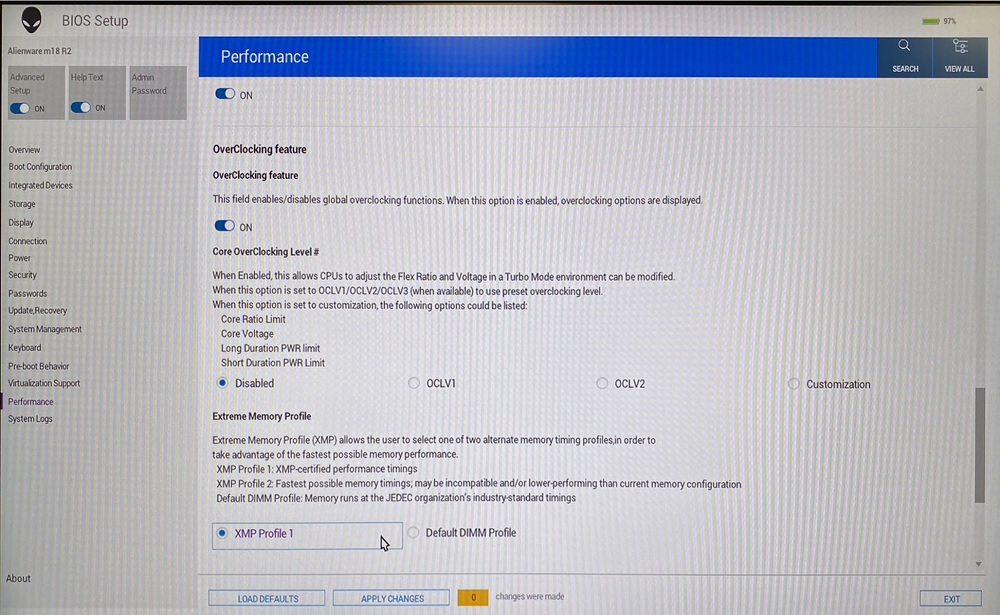
Figure 3: XMP1
Method 2: Enable in AWCC:
AWCC default set as RAM1, you could choose other XMP memory or turn off:
- Open AWCC choose Performance> Custom > Advanced View (Figure 4).
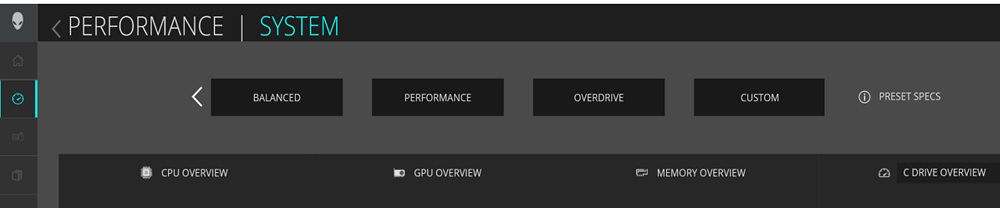
Figure 4: Performance Custom Advanced View - Switch to RAM2 or off per your request (Figure 5).
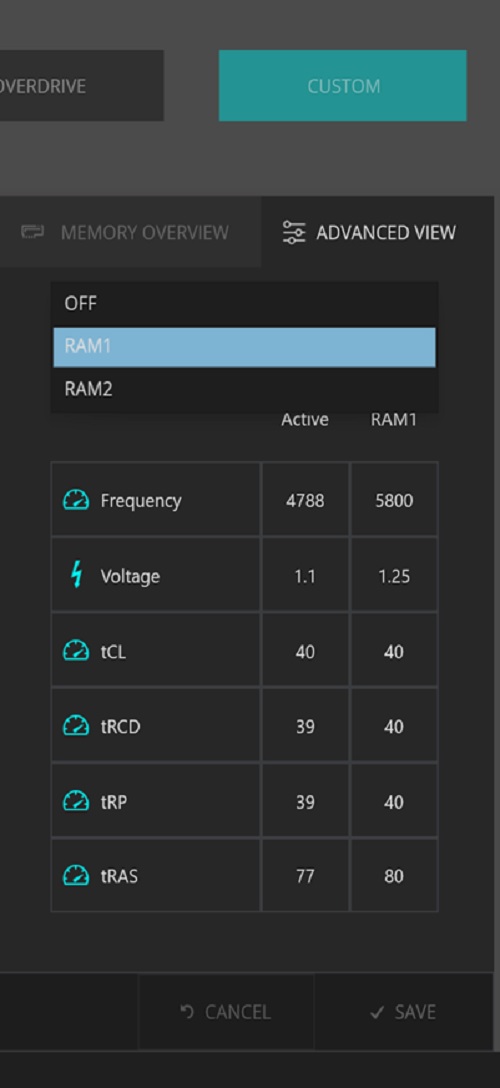
Figure 5: RAM2 or off
Note: After enabling the XMP memory for the first time, the bootup time will be longer, about 3 minutes and 30 seconds.
Affected Platforms:
- Alienware m16 R1
- Alienware m18 R1
Note: When purchasing your computer Dell offers an XMP memory configuration of 32 GB with 5800 MT/s speed. To use this speed, ensure that you enable XMP by going to the system settings or BIOS.
Your computer will not support upgrading to an XMP memory later after point of sale. Also, if the memory is upgraded from 32 GB to 64 GB, your computer will not support the XMP feature.
Your computer will not support upgrading to an XMP memory later after point of sale. Also, if the memory is upgraded from 32 GB to 64 GB, your computer will not support the XMP feature.
受影響的產品
Alienware m16 R1, Alienware m18 R1文章屬性
文章編號: 000218606
文章類型: How To
上次修改時間: 22 4月 2025
版本: 3
向其他 Dell 使用者尋求您問題的答案
支援服務
檢查您的裝置是否在支援服務的涵蓋範圍內。