How to launch Microsoft Copilot in Windows
摘要: This is how to launch Microsoft Copilot in Windows, using the keyboard, short-cut keys, or button within Windows and Microsoft Edge.
本文章適用於
本文章不適用於
本文無關於任何特定產品。
本文未識別所有產品版本。
說明
Affected Operating Systems:
- Windows 11
- Windows 10
- Microsoft Copilot in Windows is not available in the People's Republic of China (PRC)
- Recall is an NPU Driven feature only available on Microsoft Copilot+ PCs
- Where available, Microsoft Copilot in Windows and Recall can also be disabled by users, which result in different behaviors of the Microsoft Copilot key
- The hierarchy applies to all computers with Windows 11
- Enablement of the Microsoft Copilot key on Non-Copilot+ PCs with Windows 10 using Windows Update - To be Announced (TBA)
Microsoft Copilot in Windows can be launched in multiple ways.
| To Launch Microsoft Copilot | Keyboard Shortcut, Icon, or Key |
|---|---|
| Windows Key + C |  |
| Windows taskbar |  |
| Microsoft Edge |  |
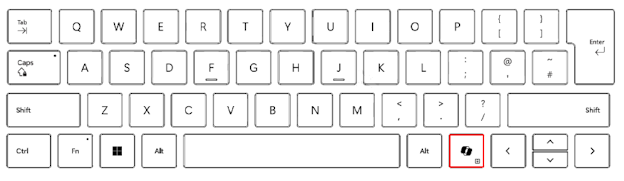
| The Microsoft Copilot Key |  |
Note: Beginning in spring 2024, new Windows 11 devices ship with a new keyboard layout and a dedicated key to launch Microsoft Copilot in Windows. The key replaces the menu key next to the right Alt key. The key position can vary on some regional layouts.
Known Behavior
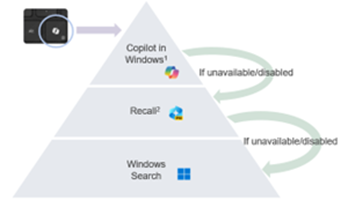
On Microsoft Copilot+ PCs pressing the Microsoft Copilot key will:
- Launch Microsoft Copilot in Windows.
- If Microsoft Copilot is not available or disabled, the key launches Recall.
- If Recall is not available or disabled, the key launches Windows Search
Press and hold the Microsoft Copilot key launches a voice dictation:
This allows the user to ask questions or iterate voice commands to Microsoft Copilot in Windows. This feature will be enabled at some point in the future.
其他資訊
Related Article:

文章屬性
文章編號: 000221081
文章類型: How To
上次修改時間: 21 7月 2025
版本: 8
向其他 Dell 使用者尋求您問題的答案
支援服務
檢查您的裝置是否在支援服務的涵蓋範圍內。