PowerStore:如何在僅限 SMB 的 NAS 伺服器上啟用 SFTP 無密碼登入
摘要: 本文將引導您在 PowerStore 的僅限 SMB NAS 伺服器上,為 SMB 帳戶啟用 SFTP 無密碼登入。
本文章適用於
本文章不適用於
本文無關於任何特定產品。
本文未識別所有產品版本。
說明
-
在任何 Linux 伺服器上產生 SSH 金鑰對
[administrator@my-linux-server ~]$ ssh-keygen -t rsa
Generating public/private rsa key pair.
Enter file in which to save the key (/home/administrator/.ssh/id_rsa):
Enter passphrase (empty for no passphrase):
Enter same passphrase again:
Your identification has been saved in /home/administrator/.ssh/id_rsa.
Your public key has been saved in /home/administrator/.ssh/id_rsa.pub.
The key fingerprint is:
SHA256:FGwVwmaboco...GC86v+4pc administrator@my-linux-server
The key's randomart image is:
+---[RSA 3072]----+
|     . =+o+o     |
|    . + @o.      |
| o + . O.*       |
|* . = +.B        |
|.= + o =So       |
|o . . o . .      |
|o. o ..          |
|+ +..E           |
|   :)            |
+----[SHA256]-----+
這是您應該在 .ssh 資料夾中看到的內容:
[administrator@my-linux-server .ssh]# ls /home/administrator/.ssh/
id_rsa
id_rsa.pub
known_hosts
-
建立 SMB NAS 伺服器,Windows AD 已加入
例如,NAS 伺服器 nas-sftp01:
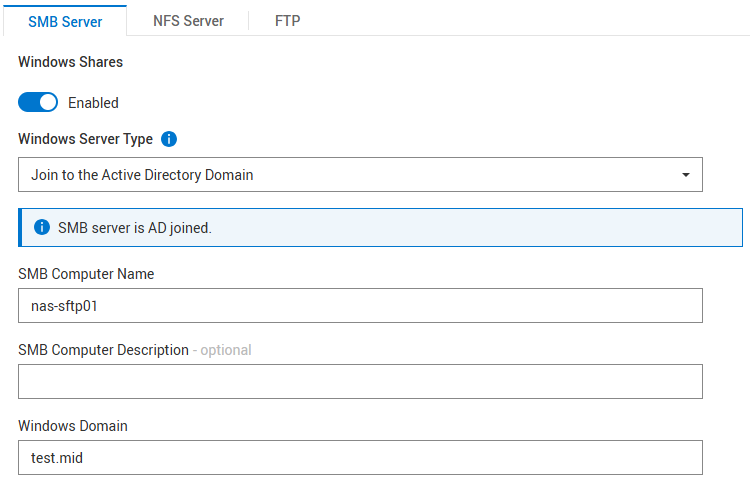
不需要 NFS
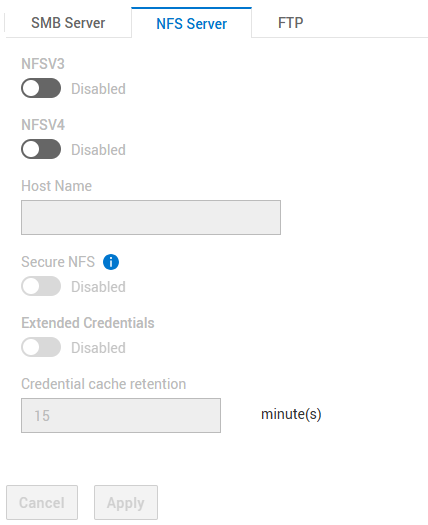
SFTP 的設定:
- 已啟用 SFTP
- FTP/SFTP 伺服器存取:中小企業使用者
- 主目錄限制:已啟用
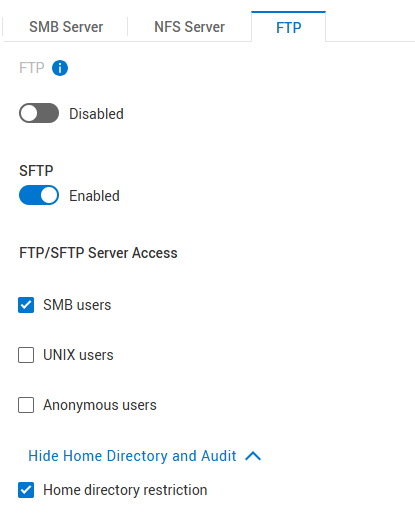
「主目錄限制」可讓使用者僅開啟 /Home/ 資料夾,但看不到以上任何內容。如果使用者應有權存取 NAS 伺服器和檔案系統的根目錄,請取消勾選此項目。
-
建立檔案系統
在上面創建的NAS伺服器下創建檔案系統,並創建SMB共用。
範例檔案系統名稱:nas-sftp-fs01。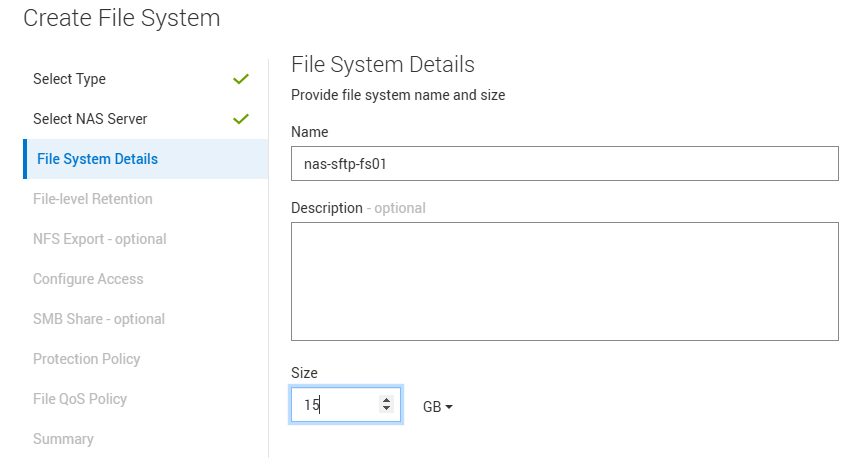
-
啟用 NAS 伺服器 nas-sftp01 的 HomeDir
將 homedir 組態檔案上傳至 NAS 伺服器 > 命名服務 > 本機檔案。
請注意,您在此處僅輸入檔案系統名稱 nas-sftp-fs01。使用此樣本取得一些指導:Examples: mydomain:*:/fs2/<d>/<u>:regex:create mydomain:usr1:/fs1/usr1 !:tom:/fs1/tom test:*:/nas-sftp-fs01/<d>/<u>:regex:create
-
在 Windows AD 上建立使用者
以用戶 測試人員 為例進行演示。
使用使用者 測試人員 從任何 Windows 用戶端 (Windows AD 已加入) 登入,並存取主目錄 \\nas-sftp01\HOME ,以建立使用者 測試人員的主目錄。 -
前往您在其上建立 SSH 金鑰對的 Linux 伺服器,然後前往儲存金鑰的位置。
您必須將檔案 id_rsa.pub 重新命名為autorized_keys
[administrator@my-linux-server]$ cd /home/administrator/.ssh/
[administrator@my-linux-server .ssh]$ pwd
/home/administrator/.ssh

[administrator@my-linux-server .ssh]$ ls -la
total 16
drwx------.  2 administrator administrator   57 Mar  4 09:58 .
drwx------. 20 administrator administrator 4096 Jan 23 08:21 ..
-rw-------.  1 administrator administrator 2622 Mar  3 08:19 id_rsa
-rw-r--r--.  1 administrator administrator  582 Mar  3 08:19 id_rsa.pub
-rw-r--r--.  1 administrator administrator  909 Mar  4 08:34 known_hosts

[administrator@my-linux-server .ssh]$ mv id_rsa.pub authorized_keys
-
使用新建立的使用者開啟與 NAS 伺服器的 sftp 連線
建立 .ssh 資料夾,並將新檔案authorized_keys從上述位置移入 .ssh/ 資料夾 (在此範例中為其 /home/administrator/.ssh/)。
將 xx.xx.xx.xx 替換為 NAS 伺服器的 IP 或名稱。[administrator@my-linux-server .ssh]$ sftp test\\tester@xx.xx.xx.xx test\tester@xx.xx.xx.xx's password: Connected to xx.xx.xx.xx. sftp> sftp> mkdir .ssh sftp> cd .ssh/ sftp> put /home/administrator/.ssh/authorized_keys Uploading /home/administrator/.ssh/authorized_keys to /.ssh/authorized_keys /home/administrator/.ssh/authorized_keys 100% 582 863.0KB/s 00:00 sftp> ls -la drwxrwxrwx 2 2147483653 2147483653 2147483653 152 Mar 4 10:19 . drwxr-xr-x 3 2147483653 2147483653 2147483653 152 Mar 4 10:19 .. -rw-r--r-- 1 2147483653 2147483653 2147483653 582 Mar 4 10:19 authorized_keys
-
在 SFTP 中使用 chmod 設定權限 700 以資料夾 .ssh,將權限 600 設定為檔案 .ssh/authorized_keys
sftp> ls -la
drwxr-xr-x   3 2147483650 2147483650 2147483650           8192 Mar  4 12:30 .
drwxr-xr-x   3 2147483650 2147483650 2147483650           8192 Mar  4 12:30 ..
drwxrwxrwx   2 2147483650 2147483650 2147483650            152 Mar  4 12:30 .ssh
-rw-r--r--   1 2147483650 2147483650 2147483650              9 Mar  4 12:22 TESTER_HOME_dir.txt

sftp> chmod 700 .ssh/
Changing mode on /.ssh/
sftp> chmod 600 .ssh/authorized_keys
Changing mode on /.ssh/authorized_keys
sftp> ls -la
drwxr-xr-x   3 2147483650 2147483650 2147483650           8192 Mar  4 12:30 .
drwxr-xr-x   3 2147483650 2147483650 2147483650           8192 Mar  4 12:30 ..
drwx------   2 2147483650 2147483650 2147483650            152 Mar  4 12:30 .ssh
-rw-r--r--   1 2147483650 2147483650 2147483650              9 Mar  4 12:22 TESTER_HOME_dir.txt

sftp> cd .ssh/
sftp> ls -la
drwx------   2 2147483650 2147483650 2147483650            152 Mar  4 12:30 .
drwxr-xr-x   3 2147483650 2147483650 2147483650           8192 Mar  4 12:30 ..
-rw-------   1 2147483650 2147483650 2147483650            582 Mar  4 12:30 authorized_keys
-
測試存取權限
您現在應該可以在不提供任何密碼的情況下打開 sftp。
您可以使用 sftp -v 選項顯示登入詳細資料。[administrator@my-linux-server .ssh]$ sftp -v test\\tester@xx.xx.xx.xx OpenSSH_8.0p1, OpenSSL 1.1.1k FIPS 25 Mar 2021 debug1: Reading configuration data /etc/ssh/ssh_config debug1: Reading configuration data /etc/ssh/ssh_config.d/05-....conf debug1: Reading configuration data /etc/crypto-policies/back-ends/openssh.config debug1: configuration requests final Match pass debug1: re-parsing configuration debug1: Reading configuration data /etc/ssh/ssh_config debug1: Reading configuration data /etc/ssh/ssh_config.d/05-....conf debug1: Reading configuration data /etc/crypto-policies/back-ends/openssh.config debug1: Connecting to xx.xx.xx.xx [xx.xx.xx.xx] port 22. debug1: Connection established. debug1: identity file /home/administrator/.ssh/id_rsa type -1 debug1: identity file /home/administrator/.ssh/id_rsa-cert type -1 debug1: identity file /home/administrator/.ssh/id_dsa type -1 debug1: identity file /home/administrator/.ssh/id_dsa-cert type -1 debug1: identity file /home/administrator/.ssh/id_ecdsa type -1 debug1: identity file /home/administrator/.ssh/id_ecdsa-cert type -1 debug1: identity file /home/administrator/.ssh/id_ed25519 type -1 debug1: identity file /home/administrator/.ssh/id_ed25519-cert type -1 debug1: identity file /home/administrator/.ssh/id_xmss type -1 debug1: identity file /home/administrator/.ssh/id_xmss-cert type -1 debug1: Local version string SSH-2.0-OpenSSH_8.0 debug1: Remote protocol version 2.0, remote software version OpenSSH_8.4 debug1: match: OpenSSH_8.4 pat OpenSSH* compat 0x04000000 debug1: Authenticating to xx.xx.xx.xx:22 as 'test\\tester' debug1: SSH2_MSG_KEXINIT sent debug1: SSH2_MSG_KEXINIT received debug1: kex: algorithm: curve25519-sha256 debug1: kex: host key algorithm: ecdsa-sha2-nistp256 debug1: kex: server->client cipher: aes256-gcm@openssh.com MAC: <implicit> compression: none debug1: kex: client->server cipher: aes256-gcm@openssh.com MAC: <implicit> compression: none debug1: kex: curve25519-sha256 need=32 dh_need=32 debug1: kex: curve25519-sha256 need=32 dh_need=32 debug1: expecting SSH2_MSG_KEX_ECDH_REPLY debug1: Server host key: ecdsa-sha2-nistp256 SHA256:xyc9xUOiKbYg4TEvY8wahgq9ous3ocRTbTWBEmK5wgk debug1: Host 'xx.xx.xx.xx' is known and matches the ECDSA host key. debug1: Found key in /home/administrator/.ssh/known_hosts:6 debug1: rekey out after 4294967296 blocks debug1: SSH2_MSG_NEWKEYS sent debug1: expecting SSH2_MSG_NEWKEYS debug1: SSH2_MSG_NEWKEYS received debug1: rekey in after 4294967296 blocks debug1: Will attempt key: /home/administrator/.ssh/id_rsa debug1: Will attempt key: /home/administrator/.ssh/id_dsa debug1: Will attempt key: /home/administrator/.ssh/id_ecdsa debug1: Will attempt key: /home/administrator/.ssh/id_ed25519 debug1: Will attempt key: /home/administrator/.ssh/id_xmss debug1: SSH2_MSG_EXT_INFO received debug1: kex_input_ext_info: server-sig-algs=<ssh-ed25519,sk-ssh-ed25519@openssh.com,ssh-rsa,rsa-sha2-256,rsa-sha2-512,ssh-dss,ecdsa-sha2-nistp256 ,ecdsa-sha2-nistp384,ecdsa-sha2-nistp521,sk-ecdsa-sha2-nistp256@openssh.com,webauthn-sk-ecdsa-sha2-nistp256@openssh.com> debug1: SSH2_MSG_SERVICE_ACCEPT received debug1: Authentications that can continue: publickey,password debug1: Next authentication method: publickey debug1: Trying private key: /home/administrator/.ssh/id_rsa debug1: Authentication succeeded (publickey). Authenticated to xx.xx.xx.xx ([xx.xx.xx.xx]:22). debug1: channel 0: new [client-session] debug1: Requesting no-more-sessions@openssh.com debug1: Entering interactive session. debug1: pledge: network debug1: Sending environment. debug1: Sending env LANG = en_IE.UTF-8 debug1: Sending subsystem: sftp Connected to xx.xx.xx.xx. sftp> ls TESTER_HOME_dir.txt
受影響的產品
PowerStore 1200T產品
PowerStore, PowerStore 3200Q, PowerStore 3200T, PowerStore 500T, PowerStore 5200T, PowerStore 9200T, PowerStore Employee and Partner文章屬性
文章編號: 000276740
文章類型: How To
上次修改時間: 22 1月 2026
版本: 5
向其他 Dell 使用者尋求您問題的答案
支援服務
檢查您的裝置是否在支援服務的涵蓋範圍內。