Data Domain: How to Reinitialize and Sanitize SDPM | NVRAM
摘要: This article describes how to sanitize and reconfigure Software Defined Persistent Memory (SDPM) settings in the BIOS and verify successful initialization after the system returns to DDOS. ...
本文章適用於
本文章不適用於
本文無關於任何特定產品。
本文未識別所有產品版本。
說明
Applies to:
- DD9910, DD9410, DD6410, DD9910F systems after NVRAM (VOSS) module replacement.
- PowerProtect Data Domain systems that use SDPM on a VOSS module.
- iDRAC Event:
SDPM7108 - Critical Diagnostic Event (Sanitize Required) - All supported Software (DDOS) versions
Required Actions:
Reinitialize the SDPM:
- Reboot the system
- Access the system BIOS <F2>: System BIOS > Memory Settings > Persistent Memory
- Set Sanitize All NVDIMMs to
Enabled
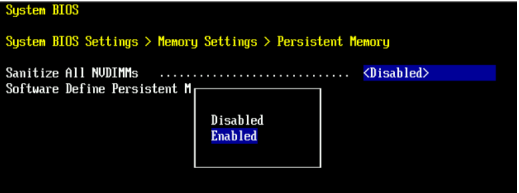
- Set SDPM Memory Size to
32 GB
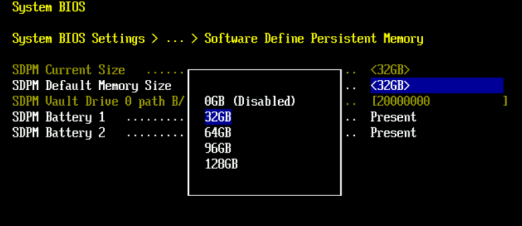
- Confirm SDPM sanitization and reboot.
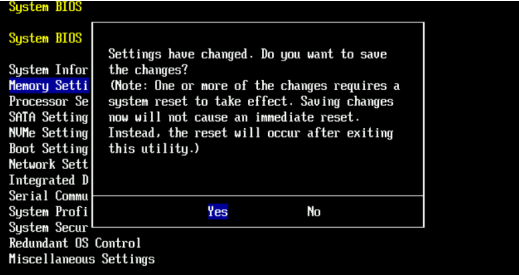
- Allow the system to reboot to DDOS
- Verify the SDPM by checking for NVRAM failure alerts and ensuring the file system is enabled.
-
# alerts show current
-- There should be no outstanding alert relating to the NVRAM subsystem.
Caution: It may take one to two minutes for the system to clear the NVRAM failure alert.

# system show nvram
Note: The battery must be at least 80% charged for the file system to start.

# filesys status
-- The Filesystem should be Enabled & Running
-
Validation Checklist:
Confirm all of the following:
-
- SDPM sanitization completed successfully.
- No active NVRAM-related alerts are present.
- NVRAM status reports normally.
- The NVRAM battery charge is at least 80%.
- The file system is enabled.
- The file system is running.
If any validation step fails, collect a support bundle and contact Dell Data Protection Support.
其他資訊
These actions can also be completed in iDRAC:
Configuration > BIOS Settings > Memory Settings > Persistent Memory- Set '
Sanitize All NVDIMMs' to <ENABLED>- Ensure 'SDPM Default Memory Size' is set to <
32GB> 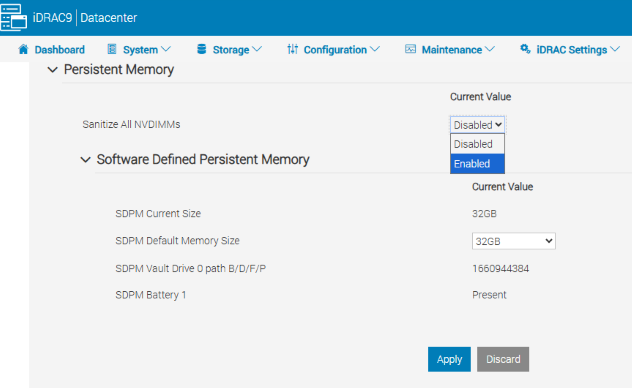
- Ensure 'SDPM Default Memory Size' is set to <
- Select APPLY. Then OK.
- Select 'At Next Reboot' (Bottom of the page)
- Set '
- Proceed to reboot the DD unit (e.g. using DD-CLI:
#system reboot)
References:
Data Domain: How to Diagnose and Resolve SDPM | NVRAM Alerts
Data Domain: NVRAM Hardware Failure Alert | EVT‑NVRAM‑00201
iDRAC (v7.x) Error and Event Messages Reference Guide
受影響的產品
Data Domain, DD6410 Appliance, DD9410 Appliance, DD9910 Appliance, DD9910F Appliance文章屬性
文章編號: 000283787
文章類型: How To
上次修改時間: 27 7月 2026
版本: 2
向其他 Dell 使用者尋求您問題的答案
支援服務
檢查您的裝置是否在支援服務的涵蓋範圍內。