

Unsolved
1 Rookie
•
7 Posts
0
2094
January 15th, 2023 14:00
XPS 13 9365 - Touchscreen Suddenly Stops Working
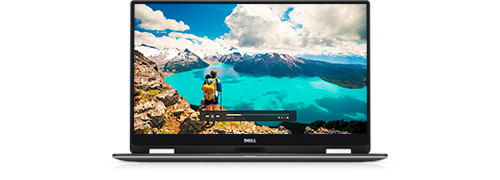
XPS 13 9365 2-in-1
Hey Everyone!
I have an XPS 13 9365 2 in 1. I installed Windows 10 pro and all was well, but the Active Pen was having some weird jumping behaviour when I was hovering so I attempted to fix this by googling and found the following community posts:
https://www.dell.com/community/XPS/Dell-active-pen-never-worked-properly-pn579x/td-p/7730284
https://www.dell.com/community/XPS/XPS-13-Pen-Cursor-Jump/td-p/7636887
When I installed the "Touch Firmware" from that second forum link, it said it failed to install.
Since then, I am unable to use my touchscreen at all. On my finger or pen it simply doesn't respond or show up in device manager.
I formatted the entire drive in the BIOS and installed Windows 11, Windows 10 and neither work with the touch screen. I've tried every driver I can possibly find online and nothing is kicking the touch screen back to life. Even when I do BIOS SupportAssist OS Recovery, it simply bluescreens. The touchscreen is enabled in BIOS but the touchscreen doesn't work in the BIOS.
I have no idea what I could possibly try, the diagnostic from BIOS reports no issues whatsoever.
Any help is appreciated. It must be software related but I just cannot get it to work!
ejn63
12 Elder
•
31.4K Posts
•
154.8K Points
0
January 15th, 2023 14:00
Does Windows (device manager) recognize the touch panel at all?
Garan Thomas
1 Rookie
•
7 Posts
0
January 15th, 2023 15:00
Nothing at all in there...
ejn63
12 Elder
•
31.4K Posts
•
154.8K Points
0
January 15th, 2023 15:00
Unplug the system, remove the base cover and disconnect the main battery from the system board. Hold the power button for 30 sec.
Disconnect and reconnect the panel from the system board -- service manual link below.
https://www.dell.com/support/home/en-us/product-support/product/xps-13-9365-2-in-1-laptop/docs
See if that gets the screen recognized once again.
Hamna
2 Posts
0
January 16th, 2023 00:00
Hey, maybe it have Battery or power supply issues. Or damaged internal hardware. A virus or other malware. Corrupted system BIOS.
Or try Power cycle your Dell laptop. With the computer turned off and unplugged, remove any external devices (USB drives, printers, etc.), then hold down the power button for 15-20 seconds. It will drain any residual power. Next, reconnect the charger and see if your PC powers on.
If its still not working than try this link for further help:
https://manuals.plus/dell/xps-9315-portable-laptop-manual#axzz7qR9tJv00
Garan Thomas
1 Rookie
•
7 Posts
0
January 16th, 2023 01:00
Just tried that, nothing from the screen at all. I've even re-seated the TS - Touchscreen connector. It must be a corrupt BIOS as it only failed AFTER the updated I listed in the OP
Garan Thomas
1 Rookie
•
7 Posts
0
January 16th, 2023 01:00
It must be a corrupt BIOS, I tried the above and still nothing
Garan Thomas
1 Rookie
•
7 Posts
0
January 16th, 2023 02:00
I think I've identified the issue but just need help finding the right firmware. So the touchscreen failed after installing this: https://www.dell.com/support/home/en-uk/drivers/driversdetails?driverid=n3j44
I found out this morning that this is NOT for the 9365. I think i've overwritten my touchscreen firmware with a new firmware that is not compatible and Dell do not host the firmware for my screen anywhere online. Can someone help find the firmware for my particular XPS?
ejn63
12 Elder
•
31.4K Posts
•
154.8K Points
0
January 16th, 2023 03:00
Even if you can find the flash image, there's no way to restore it short of removing the chip and flashing it externally. Beyond the cost, no reputable shop is going to undertake disassembling an LCD assembly. The chances of reassembling it successfully are low, and the labor cost alone will exceed the cost of the only path forward. Replace the screen. Part references here so you can search for a supplier:
https://www.parts-people.com/index.php?action=category&id=143&subid=953&refine=lcd+screen
Saltgrass
6 Operator
•
4.3K Posts
•
15.9K Points
0
January 16th, 2023 08:00
Have you checked the Device Manager with the View hidden devices set? The Touchscreen may still be in the HID section. On mine is shows no drivers required. You might be able to uninstall such a device and check the box to remove all drivers.
The touchpad is listed, in the Device Manager, as being on one of the Serial IO I2C host controllers, under the Dell Pen Device. The Serial I/O drivers, somethings get neglected and possibly all the PEN drivers could be refreshed.
If you have reinstalled, as you mention, and you reinstalled all the drivers and the device is still not showing, perhaps setting the Bios back to its defaults might help.
Reinstalling the current Bios version over the current one or even recovering the Bios may rewrite the bad info, if this is actually what is wrong.
I wouldn't think a firmware for a specific device would corrupt the Dell Bios. Half the time I can't even get the Dell Bios to install.
ejn63
12 Elder
•
31.4K Posts
•
154.8K Points
0
January 16th, 2023 10:00
I don't think the issue is with the system BIOS, but rather with the firmware embedded into the screen assembly. It is very possible to flash the wrong screen firmware onto a system. I have seen this done a number of times, and the end result is universal -- the screen assembly needs to be replaced. There is no way to recover a faulty firmware flash on a screen. The usual last resort for a system board is an external flash of the EEPROM, but given that it's something internal to a fused screen assembly, that's not an option.
Saltgrass
6 Operator
•
4.3K Posts
•
15.9K Points
0
January 16th, 2023 17:00
@ejn63 I did not even think of another firmware, but it must also have an ID that would keep unapproved firmware from being installed. It appears that install was not successful but I suppose something might have been corrupted..
I wonder if the start-up diagnosis would show a problem, assuming it might still be available.
Just for checking, I think I would keep the PEN away from the system. There is an option to ignore touch when using a PEN. (Settings-Pen & Windows Ink)
Garan Thomas
1 Rookie
•
7 Posts
0
January 17th, 2023 01:00
So the Pen or Touch with fingers doesn't work at all. When you connect the pen via Bluetooth it appears but it doesn't respond, nor does the screen respond to touch.
It seems incredibly frustrating and stupid that Dell offer you FIRMWARE for every other touchscreen devices apart from this one looking at the Dell driver list, and it allows you to install it, even though it's not the correct firmware to BREAK THE TOUCHSCREEN and even though you clearly can flash it via Windows using Dells software, you cannot un-flash it, or downgrade, or add extra firmware to restore. Absolutely ridiculous and causes so much e-waste.
This laptop is now as good as a door stop to me, all because Dell offer drivers that are incompatible.