Locate Your Desktop's Service Tag
Did you know that every Dell or Alienware desktop has its own unique Service Tag (ST) and Express Service Code (EX)? Knowing your Service Tag or Express Service Code is important for accessing support services, checking warranty details, and getting device updates. Finding them quickly can save you a lot of time and ensure you're getting personalized support from Dell.
Locate Your Desktop's Service Tag (ST) or Express Service Code (EX)
The Service Tag (ST) is a 7-character alphanumeric code. The Express Service Code (EX) is a numeric conversion of the Service Tag (ST). Let's explore different ways to find your desktop or all-in-one's Service Tag or Express Service Code.
Locating the Sticker on the Back Panel of Your Desktop
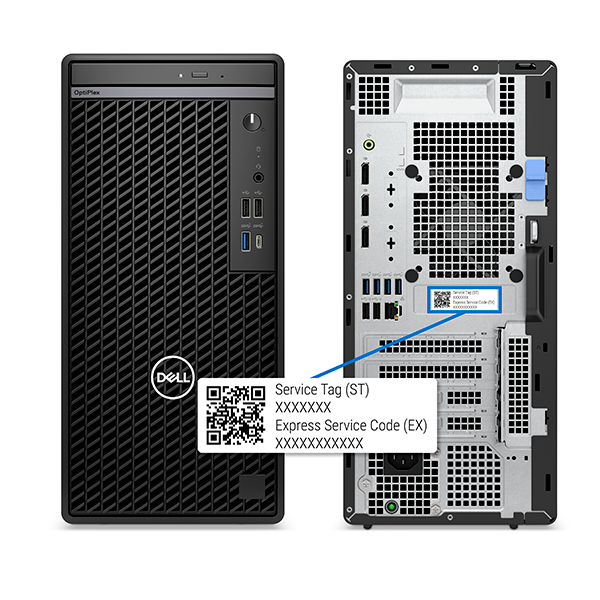
The Service Tag might be labeled as SVC Tag or ST, and the Express Service Code could be shown as ESC or EX. You might notice different abbreviations, but don't worry—they all mean the same thing! Just check the sticker on your desktop. Here's how:
- Turn off your desktop and unplug it from the power source.
- Carefully turn your desktop to access the back panel.
- The Service Tag (ST) and Express Service Code (EX) sticker is on the back panel of the desktop. Some models also have this sticker on the top of the desktop.
If the sticker is worn or missing, don't worry! You can try one of the digital methods below to find your desktop's Service Tag.
Locating the Sticker on the Bottom Panel of Your All-in-One
- Turn off your desktop and unplug it from the power source.
- Carefully turn your all-in-one over to access the back panel.
- The Service Tag (ST) and Express Service Code (EX) sticker is on the bottom of the all-in-one. If you don’t see it on the bottom, take a look at the back panel—some models have the sticker there instead.

Can't find the sticker? Don't worry, you can try one of the digital methods below to find the Service Tag of your all-in-one computer.
Accessing the BIOS or UEFI Settings
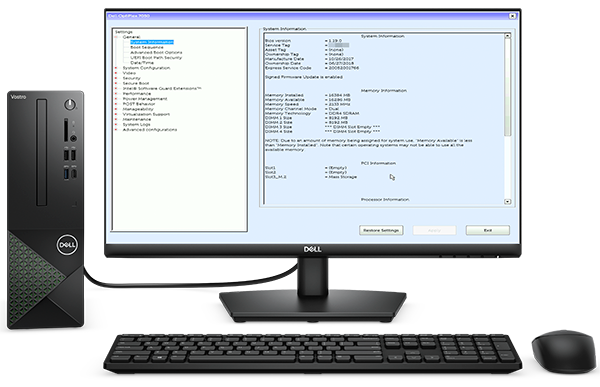
The BIOS or UEFI settings of your desktop contains information about your system, including the Service Tag and Express Service Code.
- Restart your computer and repeatedly press the F2 key as soon as it begins booting.
- Once in the BIOS/UEFI menu, locate the Service Tag field, usually under the Overview or System Information section.
- Write it down or take a photo for reference.
- Exit the BIOS without making any changes.
Using the SupportAssist App
Dell's SupportAssist for Home PCs app makes it easy to find your computer's Service Tag and Express Service Code right from Windows.
- Search for SupportAssist in the Start menu and open the app.
- The Service Tag is displayed prominently on the app's main menu.
- If needed, click the Service Tag for additional details.

Using Windows Command Prompt, Windows PowerShell, or Linux Terminal
For tech-savvy users, you can quickly retrieve your Service Tag by using Command Prompt or PowerShell on Windows, or Terminal on Ubuntu or Linux.
Using Command Prompt in Windows
- Search for Command Prompt in the Start menu and open the app as administrator.
- Type wmic bios get serialnumber and press Enter.
- The Service Tag appears under the "SerialNumber" field.
If the Windows Management Instrumentation Command line (WMIC) doesn't work, try using the PowerShell command in Windows 11. Note that the WMIC feature is disabled by default in Windows 11 24H2 and newer versions.

Using PowerShell in Windows
Want to get your computer's Service Tag using PowerShell in Windows? Just follow these steps:
- Search for PowerShell in the Start menu and open the app as administrator.
- Type Get-WmiObject win32_bios | Select-Object SerialNumber and press Enter.
- The Service Tag appears under the "SerialNumber" field.

Using Terminal in Ubuntu
If your computer runs on Ubuntu or another Linux version, you can find the Service Tag using the Terminal app.
- Open the Terminal application.
- Type sudo dmidecode -s system-serial-number and press Enter.
- Enter your administrative password when prompted.
- The Service Tag is displayed on the screen.

Why is the Service Tag or Express Service Code Important?
Your Dell or Alienware desktop's Service Tag or Express Service Code helps you:
- Access Documentation: Quickly find user manuals and setup guides.
- Download Drivers: Get the latest driver updates for optimal performance.
- Contact Support: Easily get in touch with Dell Technical Support for assistance with troubleshooting, warranty services, and more. When contacting Dell Technical Support via phone, you can use the Express Service Code on the IVR for faster service.
Looking Up Your Device on Dell Support
Looking up and using your Service Tag or Express Service Code on the Dell Support website is simple! Here's how:
- Go to the Dell Support website.
- Under Identify your product or search support, enter your Service Tag, Express Service Code, or Model.
- Click Search to look up your system's information. This will give you access to your device's warranty status, drivers, manuals, support history, and more.
Frequently Asked Questions (FAQs)
Here are some answers to common questions users ask about the Service Tag or Express Service Code on Dell or Alienware desktops.
1. Why don't Dell computers have a serial number?
- Dell computers use the Service Tag and Express Service Code instead of a traditional Serial Number. These identifiers are specific to Dell and provide the same functionality, including warranty tracking, support identification, and more.
2. Can I locate the Service Tag or Express Service Code without turning on the desktop?
- Yes, check the top or back panel of your desktop. You'll find the Service Tag and Express Service Code on a sticker.
3. Why can't I find the label on my computer?
- Labels or stickers can wear off over time. If the label or sticker is missing, use one of the digital methods mentioned above.
4. Can I use the Service Tag or Express Service Code for insurance purposes?
- Yes. Dell computers don't have a Serial Number, but you can provide the Service Tag or Express Service Code to your insurance provider. It's a good idea to check with your insurer to make sure they accept these identifiers.
5. Does the Service Tag or Express Service Code expire?
- No, it remains valid for the life of the device.
6. Can I transfer the Service Tag to a new owner?
- Yes, update the ownership of your computer on the Dell's website after selling the device.
7. Does the Service Tag or Express Service Code include personal information?
- No, it only identifies the device.
8. What should I do if my Service Tag is not recognized?
- Make sure you've entered it correctly. Remember, the letter "O" can look like the number "0," the letter "l" can look like the number "1," and the letter "B" can look like the number "8." If you're still having trouble, try using the Express Service Code instead. If issues persist, contact Dell Support for assistance.
9. Does the Service Tag link to my Dell account?
- Yes, you can link your computer to your Dell account under the Devices section.
10. I have my Service Tag, but I can't find my Express Service Code. How can I get it?
- If you have your Service Tag but can't locate your Express Service Code, follow these simple steps:
- Go to the Dell Support website.
- Under Identify your product or search support, enter your Service Tag and click Search.
- Once your product details page loads, click the More dropdown next to the Service Tag.
- In the dropdown, you'll find your Express Service Code displayed.
- Now you have your Express Service Code, which you can use to get support via Phone.
Video Resources

In this video, you'll learn how to find your Dell Service Tag and use it on the Dell website for quick access
to your product information. The Dell Service Tag is a unique seven-character code that identifies your device and is essential for getting personalized technical support. We'll guide you through where to locate your Service Tag on various Dell products, including laptops, desktops, monitors, and printers. Once found, you can use it to easily check your warranty status, support history, drivers, and more on the Dell Support website.
...