Guia de solução de problemas da biblioteca de fitas genérica (TL1000, TL2000, TL4000, ML3 e ML6000)
Resumo: Este guia aborda soluções de problemas gerais, como problemas de conectividade, drivers, ambientes compatíveis, recursos de LTO, problemas mecânicos, execução de diagnósticos e exportação de registros para suporte técnico. ...
Este artigo aplica-se a
Este artigo não se aplica a
Este artigo não está vinculado a nenhum produto específico.
Nem todas as versões do produto estão identificadas neste artigo.
Instruções
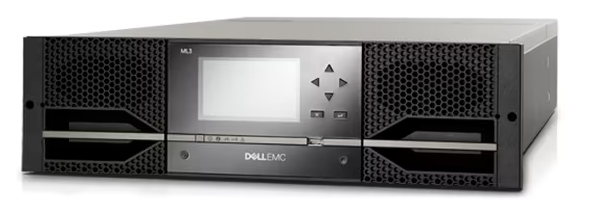
Figura 1: Biblioteca de fitas ML3
Sumário
-
Ambientes compatíveis
-
Problemas de conectividade ou biblioteca não detectada
-
Como verificar drivers
-
Instalando drivers usando o pacote de atualização de drivers
-
Guias de ajuda para fitas LTO
-
Lidando com fitas presas e erros robóticos
-
Diagnostic Software (IBM Tape Diagnostic Tool)
-
Exportar registros de unidade para suporte técnico
Ambientes compatíveis
A biblioteca de fitas deve ser usada com um host físico. Não é possível usar a biblioteca em um ambiente virtual.
Problemas de conectividade ou biblioteca não detectada
A maneira de abordar isso depende se esta é uma nova implementação ou uma instalação existente.
Para novas implementações
Para novas implementações
- Certifique-se de que os cabos entre a biblioteca e o HBA estejam conectados com segurança. Em algumas configurações de servidor host, pode ser mais difícil instalar um cabo de rede SAS 12 do que em outras. Em caso de dúvida, verifique novamente os cabos garantindo que eles cliquem em Home.
- Certifique-se de que um HBA compatível esteja em uso.
- Certifique-se de que o HBA seja detectado no gerenciador de dispositivos. Isso ajuda a identificar se você está analisando um problema de instalação de HBA, um problema de cabo ou uma biblioteca de fitas.
- Se um HBA for detectado, considere tentar cabos alternativos.
- Verifique se o firmware e os drivers corretos do HBA estão instalados. Lembre-se de que as variantes de adaptadores de OEM e varejo exigem seus próprios drivers e firmware. Para adaptadores fornecidos de fábrica pela Dell, consulte o site do Suporte Dell usando a etiqueta de serviço do sistema. Não use drivers ou firmware diretos do fornecedor, a menos que seja um dispositivo de canal de varejo.
Para implementações existentes
- Considere quaisquer alterações recentes de hardware ou software que possam ter causado o problema.
- Talvez você queira considerar quaisquer alterações feitas no hardware localizado perto da biblioteca que possam ter causado a movimentação acidental dos cabos.
- Considere quaisquer erros relatados no IDRAC do servidor host ou pelo software de emissão de alertas que possam relatar um problema de HBA.
Como verificar drivers
Nota: A instalação de uma biblioteca de fitas em um ambiente virtual não é suportada.
As seguintes categorias devem ser selecionadas:
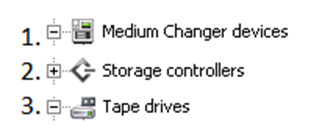
Figura 2: Exemplo do Gerenciador de dispositivos
Para o item 1: O trocador de mídia (biblioteca de fitas) é visto.
Para o item 2: Um controlador de armazenamento compatível deve ser visto.
Para o item 3: O número esperado de unidades de fita instaladas na biblioteca é visto.
Como sua biblioteca é mostrada no gerenciador de dispositivos depende da configuração, por exemplo, a quantidade de unidades.
Instalando drivers usando o pacote de atualização de drivers
Às vezes, o software de backup pode preferir o driver padrão da caixa de entrada da Microsoft. Essas informações estão disponíveis no fornecedor do software.
Se for necessário instalar os drivers Dell mais recentes disponíveis, você poderá localizá-los no site de suporte da Dell usando sua etiqueta de serviço.
Uma vez extraído, muitas vezes você pode executar o arquivo 'install_nonexclusive_no_dpf' contido no EXE auto-extraível. Outras opções estão disponíveis dependendo dos requisitos do software de backup.
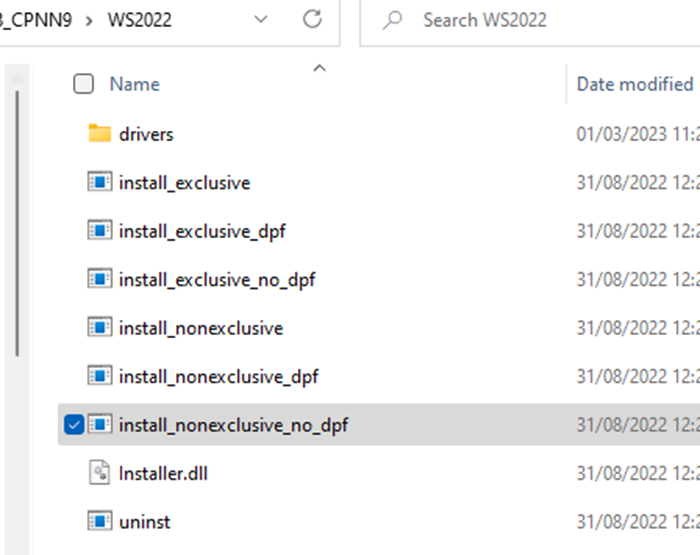
Figura 3: Conteúdo do DUP
Se for necessário instalar os drivers Dell mais recentes disponíveis, você poderá localizá-los no site de suporte da Dell usando sua etiqueta de serviço.
Uma vez extraído, muitas vezes você pode executar o arquivo 'install_nonexclusive_no_dpf' contido no EXE auto-extraível. Outras opções estão disponíveis dependendo dos requisitos do software de backup.
Figura 3: Conteúdo do DUP
Guias de ajuda para fitas LTO
Nota: As fitas LTO 7 Tipo M só são compatíveis com unidades LTO 8. Para obter mais informações, consulte o site da LTO em Ultrium LTO-7. 
Lidando com fitas presas e erros robóticos
- Teste o robô. Na interface Web, mova uma fita de slot para slot confirmando se o robô está ok.
- Se o robô não conseguir mover fitas entre os slots, inspecione os carregadores em busca de objetos estranhos, como etiquetas soltas. Pode ser necessário seguir o processo de ejeção manual.
- Se o robô estiver funcionando e uma fita estiver presa em uma unidade, tente mover a fita manualmente de uma unidade para um slot usando a interface Web.
- Se esse processo falhar, vá para a etapa 3.
- Tente atualizar ou atualizar o firmware se a biblioteca permitir. Como parte do processo de flash do firmware, a fita deve retroceder. Aguarde duas horas para retrocesso lento antes de tentar ejetar novamente.
- Se você ainda não conseguir ejetar a fita, desligue e ligue a biblioteca removendo toda a energia e, em seguida, tente ejetar novamente.
- Pode ser necessário realizar uma inspeção visual da unidade para quaisquer sinais de objetos estranhos.
- Registre todas as etapas de solução de problemas concluídas. Isso ajuda a evitar etapas repetidas ao lidar com o suporte técnico.
Para referência:
- ML3:
- TL2000 e TL4000:
Solte manualmente a fita de um TL2000 ou TL4000.
Diagnostic Software (IBM Tape Diagnostic Tool)
Se você suspeitar que há um problema de fita ou unidade, execute a ferramenta ITDT CLI. Esse teste é completo e pode ser usado para seu próprio entendimento ou para ajudar a criar um caso de suporte. A ferramenta está disponível para download no site de suporte usando sua etiqueta de serviço.
AVISO: As fitas usadas para testes ITDT são sobrescritas. Certifique-se de que nenhum dado essencial seja armazenado na fita de teste.
Consulte o artigo da base de conhecimento ITDT-SE CLI para Windows - Uso do ITDT pelo cliente para atualizar unidades de fita e executar diagnósticos.
Exportar registros de unidade para suporte técnico
Se for necessário entrar em contato com o suporte técnico, você poderá exportar logs da unidade de sua biblioteca para ajudar na solução de problemas. Fazê-lo com antecedência pode ajudar a progredir o seu caso.
Os seguintes artigos da base de conhecimento explicam como exportar logs de unidades para análise de suporte técnico:
- TL1000: TL1000: Como coletar os logs de diagnóstico da biblioteca de fitas?
- TL2000/TL4000: TL2000 ou TL4000: Como coletar os logs de diagnóstico "DumpAll" da biblioteca de fitas e da unidade para solução de problemas
- ML3: Como coletar o log da biblioteca de uma biblioteca de fitas ML3
- ML6000: Como coletar o log da unidade de uma biblioteca de fitas ML6000
Nota: Pode levar pelo menos uma hora para exportar um único log de unidade de um ML6000 usando a interface Web. Também é possível usar o IBM Tape Diagnostic Tool (ITDT), que é mais rápido.
Quando seus logs forem exportados, carregue-os diretamente para o seu caso de suporte. O engenheiro designado fornecerá instruções.
Mais informações
Documentação
- TL1000: https://www.dell.com/support/home/product-support/product/storage-tl1000/docs
- TL2000: https://www.dell.com/support/home/product-support/product/powervault-tl2000/docs
- TL4000: https://www.dell.com/support/home/product-support/product/powervault-tl4000/docs
- ML3: https://www.dell.com/support/home/product-support/product/ml3-tape-library/docs
- ML6000: https://www.dell.com/support/home/product-support/product/powervault-ml6000/docs
Artigos Úteis
- TL1000: Como atualizar o firmware da biblioteca de fitas?
- Biblioteca de fitas PowerVault TL2000 ou TL4000 – Como fazer upgrade do firmware da biblioteca de fitas e das unidades de fita
- Biblioteca de fitas PowerVault ML3 - Como fazer o upgrade do firmware para a biblioteca de fitas e as unidades de fita
- PowerVault ML6000: atualizar o firmware da unidade utilizando a interface Web (RMU)
Produtos afetados
Dell EMC ML3, PowerVault ML6000, PowerVault TL2000, PowerVault TL4000, PowerVault TL1000Propriedades do artigo
Número do artigo: 000211336
Tipo de artigo: How To
Último modificado: 12 dez. 2025
Versão: 8
Encontre as respostas de outros usuários da Dell para suas perguntas.
Serviços de suporte
Verifique se o dispositivo está coberto pelos serviços de suporte.