Data Domain: Alert: ENVIRONMENT-00029: TPM I/O Module Has Failed
Summary: How to diagnose a failed or absent Trust Platform Module (TPM) on a Data Domain system.
This article applies to
This article does not apply to
This article is not tied to any specific product.
Not all product versions are identified in this article.
Instructions
Background:
- The TPM is a single removable 'Chip' in a dedicated slot on the Motherboard of a Data Domain System.
- The TPM has a range of functions around supporting secure boot, security, and encryption.
- The TPM Chip is logically BOUND to ONE motherboard, for example it cannot be reused on another system.
- The TPM can be replaced if it is found to be defective.
- If a motherboard is faulty and must be replaced, a new TPM is required to bind to the new motherboard.
Location of the TPM:
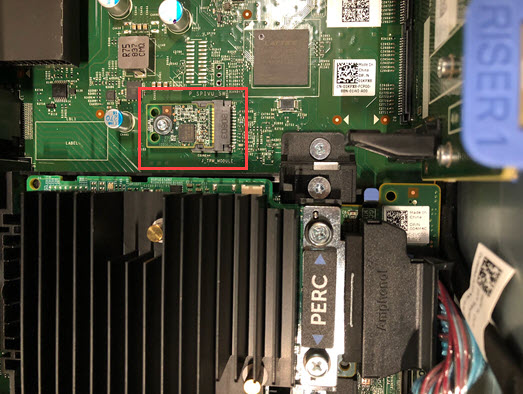
Figure 1: Screenshot of TPM location
Applies to:
- All Data Domain systems based on the PowerEdge platforms such as DD6900, DD9400, DD9900, and newer models
Symptoms:
- The Data Domain system reports an Alert with Event ID: EVT-ENVIRONMENT-00029
- The 'Object' identified is 'Enclosure=1:Slot=TPM'
Description: DD Alert DDhostname.companyx.com: CRITICAL: IOModuleFault: HardwareFailure

Event Id: EVT-ENVIRONMENT-00029
Event Message: I/O module has failed
Object: Enclosure=1:Slot=TPM
Additional Information: Cause=AbsentTPMonNonEDPSystem

Event Description:
A fault has been detected with an I/O module and it will not function correctly.

Recommended Action:
The I/O module must be replaced.
Troubleshooting:
-
Confirm the failure by checking active alerts on the Data Domain (using CLI or UI):
alerts show current
- Sometimes the alert is transient and is automatically cleared
- If the alert is cleared automatically, complete step 2 and if OK, then no further action is required.
-
Check the 'GENERAL INFO' section of a fresh show current Auto-Support | OR | DD-CLI:
system show all
- If there is an entry
TPM_DEVICE= Nuvoton chip for Rest of World, the TPM is GOOD - If the entry
TPM_DEVICE=is blank or missing, then the TPM is faulty or missing
- If there is an entry
-
Restore communication to the TPM by performing a 'BMC Reset' (aka: Flea Drain)
- Power-down the Data Domain unit gracefully. From the CLI, issue command:
system poweroff
- Remove AC power cables.
- Press and hold the Power Button for 10 seconds.
- Wait five minutes; if possible, take this opportunity to reseat the TPM by following steps available in the relevant 'Field Replacement Unit and Customer Replacement Unit Guide'
- Add AC power back to the unit and power on the unit.
- Once booted, check if the alert has cleared.
- If the TPM issues persist, then it must be replaced.
- A new TPM must be bound to the existing motherboard.
- The new TPM must be 'ENABLED' in the BIOS.
- Follow the TPM Replacement steps in the relevant 'PowerProtect and Data Domain Hardware Documentation Guide'
- Select affected Data Domain Model > Maintenance > Field Replacement Unit and Customer Replacement Unit Guide > Replace the Trusted Platform Module (TPM)
- A new TPM must be bound to the existing motherboard.
- Power-down the Data Domain unit gracefully. From the CLI, issue command:
Additional Information
DD6400, DD6900, DD9400, DD9900:
- TPM Replacement Part #: FMYG3
DD9910, DD9410:
- TPM Replacement Part #: T2FR2
Affected Products
Data DomainProducts
Data Domain, DD6400 Appliance, DD6900 Appliance, DD9400 Appliance, DD9410 Appliance, DD9900 Appliance, DD9910 ApplianceArticle Properties
Article Number: 000217635
Article Type: How To
Last Modified: 19 May 2026
Version: 7
Find answers to your questions from other Dell users
Support Services
Check if your device is covered by Support Services.