SRM, SRA: TestFailover Fails Error: Failed to create snapshot of replica Test_CG
Summary: TestFailover on Storage Resource Manager (SRM) fails. Storage Replication Adapter (SRA) command 'testFailoverStart' failed for Consistency group with error - "Failed to create snapshot of replica consistency group Test_CG. SRA command 'testFailoverStart' failed for consistency group 'Test_CG' Invalid configuration found in the options file Please check EmcSrdfSra logs for more information on the error." ...
This article applies to
This article does not apply to
This article is not tied to any specific product.
Not all product versions are identified in this article.
Symptoms
Error in EmcSrdfSra.log:
SraDevicePairings::GetCopyInfo ] [WARNING]: A valid CopyInfo block could not be found in the options file that has Symm [0002975xxxxx]
TestFailoverStopCommand::AutoTargetDeviceProvisioning] AutoTargetDevice feature is Disabled
TestFailoverStopCommand::RunOnGroup] [ERROR]: Invalid CopyInfo type specified in TestFailoverConfig file. Exiting with failure

[20230602132024    18   304 FileExists@Utilities.cpp        ] [WARNING]: Filename:/srm/sra/conf/EmcSrdfSraTestFailoverConfig.xml
[20230602132024    18   112 main@EmcSrdfSra.cpp             ] [WARNING]: Cannot find Sra Test Failover Device Pairings configuration file.
Cause
To perform TestFailover, it is important to have a source and target device. The source device is the R2 device on the recovery site. Target is the snapshot target device.
Here, neither EmcSrdfSraGlobalOptions.xml nor EmcSrdfSraTestFailoverConfig.xml was updated.
Here, neither EmcSrdfSraGlobalOptions.xml nor EmcSrdfSraTestFailoverConfig.xml was updated.
Resolution
Steps to update EmcSrdfSraGlobalOptions.xml:
Modify the below parameters-
OR
Update EmcSrdfSraTestFailoverConfig.xml.
Example of how to update EmcSrdfSraTestFailoverConfig.xml:
Modify the below parameters-
AutoTargetDevice = Yes
AutoTargetDeviceReuse = No
TerminateCopySession = Yes
NOTE: The value of Auto Target Device Reuse option should be opposite of TerminateCopySessions as a best practice.
OR
Update EmcSrdfSraTestFailoverConfig.xml.
Example of how to update EmcSrdfSraTestFailoverConfig.xml:
<CopyInfo>
<ArrayId>000190300186</ArrayId>
<CopyType>SNAPVX</CopyType>
<CopyMode>NOCOPY</CopyMode>
<SavePoolName></SavePoolName>
<DeviceList>
<DevicePair>
<Source>4D8</Source>
<Target>4DE</Target>
</DevicePair>
<DevicePair>
<Source>4D9</Source>
<Target>4DF</Target>
</DevicePair>
</DeviceList>
</CopyInfo>
Additional Information
Dell EMC SRDF Adapter provides the following options files under the folder ProgramData\EMC\EmcSrdfSra\Config:
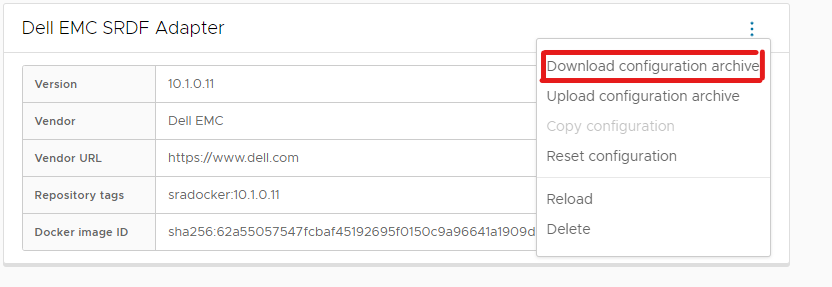
In latest version it can be collected by launching SRM Appliance Management using <SRM_Appliance_FQDN>:5480 > Download configuration archive -
4) The downloaded file has the filename format <buildname>_<buildTAG>.tar.gz.
Steps to follow to edit the configuration archive in Windows: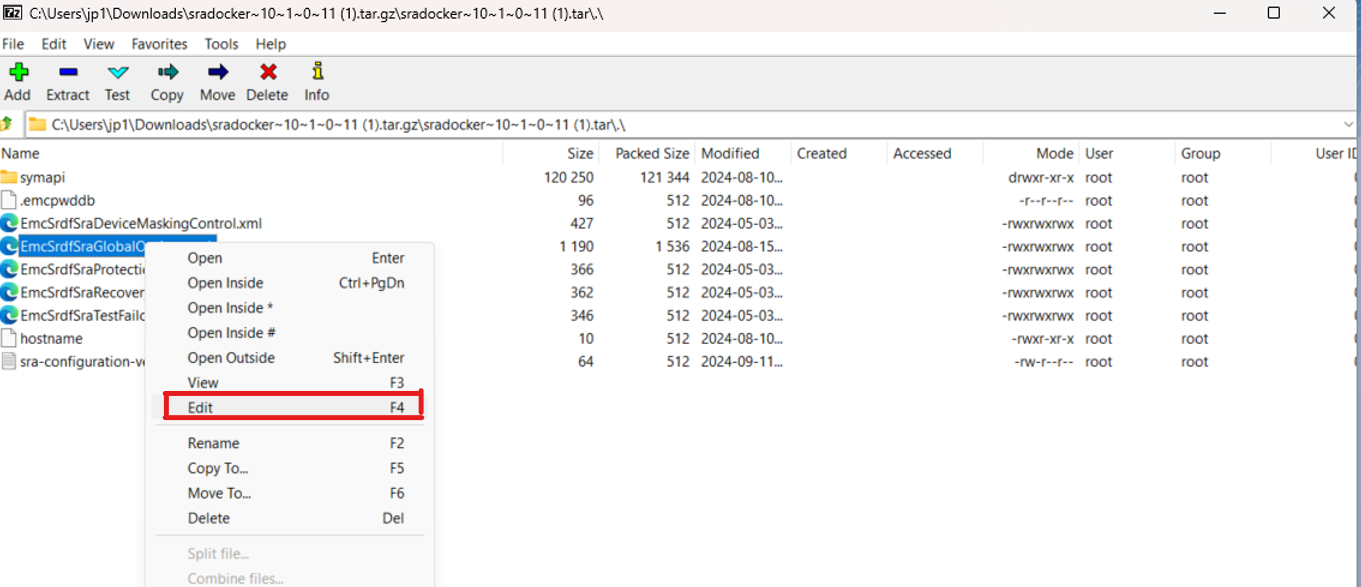
3. Make the changes on the file and save it.
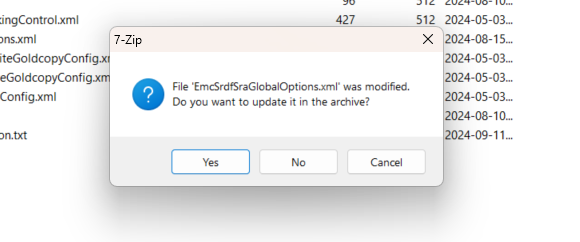
4. Click Yes on the below prompts-
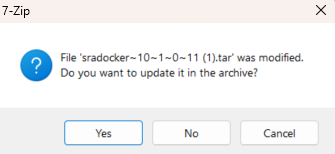
5. Then the sradocker.tar file must be saved.
5. Upload configuration archive-
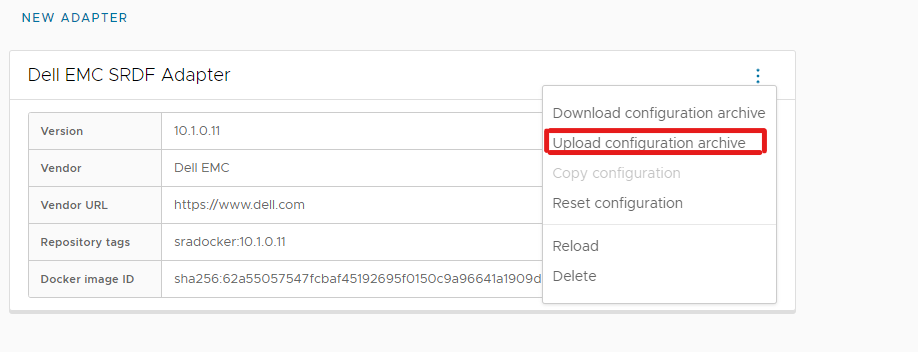
6. Reload-

- EmcSrdfSraGlobalOptions.xml
- EmcSrdfSraTestFailoverConfig.xml
- EmcSrdfSraProtectionSiteGoldCopyConfig.xml
- EmcSrdfSraRecoverySiteGoldCopyConfig.xml
- EmcSrdfSraDeviceMaskingControl.xml
In latest version it can be collected by launching SRM Appliance Management using <SRM_Appliance_FQDN>:5480 > Download configuration archive -
- Log in to the VMware SRM Appliance Management Interface.
- Go to Storage Replication Adapters > Dell EMC SRDF Adapter.
- Select Menu (three dots) > Download Configuration Archive.
4) The downloaded file has the filename format <buildname>_<buildTAG>.tar.gz.
Steps to follow to edit the configuration archive in Windows:
- Right-click the downloaded <buildname>_<buildTAG>.tar.gz. Open the file using 7zip.
- Select the file to be modified and right click to Edit.
3. Make the changes on the file and save it.
4. Click Yes on the below prompts-
5. Then the sradocker.tar file must be saved.
5. Upload configuration archive-
6. Reload-
Affected Products
Storage Replication Adapter (SRA), Solutions EnablerArticle Properties
Article Number: 000228483
Article Type: Solution
Last Modified: 20 يناير 2025
Version: 2
Find answers to your questions from other Dell users
Support Services
Check if your device is covered by Support Services.