Adding Programs and Apps to the Startup Folder in Windows 10
Oversigt: How to add apps to the startup folder in Windows 10 using simple steps and commands. Optimize startup programs for a faster boot and know the use of the shell startup command.
Denne artikel gælder for
Denne artikel gælder ikke for
Denne artikel er ikke knyttet til et bestemt produkt.
Det er ikke alle produktversioner, der er identificeret i denne artikel.
Instruktioner
Note: Microsoft will end support for Windows 10 on October 14, 2025. See our Microsoft Windows 10 End of Support Announcement for more information.
Add apps to startup in Windows 10.
-
You must create a shortcut of the app that you would like to add to start up. Drag and drop the app from the Start Menu to the desktop the shortcut of that app is created on the desktop.
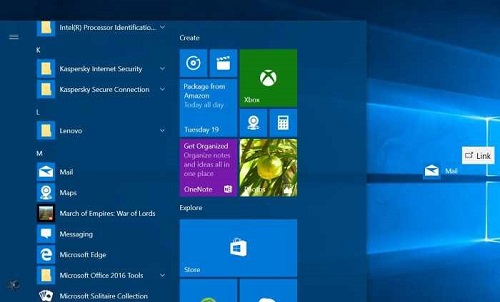
Figure 1: Creating a Desktop shortcut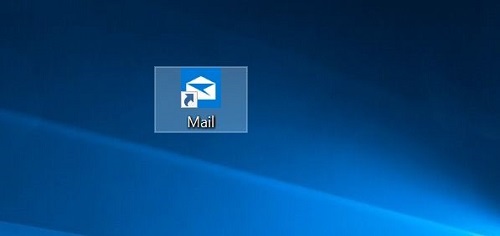
Figure 2: Desktop Shortcut -
Open Run command box by pressing the Windows logo + R keys. In the Run command field, type shell: Startup and then press Enter key to open Startup folder.
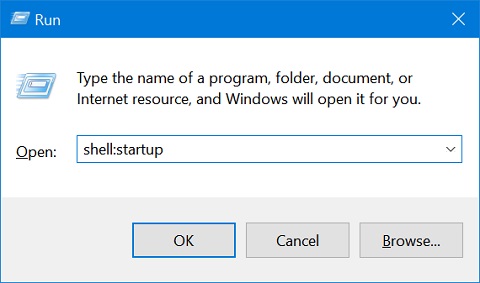
Figure 3: Run Command Box -
Copy and paste the app shortcut from the desktop to this Startup folder and the app is added to startup.
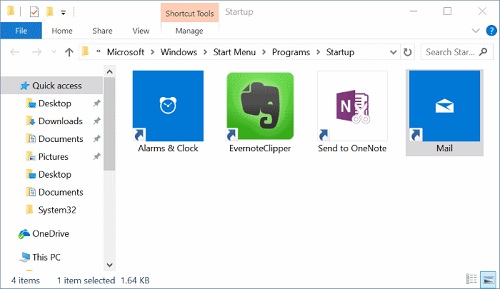
Figure 4: Startup Folder
Berørte produkter
Chromebox, Alienware, Dell All-in-One, Dell Pro Max Micro, Dell Pro Max Slim, Dell Pro Max Tower, Dell Pro Micro, Dell Pro Slim, Dell Pro Tower, Dell Slim, Dell Tower, Inspiron, Legacy Desktop Models, OptiPlex, Vostro, XPS, G Series, Chromebook
, G Series, Alienware, Dell Plus, Dell Pro, Dell Pro Max, Dell Pro Plus, Dell Pro Premium, Inspiron, Latitude, Dell Pro Rugged, Vostro, XPS, Legacy Laptop Models, Latitude Tablets, Surface, XPS Tablets, Mobile Workstations
...
Artikelegenskaber
Artikelnummer: 000124550
Artikeltype: How To
Senest ændret: 10 jul. 2025
Version: 15
Find svar på dine spørgsmål fra andre Dell-brugere
Supportservices
Kontrollér, om din enhed er dækket af supportservices.